Modern iPhone and iPad cameras capture stunning, high-resolution photos. While these images look amazing, they also take up more storage space and can be difficult to share. Large photo files may exceed email attachment limits, upload slowly to websites, or fail to meet the image size requirements of social media platforms and online marketplaces.
If you need to resize images on your iPhone or iPad, there are several ways to do it depending on your goal. You may want to:
• Compress photos to reduce file size while maintaining the original dimensions and image quality.
• Resize photo dimensions by reducing the width and height to create smaller images.
• Crop photos to keep only the important part of an image while reducing its overall size.
• Batch resize multiple photos to save time instead of editing images one by one.
Unfortunately, the built-in Photos app on iPhone and iPad offers only basic editing tools and cannot handle all of these image resizing tasks. Many third-party apps also provide only one or two resizing features, forcing you to install multiple apps to complete different jobs.
Fortunately, ResizeGo combines every essential image resizing tool into one easy-to-use app. Whether you need to compress photos, resize image dimensions, crop pictures, rotate images, or batch process hundreds of photos, ResizeGo lets you do everything in one place.
Why Choose ResizeGo?
ResizeGo is an all-in-one photo resizer for iPhone and iPad that lets you:
• Compress photos without noticeable quality loss
• Resize images to any pixel dimensions
• Crop photos using multiple crop styles
• Rotate images
• Batch resize multiple photos at once
• Preview file size and image dimensions before saving
• Use interactive sliders for precise control over image size and compression
Simply download ResizeGo from the App Store, launch the app, and allow access to your photo library to get started.
1. How to Compress Photos on iPhone Without Losing Quality
Large photos can quickly fill your storage or exceed upload limits. ResizeGo's Lossless Photo Compression feature helps reduce image file size while preserving excellent image quality.
Steps:
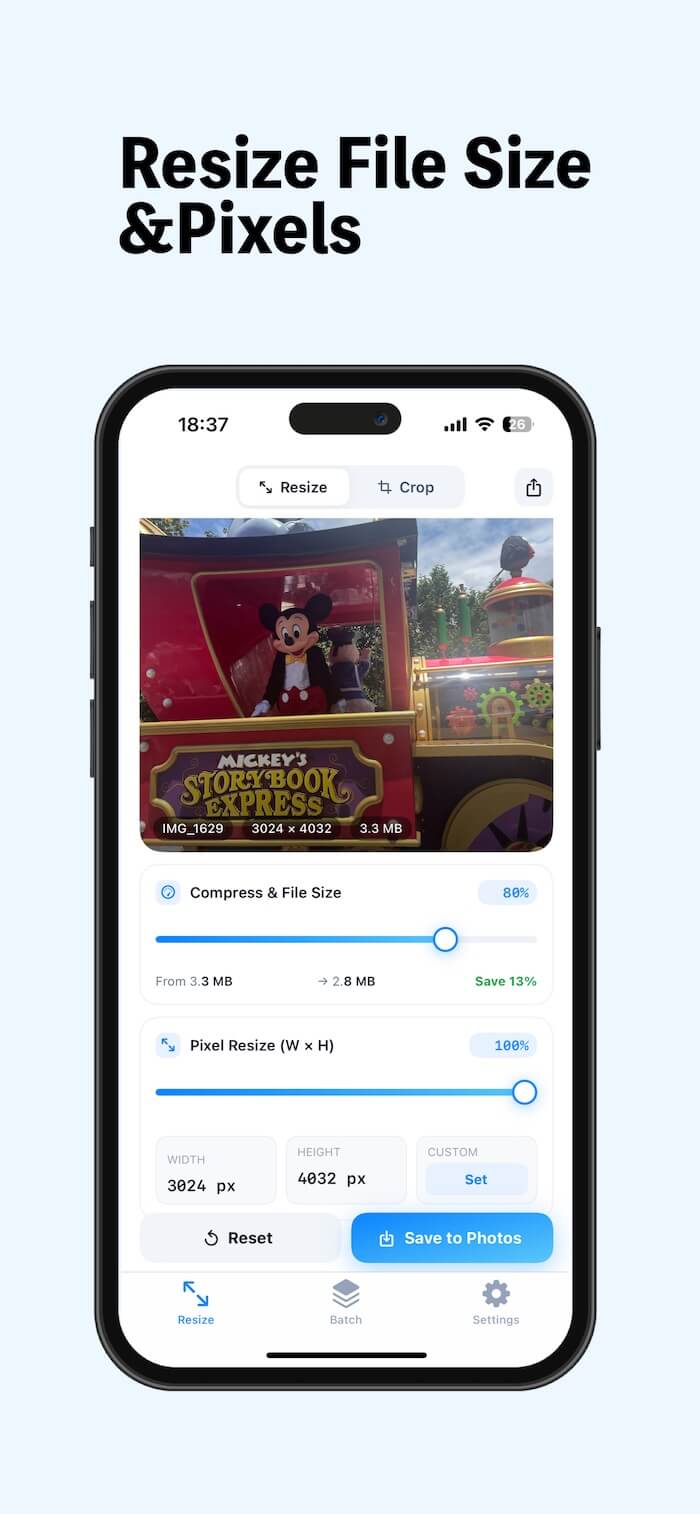
1. Open ResizeGo and import a photo from your photo library. Drag the Compress & File Size slider.
2. As you move the slider, ResizeGo instantly displays the estimated file size so you can see the results in real time. When you're satisfied, tap Save to Photos.
This feature is perfect for reducing photo size before sending images by email, uploading to cloud storage, or sharing online.
2. How to Resize Image Dimensions on iPhone
Sometimes you need to resize the width and height of an image instead of just reducing its file size. ResizeGo lets you resize photos to any dimensions in just a few taps.
Steps:
1. Import a photo into ResizeGo. Drag the Pixel Resize (W × H) slider to proportionally reduce the image width and height.
2. To enter a specific size, tap Custom → Set, then enter the desired width and height in pixels. Tap Save to Photos to save the resized image.
This feature is ideal for preparing images for websites, blogs, online stores, presentations, or social media platforms.
3. How to Crop Photos on iPhone
Cropping lets you remove unwanted areas and focus on the most important part of an image.
Steps:
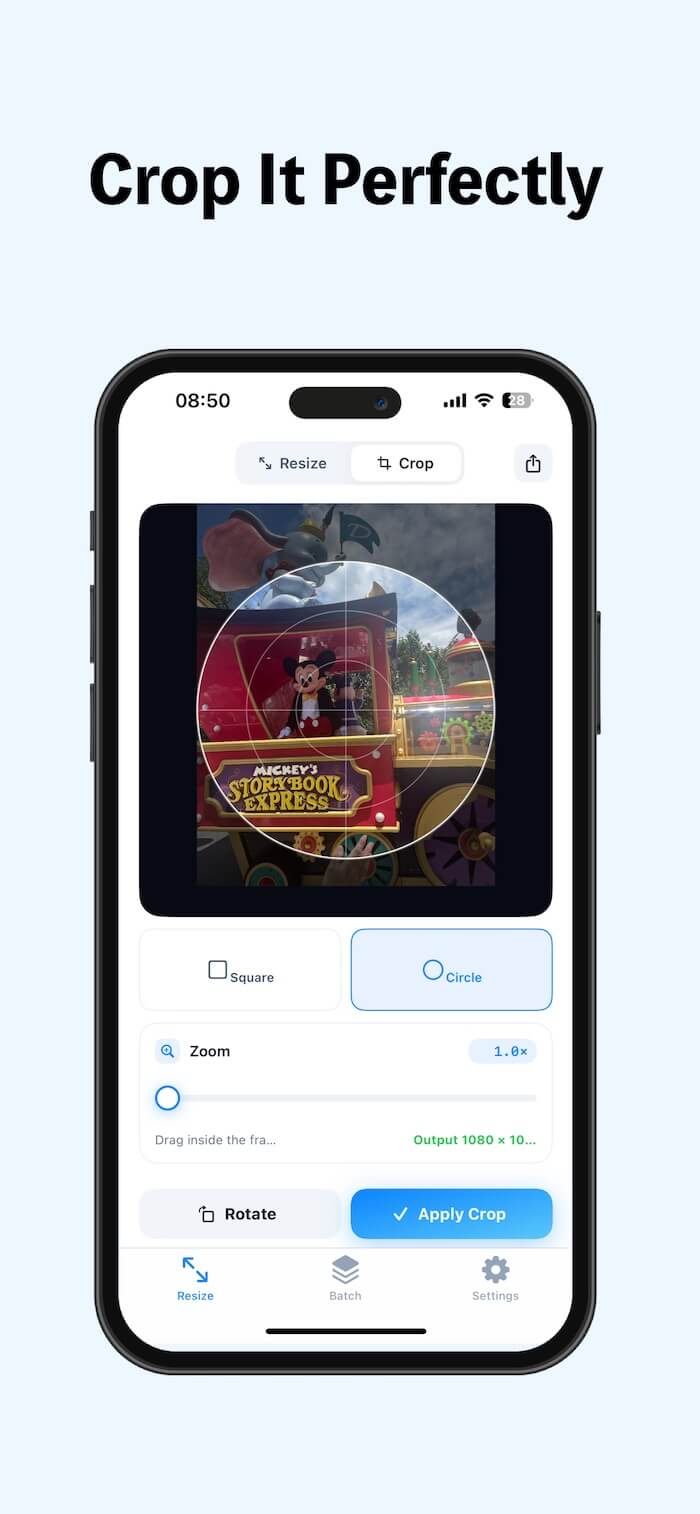
1. Import a photo into ResizeGo. Tap the Crop tab.
2. Choose a crop style, such as Square or Circle. Adjust the crop area until you're happy with the result. Tap Apply Crop, then Save to Photos.
Cropping is especially useful for profile pictures, avatars, social media posts, and product photos.
4. How to Batch Resize Multiple Photos on iPhone
Need to resize dozens or even hundreds of photos? ResizeGo makes batch processing simple.
Steps:
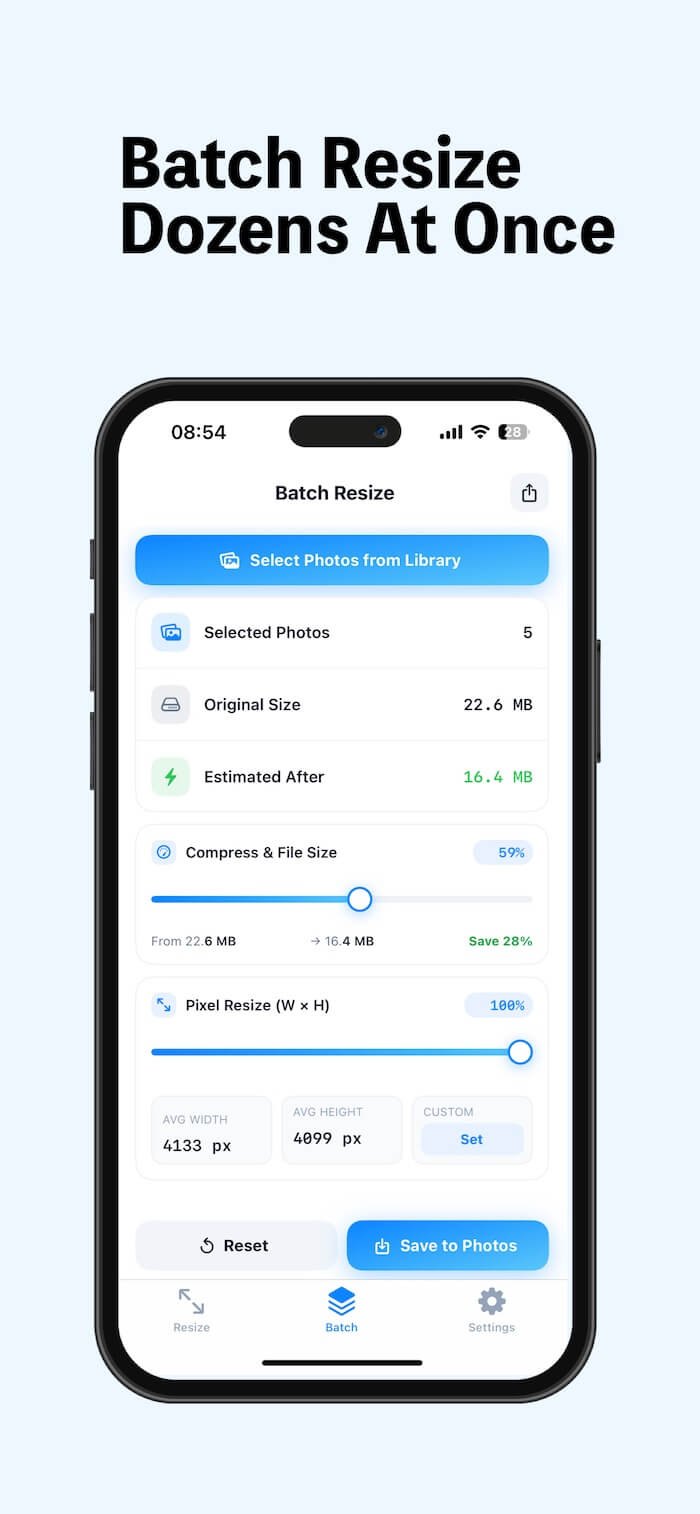
1. Tap the Batch icon at the bottom of the screen. Select Choose Photos from Library.
2. Import multiple photos at once. Adjust either the Compress & File Size slider or the Pixel Resize (W × H) slider.
3. If needed, enter custom image dimensions. Tap Save to Photos to process all selected images.
Batch resizing is perfect for photographers, content creators, online sellers, and anyone managing large photo libraries.
Resize Images for Any Purpose
ResizeGo helps you quickly prepare photos for almost any situation, including:
• Email attachments
• Instagram, Facebook, X, and other social media platforms
• Websites and blogs
• Online marketplaces such as eBay, Etsy, and Shopify
• Cloud storage uploads
• Documents and presentations
• Saving storage space on your iPhone or iPad
Final Thoughts
If you're looking for the easiest way to resize images on iPhone and iPad, ResizeGo provides everything you need in one app. Instead of installing separate apps for image compression, resizing, cropping, and batch processing, ResizeGo combines all these features into a single, intuitive solution.
With real-time previews, interactive sliders, custom pixel dimensions, and batch processing, ResizeGo makes it fast and easy to resize photos for email, websites, social media, online stores, or everyday use while maintaining excellent image quality.
| More Related Articles | ||||
 |
1. How to Edit Video and MP4 Metadata on iPhone? 2. How to Rename Photos on iPhone? |
|||
About Fireebok Studio
Our article content is to provide solutions to solve the technical issue when we are using iPhone, macOS, WhatsApp and more. If you are interested in the content, you can subscribe to us. And We also develop some high quality applications to provide fully integrated solutions to handle more complex problems. They are free trials and you can access download center to download them at any time.
| Popular Articles & Tips You May Like | ||||
 |
 |
 |
||
| Five ways to recover lost iPhone data | How to reduce WhatsApp storage on iPhone | How to Clean up Your iOS and Boost Your Device's Performance | ||