iCloud Drive makes it easy to store and access files across your Apple devices. However, over time, it can accumulate large videos, documents, downloads, and duplicate files that take up valuable iCloud storage. When you receive an “iCloud Storage Full” notification, finding and removing unnecessary files can help you reclaim space.
But how do you find the largest files in iCloud Drive on an iPhone or iPad? Apple's built-in Files app offers basic file management tools, but it doesn't provide a comprehensive storage analysis dashboard or an easy way to identify the largest files across different storage locations.
That's where DriveRadar comes in.
DriveRadar is an iOS storage analyzer designed to help you understand and manage the files stored in your connected cloud drives and external storage devices. It supports iCloud Drive, Google Drive, Dropbox, and connected USB external hard drives. You can view storage usage by file type, identify large files, find duplicates, and determine which files may be worth removing or moving.
In this guide, you'll learn how to find large files in iCloud Drive on your iPhone using the Files app and DriveRadar, along with practical tips for managing your storage more efficiently.
Why Is It Difficult to Find Large Files in iCloud Drive on iPhone?
The Files app is useful for browsing folders, opening documents, and managing individual files. However, finding files that consume the most storage can be time-consuming, especially if you have thousands of files spread across multiple folders. Some common challenges include:
1. Limited storage insights: The Files app doesn't provide a comprehensive dashboard showing how much space each file category occupies in iCloud Drive.
2. Large files hidden in folders: Videos, archived documents, and other large files may be buried deep inside folders.
3. No comprehensive duplicate analysis: Identifying duplicate files manually can be difficult when you have many files with similar names.
4. Multiple storage locations: If you use iCloud Drive, Google Drive, Dropbox, and external drives, checking each location separately can take considerable time.
4. Time-consuming cleanup: Without a clear overview of your files, you may spend time reviewing small files while overlooking the largest ones.
If you want to find large files in iCloud Drive on your iPhone more efficiently, a dedicated storage analysis tool can make the process easier.
Method 1: Find Large Files in iCloud Drive Using the Files App
The built-in Files app is a good starting point if you want to inspect your iCloud Drive files without installing another app. Follow these steps:
1. Open the Files app on your iPhone or iPad. Tap Browse at the bottom of the screen.
2. Select iCloud Drive to view your stored files and folders. Open a folder you want to inspect. Tap the More button (three dots) and look for the List view and Size sorting options.
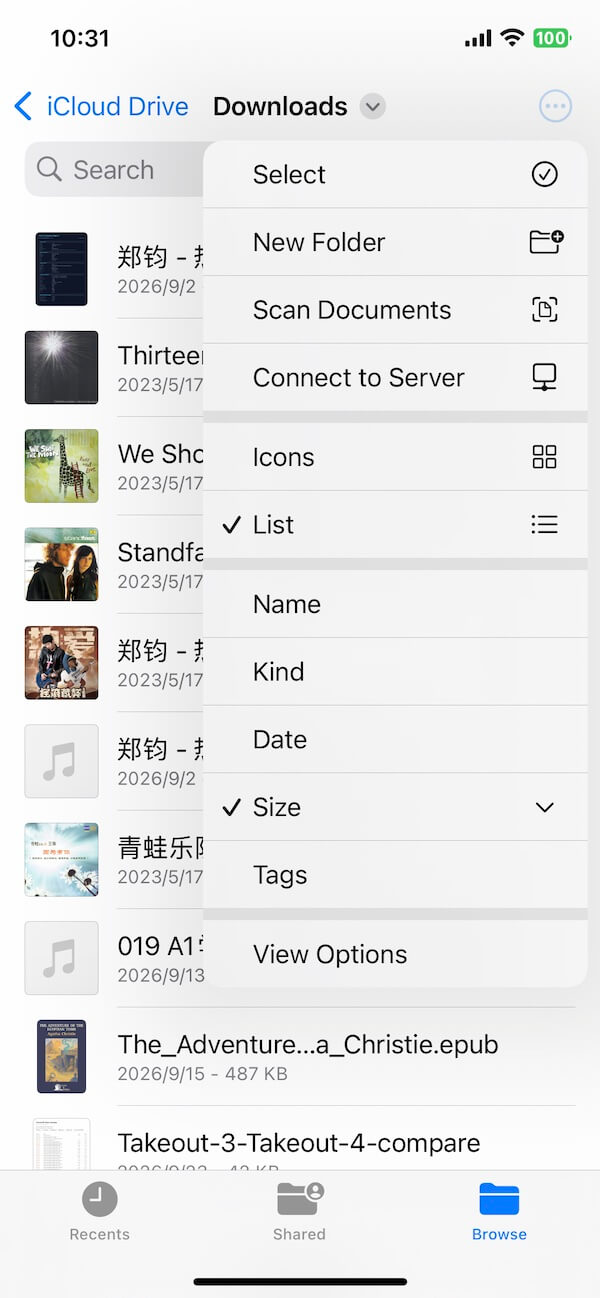
If sorting by size is available in your current view, select it to help identify larger files. Otherwise, open individual files or use the available file information options to check their sizes.
3. Review the files and delete any that you no longer need.
Repeat these steps for other folders that may contain large files, such as video folders, downloads, and document archives.
Limitations of the Files App
Although this method works for basic file management, it has several limitations when you're trying to analyze storage usage:
• *You may need to inspect multiple folders individually.
• *You don't get a complete breakdown of storage usage by file type.
• *Comparing files across different folders is inconvenient.
• *Finding duplicate files requires additional manual work.
If your iCloud Drive contains a large number of files, manually checking each folder may not be the most efficient approach.
Method 2: Use DriveRadar to Find Large Files in iCloud Drive
DriveRadar makes it easier to identify large files and understand your storage usage on iPhone and iPad. Instead of relying entirely on manual folder-by-folder checks, you can use its storage analysis tools to review your files and identify potential cleanup opportunities.
Step 1: Download and Open DriveRadar: Download DriveRadar from the App Store and open the app on your iPhone or iPad.
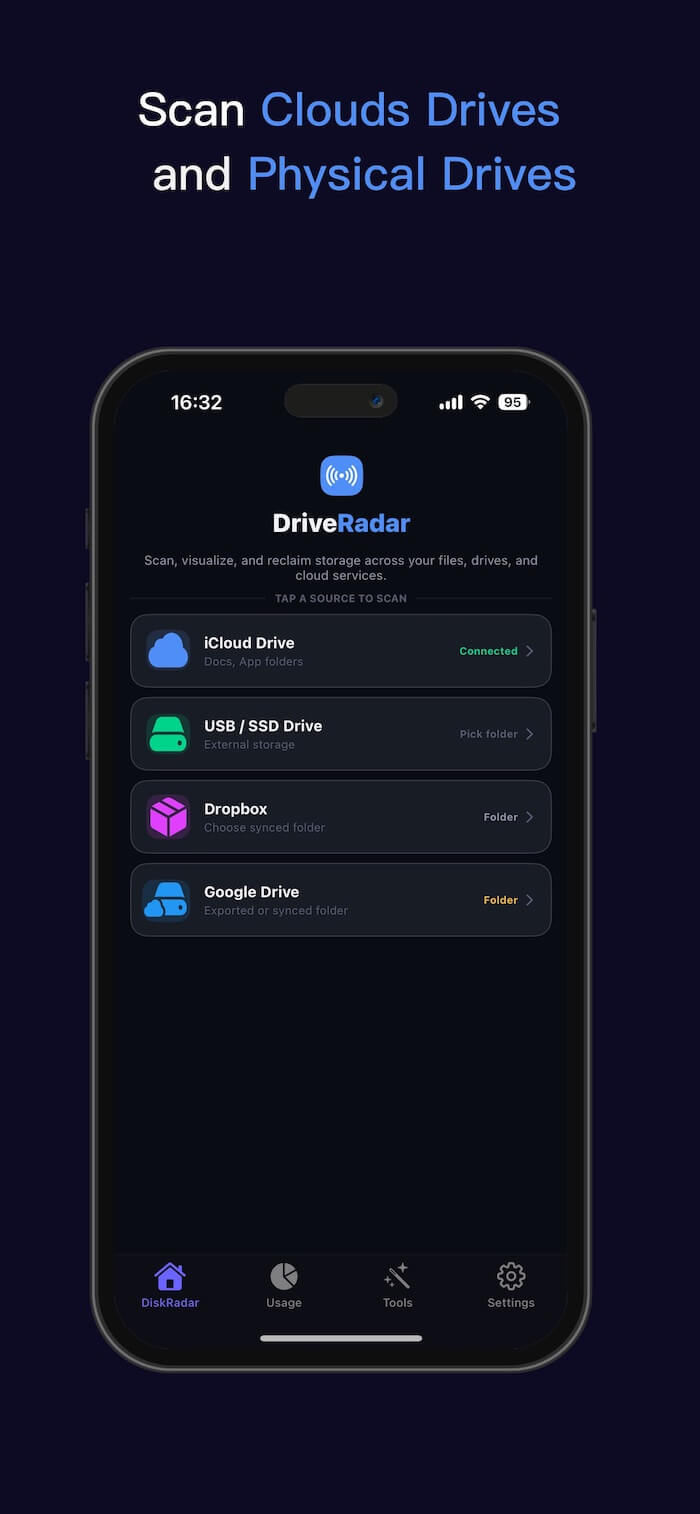
Step 2: Select iCloud Drive: Choose iCloud Drive from the app's dashboard to access the supported storage analysis features. Follow the app's on-screen instructions to grant the necessary access to your files.
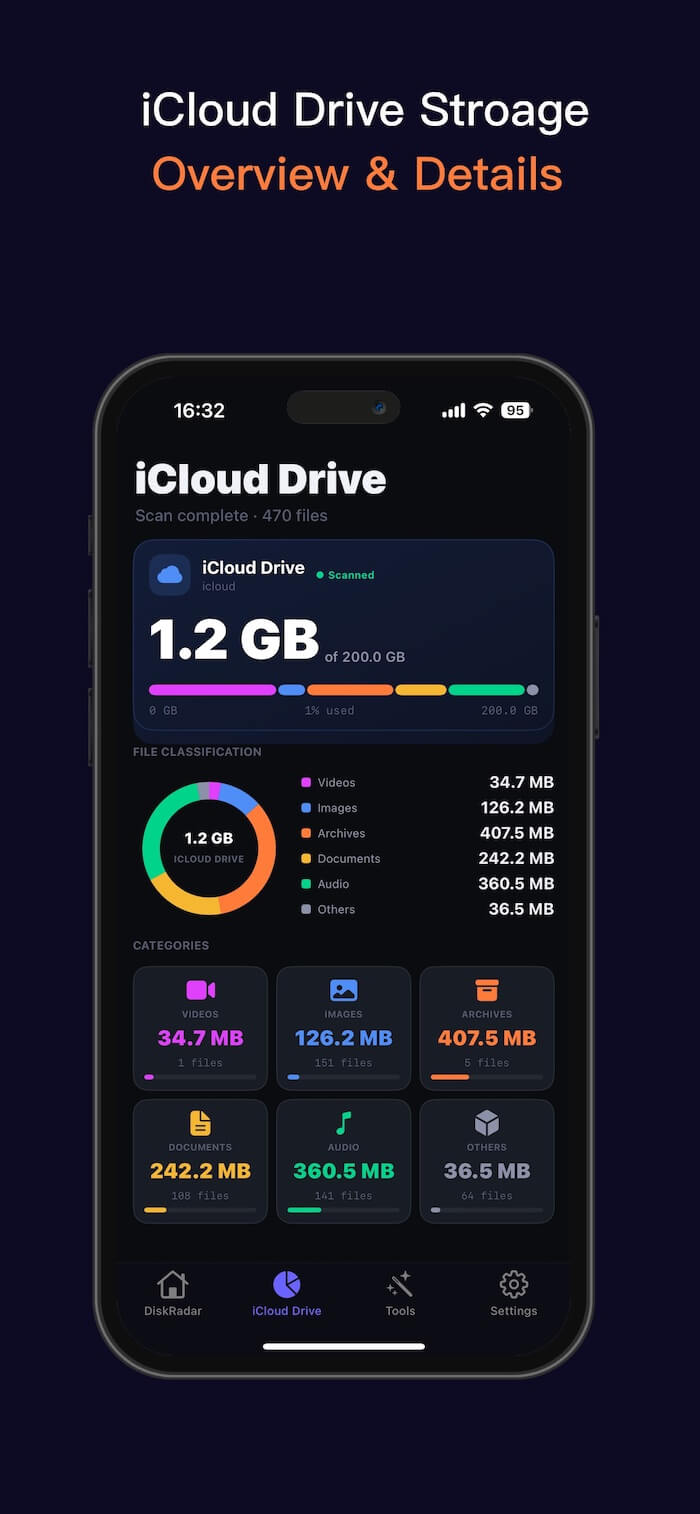
Step 3: Analyze Your Storage Usage: Start the available scan or analysis process. DriveRadar organizes storage information to help you understand how much space different file categories occupy, including photos, videos, documents, audio, and other files. This overview helps you identify which categories deserve attention first.
Step 4: Find the Largest Files: Open Tools > Largest Files to review the largest files identified by DriveRadar. Check the file sizes and locations to determine which items are consuming the most space. You can then decide whether to delete unnecessary files, move them elsewhere, or keep them.
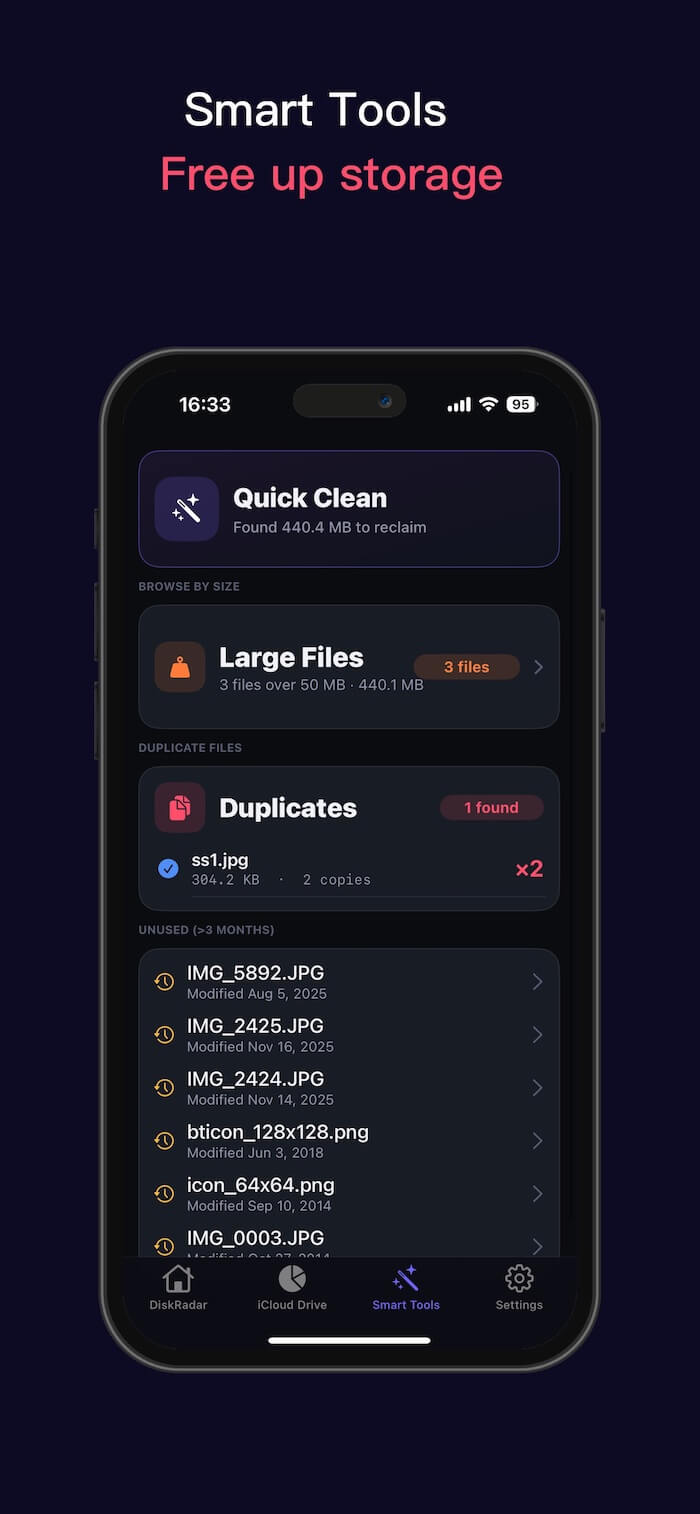
Step 5: Find and Review Duplicate Files: Use DriveRadar's duplicate finder to identify repeated files that may be taking up unnecessary storage.
Review the results carefully before removing anything, particularly if you have copies stored in different folders for a reason. With DriveRadar, you can approach iCloud Drive cleanup with a clearer understanding of your files instead of guessing which folders contain the biggest items.
Conclusion
Finding large files in iCloud Drive on your iPhone doesn't have to involve opening every folder and checking files one by one. The Files app is useful for basic file management, but it offers limited insight into overall storage usage and duplicate files.
DriveRadar provides a more convenient way to analyze supported cloud drives and external storage, review storage usage by file type, find large files, and identify duplicates. These tools help you understand where your storage is going and make better decisions about which files to keep, move, or delete.
If you're running out of iCloud storage or simply want a clearer overview of your files, try DriveRadar on your iPhone or iPad and make storage management easier.
| More Related Articles | ||||
 |
1. How to merge two photo libraries on Mac? 2. How to find and remove duplicate photos from Photos? |
|||
About Fireebok Studio
Our article content is to provide solutions to solve the technical issue when we are using iPhone, macOS, WhatsApp and more. If you are interested in the content, you can subscribe to us. And We also develop some high quality applications to provide fully integrated solutions to handle more complex problems. They are free trials and you can access download center to download them at any time.
| Popular Articles & Tips You May Like | ||||
 |
 |
 |
||
| Five ways to recover lost iPhone data | How to reduce WhatsApp storage on iPhone | How to Clean up Your iOS and Boost Your Device's Performance | ||