If your iPhone 18 Pro Max keeps losing cellular service on AT&T, you’re not alone. Some users may experience problems such as no service, dropped calls, failed phone calls, FaceTime calling issues, or unreliable cellular data.
These problems can be caused by an AT&T network outage, temporary software glitches, carrier settings, eSIM issues, or problems with your iPhone’s cellular configuration. Fortunately, there are several troubleshooting steps you can try before contacting Apple or AT&T Support.
Here’s how to fix iPhone 18 Pro Max no service, dropped calls, and AT&T cellular connectivity problems.
1. Turn Airplane Mode On and Off
Toggling Airplane Mode can force your iPhone to disconnect from the cellular network and reconnect to nearby cell towers. This can resolve temporary network connection problems.
1. Open Control Center. Tap the Airplane Mode icon to turn it on. Wait about 15–30 seconds.
2. Turn Airplane Mode off. Wait for your iPhone to reconnect to the AT&T network.
Afterward, check whether you can make calls and use cellular data normally.
2. Restart Your iPhone 18 Pro Max
A simple restart can clear temporary software glitches that may interfere with cellular connectivity. To restart your iPhone:
Open Settings. Tap General. Scroll down and tap Shut Down. Slide to power off your iPhone. Wait a few seconds, turn your iPhone back on by pressing and holding the side button.
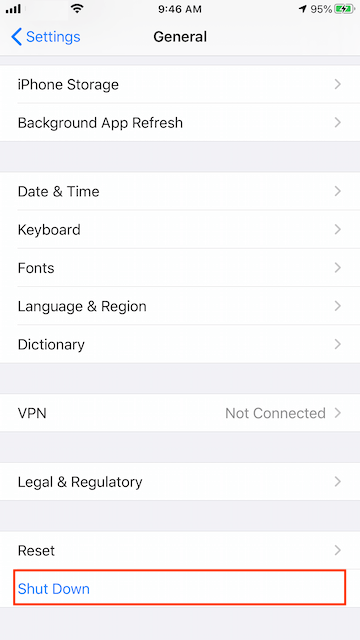
Once the iPhone restarts, check whether cellular service, phone calls, FaceTime, and mobile data are working normally.
3. Make Sure Your AT&T Cellular Line Is Enabled
If you use an AT&T eSIM, Dual SIM, or multiple cellular lines, make sure your AT&T line has not been accidentally disabled. Go to Settings > Cellular and confirm that your AT&T line is turned on.
You should also check: Default Voice Line, Cellular Data, Cellular Data Switching
If the wrong line is selected for calls or cellular data, your iPhone 18 Pro Max may appear to have a connectivity problem even when AT&T service is available.
4. Check for a Carrier Settings Update
Carrier settings updates can improve compatibility between your iPhone and AT&T's network. They may also address certain cellular connectivity problems. To check for an update:
1. Open Settings. Go to General > About.
2. Wait a few seconds. If a carrier settings update appears, tap Update. Restart your iPhone after the update.
If your iPhone has been experiencing AT&T connectivity problems, installing the latest carrier settings is a worthwhile step.
5. Reset Network Settings
If the previous solutions don't work, resetting your network settings may resolve persistent AT&T cellular problems.
Go to: Settings > General > Transfer or Reset iPhone > Reset > Reset Network Settings. Enter your passcode if prompted and confirm the reset.
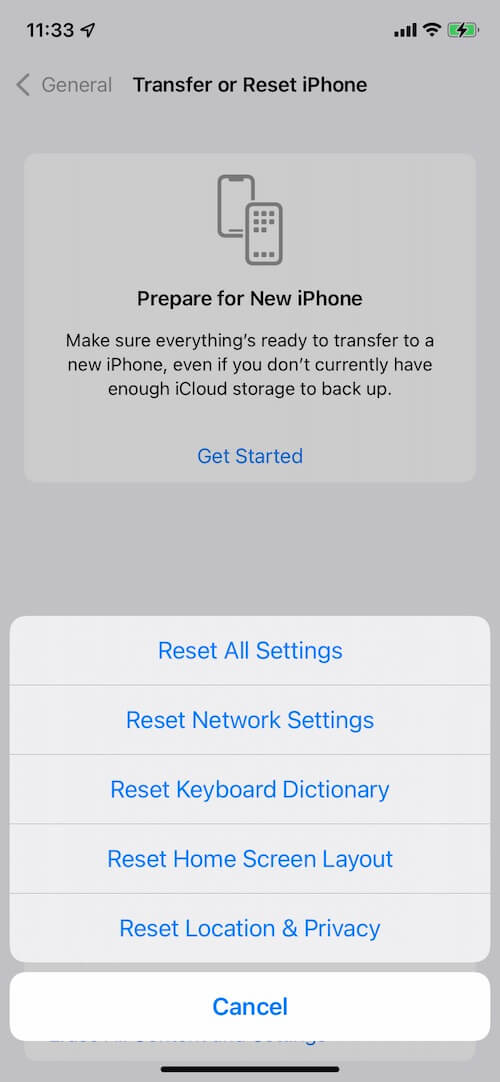
This process removes saved network-related information, including: Saved Wi-Fi passwords, Wi-Fi network settings, Bluetooth connections, Certain cellular and VPN settings.
It does not delete your photos, apps, messages, or other personal data. After the reset, you'll need to reconnect to your Wi-Fi networks and pair Bluetooth devices again.
6. Check Your eSIM
SIM-related problems can also cause an iPhone to show No Service or repeatedly lose cellular connectivity.
If you use an AT&T eSIM: Avoid deleting the eSIM unless AT&T specifically tells you to do so. If an eSIM transfer or activation failed, the line may need to be reprovisioned or reactivated by AT&T. Contact AT&T Support if you suspect that your eSIM is not properly activated.
7. Switch From 5G to LTE
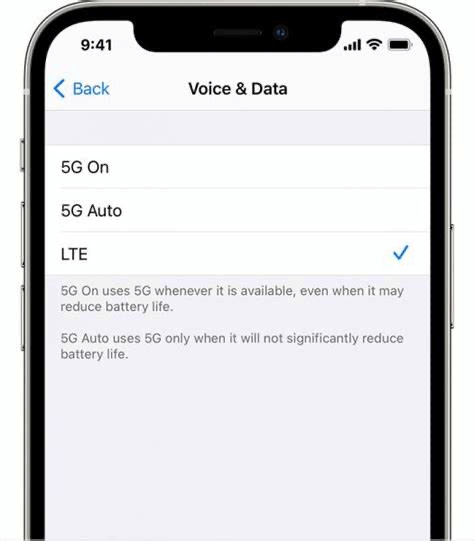
If your iPhone repeatedly loses service or drops calls while connected to 5G, try switching to LTE temporarily.
In areas with inconsistent 5G coverage, LTE may provide a more stable connection. Go to: Settings > Cellular > Cellular Data Options > Voice & Data. Then select LTE.
Use your iPhone normally for a while and see whether the connection becomes more reliable. If LTE works better, you can continue using it until 5G coverage in your area improves.
8. Update iOS
Apple regularly releases iOS updates that can include bug fixes, modem improvements, and other changes that may affect cellular connectivity. To check for an update, go to: Settings > General > Software Update
Install any available iOS update and restart your iPhone afterward. Keeping your iPhone 18 Pro Max updated can help prevent software-related cellular problems and ensure that you have the latest network-related fixes.

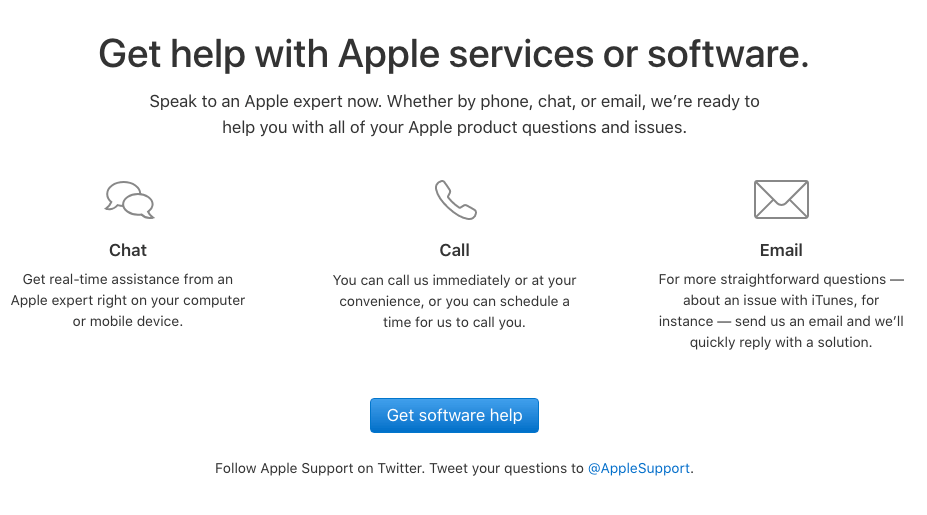
9. Contact AT&T or Apple Support
If your iPhone 18 Pro Max continues to lose cellular service on AT&T after trying all of the steps above, it's time to contact support.
Start with AT&T and ask them to check: Your account provisioning. eSIM activation. Your cellular line. Local tower or network status. Network configuration associated with your account
If AT&T confirms that your account and network are working correctly, contact Apple Support.
Apple may be able to run hardware diagnostics to determine whether there is a problem with the iPhone's cellular modem or other hardware. If a hardware fault is confirmed, your iPhone may require service or replacement.
Final Thoughts
If your iPhone 18 Pro Max is losing cellular service on AT&T, don't assume that the phone is defective right away. Temporary network problems, incorrect cellular settings, carrier configuration issues, eSIM activation problems, and software glitches can all cause No Service, dropped calls, and unreliable cellular data.
Start by checking for an AT&T outage, then try toggling Airplane Mode, restarting your iPhone, checking your cellular line, updating carrier settings, and resetting network settings. If the problem continues, try LTE and Wi-Fi Calling before contacting AT&T or Apple Support.
If AT&T confirms that your account and network are working properly, Apple Support can help determine whether your iPhone 18 Pro Max has a software or hardware problem
| More Related Articles | ||||
 |
1. How to Edit Video and MP4 Metadata on iPhone and iPad? 2. How to Rename Photos on iPhone Without a Computer? |
|||
About Fireebok Studio
Our article content is to provide solutions to solve the technical issue when we are using iPhone, macOS, WhatsApp and more. If you are interested in the content, you can subscribe to us. And We also develop some high quality applications to provide fully integrated solutions to handle more complex problems. They are free trials and you can access download center to download them at any time.
| Popular Articles & Tips You May Like | ||||
 |
 |
 |
||
| Five ways to recover lost iPhone data | How to reduce WhatsApp storage on iPhone | How to Clean up Your iOS and Boost Your Device's Performance | ||