By default, the iPhone Camera app saves photos with generic filenames like IMG_1025. While these names may seem harmless at first, they quickly become a problem when your photo library grows into thousands of pictures. Your photos are more than digital files — they capture vacations, family moments, work projects, receipts, and important memories. Unfortunately, a chaotic collection of filenames like IMG_4821.jpg makes photo management difficult and frustrating.
If you’ve ever tried searching for a specific image by filename on your iPhone and failed, you already understand the problem. While renaming photos on a Mac or PC is easy, renaming photos directly on an iPhone is far less convenient. In this guide, you’ll learn how to rename photos on iPhone without using a computer.

Why Default Photo Names Like “IMG_1025” Hurt Photo Organization
Using default filenames creates several major problems for iPhone users:
1. Poor Searchability
You can’t easily search your Photos library or iCloud Photos for terms like “San Diego Trip” or “Coffee Receipt” if the image is still named IMG_1025.jpg.
2. Duplicate Filename Conflicts
When transferring photos between iPhone, Mac, Windows PC, USB drives, or cloud storage, duplicate “IMG_” filenames can overwrite existing files or create confusing duplicates.
3. Missing Context
Months later, filenames like IMG_5521 provide no clue about the content of the photo, where it was taken, or why it matters.
4. Difficult File Management
Generic filenames make it harder to organize project photos, travel albums, screenshots, scanned documents, or client images across devices and cloud services.
Photos Renamer: The Best Photo Renaming Tool for iPhone and iPad
Photos Renamer is designed specifically to solve the “meaningless filename” problem on iPhone and iPad. The app allows you to batch rename photos using custom text, auto-numbering, and photo metadata tags. Whether you need to rename a few pictures or thousands of images, the app simplifies the entire workflow.
Key Features of Photos Renamer
• Custom Filename Creation: Rename photos instantly with meaningful names such as: Europe_Trip_2026, Client_Meeting, Family_BBQ, Expense_Receipt_May. This makes your photo library far easier to search and manage.
• Smart Metadata Tag Support: The app supports dynamic photo metadata tags, allowing filenames to automatically include: EXIF date and time, Camera model, Photo title, Caption, Keywords, Image dimensions. Example filename: Invoice_20260508_1530_iPhone17.jpg. This ensures every filename is unique, organized, and chronologically sorted.
• Batch Rename Thousands of Photos: Rename large groups of photos at once instead of editing files one by one manually.
• Direct-to-Library Saving: Renamed photos are saved directly into your photo library without extra export steps.
• 100% Privacy Protection: All renaming happens locally on your device. Your photos never leave your iPhone or iPad, ensuring maximum privacy and security.
How to Rename Photos on iPhone Without a Computer
Follow these simple steps to rename photos directly on your iPhone or iPad using Photos Renamer.
Step 1: Download Photos Renamer. Install Photos Renamer on your iPhone or iPad from the App Store.
Step 2: Select the Photos You Want to Rename. Open Photos Renamer and allow access to your photo library.
Tap Select at the top of the screen and choose the photos you want to rename. You can also use the built-in Filter tool to quickly locate photos by:Date, Album, Media type, Favorites, Screenshot category
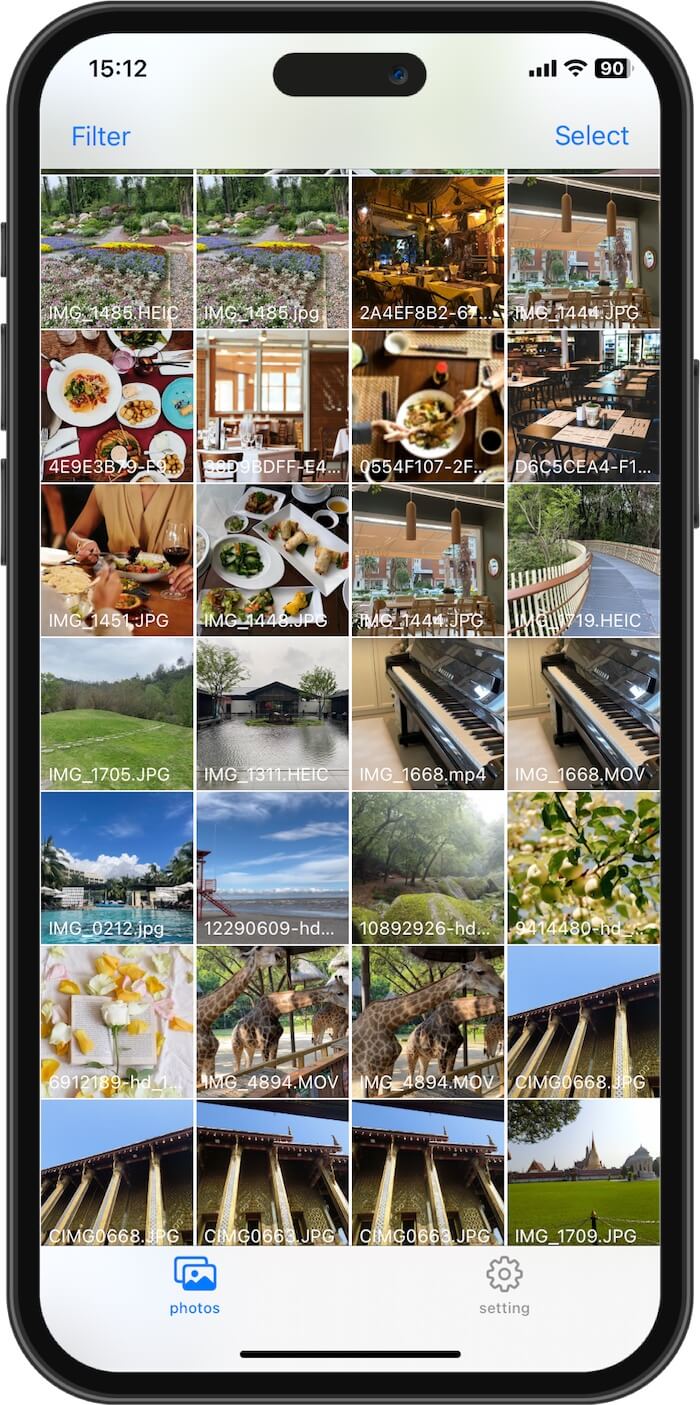
Step 3: Choose a Renaming Method. Photos Renamer provides two powerful renaming options.
Option A: Custom Text + Auto Numbering. Create organized filename sequences such as: San_Diego_Trip_001.jpg, San_Diego_Trip_002.jpg. This is ideal for:Travel photos, Event photography, Business projects, Product images, School assignments
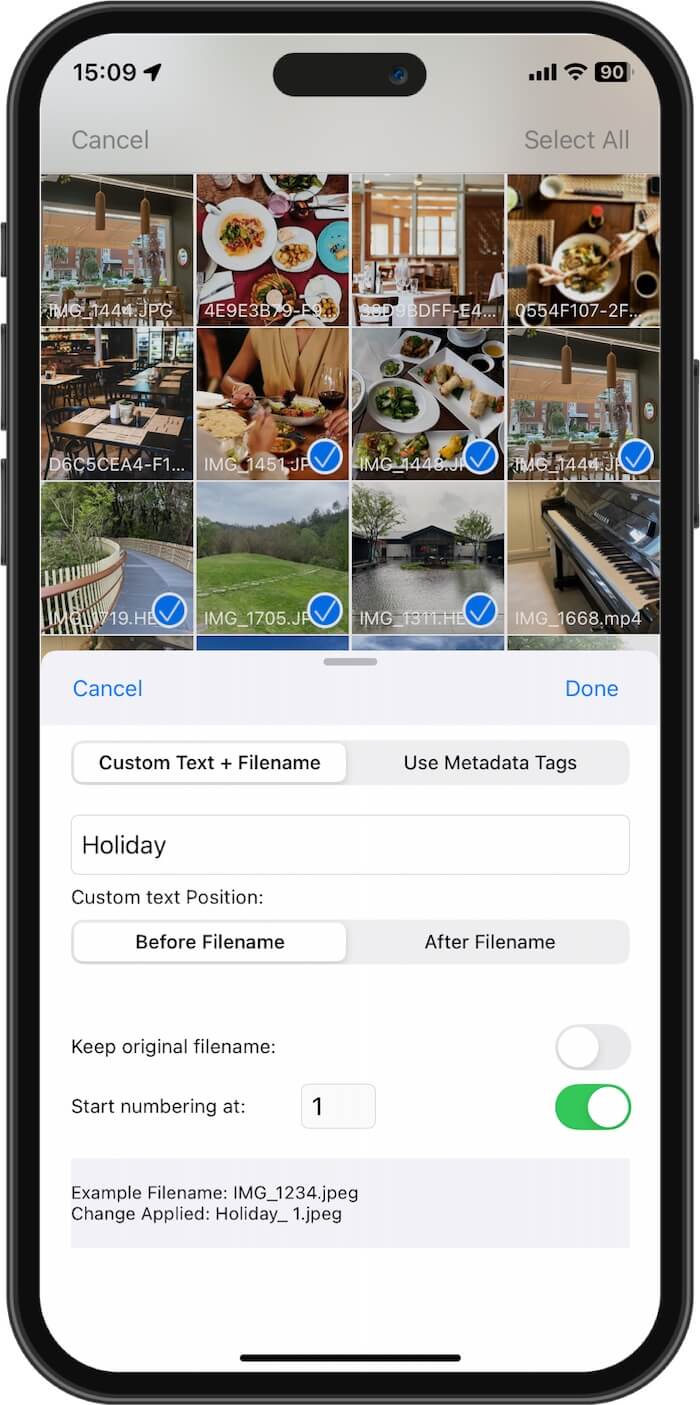
Option B: Rename Using Photo Metadata Tags. Use the Insert Photo Metadata Tag feature to automatically generate filenames using real image information.
Supported metadata includes:Caption, Title, Creation date, Camera model, Keywords, Dimensions. Example: 2026-03-15_iPhone17_Travel_Caption.jpg. This method creates highly searchable and professional filenames automatically.
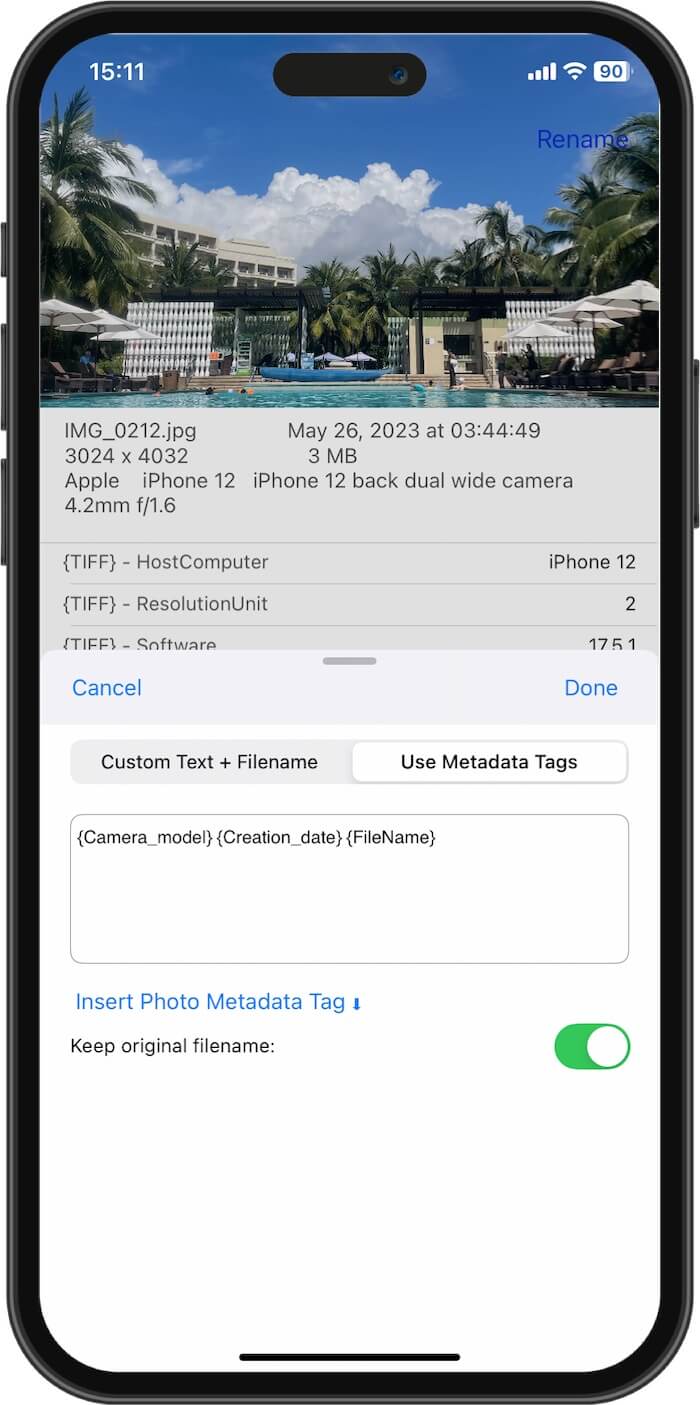
Step 4: Tap Done. Once you finish configuring the filename format, tap Done. The app instantly batch processes the selected photos and applies the new filenames.
Benefits of Renaming Photos on iPhone
Renaming your photos provides several long-term advantages:
• Easier photo searching
• Better organization across devices
• Faster workflow management
• Cleaner backups and exports
• Improved collaboration for work projects
• Reduced duplicate file confusion
• Better compatibility with cloud storage services
Whether you are organizing travel photos, managing business images, archiving receipts, or sorting screenshots, meaningful filenames save time and frustration.
Final Thoughts
Stop letting your memories disappear into a digital junk drawer filled with random filenames like IMG_1234.jpg. Renaming photos directly on your iPhone makes your library easier to search, organize, and manage across all your devices.
Whether you’re a traveler organizing vacation photos, a student managing documents, a content creator sorting media files, or a professional handling project images, Photos Renamer is an essential iPhone utility for keeping your photo library clean and searchable in 2026.
| More Related Articles | ||||
 |
1. How to View and Remove Video Metadata on iPhone? 2. How to Fix Photos Showing the Incorrect Date on iPhone? |
|||
About Fireebok Studio
Our article content is to provide solutions to solve the technical issue when we are using iPhone, macOS, WhatsApp and more. If you are interested in the content, you can subscribe to us. And We also develop some high quality applications to provide fully integrated solutions to handle more complex problems. They are free trials and you can access download center to download them at any time.
| Popular Articles & Tips You May Like | ||||
 |
 |
 |
||
| Five ways to recover lost iPhone data | How to reduce WhatsApp storage on iPhone | How to Clean up Your iOS and Boost Your Device's Performance | ||