If your iPhone photos have filenames like IMG_4821.HEIC or IMG_4822.JPG, it can be difficult to identify specific pictures when browsing files, transferring photos, or organizing backups. Renaming photos with date and time makes filenames more descriptive and helps you sort images chronologically.
With Photos Renamer, you can rename multiple iPhone photos using their date and time information, add timestamps to existing filenames, or create custom filenames using photo metadata tags. Whether you want to organize travel photos, manage work images, or prepare photos for backup, Photos Renamer makes it easier to create consistent filenames directly on your iPhone.
In this guide, you'll learn how to rename photos with date and time on iPhone, choose the right date source, customize filename formats, and use metadata tags to organize your pictures more effectively.
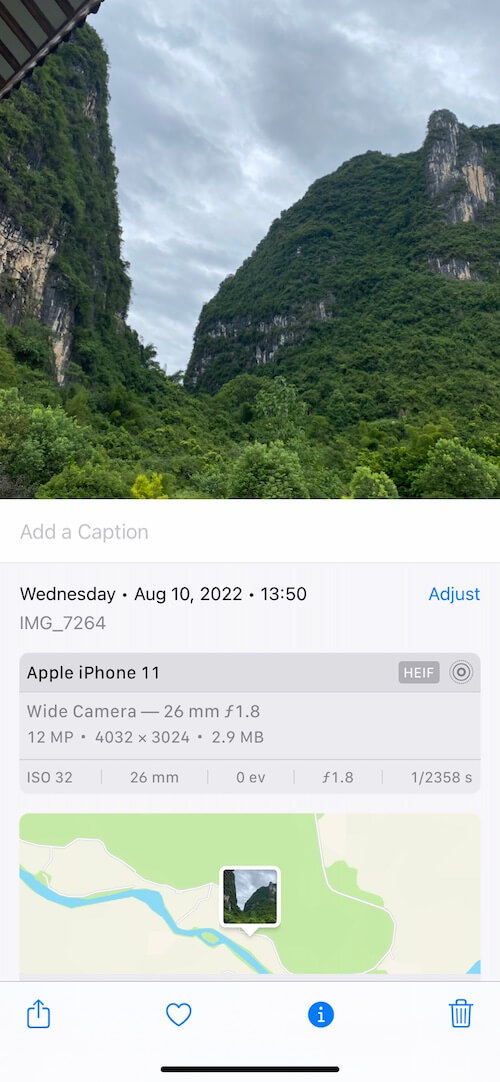
How Does Photos Renamer Rename iPhone Photos?
Photos Renamer provides three main filename customization categories:
1. Custom Text + Filename: Add custom text to existing filenames or customize names using supported text operations.
2. Date & Time: Replace the original filename with a date and time, or add the date and time to the beginning or end of an existing filename.
3. Use Metadata Tags: Insert available photo metadata, such as creation date, camera model, and caption, into filenames.
These options let you create filenames that are easier to recognize, search, sort, and manage.
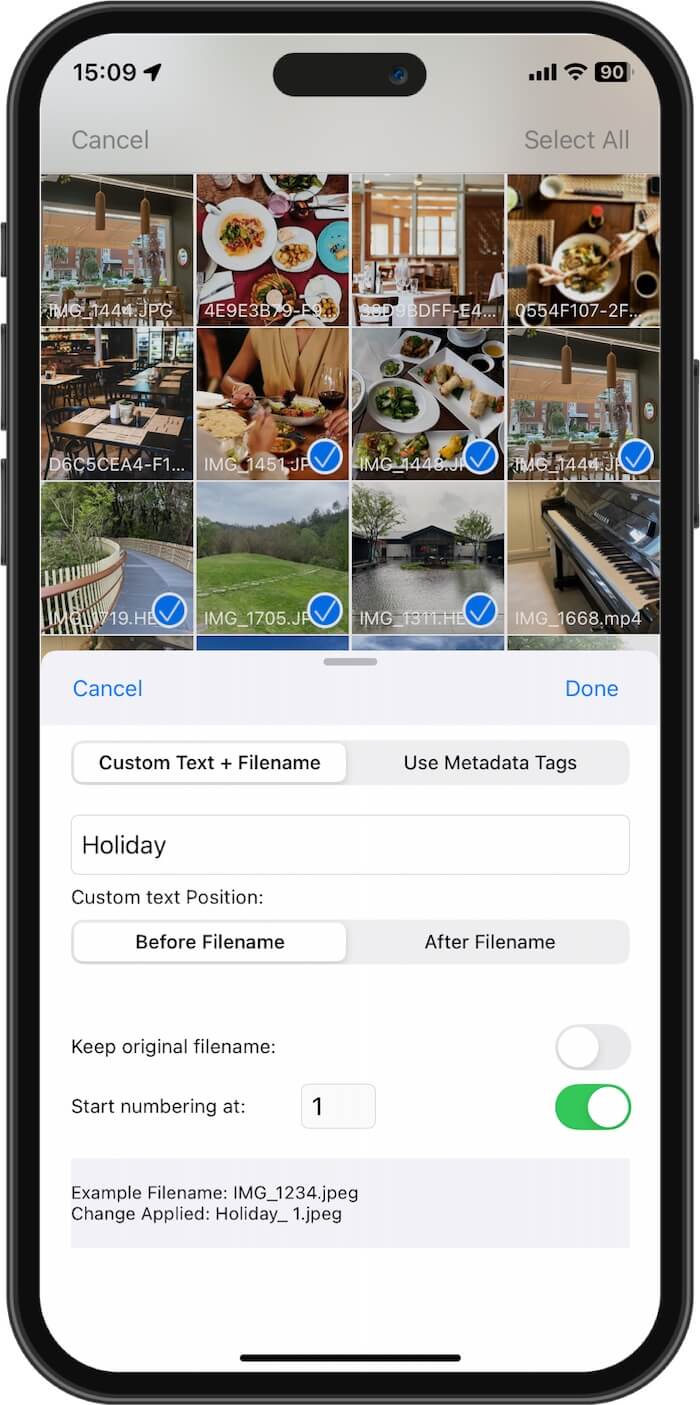
Method 1: Rename Photos with Date and Time on iPhone
The Date & Time feature is ideal when you want your photo filenames to reflect when an image was created or taken. You can use the date and time as the entire filename or combine them with the original filename.
Step 1: Open Photos Renamer and Select Photos
Install and open Photos Renamer on your iPhone and select the photos you want to rename.
If you have multiple photos to organize, select them together to apply a consistent naming format, where supported.
Step 2: Choose the Date & Time Naming Category
Select Date & Time as the naming category. Photos Renamer provides three ways to apply date and time information to your filenames:
• Use Date & Time as filename
• Add date/time to filename beginning
• Add date/time to filename end
Choose the option that best fits your photo organization workflow.
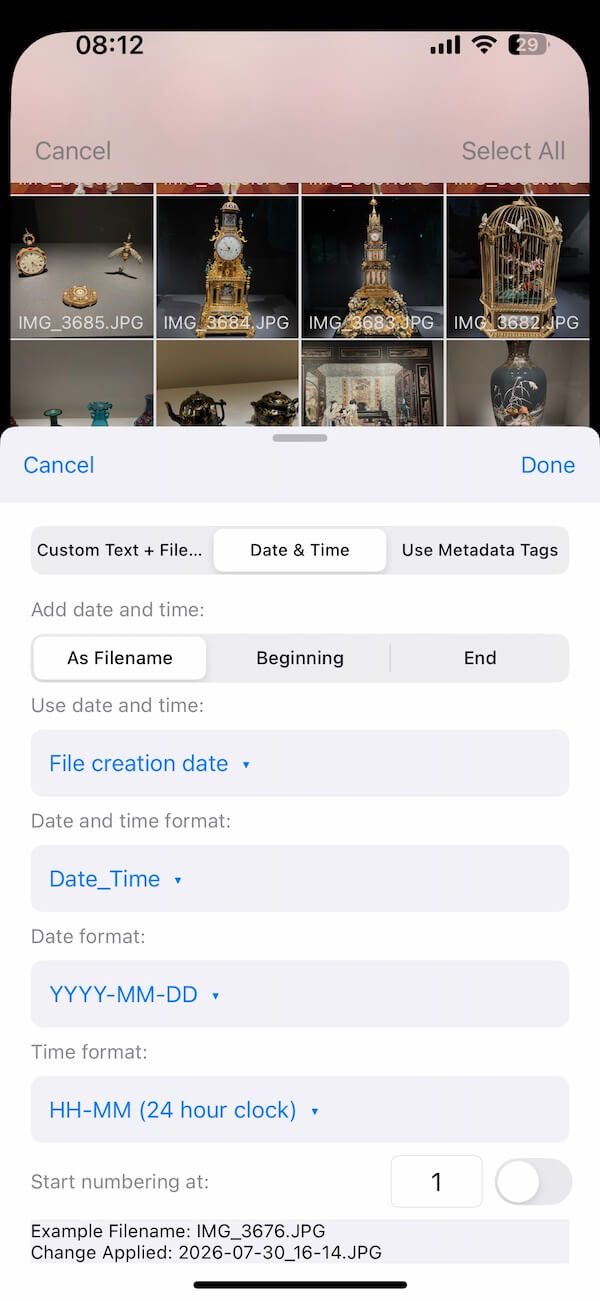
Step 3: Choose How to Use Date and Time
Option 1: Use Date & Time as Filename. Replace the original filename with a date and time value.
Example: Original: IMG_4821.HEIC. New filename: 2026-10-16_14-30-00.HEIC
This option is useful when you want filenames to follow a consistent chronological naming pattern.
Option 2: Add Date/Time to Filename Beginning. Place the date and time before the original filename.
Example: Original: IMG_4821.HEIC. New filename: 2026-10-16_14-30-00_IMG_4821.HEIC
This approach preserves the original filename while making the date immediately visible.
Option 3: Add Date/Time to Filename End. Append the date and time after the original filename.
Example: Original: IMG_4821.HEIC. New filename: IMG_4821_2026-10-16_14-30-00.HEIC
This is a good choice if you want to retain the original camera filename and add a timestamp for easier identification.
Note: The examples illustrate possible naming patterns. The exact output depends on the date-time format you select and how the app handles file extensions.
Step 4: Select the Date and Time Source
Photos Renamer lets you choose which date information to use when creating filenames.
1. File Creation Date. Uses the file's creation date. Depending on how the file was imported, copied, or saved, this date may reflect when the file was created in its current storage location rather than when the original photo was taken.
2. File Modification Date. Uses the file's last modification date. This can be useful when you want filenames to reflect when a file was last updated, but it may not match the original capture date.
3. Digital Camera EXIF Date. Uses the original date and time recorded in the photo's EXIF metadata, when available. For ordinary camera photos, this is generally the best choice when you want filenames to reflect when the picture was taken.
If a photo has been edited, exported, or received from another source, its available metadata may differ from that of the original image.
Step 5: Choose a Date and Time Format
Select the date and time format that best suits your needs. Photos Renamer supports multiple formatting styles, including Date and time format, Date format, and Time format. Choose the format that works best for you.
For example, a date-first filename such as 2026-10-16_14-30-00 makes it easy to recognize the capture date and can help files sort chronologically when the date components are arranged from largest to smallest: year, month, and day.
Method 2: Rename Photos Using Metadata Tags
Sometimes a timestamp alone isn't enough. You may also want to include information about the camera, image caption, or other available photo details. Photos Renamer's Use Metadata Tags feature lets you insert supported metadata fields into filenames, creating more descriptive names for different projects and workflows.
Step 1: Select Your Photos
Open Photos Renamer and select the photos you want to organize.
Step 2: Choose Use Metadata Tags
Select Use Metadata Tags as your naming category.
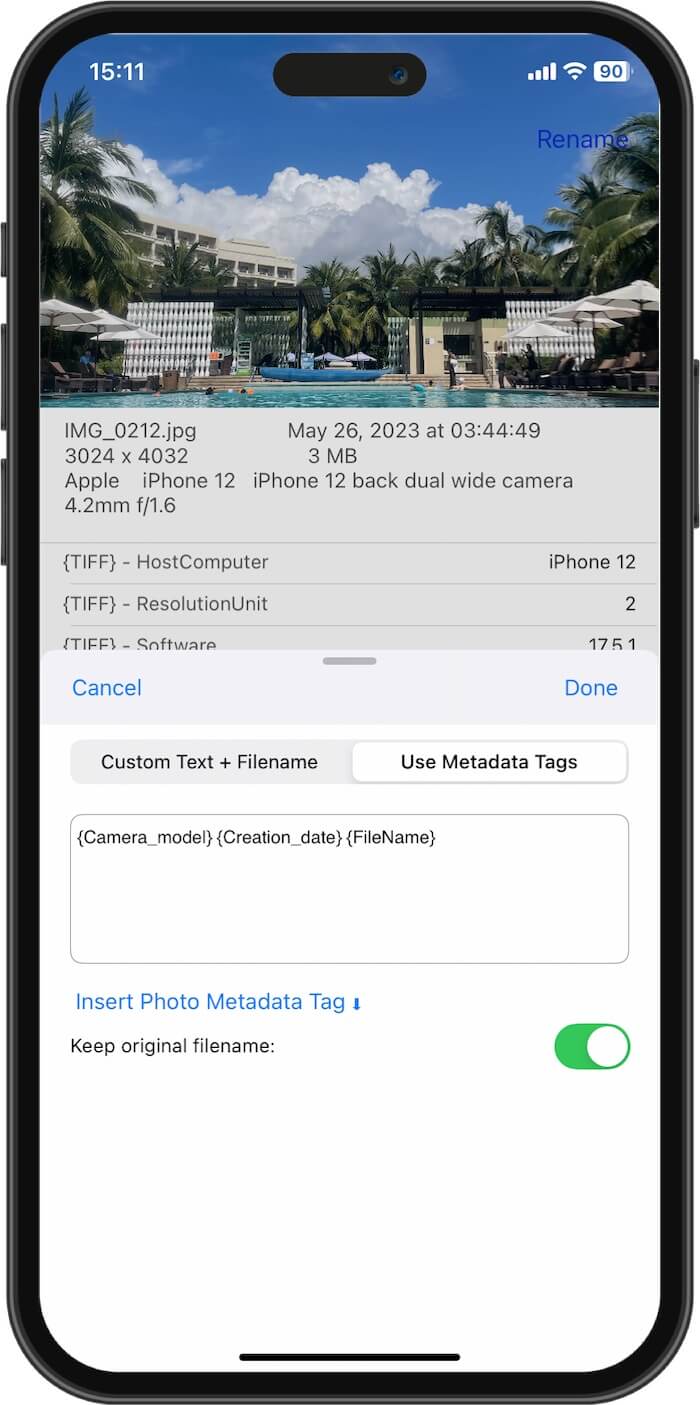
Step 3: Insert Metadata Fields
Tap Insert to browse the available metadata tags. Depending on the metadata supported by the app and the selected photos, you may be able to use fields such as: Creation Date, Camera Model, Caption and Other Metadata Tags.
Choose the metadata tags you want to include and arrange them into a filename pattern. For example, a filename might combine the capture date, camera model, and caption: 2026-10-16_iPhone_Travel.jpg
Frequently Asked Questions
Can I rename iPhone photos using the date they were taken?
Yes. Photos Renamer supports a Digital Camera EXIF Date source for photos that contain the relevant metadata. This is generally the most appropriate option when you want filenames to reflect the original capture date and time.
Can I add the date to an existing photo filename?
Yes. Photos Renamer lets you add date and time information to the beginning or end of an existing filename, helping you preserve the original name while making the date easier to identify.
What is the difference between file creation date and EXIF date?
The file creation date refers to the creation time associated with the file in its current storage context. The EXIF date records the photo's capture time when that information is available. Copying, importing, or editing a photo can affect file dates, so the two values may differ.
Can I rename multiple photos with date and time?
Photos Renamer supports selecting photos and applying a naming pattern to the selected files. This can help you organize a collection using a consistent date-time format. The exact workflow depends on the app's current version.
Can I include camera information in a photo filename?
Yes. The Use Metadata Tags category lets you insert supported metadata, including the camera model when that information is available. This is useful when organizing images from different cameras or creating more descriptive filenames.
Does renaming a photo change when the photo was taken?
Renaming changes the filename, not the original capture time stored in the photo's metadata. However, file-management operations may affect file-system dates in some workflows. If preserving the original capture information is important, choose the appropriate metadata source and verify the results.
Conclusion
Renaming photos with date and time on iPhone is an effective way to create organized, recognizable filenames. Instead of relying on generic names such as IMG_4821.HEIC, you can use consistent timestamps to make photos easier to sort, browse, and manage.
Photos Renamer offers flexible naming options for different needs. Choose Date & Time to use file creation dates, modification dates, or available EXIF capture dates. Choose Use Metadata Tags when you want to include additional information, such as camera model or caption, in your filenames.
Whether you're organizing travel photos, managing work images, or preparing a photo collection for backup, Photos Renamer helps you build a filename system that works for you.
| More Related Articles | ||||
 |
1. How to Edit Video and MP4 Metadata on iPhone and iPad? 2. How to Rename Photos on iPhone Without a Computer? |
|||
About Fireebok Studio
Our article content is to provide solutions to solve the technical issue when we are using iPhone, macOS, WhatsApp and more. If you are interested in the content, you can subscribe to us. And We also develop some high quality applications to provide fully integrated solutions to handle more complex problems. They are free trials and you can access download center to download them at any time.
| Popular Articles & Tips You May Like | ||||
 |
 |
 |
||
| Five ways to recover lost iPhone data | How to reduce WhatsApp storage on iPhone | How to Clean up Your iOS and Boost Your Device's Performance | ||