Audio files often contain more information than you might expect. In addition to the sound itself, an MP3 or other audio file may include metadata such as the song title, artist, album name, album artwork, lyrics, comments, copyright information, and recording details.
Before sharing a voice recording, distributing a podcast, or sending music files to someone else, you may want to remove this information for privacy, organization, or file management purposes.
But how do you remove metadata from MP3 files on an iPhone without using a computer?
AudioInfo makes it easy to view and edit audio metadata directly on your iPhone or iPad. You can inspect the tags stored in supported audio files, remove unwanted information, edit individual fields, and save your changes without relying on desktop software.
In this guide, you'll learn how to remove metadata from MP3 and other audio files on iPhone, which tags you can manage, and what to know before sharing your cleaned audio files.
What Is Audio Metadata?
Audio metadata is information stored alongside an audio file's encoded sound. It helps music players, media libraries, and other applications identify and organize audio content. Depending on the file format, metadata may include:
• Title: The name of a song, recording, or audio track.
• Artist and Album Artist: Information identifying the performer or album artist.
• Album: The album or collection associated with the audio.
• Composer: The person who composed the music.
• Album Artwork: Embedded cover images displayed in music players.
• Lyrics: Text associated with a song.
• Comments: Additional descriptive information.
• Copyright and Year: Copyright notices and year information.
• Technical Information: Duration, bitrate, sample rate, channels, codec, and encoding format.
Not all audio files contain every field. The metadata available also depends on the file format and the way the file was created or edited.
It's important to distinguish between embedded audio tags and other information associated with a file. Removing title, artist, artwork, and similar tags does not necessarily remove file-system timestamps, information stored in external databases, or identifying details that may be audible in the recording itself.
Why Remove Metadata from MP3 and Other Audio Files?
There are several reasons to remove or edit audio metadata before sharing files.
1. Protect Your Privacy
Audio files may contain personal or descriptive information you don't want to share. For example, a recording might contain your name in a comment field or include artwork that reveals information about the recording. Reviewing and removing unnecessary tags helps reduce the amount of information embedded in the file.
However, standard audio tags do not necessarily contain your exact location or device details. If you need to protect sensitive information, inspect the actual metadata rather than assuming every recording contains these details.
2. Prepare Audio Files for Sharing
Before sending an MP3 through email, a messaging app, or a file-sharing service, you may want to remove unwanted comments, personal labels, or outdated descriptions. Cleaning up the metadata can make a file more suitable for sharing with colleagues, clients, or friends.
3. Remove Album Artwork and Lyrics
Embedded artwork and lyrics can be unnecessary when you only need the audio itself. Removing them may simplify the file and can reduce its size, particularly when large images are embedded in the audio. The amount of space saved depends on the metadata being removed. Ordinary text tags usually account for very little storage.
4. Standardize Audio Files Before Distribution
Musicians, podcasters, journalists, and other audio creators may need to remove old tags before distributing recordings. This helps prevent outdated titles, incorrect artist names, or unwanted comments from appearing in media players.
For professional releases, make sure you retain any metadata required for attribution, copyright, or distribution.
How to Remove Metadata from MP3 on iPhone Using AudioInfo
If you want to remove metadata from an MP3 or another supported audio file directly on your iPhone, AudioInfo provides tools to inspect and edit its tags. Follow these steps to get started.
Step 1: Download AudioInfo
Install AudioInfo from the App Store on your iPhone or iPad. Open the app to access its audio file management and metadata inspection features. You don't need a desktop computer to get started.
Step 2: Import Your Audio File
Select the MP3 or other audio file you want to inspect. You can use the available file import options to locate audio stored in the Files app or another accessible location. If you want to clean several recordings, start with the files you intend to share or distribute.
Step 3: Inspect the Audio Metadata
Open the selected audio file to view its metadata. Depending on the file format and the information stored in it, you may see fields such as: Title, Artist, Album, Album Artist, Composer, Album Artwork, Lyrics, Comments, Copyright, Year.
Review these fields to determine which information you want to keep and which tags you want to remove.
Step 4: Remove Unwanted Metadata
Tap Action -> Remove Metadata to remove unwanted information selectively. For example: Clear the Artist field while keeping the Title. Remove the Album and Album Artist fields. Delete embedded album artwork. Clear lyrics or comments. Remove other editable tags that you don't want to include.
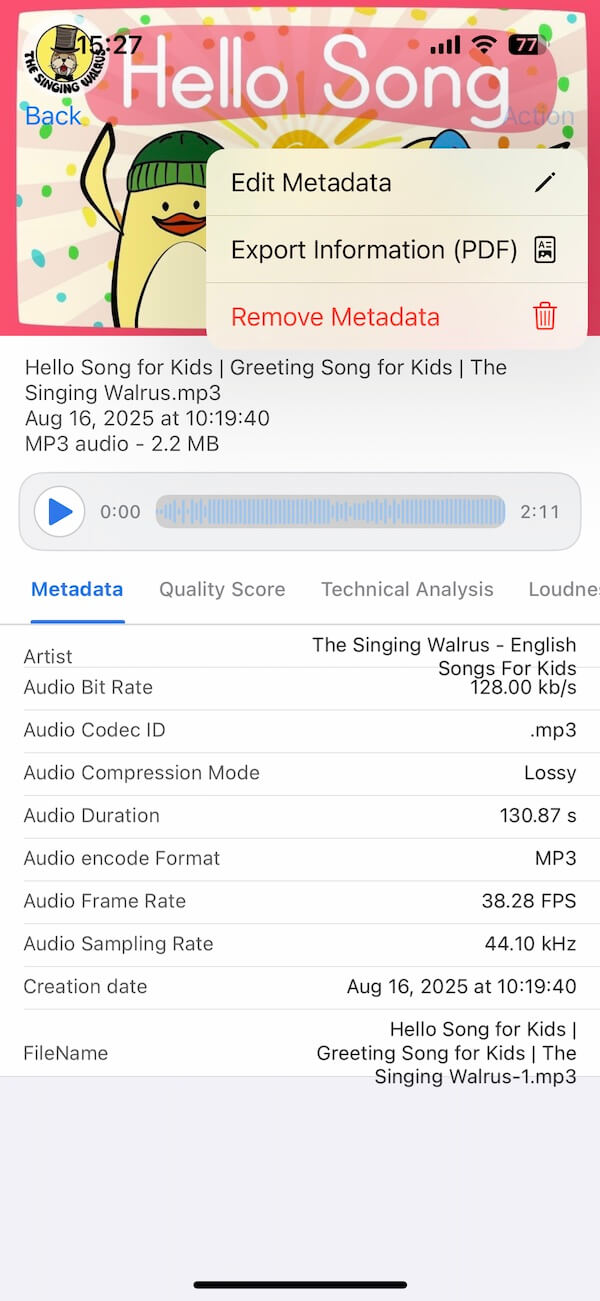
The exact fields and removal options may vary by audio format. Some technical properties are inherent to the encoded audio rather than ordinary editable tags, so removing metadata does not necessarily eliminate every piece of information associated with the file.
Step 5: Save the Edited Audio File
After reviewing your changes, save the edited file using AudioInfo's available Save option. If you need a separate cleaned copy, export it to an appropriate location in the Files app when supported.
Which Audio Formats Does AudioInfo Support?
AudioInfo supports common audio formats, including:
• MP3: Commonly used for music, podcasts, and audio sharing.
• M4A: Frequently used for AAC-encoded audio and other supported audio content.
• WAV: Often used for uncompressed audio and recording workflows.
• FLAC: A lossless audio format commonly used for high-quality music libraries.
• AAC: A widely used audio encoding format.
• AIFF: An audio format often associated with professional audio workflows.
• CAF: Apple's Core Audio Format, which supports different types of audio data.
Available metadata fields and editing behavior can differ between formats. For example, MP3 files commonly use ID3 tags, while FLAC files can store metadata using Vorbis comments. Some formats may also support embedded artwork or other descriptive information.
AudioInfo: More Than an MP3 Metadata Remover
AudioInfo is designed for users who want to inspect and manage audio metadata on iPhone and iPad, rather than simply deleting tags. Its features include:
• Metadata- View, Edit, and Remove Audio Tags: View and edit metadata fields such as title, artist, album, album artist, composer, artwork, lyrics, comments, copyright, and year. Remove unwanted tags to keep your audio files cleaner and more consistent.
• Quality Score- Evaluate Audio Quality: Check an overall audio quality score from 0 to 100, along with a verdict and individual factor scores for bit depth, sample rate, clipping, dynamic range, and format. AudioInfo also provides an estimated original bitrate and can flag files that may be fake lossless.
• Technical Analysis- Examine Audio Characteristics: Explore detailed measurements, including peak and RMS levels, dynamic range, LUFS, true peak, DC offset, clipping, silence, zero-crossing rate, noise floor, signal-to-noise ratio, and headroom. An amplitude histogram provides another way to inspect the audio signal.
• Loudness and Streaming- Understand Playback Levels: Review integrated, short-term, and momentary loudness, loudness range (LRA), EBU R128 compliance, and ReplayGain. AudioInfo also estimates loudness penalties for Spotify, YouTube, Apple Music, Tidal, and Amazon Music.
• Visualizations: See Your Audio in Detail: Use stereo waveforms, loudness-over-time graphs, and an eight-band loudness heatmap spanning 20 Hz to 20 kHz to explore the structure and loudness characteristics of your audio.
• Export a complete PDF report: Use the Export feature to export a complete PDF report of the audio information displayed in the app. Such as size, name, path, and creation date, and review technical information such as duration, bitrate, sample rate, channels, codec, encoding format and more.
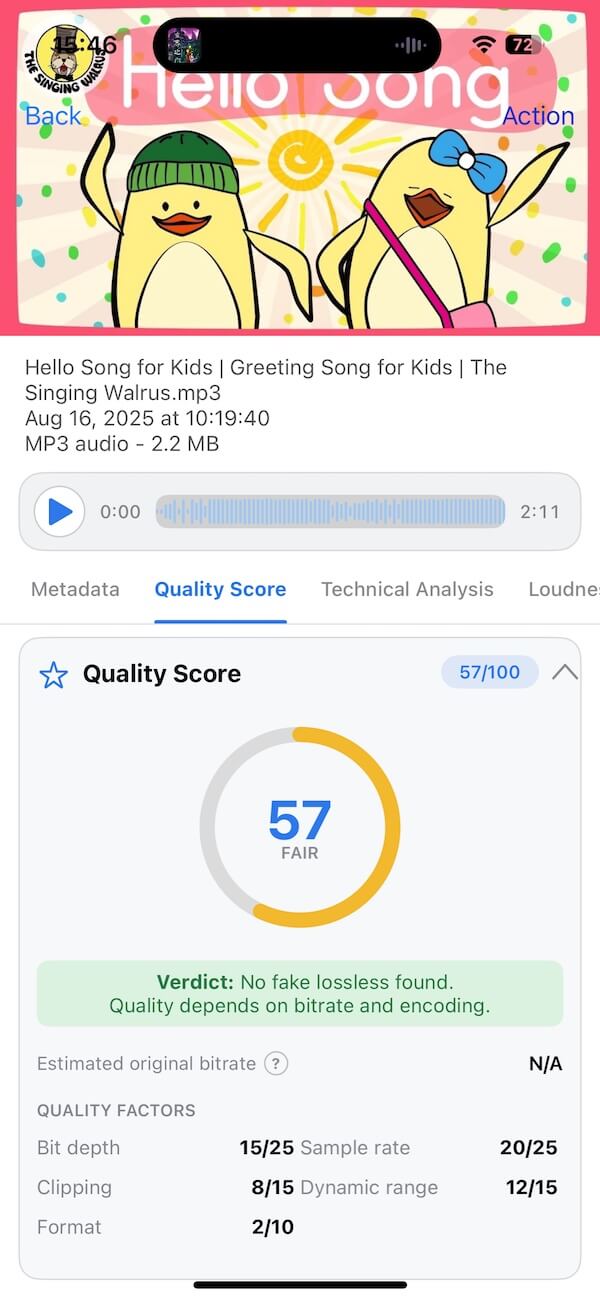
Conclusion
Removing unwanted metadata from MP3 and other audio files can help you protect your privacy, prepare recordings for sharing, and keep your audio library organized.
With AudioInfo, you can inspect supported audio files on your iPhone or iPad, edit individual metadata fields, remove unwanted tags, manage embedded artwork and lyrics, and save your changes without using a computer.
Whether you're cleaning up music files, preparing a podcast, or reviewing a recording before sharing it, AudioInfo makes audio metadata management more accessible on iOS. Ready to clean up your audio files? Try AudioInfo on your iPhone or iPad and take control of the metadata stored in your audio collection.
| More Related Articles | ||||
 |
1. How to Edit Video and MP4 Metadata on iPhone and iPad? 2. How to Rename Photos on iPhone Without a Computer? |
|||
About Fireebok Studio
Our article content is to provide solutions to solve the technical issue when we are using iPhone, macOS, WhatsApp and more. If you are interested in the content, you can subscribe to us. And We also develop some high quality applications to provide fully integrated solutions to handle more complex problems. They are free trials and you can access download center to download them at any time.
| Popular Articles & Tips You May Like | ||||
 |
 |
 |
||
| Five ways to recover lost iPhone data | How to reduce WhatsApp storage on iPhone | How to Clean up Your iOS and Boost Your Device's Performance | ||