Apple Photos is an excellent app for organizing your photos and videos across your iPhone, iPad, and Mac. However, one feature many users quickly discover is missing: the ability to rename photo and video filenames directly within the Photos library.
Although Apple Photos lets you edit a photo's caption, title, keywords, description, and location, it does not allow you to change the actual filename after the photo has been imported into your Photo Library.
If you want your photos to have filenames such as 2026-08-02-143025.jpg, Vacation-Hawaii-001.jpg, or any other custom naming format, you normally have to export the photos, rename them in Finder, and then import them back into Apple Photos. This process is time-consuming and may create duplicate photos or lose your existing organization.
Fortunately, Photo Exifer provides a simple solution that lets you rename photos and videos directly inside your Apple Photos library on both Mac and iPhone.
Rename Photos in Apple Photos with Photo Exifer
Photo Exifer is a professional photo metadata editor that supports both local photos and Apple Photos libraries. Besides editing EXIF metadata, IPTC data, GPS information, dates, and captions, it also allows you to rename photos and videos directly within Apple Photos without exporting and re-importing them.
Photo Exifer supports multiple renaming methods, including:
• Rename with custom text
• Rename using photo metadata tags
• Rename with date and time formats (such as YYYY-MM-DD-HHMMSS)
• Add automatic numbering
• Remove or replace specific filename text
• Batch rename multiple photos and videos
How to Rename a Photo in Apple Photos on Mac
Photo Exifer is a professional photo metadata editor that supports both local photos and Apple Photos libraries. Besides editing EXIF metadata, IPTC data, GPS information, dates, and captions, it also allows you to rename photos and videos directly within Apple Photos without exporting and re-importing them.
Step 1: Install Photo Exifer
Download and install Photo Exifer on your Mac.
To allow the application to modify your Apple Photos library, add Photo Exifer to Full Disk Access. Go to: System Settings → Privacy & Security → Full Disk Access. Enable Full Disk Access for Photo Exifer.
Step 2: Open Your Apple Photos Library
Launch Photo Exifer and select the Photo Library tab. The application automatically loads your System Photo Library.
If your photos are stored in another library, choose: File → Open Photo Library. Then select the photo library you want to edit.
Step 3: Find the Photos You Want to Rename
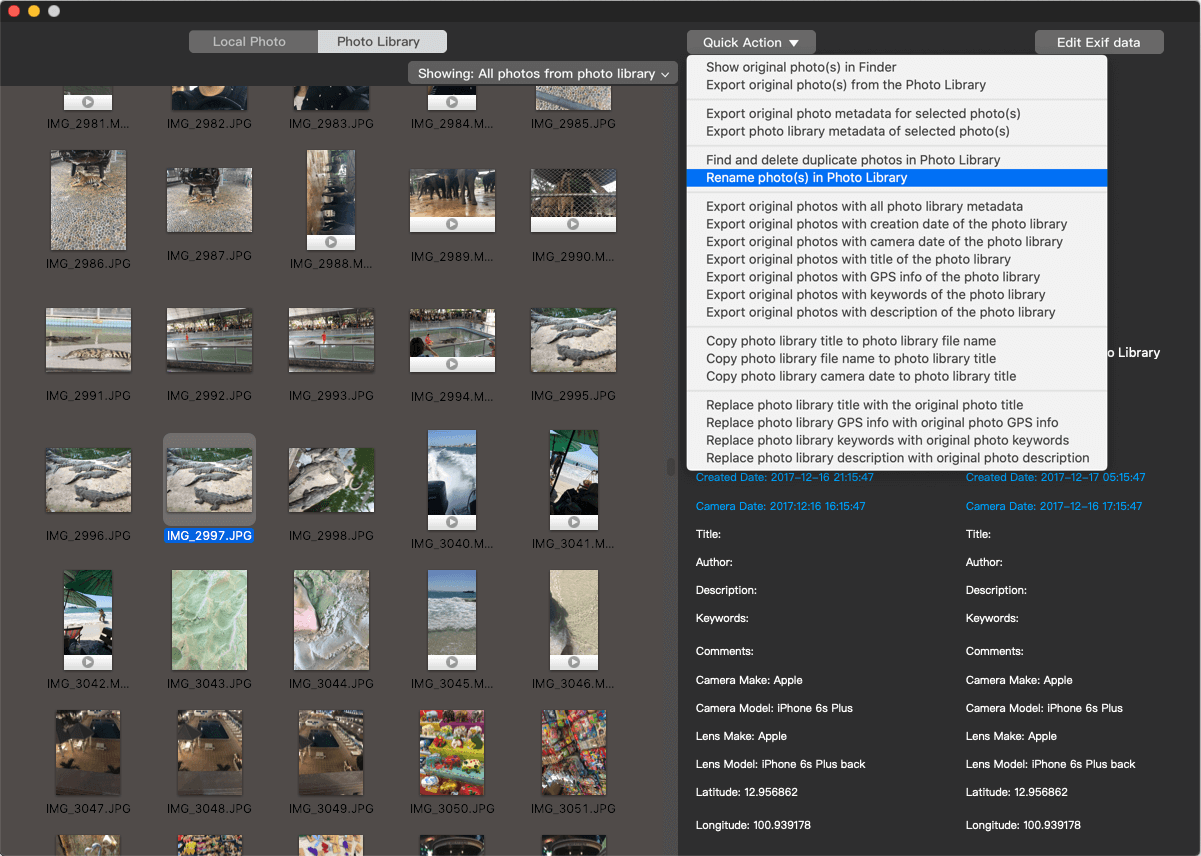
Use the filter options to quickly locate your photos. For example, switch from Showing: All Items to: My Albums, Favorites and Other filters. Select one or more photos or videos.
Step 4: Rename the Photos
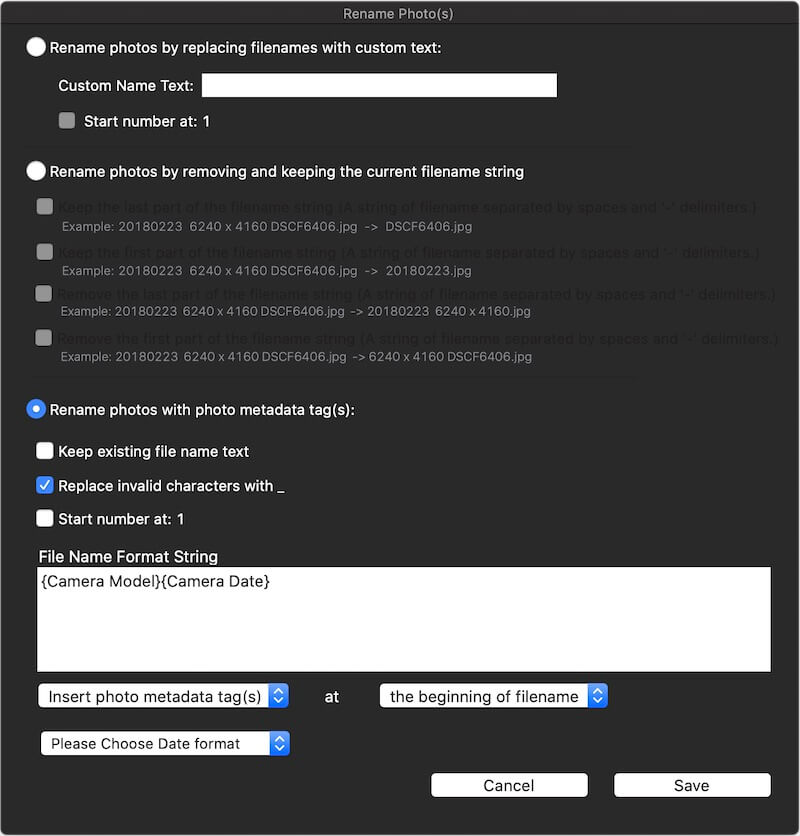
Click: Quick Action → Rename Photo(s) in Photo Library. Choose one of the available renaming methods:
• Custom Text – Add your own filename prefix or text.
• Metadata Tags – Generate filenames using photo metadata such as capture date, camera model, or GPS information.
• Remove or Replace Text – Delete or replace specific characters or words in existing filenames.
Click Save to rename the selected photos directly within your Apple Photos library.
How to Rename a Photo in Apple Photos on iPhone or iPad
Photo Exifer also lets you rename photos directly on your iPhone or iPad.
Step 1: Install Photo Exifer
Download and install Photo Exifer from the App Store. When prompted, grant the app permission to access your Apple Photos library.
Step 2: Select Photos
Use the Filter feature to find the photos or videos you want to rename. Tap Select and choose one or more items.

Step 3: Choose a Renaming Method
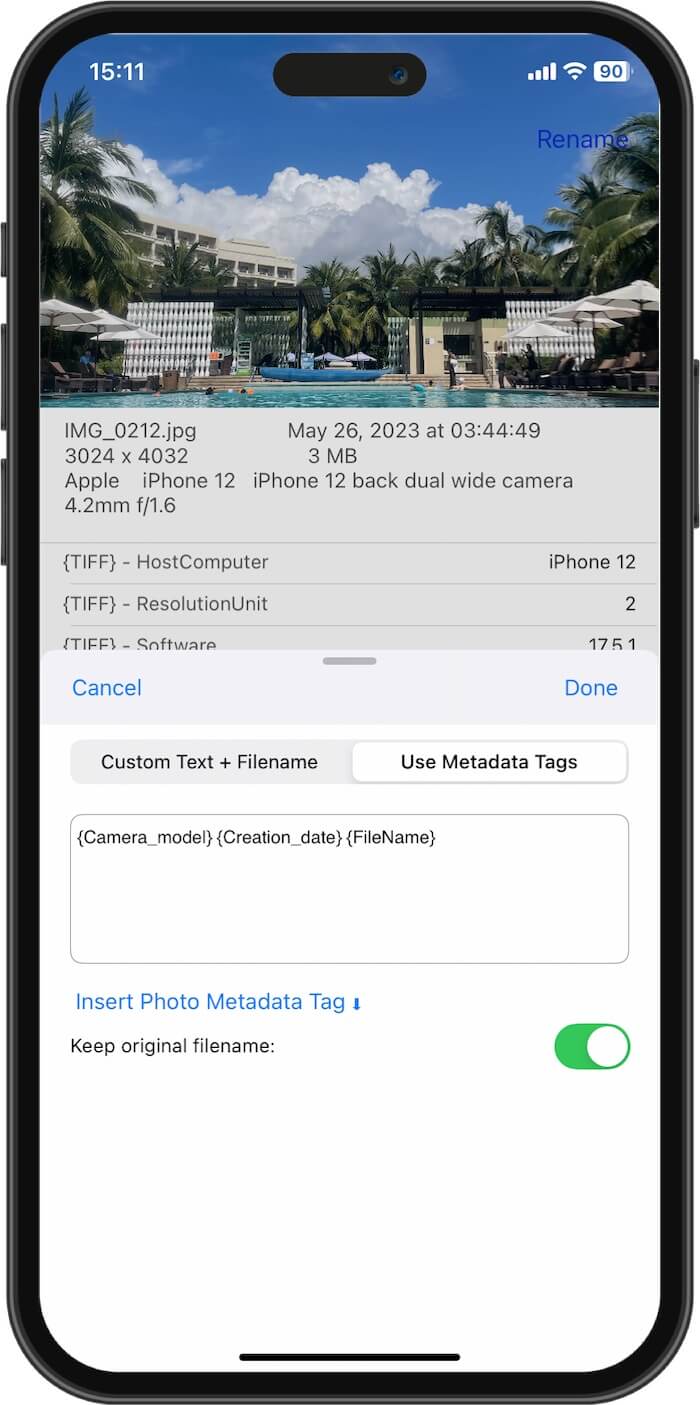
Tap Rename to open the renaming options. You can choose from:
• Custom Text + Filename (supports automatic numbering)
• Use Metadata Tags (smart filename generation based on photo metadata)
Step 4: Save the Changes
Tap Done to rename the selected photos. The new filenames are updated directly in your Apple Photos library without exporting or re-importing the photos.
Why Rename Photos?
Renaming photos makes them much easier to organize and manage, especially for photographers and users with large photo libraries. Common filename formats include: YYYY-MM-DD-HHMMSS, Vacation-001, Wedding-001, IMG-20260802-001, CameraModel-Date-Sequence.
Meaningful filenames also make photos easier to find in Finder, share with others, and organize on external drives or cloud storage.
Conclusion
Apple Photos is great for organizing memories, but it still doesn't offer a built-in way to rename photo or video filenames after import. If you need to batch rename photos, use custom filename formats, or generate filenames from photo metadata, Photo Exifer provides a fast and convenient solution.
Whether you're using a Mac, iPhone, or iPad, Photo Exifer lets you rename photos directly inside your Apple Photos library without exporting and re-importing your files, saving time while keeping your photo library organized.
| More Related Articles | ||||
 |
1. How to Edit Audio and MP3 Metadata on iPhone? 2. How to Rename Photos on iPhone Without a Computer? |
|||
About Fireebok Studio
Our article content is to provide solutions to solve the technical issue when we are using iPhone, macOS, WhatsApp and more. If you are interested in the content, you can subscribe to us. And We also develop some high quality applications to provide fully integrated solutions to handle more complex problems. They are free trials and you can access download center to download them at any time.
| Popular Articles & Tips You May Like | ||||
 |
 |
 |
||
| Five ways to recover lost iPhone data | How to reduce WhatsApp storage on iPhone | How to Clean up Your iOS and Boost Your Device's Performance | ||