HEIC is one of the default photo formats used by iPhone cameras, especially for photos captured with newer iPhone models. When you transfer or back up iPhone photos to a Mac, external hard drive, USB drive, or another storage device, you may occasionally encounter problems such as accidentally deleted, missing, or lost HEIC photos.
In some cases, the original HEIC photos may have already been deleted from your iPhone, making it impossible to find them on the device. Fortunately, if a copy of the photos was previously stored on a Mac or external hard drive, you may still be able to recover the lost files.
This guide explains how to recover deleted or lost HEIC photos from a Mac hard drive or external hard drive, including checking iCloud Photos and using data recovery software.
Where Are HEIC Photos Stored on a Mac or External Hard Drive?
Before attempting to recover deleted or lost HEIC photos, it is important to understand where your original photos may have been stored.
If you use Apple Photos to manage your iPhone photos and videos, your media is normally stored inside a Photos Library package, such as:
Photos Library.photoslibrary

The Photos Library can be stored on your Mac's internal disk or on a compatible external hard drive. Depending on how you manage your photo collection, you may also have copied or backed up individual HEIC photos directly to an external drive using Finder, the Files app, or other backup and file-management tools.
Therefore, if an HEIC photo is no longer available on your iPhone, check your Mac and external storage devices for another copy.
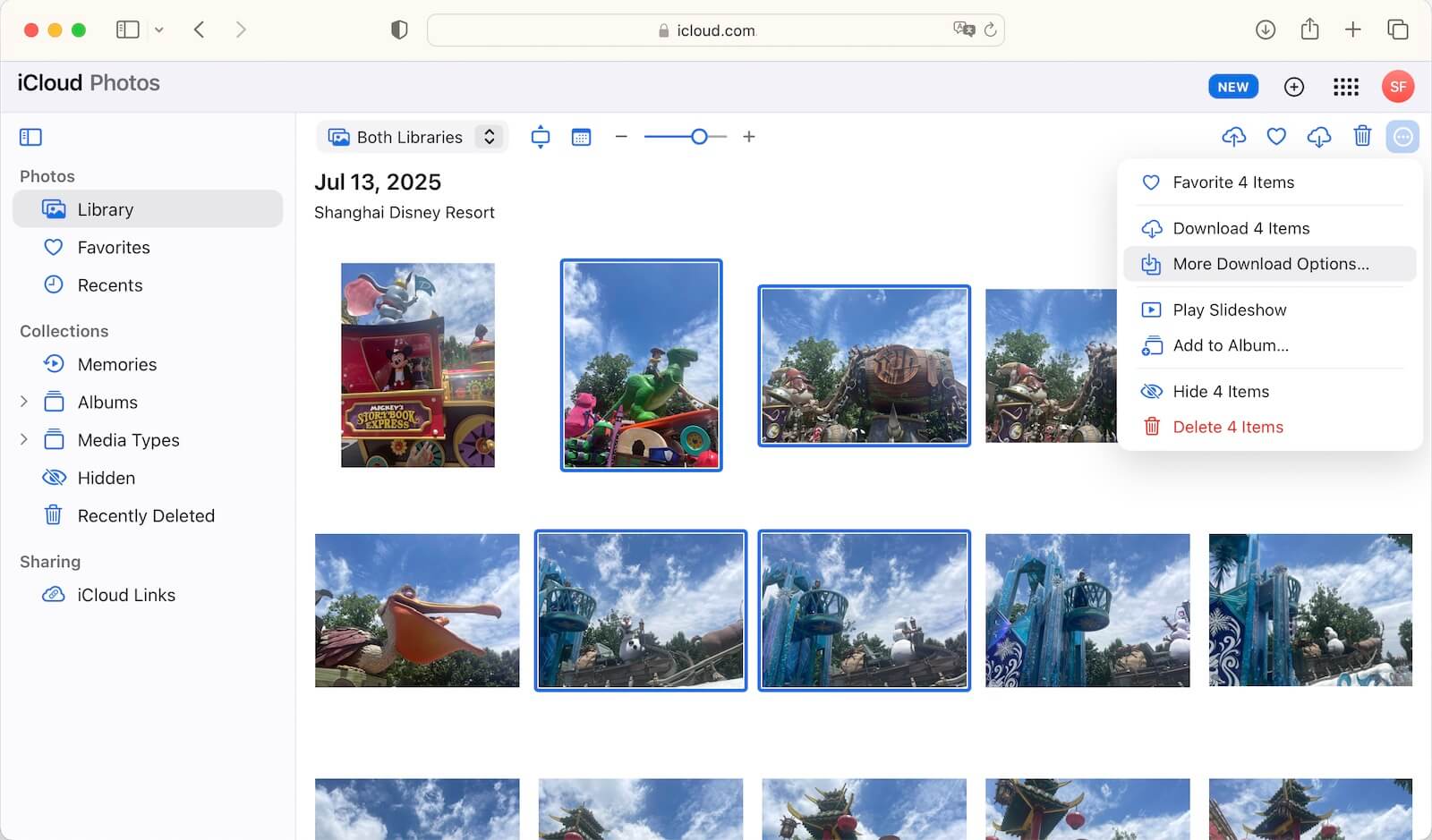
1. Check iCloud Photos and the Recently Deleted Album
If iCloud Photos was enabled on your iPhone, the missing photos may still be available in iCloud.
First, check your Apple Photos library on your iPhone, iPad, or Mac. You should also check the Recently Deleted album, where deleted photos may remain temporarily before being permanently removed.
If the photos are still available in iCloud Photos or Recently Deleted, restoring them is generally safer and easier than using data recovery software.
If the photos have also been permanently deleted from iCloud and no other backup is available, you can continue with the recovery methods below.
2. Recover Deleted or Lost HEIC Photos from a Mac or External Hard Drive
If you previously stored the HEIC photos on a Mac disk or external hard drive and they have since been deleted or lost, Fireebok Data Recovery can be used to scan the storage device for recoverable files.
It supports common image formats including HEIC and HEIF, making it useful for recovering deleted iPhone photos that were stored on a Mac or external drive.
How to Recover HEIC Photos:
1. Connect the storage device.
Connect the external hard drive, USB drive, or other storage device containing the lost photos to your Mac.
2. Install Fireebok Data Recovery.
Install the data recovery software on a different drive from the one containing the lost photos whenever possible. This helps reduce the risk of overwriting deleted data.
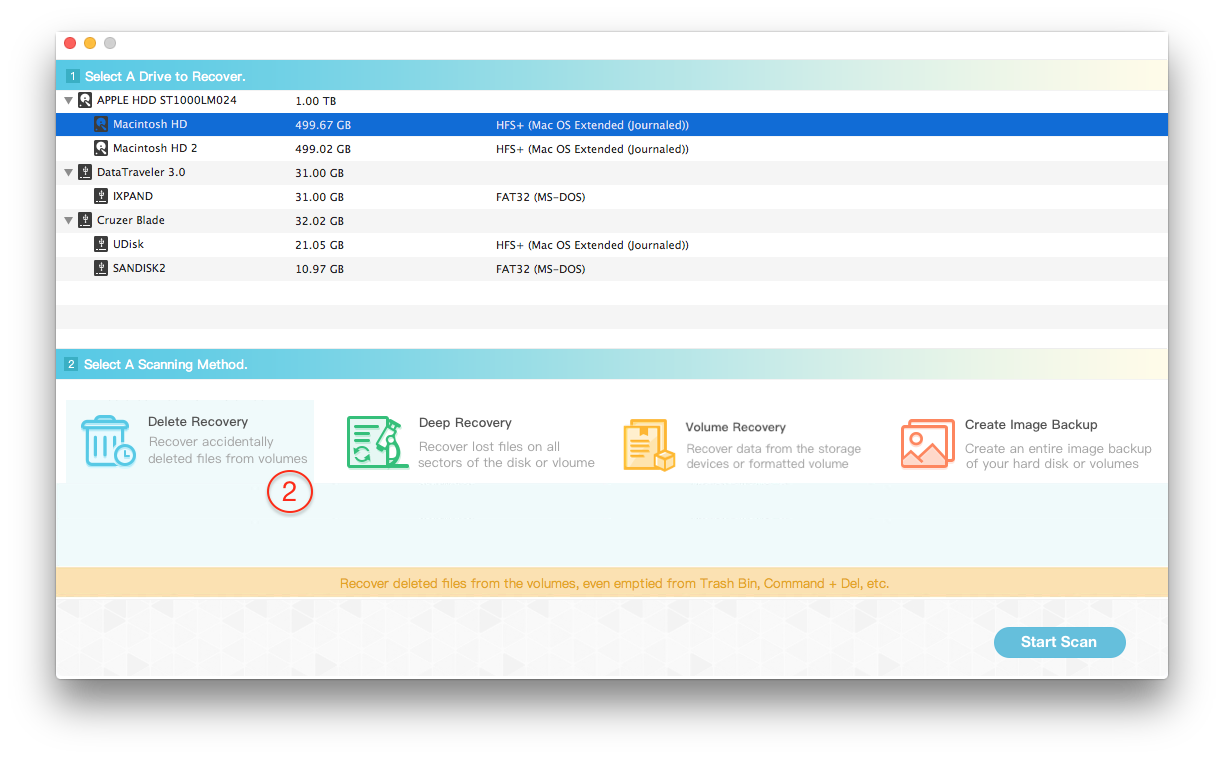
3. Select the affected disk.
Open Fireebok Data Recovery and select the Mac disk or external hard drive where the deleted or lost HEIC photos were previously stored.
4. Start scanning.
Run a Delete Recovery scan first. If the missing HEIC photos cannot be found, use a Deep Recovery Scan to perform a more thorough search of the storage device.
5. Preview recoverable HEIC files
After scanning, browse the results and look for files with the .heic or .heif extension. Preview the recoverable photos when possible to identify the files you need.
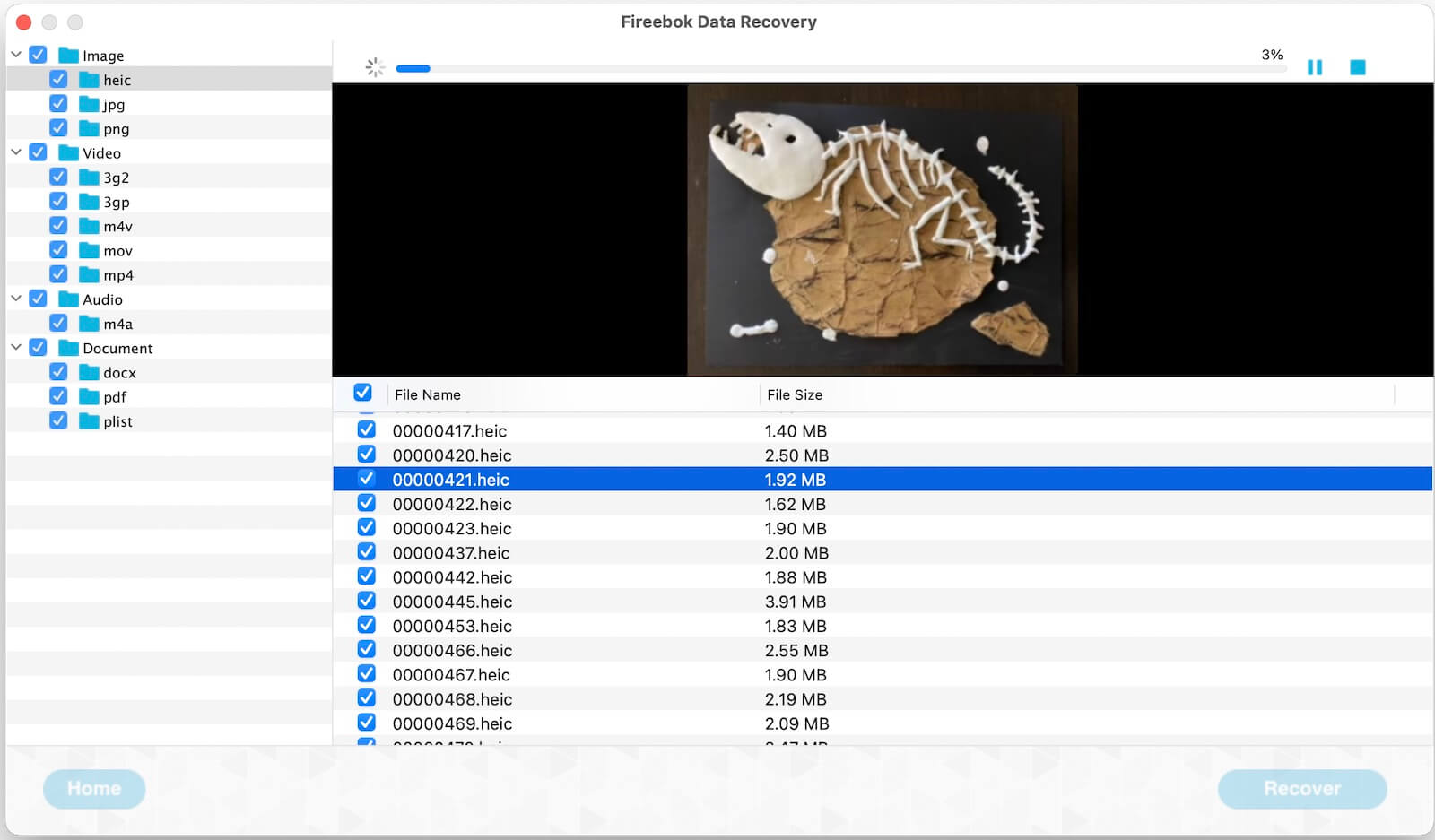
6. Recover the photos
Select the HEIC photos you want to recover and save them to a different safe location, such as another internal drive or external storage device.
Pro Tip: Use Deep Scan When Quick Scan Doesn't Find Your Photos
A Deep Scan takes longer than a Quick Scan because it searches the storage device more thoroughly. However, it may find deleted or lost HEIC photos that are not detected during a quick scan.
For the best chance of successful HEIC photo recovery, stop using the affected drive as soon as you notice that photos are missing. New files written to the drive may overwrite the deleted photo data, making recovery more difficult or impossible.
Can Deleted HEIC Photos Be Recovered?
In many cases, deleted HEIC photos can be recovered if their underlying data has not yet been overwritten. The possibility of recovery depends on several factors, including how the photos were deleted, how much the storage device has been used afterward, and whether the storage device is an SSD or traditional hard disk drive.
If the missing photos are important, avoid copying new files to the affected disk and begin the recovery process as soon as possible.
Conclusion
If you have lost or accidentally deleted iPhone HEIC photos, don't immediately assume that they are gone permanently. First, check iCloud Photos, Recently Deleted, your Mac's Photos Library, and any external backups.
If another copy cannot be found, a data recovery tool such as Fireebok Data Recovery may help you scan your Mac disk or external hard drive for recoverable HEIC and HEIF photos. The sooner you stop using the affected storage device, the better your chances of recovering the deleted photos.
| More Related Articles | ||||
 |
1. How to merge two photo libraries on Mac? 2. How to find and remove duplicate photos from Photos? |
|||
About Fireebok Studio
Our article content is to provide solutions to solve the technical issue when we are using iPhone, macOS, WhatsApp and more. If you are interested in the content, you can subscribe to us. And We also develop some high quality applications to provide fully integrated solutions to handle more complex problems. They are free trials and you can access download center to download them at any time.
| Popular Articles & Tips You May Like | ||||
 |
 |
 |
||
| Five ways to recover lost iPhone data | How to reduce WhatsApp storage on iPhone | How to Clean up Your iOS and Boost Your Device's Performance | ||