After upgrading to macOS 27 (Golden Gate), some Mac users may notice that their available storage has decreased significantly. In some cases, System Data and other storage categories can increase by dozens of gigabytes, leaving much less free space than before the macOS update.
This can be particularly noticeable on Macs with 256GB or 512GB of storage, such as MacBook Air, Mac mini, and MacBook Neo models. When available storage becomes low, you may experience problems installing applications, downloading files, or performing other everyday tasks.
Why does macOS 27 take up additional storage space? What is included in macOS 27 System Data, and how can you safely free up unnecessary files?
If you are experiencing reduced Mac storage after the macOS 27 Golden Gate update, this guide explains several ways to check your storage and recover available disk space.
Why Does macOS 27 System Data Take Up More Storage Space?
After a major macOS update, it is common for the System Data category to temporarily increase. macOS may need additional space for system files, caches, temporary files, update files, indexing data, and other supporting data.
macOS 27 Golden Gate also includes new system features, including Apple Intelligence, which can require additional local storage for certain components and models. Depending on the Mac model, installed features, and system configuration, the amount of storage used can vary.
In addition to macOS system files, the System Data category can include files that do not fit neatly into other storage categories. These may include:
• Application caches and temporary files
• System and application logs
• Mail attachments and local Mail data
• Cloud storage caches
• Temporary installation files
• Time Machine local snapshots
• Spotlight indexing data
• Other system support files
Because System Data can contain many different types of files, its size may increase after a major macOS upgrade and may not immediately decrease even after the installation is complete.
1. Free Up Mac Storage Space in System Settings
The first step is to check which files and categories are using the most storage.
Open System Settings > General > Storage on your Mac. macOS will analyze your storage and display categories such as Applications, Documents, iOS Files, Mail, and System Data.
Review the available categories and remove files you no longer need. For example, you can:
• Empty the Trash.
• Remove large or unnecessary applications.
• Delete unwanted documents and downloads.
• Remove old iPhone or iPad backups if they are no longer needed.
• Move large videos, photos, and other files to an external hard drive.
• Review large files and delete unnecessary items.
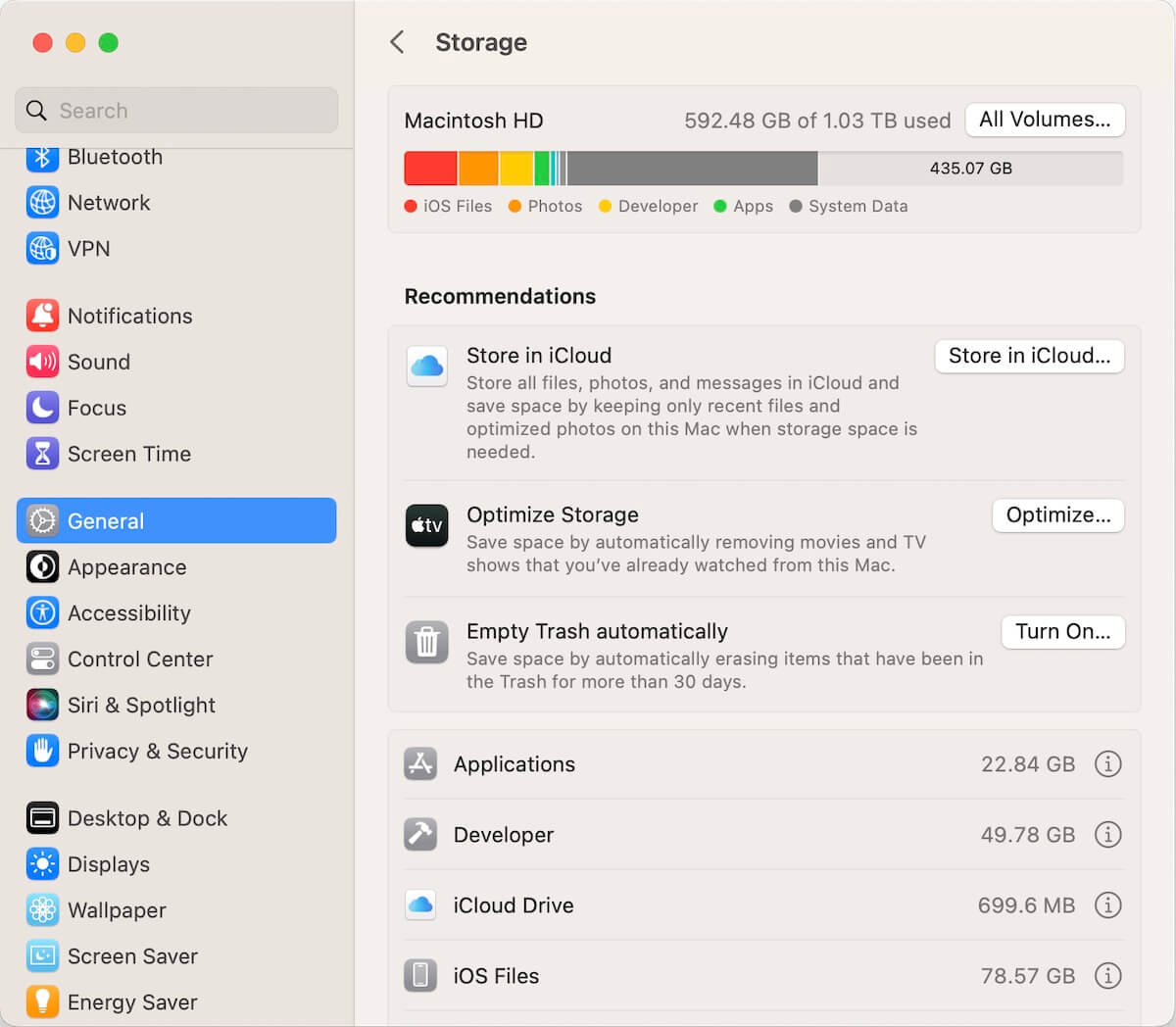
If you have a large amount of personal data stored locally, moving large photos, videos, archives, or old iOS backups to an external drive can quickly recover available Mac storage.
2. Use PowerSuite to Free Up Mac Storage Space
If you want a more convenient way to find and clean unnecessary Mac files, PowerSuite can help analyze different types of storage-consuming data.
Download and install PowerSuite on your Mac, then open the application and select Clean Up from the sidebar.
PowerSuite can scan several categories of unnecessary files, including:
• System Junks – caches, logs, temporary files, web data, and other system-related junk.
• Trashes – files that remain in Trash locations.
• Large Files – large files that may be consuming significant disk space.
• Removable Data – items such as old iOS backups, screenshots, installer packages, and Downloads that you may no longer need.
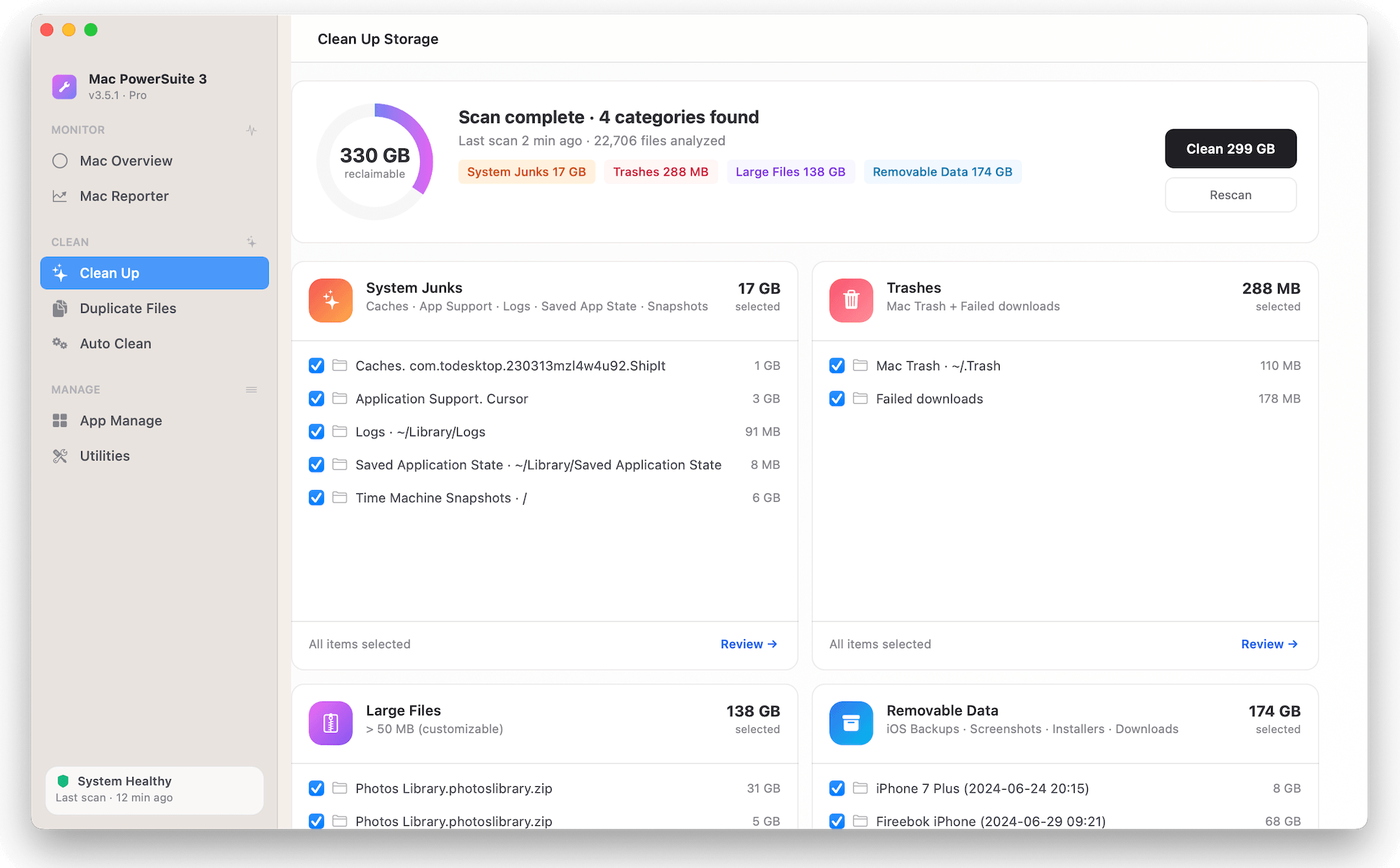
Review the scan results, select the items you want to remove, and click Clean to free up Mac storage.
Find and Remove Duplicate Files
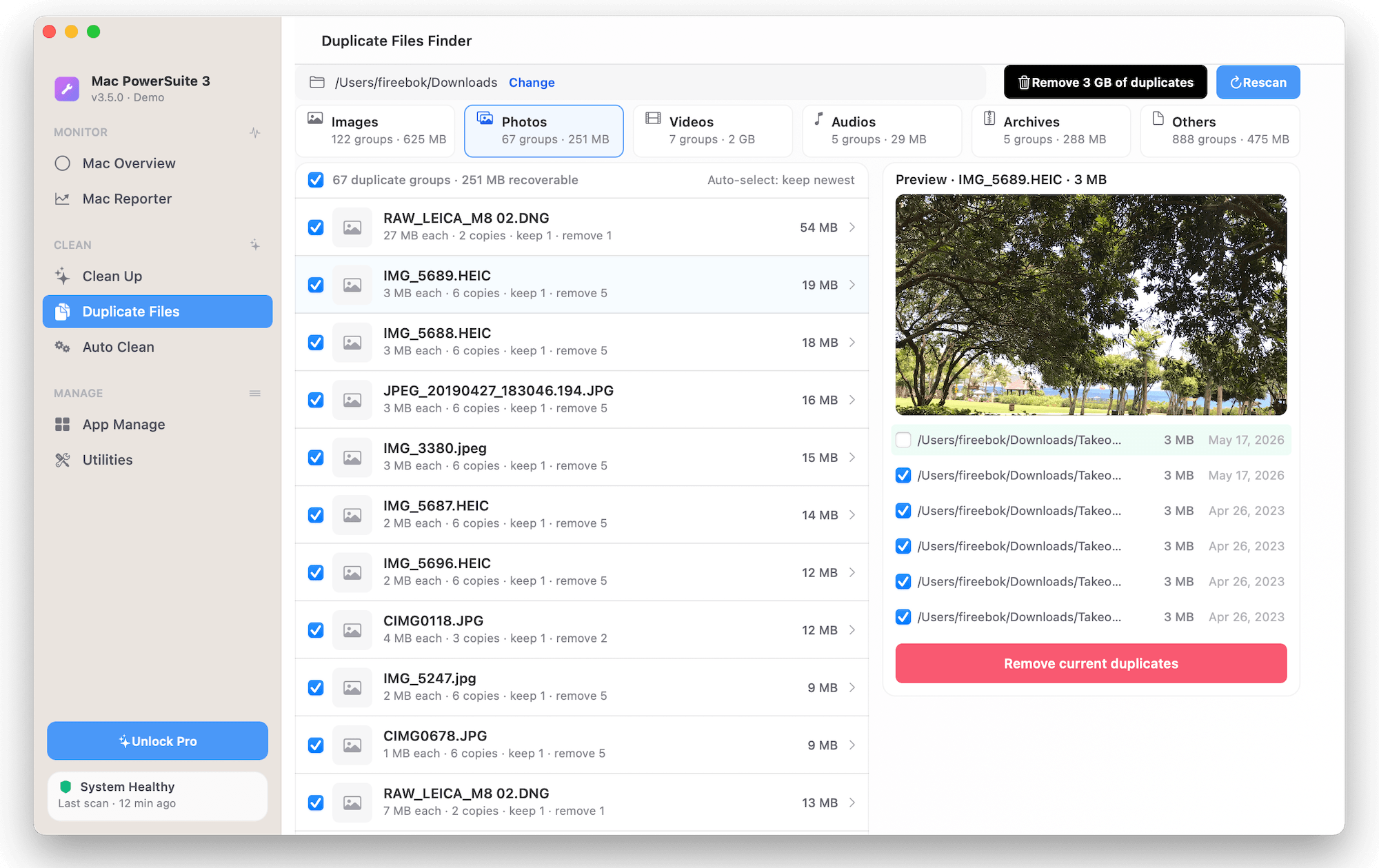
If your Mac contains many duplicate photos, videos, audio files, documents, or other files, PowerSuite can also help you find duplicate files.
Open the Duplicate Files feature and select the folders you want to scan. PowerSuite can identify duplicate files and organize them into categories, making it easier to review and remove unnecessary copies.
Removing duplicate files can be especially useful after a macOS upgrade if your Mac already had limited free storage.
Conclusion
A significant reduction in available storage after upgrading to macOS 27 Golden Gate can be caused by system files, caches, indexing data, local snapshots, application data, and other files included in the System Data category.
Before deleting system-related files manually, check System Settings > General > Storage to understand how your Mac's storage is being used. You can then remove unnecessary applications and personal files, move large files to an external drive, and use a Mac cleanup utility such as PowerSuite to identify additional unnecessary data.
Keeping enough free storage on your Mac can help maintain a smoother experience and ensure that there is sufficient space for future macOS updates, applications, and personal files.
| More Related Articles | ||||
 |
1. How to merge two photo libraries on Mac? 2. How to find and remove duplicate photos from Photos? |
|||
About Fireebok Studio
Our article content is to provide solutions to solve the technical issue when we are using iPhone, macOS, WhatsApp and more. If you are interested in the content, you can subscribe to us. And We also develop some high quality applications to provide fully integrated solutions to handle more complex problems. They are free trials and you can access download center to download them at any time.
| Popular Articles & Tips You May Like | ||||
 |
 |
 |
||
| Five ways to recover lost iPhone data | How to reduce WhatsApp storage on iPhone | How to Clean up Your iOS and Boost Your Device's Performance | ||