Managing a growing iPhone photo library can quickly become overwhelming. Browsing through a few hundred photos is easy enough, but once your library expands to thousands—or tens of thousands—of images, finding specific groups of photos becomes a time-consuming chore.
On macOS, Apple solves this problem with Smart Albums. Instead of forcing you to drag and drop pictures manually, macOS lets you set specific rules to automatically gather matching photos into dynamic collections.
Unfortunately, Apple’s Photos app on iOS and iPadOS does not offer native Smart Album creation. Standard mobile albums require full manual curation.
So, how can you get automatic, rule-based photo organization on your iPhone or iPad? Here is everything you need to know about how Smart Albums work, what native iOS can (and can't) do, and how to bring Mac-style Smart Albums to your mobile device using SmartAlbum Pro.
What Are Smart Albums (And Why Are They Better)?
A traditional photo album is a static, manually maintained folder. You hand-select photos, drop them in, and update the folder yourself whenever you take new pictures.
A Smart Album acts as a dynamic search filter. Instead of picking individual photos, you define criteria—such as Media Type, Date Range, or Edit Status—and the system automatically populates the album for you.
Example Rule: [Favorites] + [Portrait] + [Edited]
Outcome: Automatically collects your best edited portrait shots into one folder.
Smart Albums vs. Traditional Manual Albums
| Feature | Manual Albums (iOS Native) | Smart Albums (Mac / Third-Party) |
|---|---|---|
| Photo Selection | Manual selection required | Handled automatically by defined rules |
| Maintenance | Ongoing manual effort | Zero maintenance once configured |
| New Content | Must be added manually | Automatically included when rules are met |
| Flexibility | Static collection | Dynamic (filters update instantly) |
| Ideal For | Fixed events (e.g., Wedding 2025) | Growing libraries & specific metadata searches |
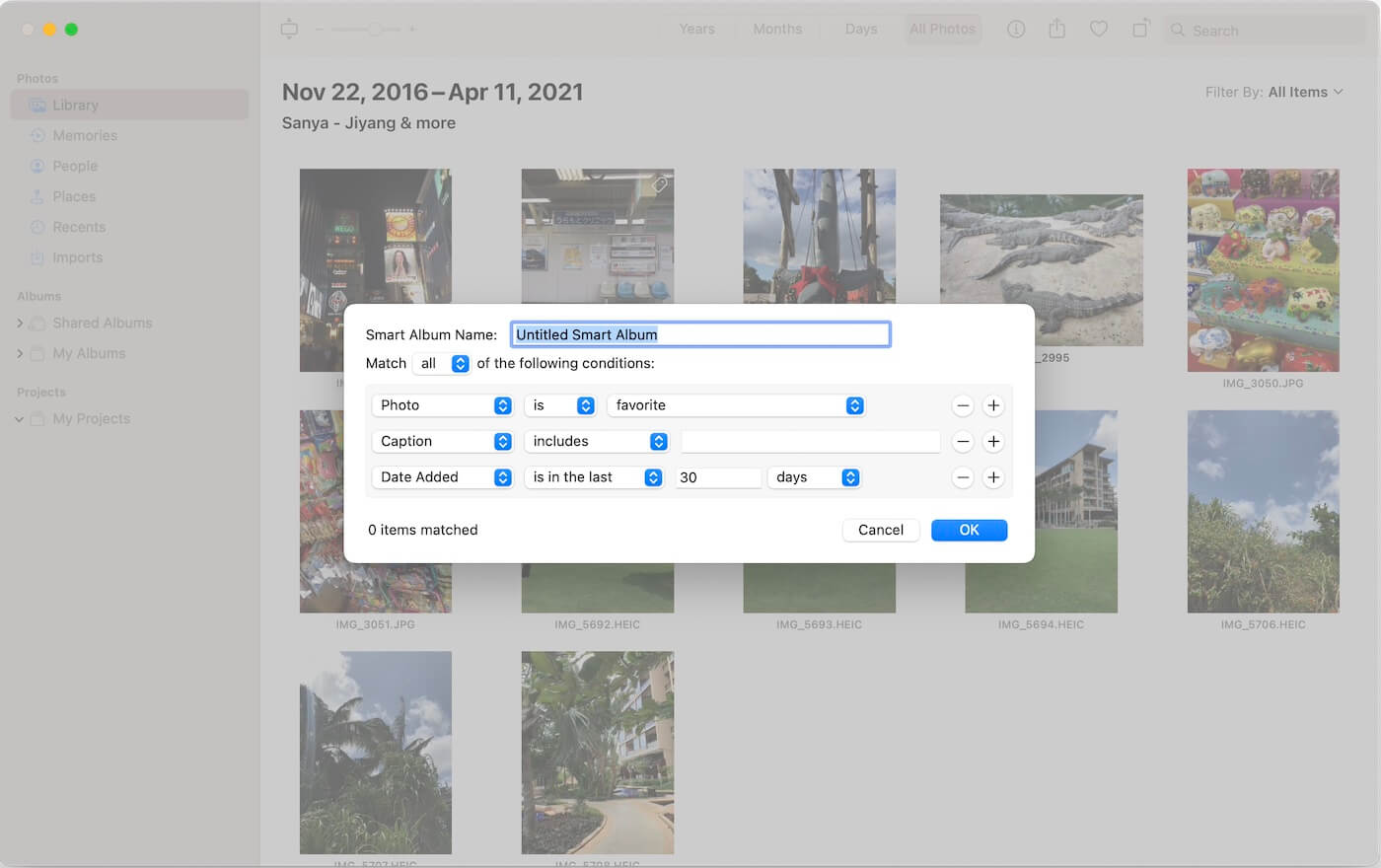
Can You Create Smart Albums on iPhone Natively?
No, not directly. While Apple Photos on iPhone includes basic auto-generated sections (like People, Places, and Media Types), iOS lacks a built-in interface to write custom multi-condition rules.
To get true, rule-based photo organization on an iPhone or iPad, you need a specialized iOS tool designed to read your device’s media metadata: SmartAlbum Pro.
A Better Way: Rule-Based Photo Organization with SmartAlbum Pro
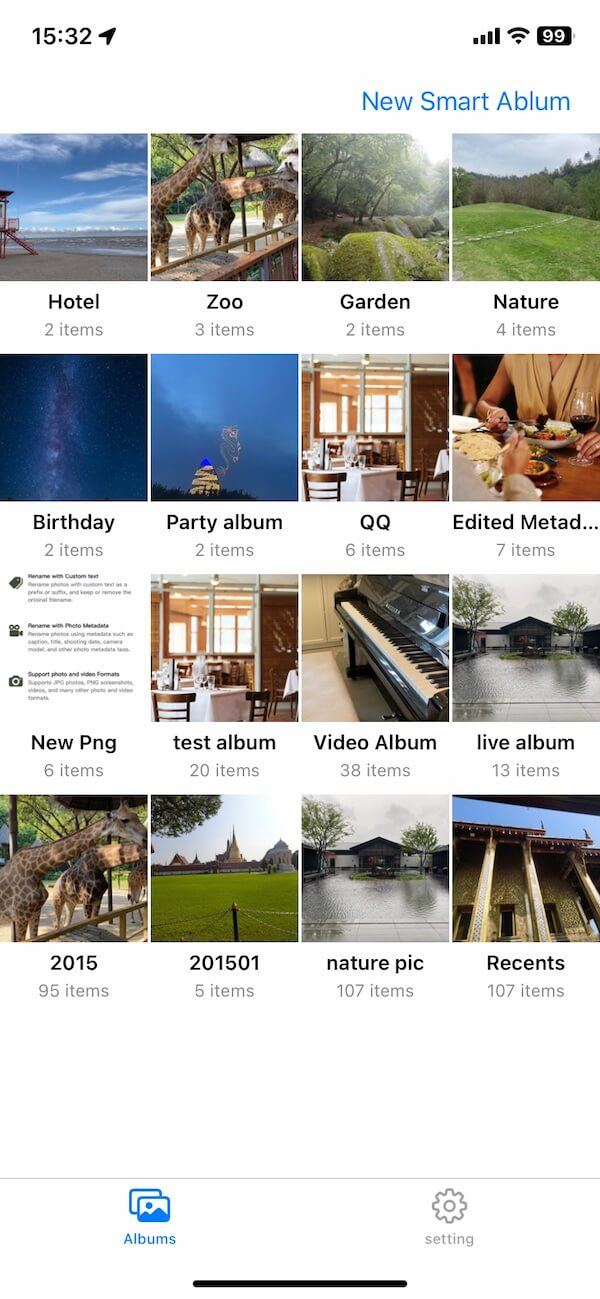
SmartAlbum Pro bridges the feature gap between macOS and iOS. It allows you to query your local photo library using customizable logical conditions (AND / OR filters).
Condition 1: File Format = RAW
AND
Condition 2: Date Range = Summer Vacation 2026
Key Metadata Filters Available on iOS
-
Photo Characteristics: Instantly isolate Favorites, Edited photos, Live Photos, Portraits, Panoramas, HDR, Screenshots, or Videos.
-
File Formats: Filter by RAW, HEIC, JPEG, PNG, or specialized formats.
-
Embedded Metadata: Query internal EXIF data, including File Name, Caption, Title, and assigned Keywords.
-
Date & Time Ranges: Set precise dates for specific trips, holidays, or project deadlines.
-
Nested Filtering: Apply rules within existing native albums (e.g.,
Album = Family+Favorite = Yes).
How to Create a Smart Album on iPhone
-
Open SmartAlbum Pro & Grant Access
Download and install SmartAlbum Pro on your iPhone or iPad. Run the app, When prompted, grant access to your photo library so the app can scan metadata locally. -
Create a New Smart Album
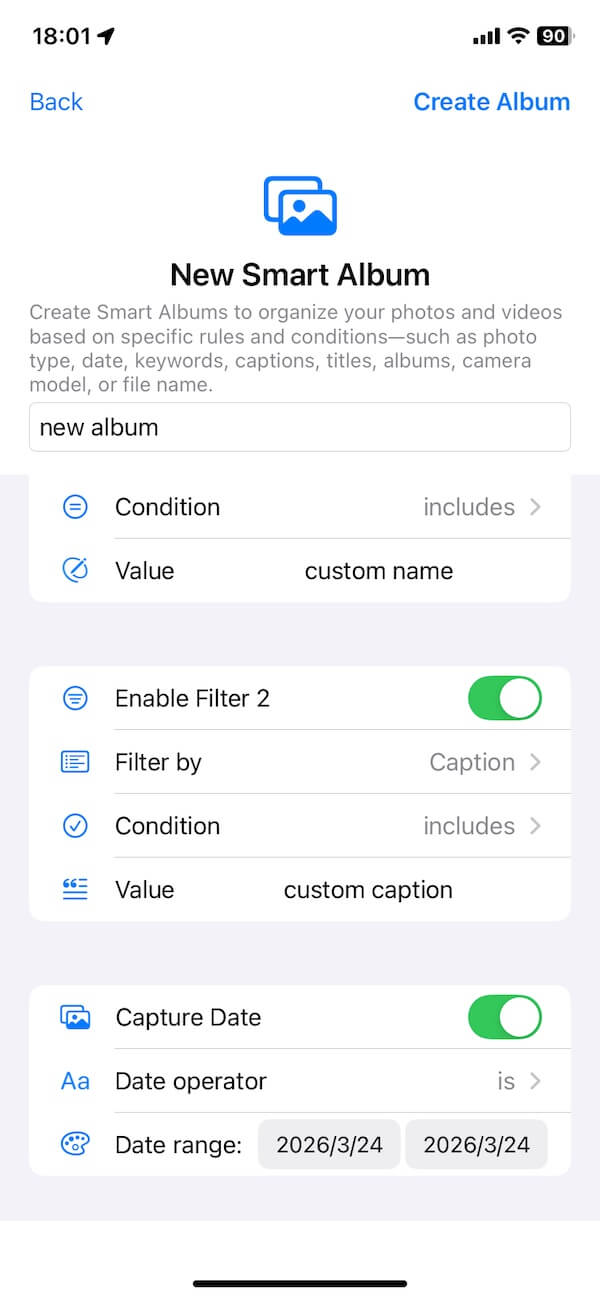
Tap to start a new collection and give it a clear, descriptive name (e.g., Edited Portraits, 2026 Vacation RAWs, or Favorite Videos). -
Define Your Primary Filter
Choose your initial rule parameters (such asPhoto Type → is → PortraitorMedia Type → is → Video). -
Add Stacked Conditions
Refine your collection by adding secondary parameters using logical operators (e.g.,Favorite = True+Status = Edited). -
Save & Auto-Populate
Save your rule set. SmartAlbum Pro scans your library instantly, compiling matching assets without duplicating your image files.
4 Smart Album Rule Ideas to Try
1. For Photographers
Rule: Format: RAW + Status: Edited + Rating: Favorite
Result: A quick-access portfolio of your top processed mirrorless or iPhone RAW shots.
2. For Content Creators
Rule: Keyword: Product + Date: Last 30 Days + Media: Video
Result: Automatically groups your recent product footage for quick editing and social uploading.
3. For Vacation & Travel
Rule: Date Range: June 1 – June 15 + Media: Photo + Favorite: Yes
Result: Filters out blurry test shots and screenshots, leaving only your top travel highlights.
4. For Device Cleanup
Rule: Type: Screenshot + Date: Older than 6 Months
Result: Isolates legacy screen grabs so you can bulk-delete them to reclaim storage space.
On-Device Privacy & Performance
Managing your photo library shouldn't require sacrificing your privacy. SmartAlbum Pro processes all metadata locally on your iPhone or iPad.
Your images, metadata, and album rules are never uploaded to external servers or cloud data pipelines—keeping your personal memories private and secure on your personal device.
Take Control of Your iPhone Photo Library
Stop wasting time manually sorting through tens of thousands of photos. Set your organization criteria once, and let smart rules keep your photo library organized automatically.
| More Related Articles | ||||
 |
1. How to Edit Audio and MP3 Metadata on iPhone? 2. How to Rename Photos on iPhone Without a Computer? |
|||
About Fireebok Studio
Our article content is to provide solutions to solve the technical issue when we are using iPhone, macOS, WhatsApp and more. If you are interested in the content, you can subscribe to us. And We also develop some high quality applications to provide fully integrated solutions to handle more complex problems. They are free trials and you can access download center to download them at any time.
| Popular Articles & Tips You May Like | ||||
 |
 |
 |
||
| Five ways to recover lost iPhone data | How to reduce WhatsApp storage on iPhone | How to Clean up Your iOS and Boost Your Device's Performance | ||