Most audio files—whether they are music tracks, podcasts, or voice recordings —store "hidden" information known as metadata. This includes the song title, artist, album, artwork, and recording date. Metadata is vital; it’s what allows your music player to organize your library, display correct album covers, and help you find exactly what you’re looking for.
Audio metadata is an important part of the audio file. However, when you download music from the internet or transfer audio files such as Voice Memo recordings, some metadata tags—such as the recording date or artwork—may be missing or lost during the transfer process. When this happens, you may need to edit or restore the audio metadata.
While desktop users can rely on Apple Music or VLC, those options are limited on mobile. If you need to view and edit MP3 metadata directly on your iPhone or iPad, you need a dedicated mobile solution. In this guide, we’ll introduce you to AudioInfo — the easiest way to take control of your audio library on the go.
Why Use AudioInfo?
AudioInfo is a powerful, lightweight utility designed specifically for iOS and iPadOS. It eliminates the need for a desktop computer by allowing you to manage your audio files right from your device.
Key Supported Formats:
• MP3, M4A, WAV, FLAC, AAC, AIFF, CAF, and more.
Whether you are a music enthusiast who wants to fix album art or a podcaster who needs to label files correctly before uploading, AudioInfo provides a clean, user-friendly interface to manage your audio metadata without technical hassle.
Step-by-Step: How to Edit Audio Metadata on iOS
Follow these steps to edit audio and MP3 metadata in seconds:
1. Download the App: Install AudioInfo from the App Store on your iPhone or iPad.
2. Import Your Files: Open the app and import your audio or MP3 file.
3. Inspect Details: Tap the audio file to reveal its technical specifications, such as file size, duration, bitrate, sample rate, and codec.
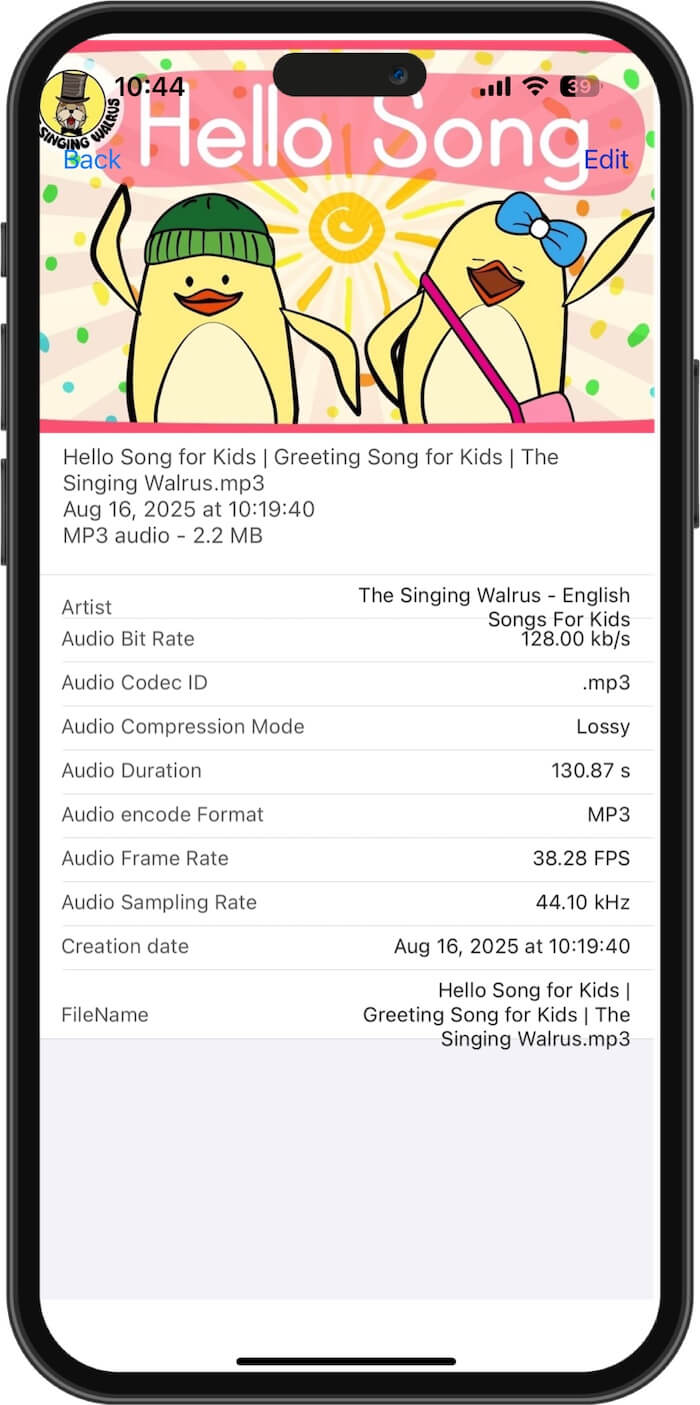
4. Edit Tags: Tap the Edit button to modify essential metadata fields, including:
• Title, Artist, and Album
• Composer and Band
• Recording Date and Release Year
• Copyright and Comments
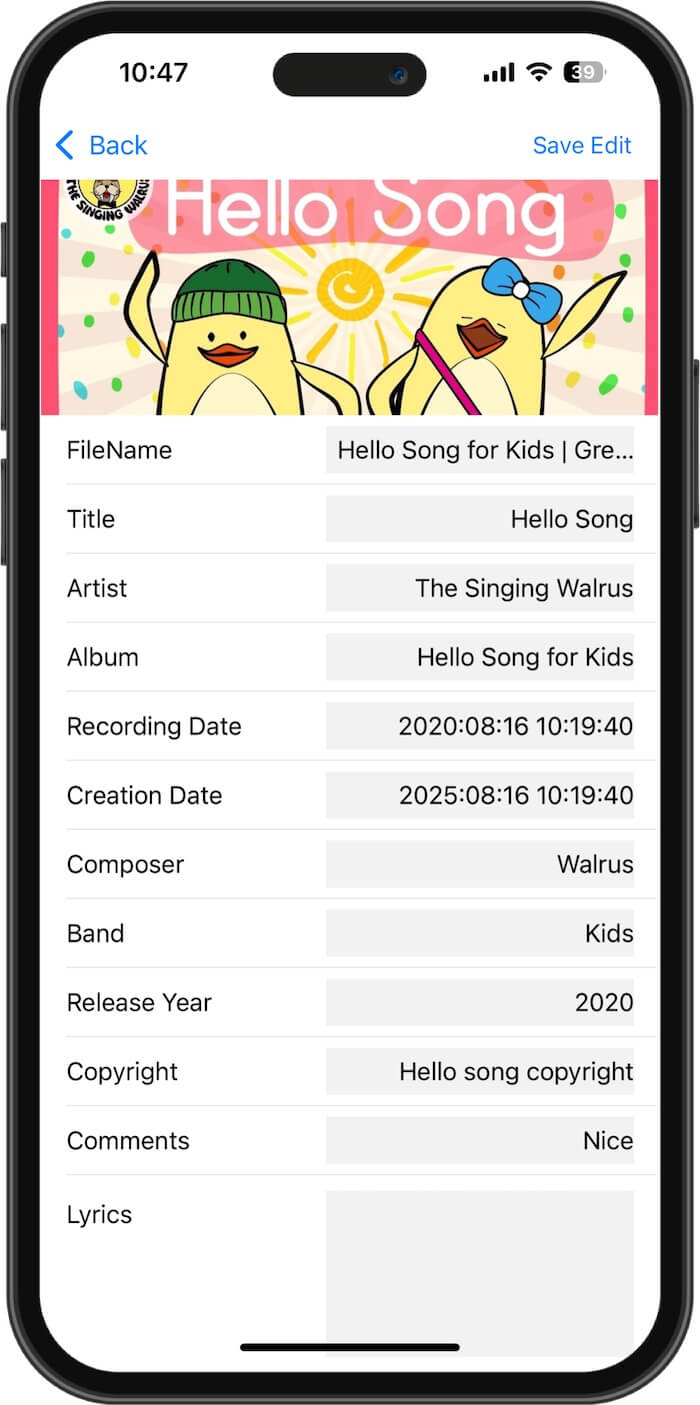
5. Add Artwork: Tap the Artwork section to select an image from your device and set it as your album cover.

6. Save Your Changes: Once you are satisfied with the edits, tap Save Edit. Your changes will be applied instantly to the file.
The Benefits of Managing Metadata on Mobile
For professionals and casual listeners alike, having full control over your files on mobile offers several advantages:
• Organization: Stop browsing through "Unknown Artist" or "Untitled" tracks.
• Portability: Perfect for podcasters and journalists who record on-the-go and need to label files before sharing them via email or cloud storage.
• Compatibility: Ensures that your files display correctly in all third-party music players and car infotainment systems.
Final Thoughts
If you are tired of a cluttered music library or missing album art, you don't need to tether your phone to a computer to fix it. Using a dedicated app like AudioInfo gives you professional-grade control over your audio tags, keeping your media organized, labeled, and ready for playback anywhere.
| More Related Articles | ||||
 |
1. How to View and Remove Video Metadata on iPhone? 2. How to Fix Photos Showing the Incorrect Date on iPhone? |
|||
About Fireebok Studio
Our article content is to provide solutions to solve the technical issue when we are using iPhone, macOS, WhatsApp and more. If you are interested in the content, you can subscribe to us. And We also develop some high quality applications to provide fully integrated solutions to handle more complex problems. They are free trials and you can access download center to download them at any time.
| Popular Articles & Tips You May Like | ||||
 |
 |
 |
||
| Five ways to recover lost iPhone data | How to reduce WhatsApp storage on iPhone | How to Clean up Your iOS and Boost Your Device's Performance | ||