Apple recently released macOS Tahoe 26.6.2. This critical security update fixes several system vulnerabilities, including a high-risk ImageIO vulnerability that could allow arbitrary code execution when processing malicious images.
If you navigate to System Settings > General > Software Update and your MacBook Air falsely claims macOS 26.6 is up to date, don't worry. This guide covers the root causes preventing the macOS 26.6.2 patch from appearing and how to fix them.
1. You Are Using an Intel MacBook Air
macOS Tahoe 26 dropped support for legacy Intel-based hardware. Only Apple Silicon MacBook Air models (M1, M2, M3, M4, and newer released in 2020 or later) are compatible with macOS 26.x updates.
How to verify your processor:
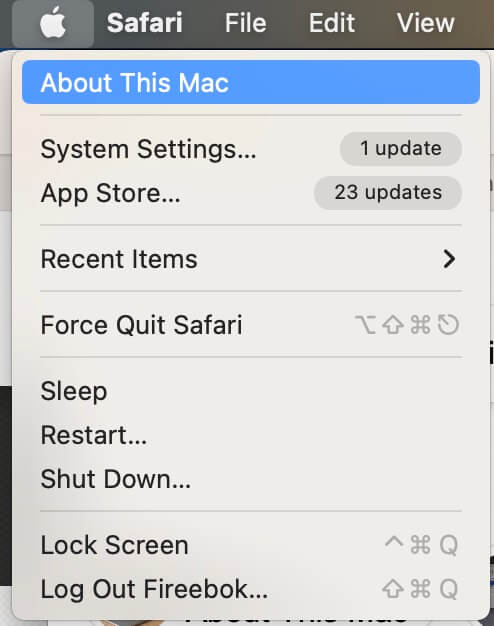
1. Click the Apple menu () in the top-left corner. Select About This Mac.
2. Check the Chip field.
Apple M1 or newer: Your Mac supports macOS 26.6.2.
Intel: Your Mac cannot run macOS Tahoe. You will only receive legacy security patches for older supported operating systems (e.g., macOS Sequoia).
2. Your Mac Is Running an Older Major Version of macOS
Point updates like 26.6.2 require your system to already be on macOS Tahoe (26.x). If your MacBook Air is currently running macOS Sequoia 15 or older, 26.6.2 will not appear as a minor patch.
What to do:
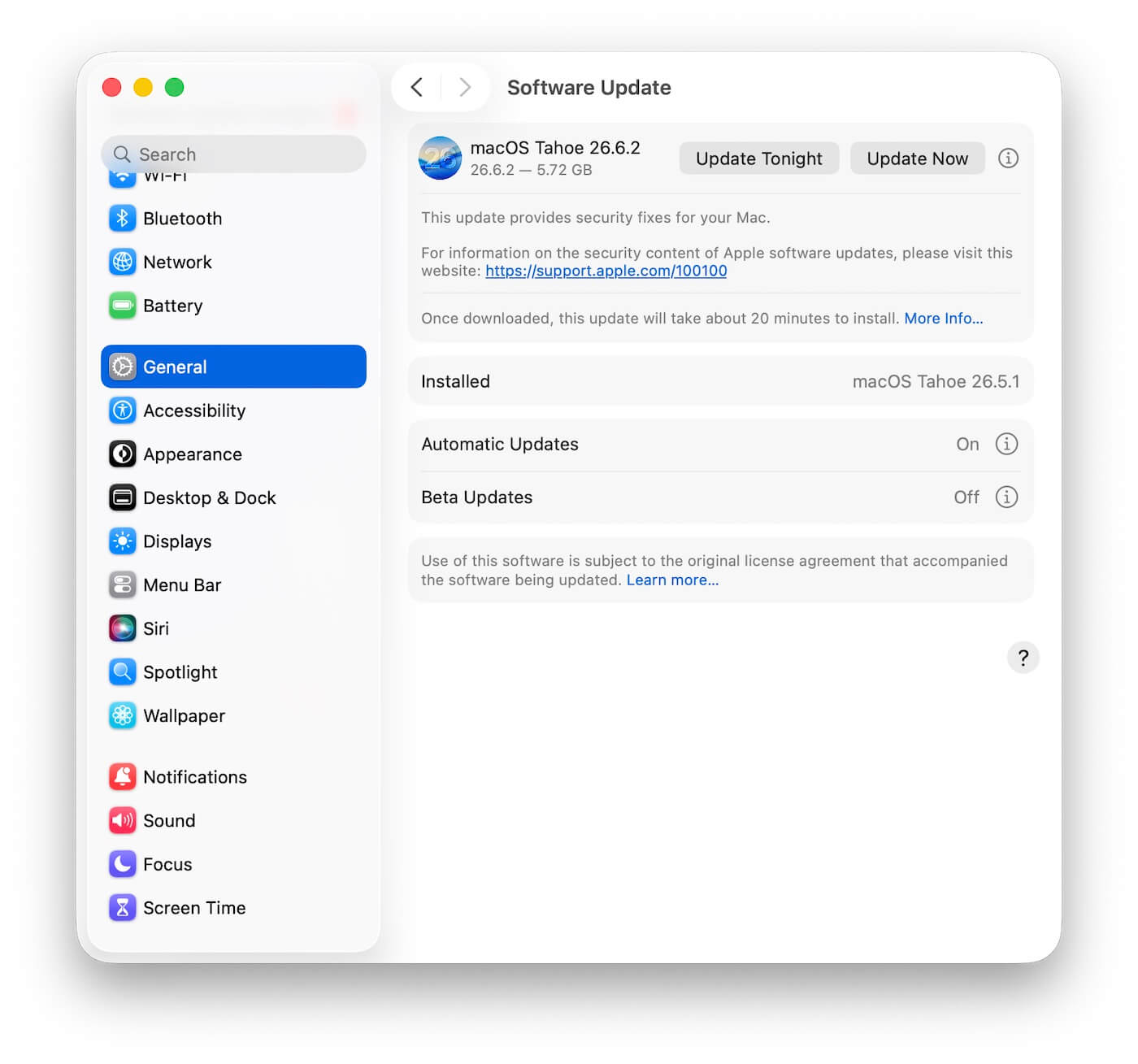
1. Check System Settings > General > Software Update to see if the full macOS Tahoe upgrade is available.
2. Upgrade to macOS Tahoe first, then run Software Update again to grab the 26.6.2 security patch.
3. The Software Update Cache Needs Refreshing
Temporary system glitches or stuck cache files can prevent your Mac from fetching the latest updates from Apple's servers.
Quick Reset Steps:
1. Quit System Settings. Restart your MacBook Air.
2. Reopen System Settings > General > Software Update. Allow 30–60 seconds for the server query to refresh.
4. VPNs, Proxies, or Firewalls Are Blocking Apple Servers
Apple's update servers rely on specific network ports and domain validation. Active VPNs, corporate proxies, custom DNS setups, or security software often intercept these requests.
Troubleshooting Network Blocks:
1. Temporarily disconnect any active VPN or Proxy.
2. Switch to a different Wi-Fi network (or a mobile hotspot).
3. Restart your internet router. Try checking for the update again.
5. Insufficient Free Disk Space
If your startup disk is almost full, macOS may fail to download or index the 26.6.2 update payload.
How to free up storage:
1. Go to System Settings > General > Storage.
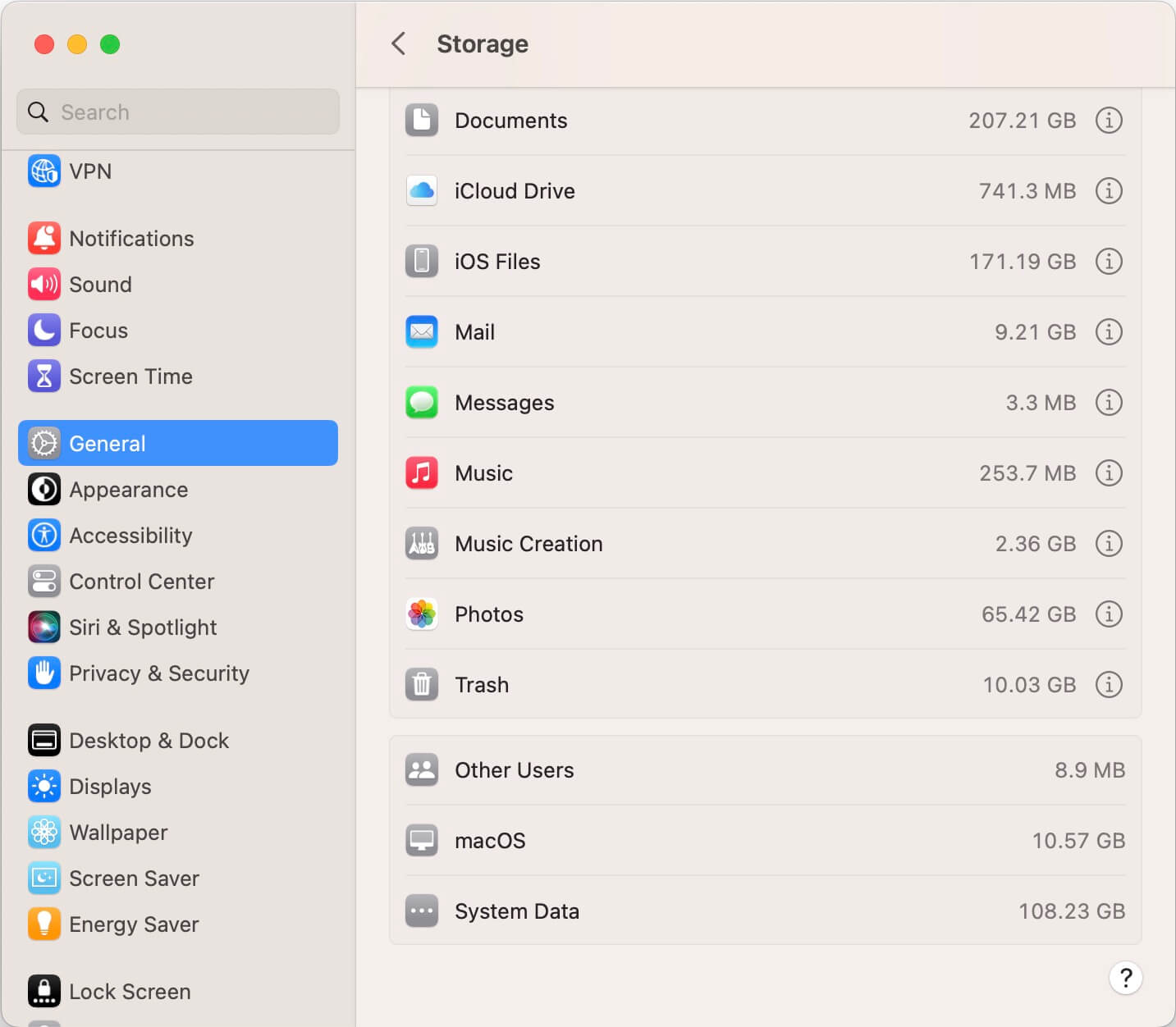
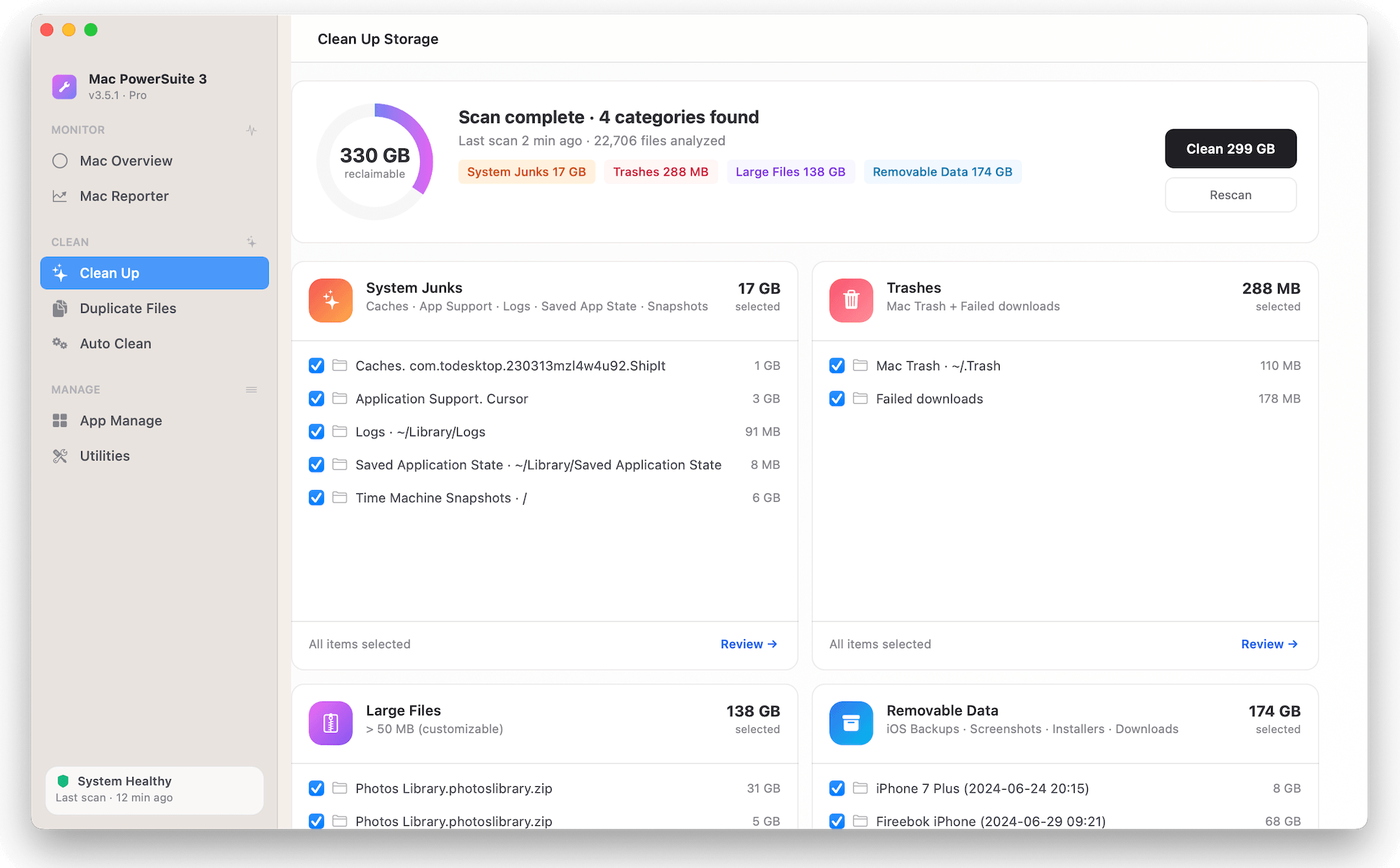
2. Review system recommendations to clear temporary files, applications, and large downloads. Or you can use third-party app- PowerSuite to clean up app cache and other junk files from your Mac.
3. Ensure you have at least 15–20 GB of free space available before initiating system updates.
6. Your Mac Is Enrolled in an Apple Beta Program
If your MacBook Air is enrolled in the Developer or Public Beta channel, you may be running a newer beta build (or a different update track) that prevents public releases like 26.6.2 from showing up.
How to adjust Beta settings:
1. Go to System Settings > General > Software Update.
2. Look for Beta Updates. Set the option to Off to return to public releases.
7. Mobile Device Management (MDM) Restrictions (Work/School Macs)
If your MacBook Air was issued by an employer or educational institution, it is likely managed via an MDM (Mobile Device Management) profile. System administrators frequently defer public macOS updates for 30 to 90 days to conduct internal compatibility testing.
What to do:
1. Check System Settings > Privacy & Security > Profiles to see if your device is managed.
2. Contact your organization's IT helpdesk to inquire when macOS 26.6.2 will be approved for deployment.
8. Force Check for Updates via Terminal
If the graphical interface fails, you can force macOS to query Apple's update servers using command line tools.
Steps using Terminal:
1. Open Applications > Utilities > Terminal (or press Cmd + Space and search for Terminal).
2. Enter the following command: softwareupdate --list and press Return.
3. If macOS 26.6.2 appears in the Terminal output, run the following command: sudo softwareupdate --install --all.
4. To download and install all available patches, and enter your administrator password when prompted.
Final Thoughts
If macOS 26.6.2 is not available on your MacBook Air, start with the simplest check: identify your Mac's processor.
If you have an Intel MacBook Air, the reason is straightforward — your Mac is not compatible with macOS Tahoe 26. If you have an M1, M2, M3, M4, or newer MacBook Air, check whether you are already running Tahoe, then investigate Software Update, network settings, beta enrollment, device management, and available storage.
| More Related Articles | ||||
 |
1. How to merge two photo libraries on Mac? 2. How to find and remove duplicate photos from Photos? |
|||
About Fireebok Studio
Our article content is to provide solutions to solve the technical issue when we are using iPhone, macOS, WhatsApp and more. If you are interested in the content, you can subscribe to us. And We also develop some high quality applications to provide fully integrated solutions to handle more complex problems. They are free trials and you can access download center to download them at any time.
| Popular Articles & Tips You May Like | ||||
 |
 |
 |
||
| Five ways to recover lost iPhone data | How to reduce WhatsApp storage on iPhone | How to Clean up Your iOS and Boost Your Device's Performance | ||