Is your Nike Run Club app crashing or not opening on iPhone after the iOS 26.6 update? Follow these 8 expert troubleshooting steps to get NRC running again.
Introduction
The Nike Run Club (NRC) app is one of the most popular running companions for iPhone users, offering free GPS tracking, guided runs, personalized training plans, and seamless Apple Watch integration with real-time in-run stats. It also syncs effortlessly with Apple Health to record heart-rate zones, workout data, and activity rings.
However, since the iOS 26.6 update, a growing number of iPhone users have reported that the Nike Run Club app either crashes on launch, freezes on the splash screen, or refuses to open entirely. If you're experiencing the Nike Run Club app not working on iPhone issue, don't worry — this guide covers every proven fix, from quick restarts to deep system-level solutions.
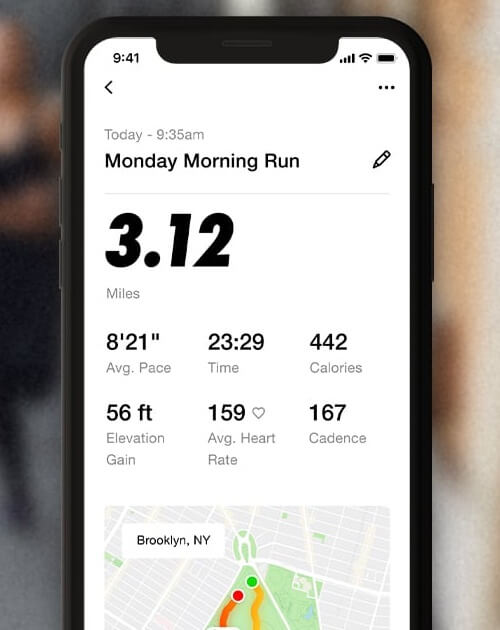
Why Is Nike Run Club Not Opening on My iPhone?
Before jumping into fixes, it helps to understand the common causes behind the NRC app crashing on iOS 26.6:
• iOS compatibility bugs after major system updates
• Corrupted app cache or data from the previous version
• Network connectivity issues preventing the app from verifying your account
• Restricted Location Services, which NRC requires for GPS tracking
• Insufficient iPhone storage, causing apps to fail during launch
• Background App Refresh conflicts or HealthKit permission errors
Now, let's walk through the solutions — start with Method 1 and work your way down.
Method 1: Force Restart Your iPhone
A simple restart clears temporary system glitches that may prevent NRC from launching.
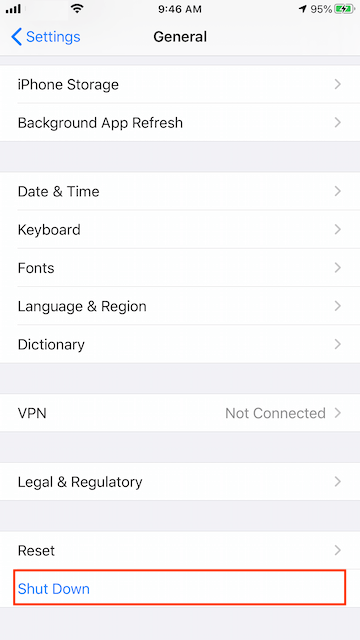
1. Open Settings-> General. Tap Shut Down. Drag the slider to turn off your iPhone. Press and hold the Side button until the Apple logo appears to turn it back on.
2. Once your iPhone restarts, try opening Nike Run Club again.
Method 2: Check Your iPhone's Network Connection
NRC requires a stable internet connection to load your profile, routes, and run history.
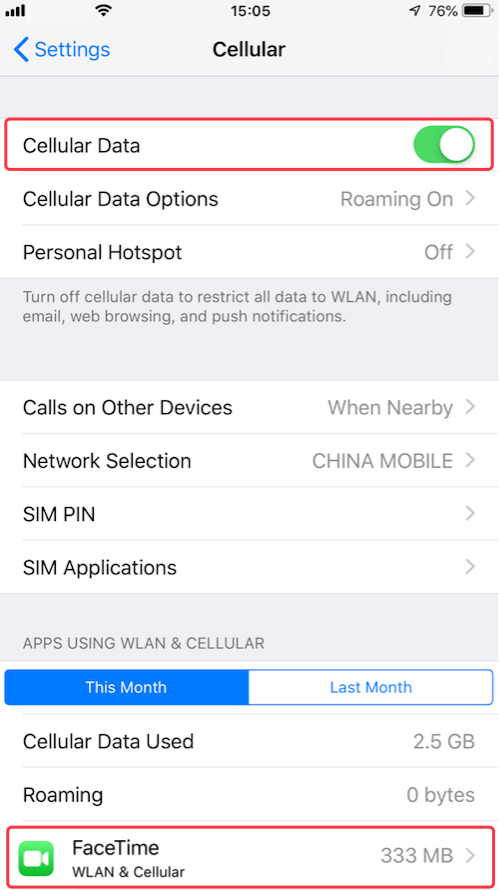
1. Open Settings → Wi-Fi and ensure you're connected to a reliable network. If on cellular, go to Settings → Cellular and make sure Cellular Data is enabled for Nike Run Club.
2. Toggle Airplane Mode on for 10 seconds, then turn it off to reset your network stack. Try switching between Wi-Fi and cellular data to see if the app opens.
Tip: If you're on a restricted network (office, hotel, or public Wi-Fi), NRC's servers may be blocked. Use cellular data instead.
Method 3: Verify Location Services Permissions
Nike Run Club depends on GPS for outdoor run tracking. If Location Services are disabled or set incorrectly, the app may crash on launch.
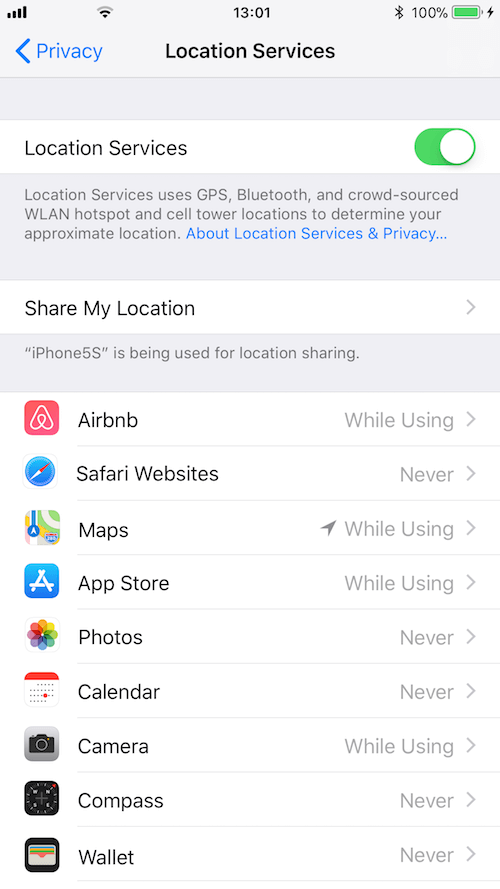
1. Go to Settings → Privacy & Security → Location Services. Scroll down and tap Nike Run Club.
2. Select "While Using the App" or "Always" (recommended for background tracking). Make sure Precise Location is toggled ON.
If permissions were already set, try toggling them off and back on to refresh the connection.
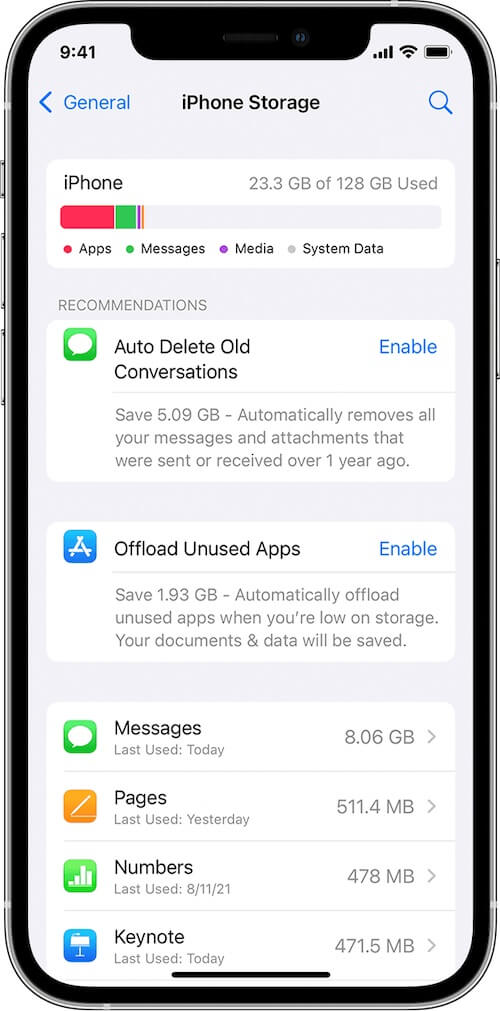
Method 4: Free Up iPhone Storage Space
Apps often fail to open when your iPhone is critically low on storage.
1. Go to Settings → General → iPhone Storage. Check your available space. If you're under 1 GB, NRC may not function properly.
2. Delete unused apps, old photos, or offload large files to iCloud. Restart your iPhone after freeing up space, then test NRC.
Method 5: Update or Reinstall the Nike Run Club App
A corrupted app installation is one of the most common causes of Nike Run Club not opening after iOS 26.6.
Option A: Check for App Updates. Open the App Store. Tap your profile icon in the top-right corner. Scroll to see if Nike Run Club has an update available. If yes, tap Update.
Option B: Delete and Reinstall NRC. Press and hold the Nike Run Club app icon on your Home Screen. Tap Remove App → Delete App. Open the App Store, search for "Nike Run Club", and reinstall it.
Log back into your Nike account. Your run history and achievements are cloud-synced, so they won't be lost. Note: If you had NRC synced with Apple Health, you may need to re-enable Health permissions after reinstalling (see Method 7).
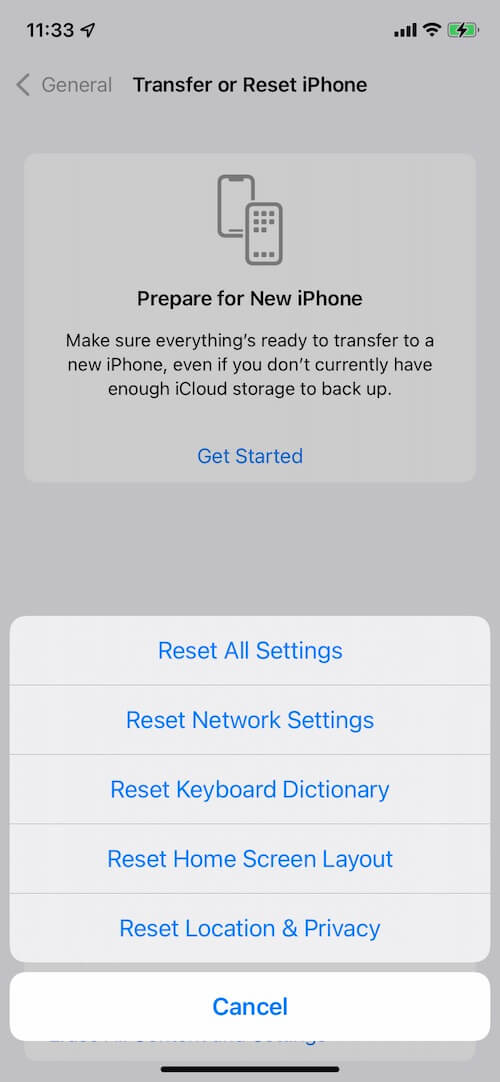
Method 6: Reset All Settings (Without Losing Data)
If the issue persists, a settings reset can resolve hidden configuration conflicts caused by the iOS 26.6 update.
1. Go to Settings → General → Transfer or Reset iPhone → Reset. Tap Reset All Settings. Enter your passcode and confirm.
This resets Wi-Fi passwords, wallpaper, and preferences — but does not delete photos, apps, or run data.
Method 7: Re-enable Apple Health & Apple Watch Sync
If NRC opens but crashes when accessing run data, the HealthKit connection may be broken.
1. Open the Health app → tap your profile picture → Privacy & Security → Apps. Find Nike Run Club and toggle all permissions off, then on again.
2. If you use an Apple Watch, open the Watch app on iPhone → My Watch → Nike Run Club and ensure it's installed and synced.
Method 8: Contact Nike Support or Wait for a Patch
If none of the above fixes work, the issue may be on Nike's end — especially if iOS 26.6 introduced an API change that breaks NRC.
1. Visit https://www.nike.com/help to report the bug.
2. Check the App Store for an NRC update specifically mentioning "iOS 26.6 compatibility". Monitor Nike's official Twitter/X or community forums for known issues.
FAQ: Nike Run Club Not Working on iPhone
Q: Will I lose my run history if I delete and reinstall NRC?
A: No. Your runs are tied to your Nike account and stored in the cloud. Reinstalling and logging back in restores everything.
Q: Why does NRC crash only when I start a run?
A: This is usually a GPS or Location Services issue. Ensure "Precise Location" is enabled and try running outdoors with a clear sky view.
Q: Is Nike Run Club free?
A: Yes, Nike Run Club is completely free with no subscription required for core tracking and training plans.
Q: Does NRC work offline?
A: You can record runs offline, but you'll need an internet connection to sync data, load maps, or access guided runs.
Conclusion
The Nike Run Club app not opening on iPhone after iOS 26.6 is frustrating, but it's almost always fixable with the steps above. Start with a force restart and network check, then move to reinstalling the app if needed. If the problem persists, a settings reset or waiting for an official Nike patch should resolve it.
Did one of these fixes work for you? Let us know in the comments, or share this guide with a fellow runner struggling with the same issue.
| More Related Articles | ||||
 |
1. How to Edit Audio and MP3 Metadata on iPhone? 2. How to Rename Photos on iPhone Without a Computer? |
|||
About Fireebok Studio
Our article content is to provide solutions to solve the technical issue when we are using iPhone, macOS, WhatsApp and more. If you are interested in the content, you can subscribe to us. And We also develop some high quality applications to provide fully integrated solutions to handle more complex problems. They are free trials and you can access download center to download them at any time.
| Popular Articles & Tips You May Like | ||||
 |
 |
 |
||
| Five ways to recover lost iPhone data | How to reduce WhatsApp storage on iPhone | How to Clean up Your iOS and Boost Your Device's Performance | ||