Do you often use the built-in Voice Memos app on your iPhone or iPad to record meetings, lectures, interviews, ideas, or personal notes? Over time, hundreds of recordings named “New Recording” can quickly pile up, making it difficult to find the exact voice memo you need.
When every recording uses the default file name, your Voice Memos library can become cluttered and disorganized. Searching through a long list of unnamed recordings wastes time and makes audio management frustrating.
In this guide, you’ll learn how to better organize voice recordings on iPhone and iPad using the VoiceKeeper app, along with built-in Voice Memos organization tips.
1. Use VoiceKeeper to Record and Organize Voice Notes on iPhone
VoiceKeeper is a powerful voice recording and voice memo organizer app designed to help users easily record, manage, edit, and share audio recordings on iPhone and iPad.
Key Features of VoiceKeeper:
• Record high-quality audio with one tap
• Rename recordings with custom file names
• Add descriptions and personal notes to recordings
• Create custom tags for better organization
• Mark important recordings with star favorites
• Create folders with custom emoji icons
• View recording date, duration, file size, and format
• Automatically group recordings by Today, Yesterday, and Earlier
• Quickly search and filter voice recordings
• Convert voice recordings to text with audio transcription
• Import recordings from Voice Memos and cloud storage services
• Export recordings to Files app or cloud storage
• Share recordings instantly with others
How to Record and Organize Voice Notes with VoiceKeeper
1. Download and install VoiceKeeper on your iPhone or iPad.
2. Open the app and tap the Record button to start recording audio. Tap Stop when finished.
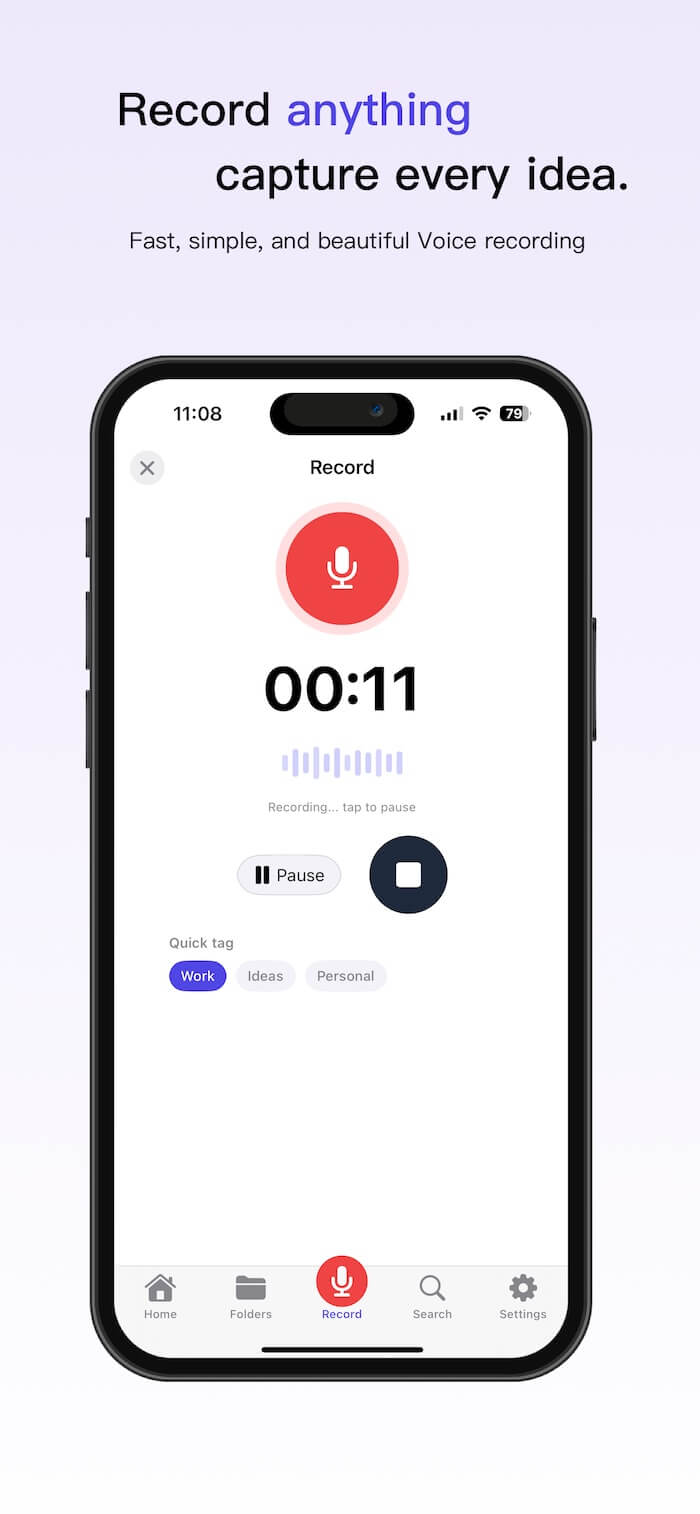
3. Add a custom file name, description, tags, or select a folder for the recording.
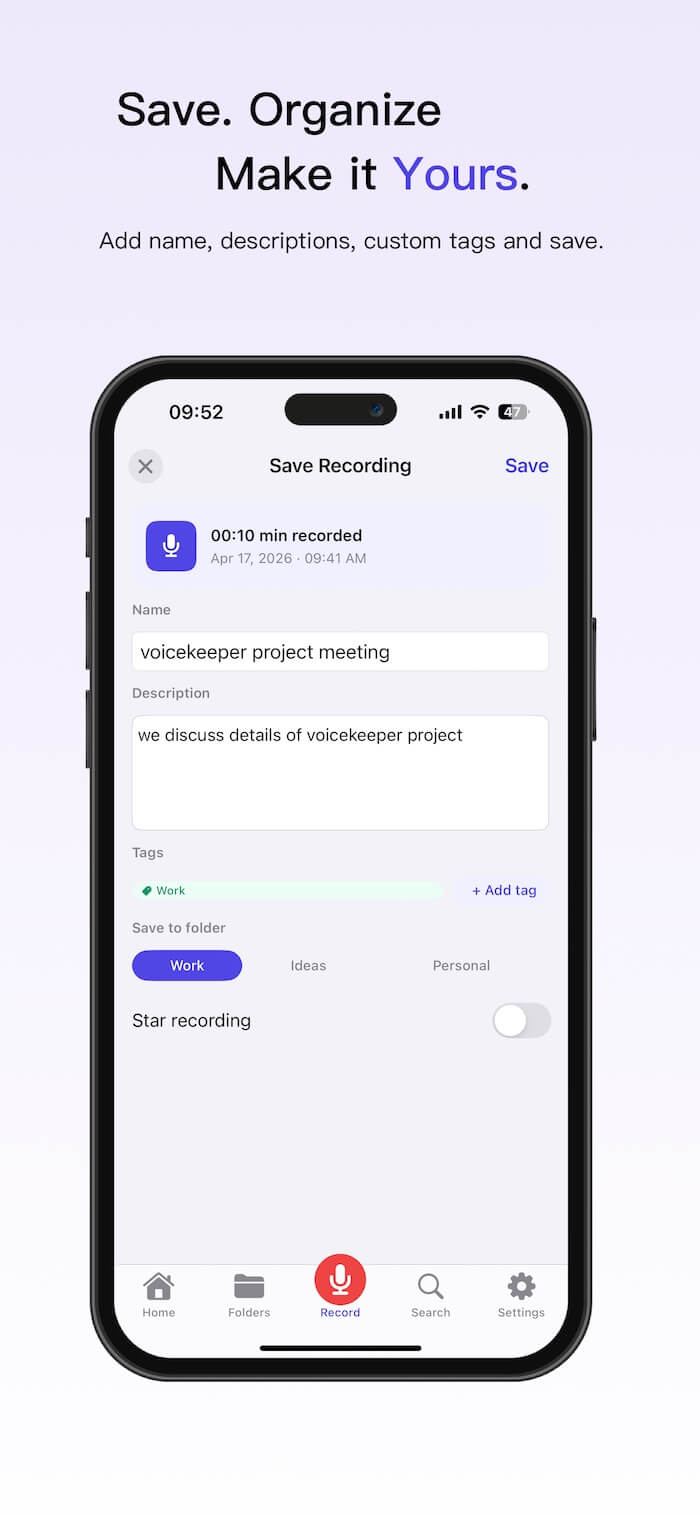
4. Mark important recordings with a star if needed. Tap Save.
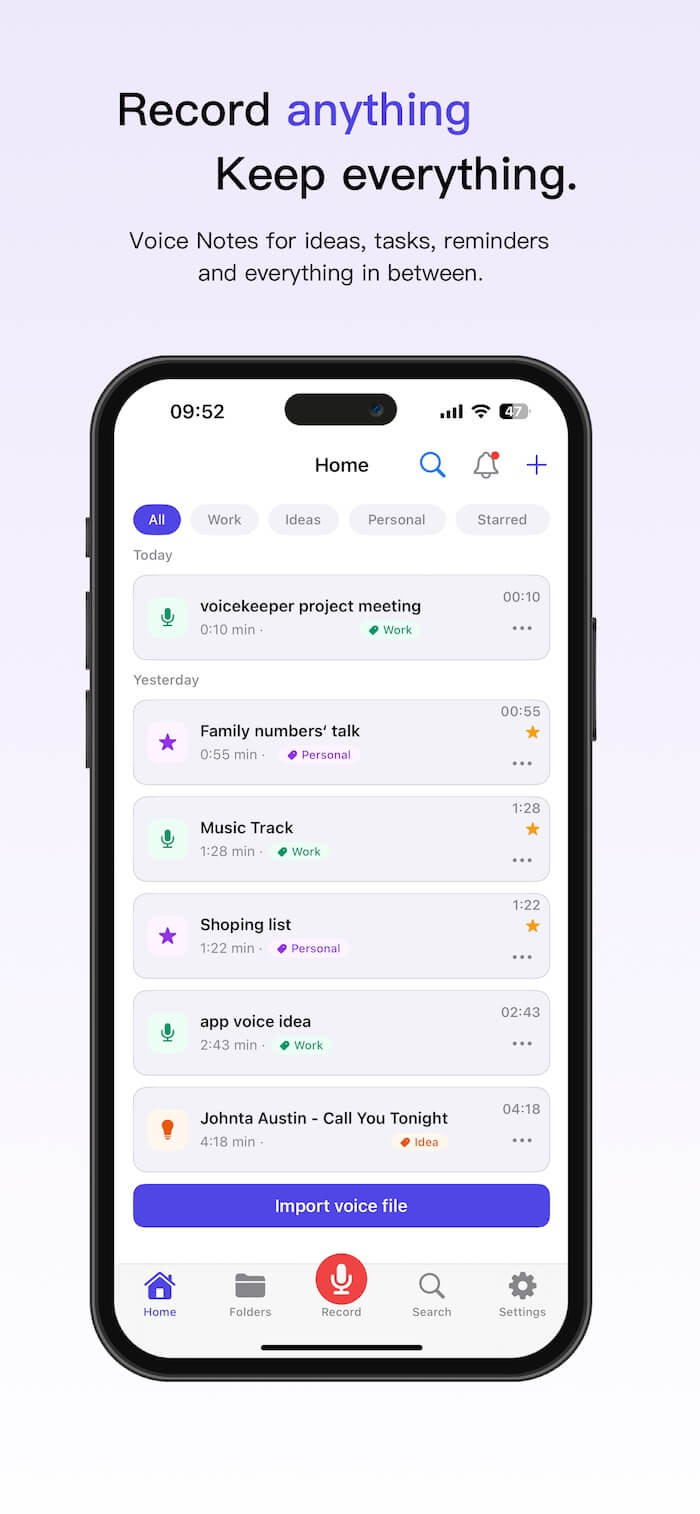
On the Home Screen, you can easily browse all recordings by custom tags, folders, and recording dates such as Today, Yesterday, and Earlier. The built-in search feature also helps you quickly find recordings by keyword or tag.
How to Import Voice Memos into VoiceKeeper
If you already have recordings saved in Voice Memos or other cloud storage services, you can import them into VoiceKeeper:
1. Open the Voice Memos app. Select a recording and tap Share. Save the recording to the Files app.
2. Open VoiceKeeper. Tap Import Voice File on the Home Screen. Choose the audio file from the Files app. Edit the file name, description, tags, or folder before saving.
How to Edit Existing Voice Recordings
If you need to edit recording information in VoiceKeeper:
1. Tap the three-dot More button next to a recording.
2. Choose from the available options: Rename recording, Edit description, Edit tags, Move to folder, Star recording, Convert Voice to Text, Share, Delete.
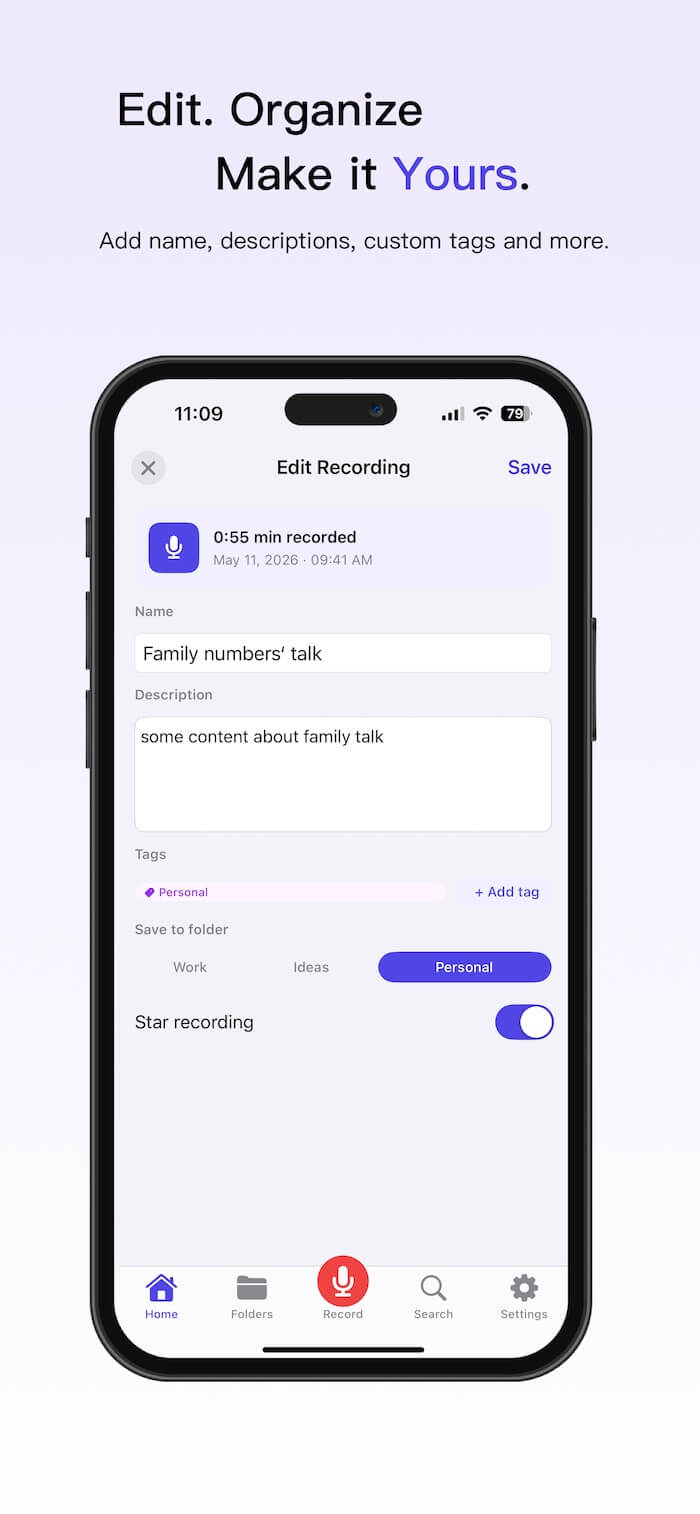
These features make it much easier to organize and manage large numbers of voice recordings on iPhone and iPad.
2. Organize Recordings in the Built-in Voice Memos App
The built-in Voice Memos app provides basic organization tools, mainly through folders.
How to Create a New Folder in Voice Memos
1. Open the Voice Memos app. Tap the Back button to view all folders.
2. Tap New Folder, enter a folder name. Tap Save.
How to Move Voice Memos into Folders
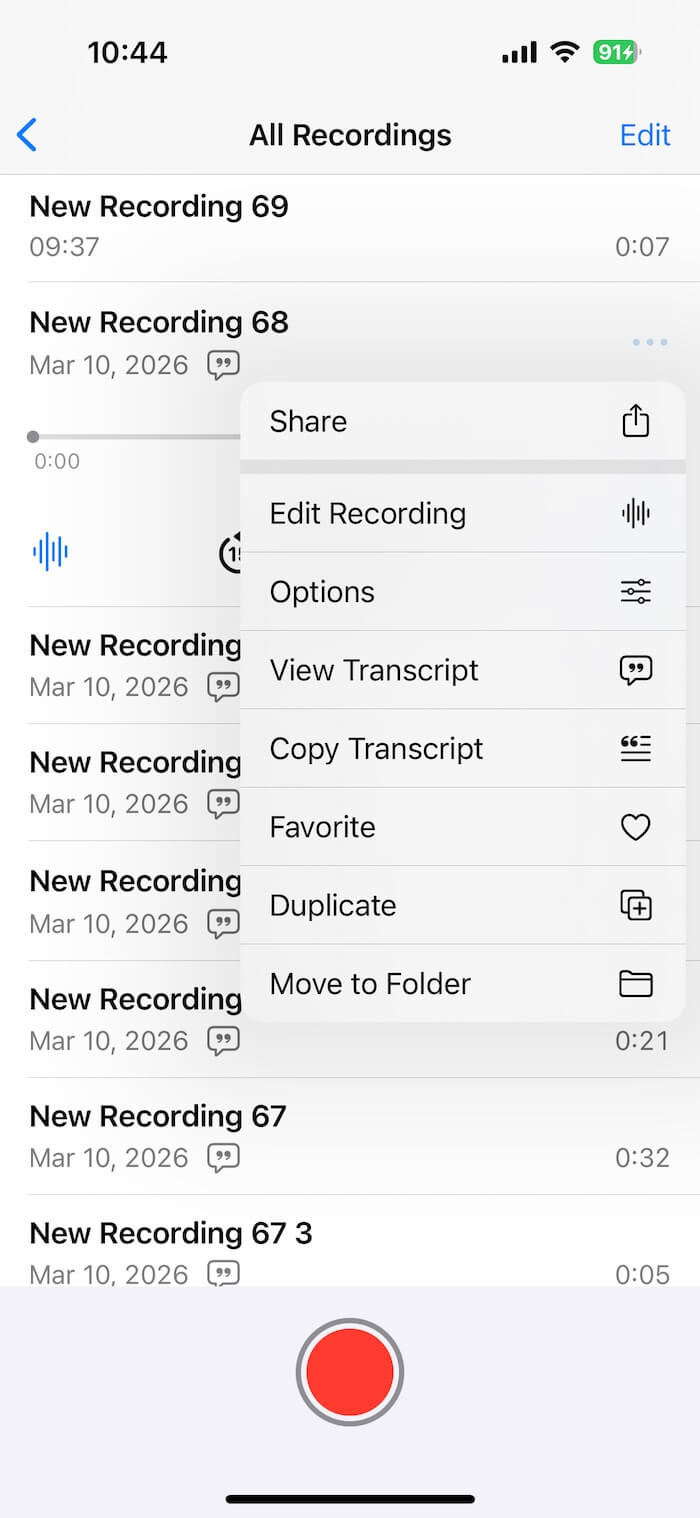
1. Open the Voice Memos app on your iPhone. Tap Edit above the recordings list.
2. Select one or more recordings. Tap Move or Move to Folder. Choose an existing folder.
Final Thoughts
Although the built-in Voice Memos app supports folders, it does not provide advanced organization tools such as custom tags, descriptions, transcription, or smart search. Using VoiceKeeper can help you better manage large collections of voice recordings and improve productivity.
| More Related Articles | ||||
 |
1. How to Edit Audio and MP3 Metadata on iPhone? 2. How to Rename Photos on iPhone Without a Computer? |
|||
About Fireebok Studio
Our article content is to provide solutions to solve the technical issue when we are using iPhone, macOS, WhatsApp and more. If you are interested in the content, you can subscribe to us. And We also develop some high quality applications to provide fully integrated solutions to handle more complex problems. They are free trials and you can access download center to download them at any time.
| Popular Articles & Tips You May Like | ||||
 |
 |
 |
||
| Five ways to recover lost iPhone data | How to reduce WhatsApp storage on iPhone | How to Clean up Your iOS and Boost Your Device's Performance | ||