If you've recently purchased a new Mac, you may be wondering how to transfer your existing photo collection—especially if your old Photos library is stored on an external hard drive—to your new computer.
Many Mac users face this situation when upgrading to a new Mac. They want to import their old Photos library without losing important photos, albums, edits, keywords, or metadata. The challenge becomes even greater if they've already started using the Photos app on their new Mac and want to combine both collections into one library.
In this guide, we'll explain how to import an external Photos library to a new Mac and explore different ways to merge two Apple Photos libraries while preserving your photos and their organization. We'll cover both Apple's built-in import feature and a dedicated third-party solution.
Why Merge Two Photos Libraries on a New Mac?
When setting up a new Mac, you may already have a Photos library containing recently imported pictures. Meanwhile, your older photo collection may remain in a Photos library stored on an external hard drive.
Simply copying the old library to your new Mac isn't always the best solution. If you want to keep your recent photos and combine them with your older collection, you'll need to merge the two Photos libraries.
Merging your photo libraries allows you to:
• Combine multiple photo collections: Bring photos from your old external Photos library into your current system library.
• Preserve photo organization: Retain albums, folders, and other organizational structures where supported by the merging method.
• Keep photo metadata: Maintain important information such as capture dates, locations, keywords, and other metadata.
• Preserve photo edits: Retain supported non-destructive edits made in Apple Photos.
• Avoid duplicate photos: Reduce unnecessary duplication when combining libraries.
Apple Photos provides a built-in feature for importing photos from another library. However, this approach has some limitations. For example, keywords are not imported, and certain library structures and metadata may not be retained as expected.
If preserving your existing photo organization and metadata is important, you may want to consider a dedicated Photos library merging tool.

Recommended Solution: Merge Photos Libraries with Photo Exifer
Photo Exifer is a macOS application designed for managing photo metadata and Apple Photos libraries. It includes a dedicated library merging feature that allows you to combine multiple Photos libraries into a single destination library.
Unlike a simple photo export and import workflow, Photo Exifer is designed to preserve photo information and library organization during the merging process. It also provides options for identifying and avoiding duplicate photos.
Key benefits include:
• Merge multiple Photos libraries: Combine two or more Apple Photos libraries into one.
• Preserve photo metadata: Retain important metadata associated with your photos.
• Maintain library organization: Preserve supported albums and organizational structures.
• Avoid duplicate photos: Help prevent duplicate entries when merging libraries.
• Manage photo collections: Use additional metadata management and duplicate detection tools to keep your photo library organized.
Step-by-Step: Import and Merge an External Photos Library into Your New Mac
Follow these steps to merge your old Photos library stored on an external drive into the current system Photos library on your new Mac.
Step 1. Download and Install Photo Exifer
Download and install Photo Exifer on your new Mac. You can obtain the application from the official Fireebok website or the Mac App Store.
Step 2. Open the Photos Library Merge Feature
Launch Photo Exifer and select File > Merge Photo Libraries... from the menu bar.
Step 3. Add Both Photos Libraries
Click the + button to add the two Photos libraries you want to merge:
• Your old Photos library stored on the external hard drive.
• Your current system Photos library on your new Mac.
Make sure the external drive is connected and the old Photos library is accessible.
Step 4. Select the Destination Photos Library
Choose your current system Photos library as the destination.
This is the library that will receive the photos and supported library information from your old external Photos library.
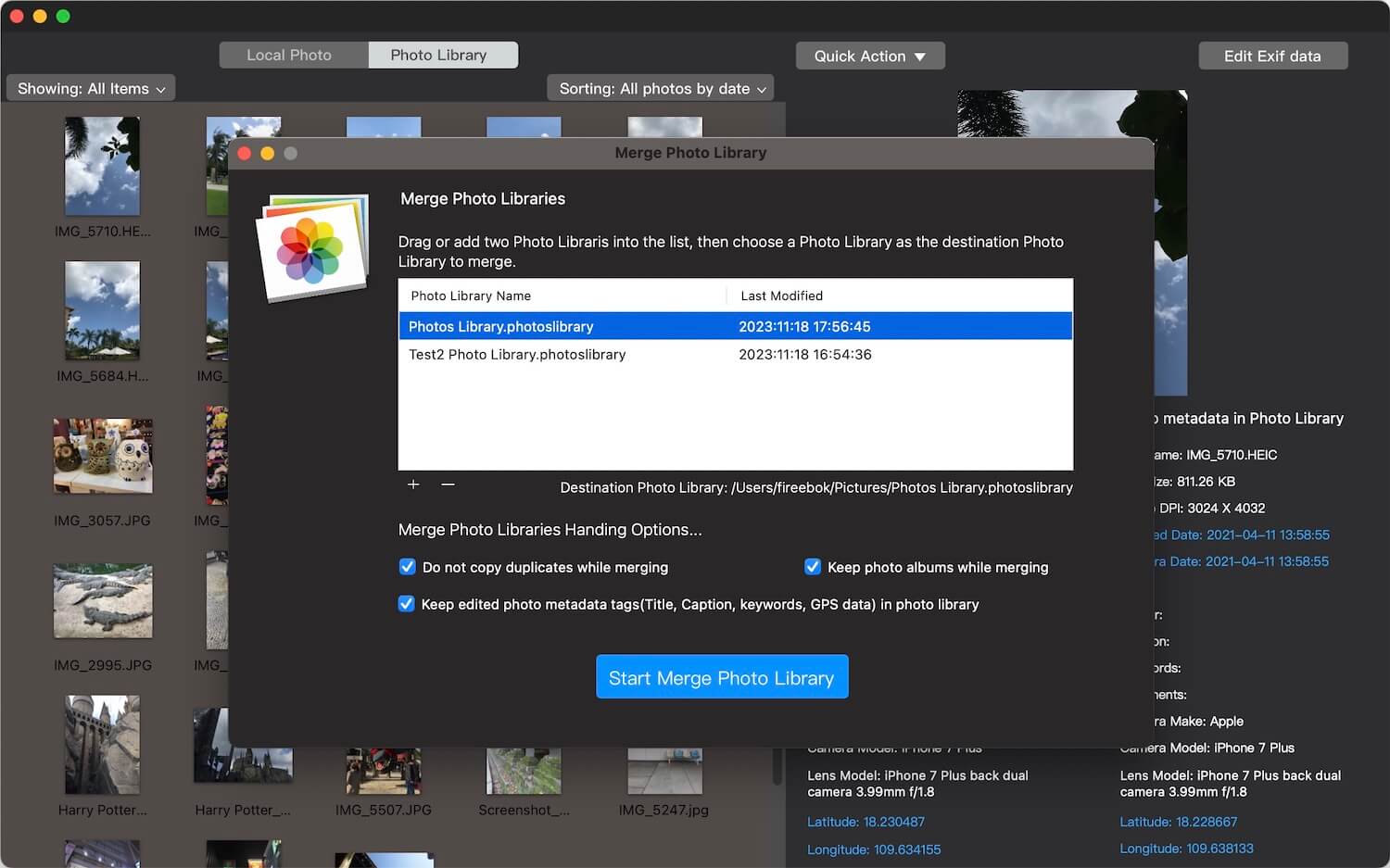
Step 5. Start Merging the Photos Libraries
Click Start Merge Photo Library to begin the process.
Photo Exifer will start combining the selected libraries. Depending on the size of your photo collections, the merging process may take some time.
The application is designed to preserve photo metadata and supported library structures while helping you avoid duplicate photos.
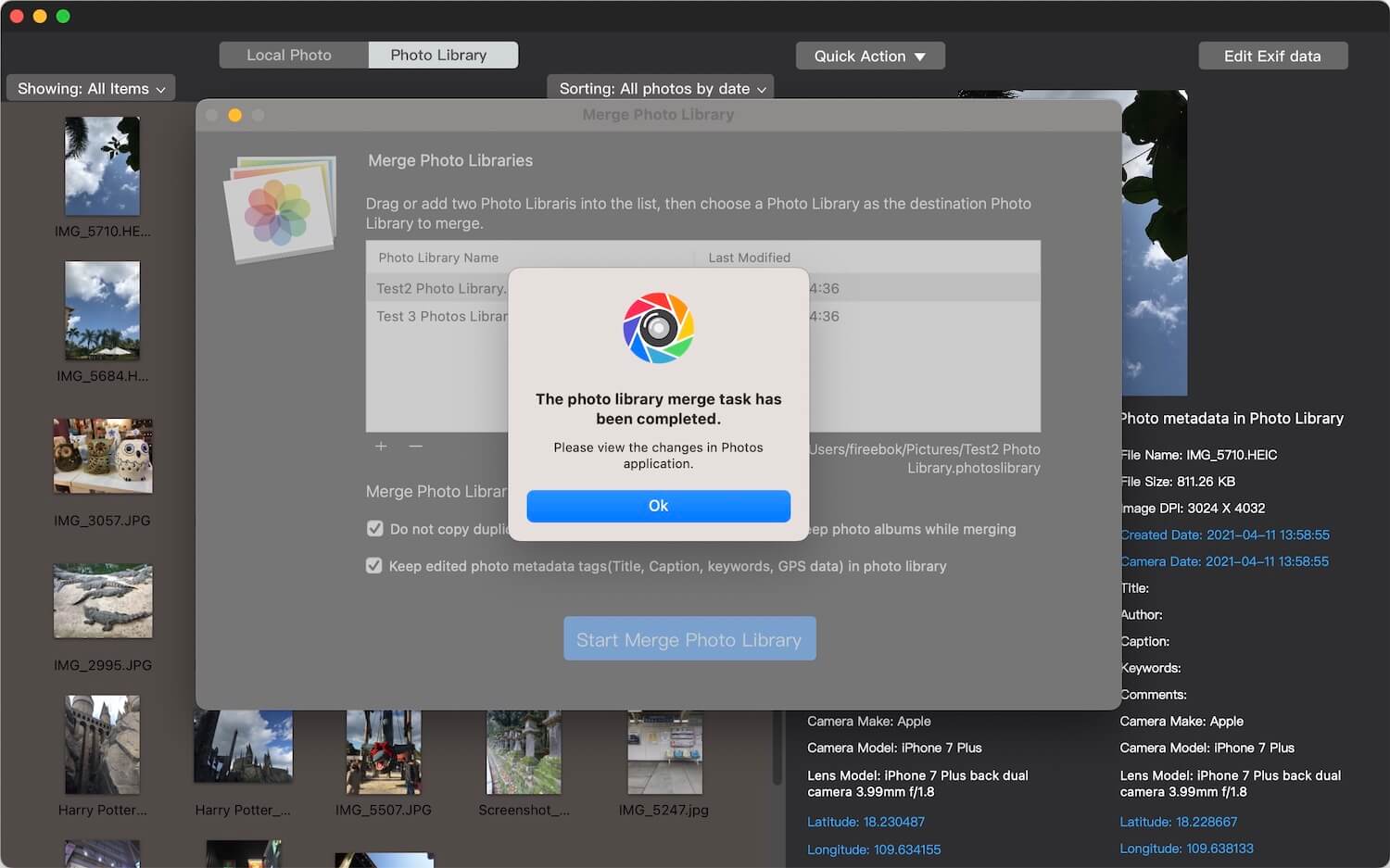
Step 6. Verify the Merged Photos Library
Once the merging process is complete, open your system Photos library in the Apple Photos app.
Check your imported photos, albums, folders, edits, and other important information to make sure everything has been transferred as expected.
You can also use Photo Exifer's duplicate detection feature to review your photo collection and identify any remaining duplicates.
Native Alternative: Import Photos from Another Library Using Apple Photos
If you prefer not to install additional software, Apple Photos provides a built-in option for importing photos from another Photos library.
On macOS Monterey or later, you can use the following steps:
1. Connect the external hard drive containing your old Photos library to your new Mac.
2. Open the destination Photos library in the Photos app.
3. Select File > Import from the menu bar.
4. Locate and select the external Photos library.
5. Click Review for Import.
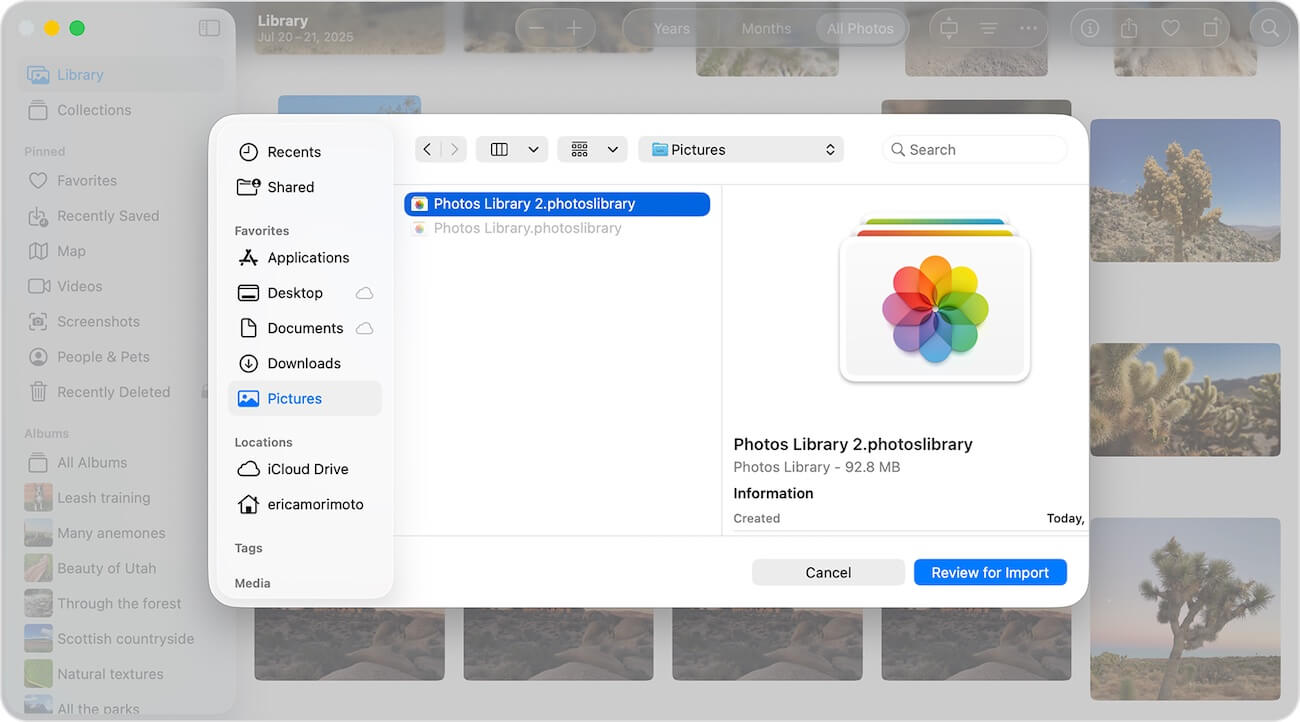
6. Select the photos you want to import and complete the import process.
This method is convenient if you only need to transfer photos from one library to another.
Limitations of Apple's Built-in Photos Import Feature
Although Apple's native import feature is easy to use, it has some limitations when merging complete photo libraries.
• Keywords are not imported: Keywords assigned to photos in the source library are not transferred through this method.
• Not all library information is retained: Some organizational information and metadata may not be preserved in the same way as in the original library.
• Limited library merging capabilities: The native feature is primarily designed to import photos rather than provide comprehensive control over merging multiple libraries.
If you only need to import selected photos, Apple's built-in feature may be sufficient. However, if you want to consolidate multiple libraries while retaining more of their original organization and metadata, a dedicated library merging application may be a better option.
Tips for Successfully Merging Photos Libraries on a New Mac
Before merging your external Photos library with your new Mac's system library, consider the following recommendations.
1. Back Up Both Photos Libraries
Always create backups of both the source and destination Photos libraries before starting. This is particularly important when merging large collections containing years of photos and videos.
2. Check Your External Hard Drive
Make sure your external drive is properly connected and that your old Photos library is accessible.
For a Photos library stored on an external drive, Apple recommends using a Mac-compatible format such as APFS or Mac OS Extended (Journaled). Avoid storing an active Photos library on a drive used for Time Machine backups.
3. Make Sure You Have Enough Storage Space
Merging large photo collections can require considerable disk space. Check the available storage on your Mac and external drive before starting.
4. Check iCloud Photos Settings
If you use iCloud Photos, check which library is designated as your System Photo Library and whether iCloud synchronization is enabled.
Be careful when switching between libraries or changing synchronization settings. Avoid making unnecessary changes during the merging process, and make sure your important photos are backed up before proceeding.
5. Verify Your Photos After Merging
Don't assume the process is complete simply because the application reports that merging has finished. Open the destination library in Apple Photos and check important photos, albums, edits, and metadata.
6. Check for Duplicate Photos
Combining multiple libraries may introduce duplicate photos, especially if the same pictures exist in both collections. Use a duplicate detection tool to review the merged library and remove unnecessary copies only after verifying the results.
Conclusion
Importing an external Photos library to a new Mac is relatively straightforward, but merging it with an existing library requires a little more consideration.
Apple Photos provides a convenient built-in import feature for transferring photos from another library. However, it does not import keywords and may not preserve all the organizational information you want to retain.
If you want to merge multiple Apple Photos libraries while preserving photo metadata, albums, edits, and supported library structures, Photo Exifer offers a more comprehensive solution. Its library merging feature also helps you avoid duplicate photos when consolidating multiple collections.
By choosing the right method and backing up your libraries before starting, you can bring your old photo collection and new photos together in one organized Photos library on your new Mac.
| More Related Articles | ||||
 |
1. How to find and remove duplicate photos from Photos? 2. How to batch rename photos within the Photos app on Mac? |
|||
About Fireebok Studio
Our article content is to provide solutions to solve the technical issue when we are using iPhone, macOS, WhatsApp and more. If you are interested in the content, you can subscribe to us. And We also develop some high quality applications to provide fully integrated solutions to handle more complex problems. They are free trials and you can access download center to download them at any time.
| Popular Articles & Tips You May Like | ||||
 |
 |
 |
||
| Five ways to recover lost iPhone data | How to reduce WhatsApp storage on iPhone | How to Clean up Your iOS and Boost Your Device's Performance | ||
