Have you recently updated your Mac to macOS Sequoia 15.8 and Safari 27.0, only to discover that YouTube videos no longer play properly? You're not alone. Some Mac users have reported problems with YouTube after updating Safari, including videos that refuse to start, black screens, endless loading spinners, and playback that freezes unexpectedly.
In some cases, the YouTube homepage loads normally, but clicking a video does nothing. In others, the video player appears but remains stuck loading, or the audio plays while the screen stays black.
Restarting Safari or clearing your browsing history may not always resolve the problem.
This guide explains why YouTube might stop working after a Safari 27.0 update and provides practical, step-by-step solutions to restore YouTube video playback on your Mac. We'll start with simple troubleshooting methods and move on to more advanced fixes.
Why Is YouTube Not Working After Updating to Safari 27.0?
YouTube relies on JavaScript, browser storage, content delivery networks, and modern video playback technologies. If something interferes with these components, YouTube may fail to load videos correctly.
When YouTube stops working immediately after a Safari update, the problem may be related to browser compatibility, website data, extensions, or video decoding.
Here are some common causes:
• Safari compatibility issues: A new Safari release may introduce browser or media playback bugs that affect certain websites.
• Corrupted website data: Outdated cookies, cached files, or damaged website storage can prevent YouTube from loading correctly.
• Safari extension conflicts: Ad blockers, privacy extensions, and content blockers may interfere with scripts or resources required by YouTube.
• JavaScript problems: YouTube requires JavaScript to load its interface and manage video playback.
• Network restrictions: VPNs, proxies, custom DNS settings, or security software may interfere with connections to YouTube's servers.
• Video decoding problems: Safari's media playback or hardware decoding components may occasionally fail, resulting in black screens, frozen videos, or playback errors.
Quick Checks Before Troubleshooting
Before changing Safari settings, try these simple solutions. They may resolve temporary playback problems without requiring more complicated adjustments.
1. Reload YouTube: Press Command + R to reload the page. Try playing another video to determine whether the problem affects all videos or just one.
2. Open a Private Window: Press Shift + Command + N to open a new Private Browsing window. Visit YouTube and test video playback.
If YouTube works in Private Browsing, the problem may be related to your normal browsing session, extensions, or saved website data.
3. Restart Safari: Quit Safari completely using Command + Q, then reopen it and try YouTube again.
4. Check another browser: Open YouTube in Chrome or Firefox. If videos work in another browser but not Safari, the problem is more likely related to Safari or its configuration.
If these quick checks don't help, continue with the following solutions.
10 Ways to Fix YouTube Not Working on Safari 27.0
1. Force Quit Safari and Restart Your Mac
A temporary browser malfunction or stuck media process can prevent YouTube videos from playing.
Completely quitting Safari can reset its active tabs, playback sessions, and temporary browser processes.
Follow these steps:
1. Press Option + Command + Esc to open the Force Quit Applications window.
2. Select Safari from the list.
3. Click Force Quit.
4. Wait a few seconds and reopen Safari.
5. Visit YouTube and test a video.
If the problem continues, restart your Mac from the Apple menu.
A full restart can also reset system services involved in video playback.
2. Clear YouTube's Website Data and Cookies
Corrupted cookies or outdated cached website resources can cause YouTube to behave unexpectedly.
Instead of deleting your entire browsing history, try removing only YouTube's stored website data.
1. Open Safari.
2. Select Safari > Settings from the menu bar.
3. Click the Privacy tab.
4. Select Manage Website Data.
5. Search for youtube.com and related Google website entries.
6. Select the relevant entries and click Remove.
7. Click Done, quit Safari, and reopen it.
8. Visit YouTube and test video playback.
Removing website data may sign you out of YouTube and other Google services, so make sure you know your login credentials.
If the problem persists, proceed to the next solution.

3. Disable Safari Extensions and Content Blockers
Browser extensions are a common source of website compatibility problems.
Ad blockers, privacy tools, script blockers, and content-filtering extensions can sometimes prevent YouTube from loading the scripts and resources required for video playback.
To check whether an extension is causing the problem:
1. Open Safari > Settings.
2. Select Extensions.
3. Temporarily disable all installed extensions.
4. Quit and reopen Safari.
5. Open YouTube and try playing a video.
If YouTube works normally, one of your extensions is likely responsible.
Re-enable your extensions one at a time, testing YouTube after each change. This will help you identify the problematic extension.
Once you find it, check whether an updated version is available or adjust its settings to allow YouTube to work correctly.
4. Make Sure JavaScript Is Enabled
YouTube relies heavily on JavaScript to display its interface, load video information, and control playback.
If JavaScript is disabled, YouTube may load incorrectly, display incomplete controls, or fail to respond when you click the Play button.
To enable JavaScript:
1. Open Safari > Settings.
2. Click the Security tab.
3. Find the Enable JavaScript option.
4. Make sure it is checked.
5. Reload YouTube.
If JavaScript was already enabled, leave this setting unchanged and continue troubleshooting.
5. Check Safari's Website Privacy and Content Blocking Settings
Safari includes privacy features that limit cross-site tracking and restrict certain website content.
Although these features are important for protecting your privacy, content blockers or customized website permissions may occasionally interfere with website functionality.
To check YouTube's website settings:
1. Open YouTube in Safari.
2. Select Safari > Settings for This Website from the menu bar, if available.
3. Review any customized website permissions or content-blocking settings.
4. If you have configured content blockers for YouTube, temporarily disable them for testing.
5. Reload the page and try playing a video.
You can also review Safari's broader privacy settings under Safari > Settings > Privacy.
Avoid disabling all privacy protections or allowing all cookies as a first troubleshooting step. Only change a setting when you have a specific reason to suspect it is causing the problem.
6. Check Your Mac's Network, VPN, and Proxy Settings
YouTube videos are delivered through multiple network connections. VPN services, proxy configurations, custom DNS settings, and network-filtering applications can sometimes interfere with these connections.
Try the following checks:
Temporarily disable your VPN
If you use a VPN, disconnect it and reopen YouTube.
Check proxy settings
1. Open System Settings.
2. Select Network.
3. Choose your active network connection.
4. Open its details and find the Proxies section.
5. Check whether any unexpected proxy settings are enabled.
Do not disable a proxy required by your workplace or network administrator.
Check custom DNS settings
If you use a third-party DNS service, temporarily test your connection with your normal network DNS configuration.
Test another network
Connect your Mac to another Wi-Fi network or a mobile hotspot.
If YouTube works on another network, the problem may be related to your original network configuration rather than Safari itself.
7. Check Safari's Video Playback and Hardware Decoding
If YouTube loads normally but videos remain black, freeze, or play audio without displaying pictures, the problem may involve Safari's media playback or video decoding components.
Apple has documented several media-related fixes in Safari 27.2, including an issue where video could display a black screen while audio continued playing, and another issue involving stalled media streaming.
This makes checking for Safari updates especially important when you experience these symptoms.
Before updating, try the following:
1. Close other browser tabs that are playing videos.
2. Quit Safari completely.
3. Restart your Mac.
4. Reopen Safari and test YouTube again.
5. Try playing videos at a lower resolution, such as 720p or 480p.
If the problem occurs with multiple video websites, including YouTube and other streaming services, it may indicate a broader Safari media playback issue rather than a YouTube-specific problem.
Note: Safari does not provide a general user-facing switch to disable hardware video decoding. Avoid changing hidden system settings or experimental browser features unless you know exactly what they do.
8. Clear Safari's Browser Cache
Safari stores cached website resources to make pages load faster. However, outdated or corrupted cached files can sometimes cause websites to load incorrectly.
If clearing YouTube's website data did not help, try emptying Safari's cache.
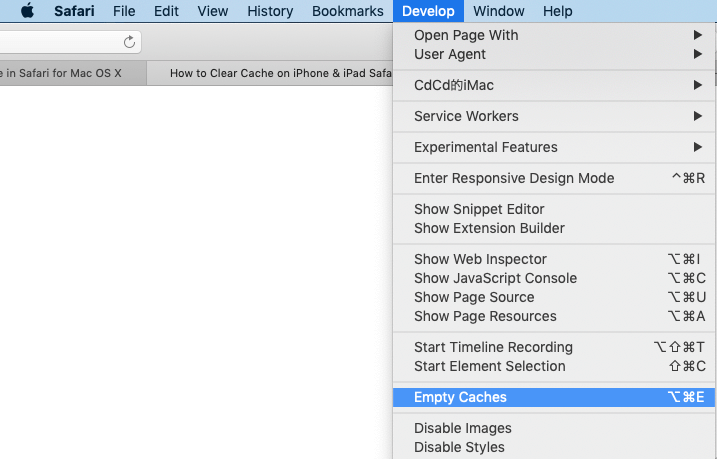
Follow these steps:
1. Open Safari > Settings.
2. Select Advanced.
3. Enable Show features for web developers or the equivalent developer-tools option available in your Safari version.
4. Close the Settings window.
5. Select Develop > Empty Caches from the menu bar.
6. Reload YouTube and test video playback.
This removes cached website resources without requiring you to delete your entire browsing history.
9. Test YouTube in a Clean Safari Session
If YouTube works in a Private Window but not in your regular browsing window, this is an important clue.
Private Browsing uses a separate browsing session and does not reuse your normal window's website storage in the same way. It can help determine whether saved data or extensions are involved.
To test:
1. Press Shift + Command + N.
2. Open YouTube in the new Private Window.
3. Sign in if necessary.
4. Play several videos.
If YouTube works in the Private Window, focus on your normal Safari profile, especially extensions, cookies, and website data.
Private Browsing is useful as a temporary workaround, but it is not a permanent fix if the underlying problem is an extension or browser bug.
10. Update Safari and macOS to the Latest Available Version
If YouTube stopped working immediately after installing Safari 27.0, the problem may be caused by a browser compatibility issue that Apple addresses in a later release.
Apple released Safari 27.2 on October 26, 2026. Its official release notes document fixes for several video and media playback issues, including black-screen video playback and stalled streaming.
Therefore, installing the latest available Safari and macOS updates should be one of your priorities.
To check for updates:
1. Open the Apple menu.
2. Select System Settings.
3. Click General > Software Update.
4. Wait for your Mac to check for available updates.
5. Install any available Safari or macOS updates.
6. Restart your Mac if requested.
You can also check your Safari version by selecting Safari > About Safari.
If you are still using Safari 27.0, updating to a later release may resolve a browser-related playback problem.
You can find additional technical details in Apple's official Safari Release Notes.
When YouTube Still Doesn't Work: Try Another Browser
If you have tried all the troubleshooting methods above and YouTube still refuses to play videos in Safari, consider using another browser temporarily.
Two good alternatives are:
Google Chrome
Chrome uses the Chromium browser engine and may not experience the same Safari-specific compatibility problems.
Mozilla Firefox
Firefox uses a different browser engine and provides another way to determine whether the problem is specific to Safari.
If YouTube works normally in Chrome or Firefox but continues to fail in Safari, you have a useful indication that the issue is related to Safari, its extensions, or its media playback environment.
You don't necessarily need to abandon Safari. You can continue using another browser for YouTube until a Safari update or configuration change resolves the problem.
Frequently Asked Questions
Why did YouTube stop working after updating to Safari 27.0?
There may be a compatibility problem between Safari 27.0 and YouTube's video player. Other possible causes include corrupted website data, conflicting browser extensions, network restrictions, or media playback issues.
If the problem started immediately after updating Safari, check whether a newer browser or macOS update is available.
Why does YouTube load but videos won't play in Safari?
This can happen when YouTube's webpage loads successfully but its video player cannot retrieve or decode the media stream.
Try disabling extensions, clearing YouTube's website data, testing another network, and updating Safari.
Why is YouTube showing a black screen but playing audio?
A black screen with working audio can indicate a video decoding or rendering problem.
Restart Safari and your Mac, test another video resolution, and check for Safari updates. Apple has documented a related black-screen video playback fix in Safari 27.2.
Why does YouTube work in Chrome but not Safari?
Chrome and Safari use different browser engines and handle website rendering and media playback differently.
If YouTube works in Chrome but not Safari, investigate Safari extensions, website data, privacy settings, and browser compatibility.
Will clearing Safari's cache delete my bookmarks and passwords?
No. Emptying Safari's cache does not normally delete saved bookmarks or passwords.
However, removing website data and cookies may sign you out of websites, so you may need to log in again.
Should I reinstall macOS to fix YouTube playback problems?
Usually not. Reinstalling macOS is an extreme troubleshooting measure and is rarely necessary for a problem affecting one website.
Start with website data, extensions, network settings, and software updates before considering more extensive system repairs.
Can I downgrade Safari 27.0 to an older version?
Apple generally does not provide a standalone Safari downgrade option. Safari updates are distributed through macOS software updates, so reverting versions may require reinstalling an older macOS version.
This is not recommended as an initial solution. Updating to the latest compatible release is generally a better approach.
Conclusion
YouTube not working after updating to Safari 27.0 can be frustrating, especially when the website loads normally but videos refuse to play.
Fortunately, you can resolve many browser-related playback problems without reinstalling macOS or switching permanently to another browser.
Start by restarting Safari, clearing YouTube's website data, and disabling potentially conflicting extensions. Then check JavaScript, network settings, and Safari's media playback behavior.
Most importantly, make sure your Mac is running the latest available Safari version. Later releases, including Safari 27.2, contain documented fixes for certain video playback problems that may be relevant to black screens and stalled streaming.
By following these troubleshooting steps, you can identify the likely cause of the problem and get YouTube working again on your Mac.
| More Related Articles | ||||
 |
1. How to merge two photo libraries on Mac? 2. How to find and remove duplicate photos from Photos? |
|||
About Fireebok Studio
Our article content is to provide solutions to solve the technical issue when we are using iPhone, macOS, WhatsApp and more. If you are interested in the content, you can subscribe to us. And We also develop some high quality applications to provide fully integrated solutions to handle more complex problems. They are free trials and you can access download center to download them at any time.
| Popular Articles & Tips You May Like | ||||
 |
 |
 |
||
| Five ways to recover lost iPhone data | How to reduce WhatsApp storage on iPhone | How to Clean up Your iOS and Boost Your Device's Performance | ||