When you import music CDs into your iPhone, you expect every song to include its album cover, track title, artist name, and other important information. However, CD-ripped songs sometimes appear with missing album artwork, incorrect track names, or incomplete metadata after being transferred to an iPhone.
Missing album covers and tags can make your music library difficult to browse and organize. Fortunately, you don't need a Mac or PC to fix these problems. With AudioInfo, you can edit audio metadata, add album artwork, and update embedded tags directly on your iPhone or iPad.
In this guide, we'll explain why CD-ripped songs sometimes lose their metadata and show you how to restore album artwork and song information using AudioInfo.
Why Do CD Songs Lose Metadata and Album Artwork on iPhone?
When you rip a music CD using iTunes or the Apple Music app on a computer and transfer the resulting audio files to your iPhone, you may occasionally find that some songs have missing or incorrect metadata.
Several factors can cause this problem.
1. Missing Metadata During CD Import
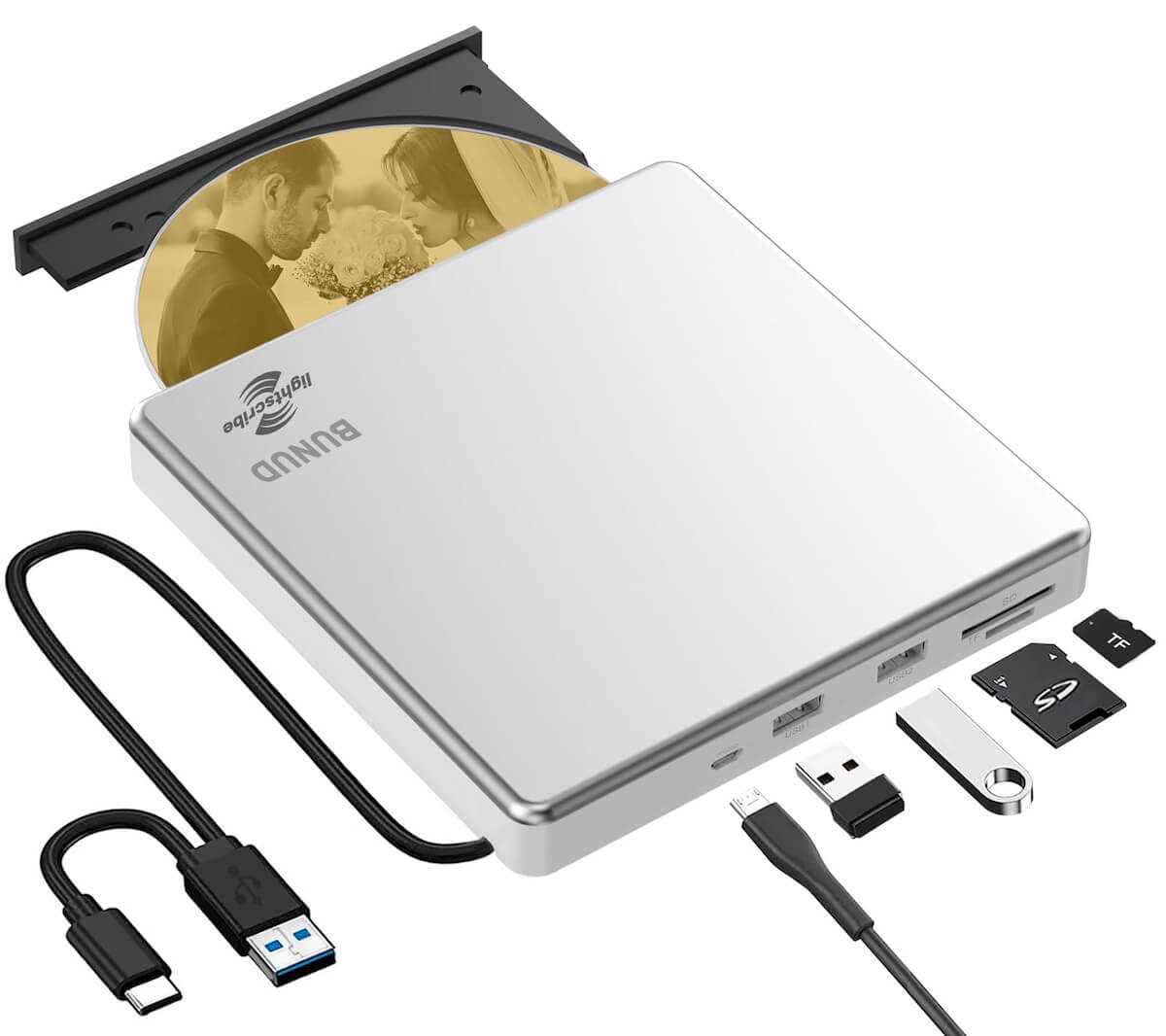
Audio CDs generally store the audio tracks themselves, not complete metadata such as song titles, artist names, album information, or cover artwork. CD-ripping software usually retrieves this information from online music databases.
If the software cannot identify the CD or retrieve the correct information, the imported audio files may contain incomplete tags.
2. Album Artwork Was Not Embedded
Album artwork may be downloaded separately or stored in a music library rather than embedded directly into each audio file.
When you transfer these files between devices or applications, the artwork may not accompany the audio. Consequently, songs can appear without album covers in other music players.
3. Inconsistent or Unsupported Metadata Tags
Different audio formats use different metadata standards. For example, MP3 files commonly use ID3 tags, while M4A files use a different metadata structure.
Some applications may not read or preserve every metadata field consistently. This can result in missing track numbers, incorrect album artists, or other incomplete information.
4. Limited Metadata Editing in Apple Music on iPhone
Apple Music on iPhone is primarily designed for managing and playing music, rather than providing comprehensive file-level metadata editing.
Although you can manage certain music information through Apple's ecosystem, iOS does not provide a built-in tool for directly editing all embedded audio tags in individual local audio files.
To permanently update the metadata stored inside an audio file, you need an audio metadata editor.
The Solution: Edit Audio Metadata and Album Artwork with AudioInfo
AudioInfo is an audio metadata viewer and editor for iPhone and iPad. It allows you to inspect audio file properties, edit embedded metadata, replace album artwork, and remove unwanted tags.
Unlike music players that primarily display information, AudioInfo provides direct access to the metadata stored inside supported audio files.
You can import audio files from the Files app, edit their tags, add album covers, and save the updated files without using a computer.
Key Features of AudioInfo
1. Edit Music Metadata and ID3 Tags
Update the information embedded in your audio files, including:
• Song title
• Artist and album artist
• Album name
• Composer
• Genre
• Release year
• Track number and disc number
• Copyright information
• Comments and lyrics
• Other supported metadata fields
Whether you need to correct a song title or organize an entire CD collection, AudioInfo makes editing audio tags straightforward.
2. Add or Replace Album Artwork
Add missing album covers or replace incorrect artwork using images from your iPhone or iPad.
AudioInfo embeds supported artwork directly into the audio file, allowing the cover image to travel with the file when you transfer or open it in compatible audio players.
3. Inspect Detailed Audio Information
AudioInfo also provides detailed technical information about your audio files, including:
• Audio format and codec
• Bitrate and sample rate
• Bit depth and number of channels
• Duration and file size
• Other audio properties
Advanced analysis tools provide additional insights into audio quality, loudness, dynamic range, and waveform characteristics.
4. Support for Multiple Audio Formats
AudioInfo supports many popular audio formats, including:
• MP3
• M4A
• WAV
• FLAC
• AAC
• AIFF
• CAF
This makes it useful for managing music collections containing different audio formats, not just CD-ripped MP3 files.
How to Add Album Artwork and Metadata to CD Songs on iPhone
Now let's look at how to fix missing album covers and edit song information directly on your iPhone using AudioInfo.
Step 1: Make Your CD-Ripped Songs Available on Your iPhone
First, make sure your CD-ripped audio files are accessible through the Files app on your iPhone.
If your music files are already stored locally or in iCloud Drive, you can proceed to the next step.
If your songs are only available in the Apple Music library, you may need to transfer the original audio files from your Mac or PC to your iPhone first.
For example, you can use iCloud Drive to transfer MP3, M4A, or other supported audio files between your computer and iPhone.
Note: AudioInfo edits accessible audio files, not protected streaming tracks or music that is only available inside the Apple Music catalog.
Step 2: Import Audio Files into AudioInfo
Open AudioInfo on your iPhone and import your CD-ripped songs using the Files app.
You can select the audio files you want to inspect and edit. Once imported, AudioInfo displays their available metadata and technical properties.
Select a song to view its detailed information.
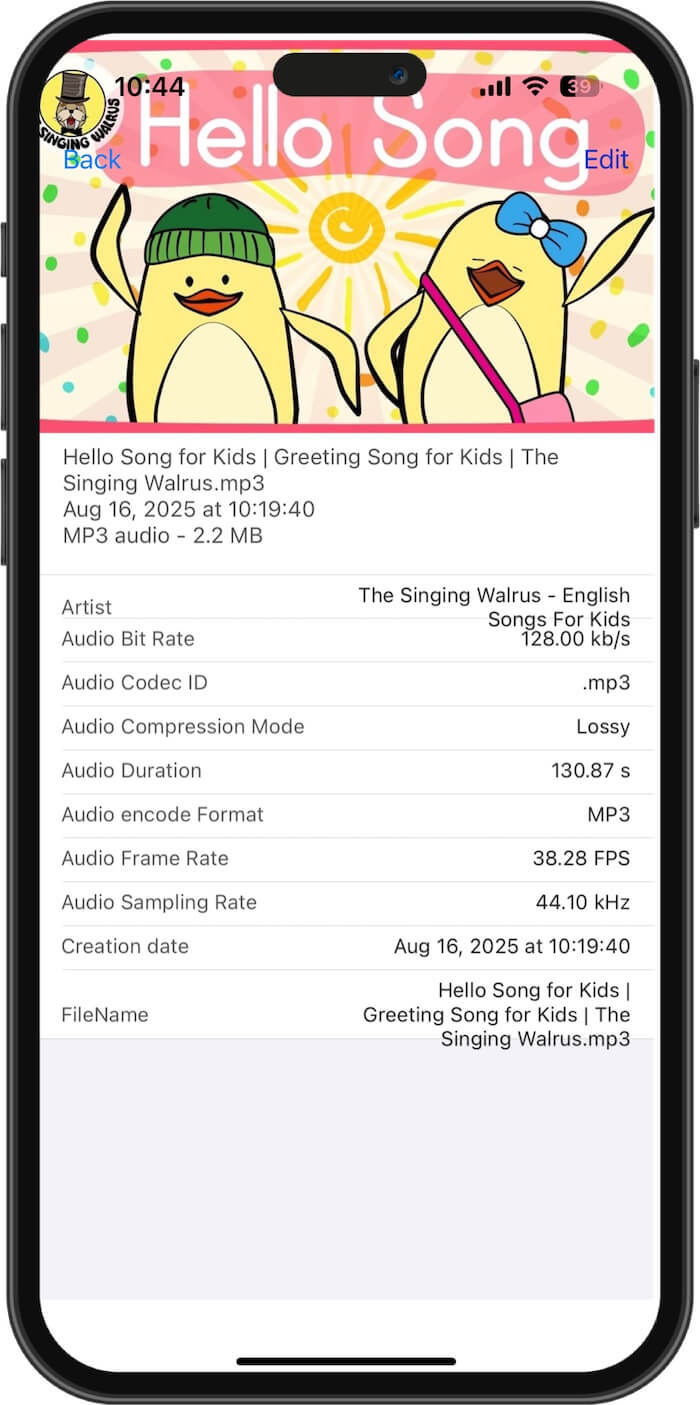
Step 3: Edit Missing Song Metadata
Open the selected audio file and navigate to its metadata section.
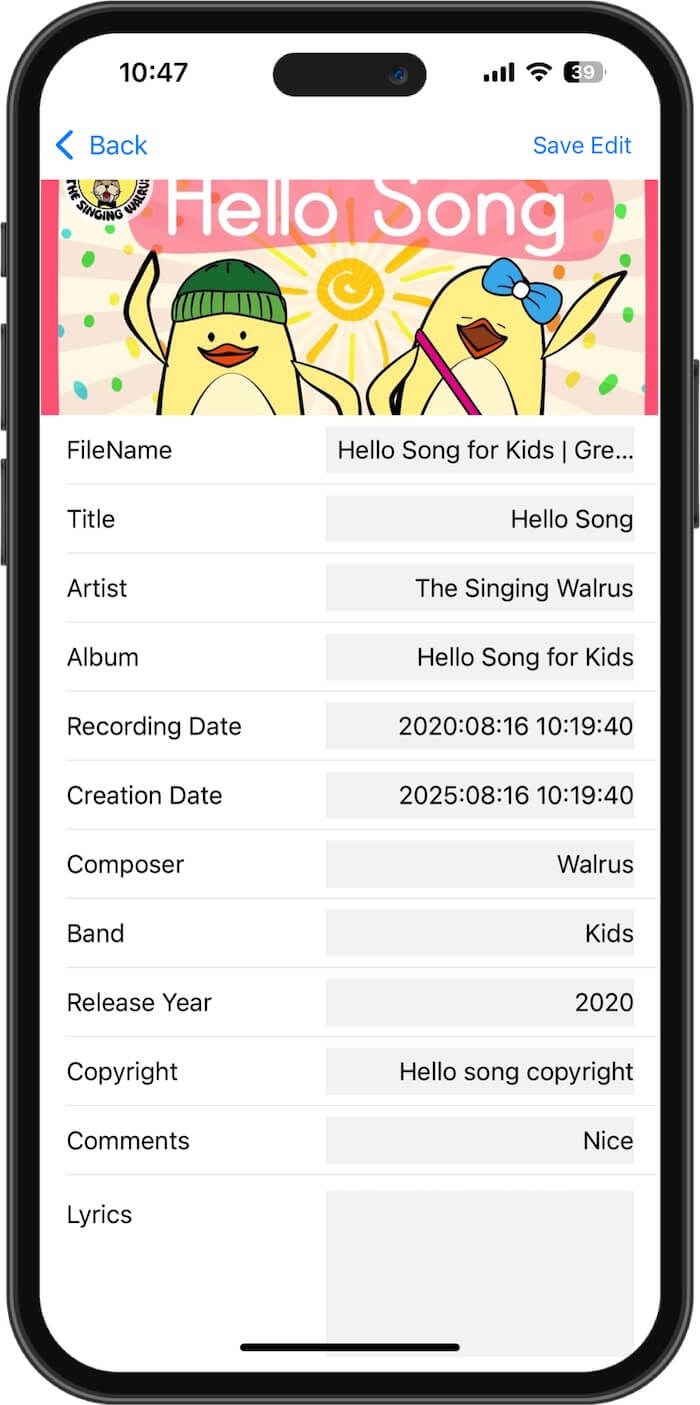
Tap Edit to modify the available metadata fields.
You can update information such as:
• Title: Enter the correct song name.
• Artist: Add or correct the performing artist.
• Album: Enter the album name.
• Composer: Add the composer's name.
• Album Artist: Specify the primary album artist.
• Track Number: Set the correct track sequence.
• Disc Number: Organize songs from multi-disc albums.
• Year and Genre: Add the release year and music category.
Correct metadata makes it easier to organize and identify your music collection across compatible audio applications.
Step 4: Add or Replace Album Artwork
To add missing album artwork, tap the artwork section in AudioInfo.
Then tap Add Artwork and choose an image from your iPhone's Photos library.
You can use an existing album cover image or download a suitable cover image and save it to your photo library first.
After selecting the image, AudioInfo embeds the artwork into the audio file.
This is particularly useful when your CD-ripped songs have no cover art or display an incorrect album image.

Step 5: Save the Updated Audio File
After editing the metadata and artwork, tap Save Edit to apply your changes.
AudioInfo writes the supported metadata changes into the audio file. Depending on the available save options, you can save the changes to the original file or export an updated copy.
Your corrected audio file now contains the updated song information and embedded album artwork.
You can then open or transfer the updated file to other compatible audio players and devices.
Tips for Keeping Your Music Metadata and Artwork Organized
If you have a large collection of CD-ripped music, these tips can help you maintain consistent metadata and avoid missing album covers.
1. Embed Album Artwork Directly into Audio Files
Whenever possible, store album artwork inside the audio file rather than relying only on a music application's library database.
Embedded artwork is more portable and is generally easier for compatible audio players to recognize.
2. Keep Track Numbers and Disc Numbers Consistent
For multi-disc albums, make sure every song has the correct track number and disc number.
For example, a two-disc album should distinguish between Disc 1 and Disc 2 rather than assigning duplicate track numbers without disc information.
3. Use Consistent Artist and Album Names
Avoid inconsistent naming conventions, such as using different spellings of an artist's name across multiple albums.
Consistent metadata makes music collections easier to browse, search, and organize.
4. Keep a Backup of Your Original Audio Files
Before making extensive changes to your music collection, keep a backup of the original audio files.
This gives you a way to restore the original files if you accidentally change or remove important metadata.
5. Check Metadata After Transferring Files
After transferring your updated music files to another device or application, check whether the album artwork and tags are displayed correctly.
Different applications support different metadata fields and artwork formats, so the final display may vary.
Conclusion
Missing album artwork and incomplete metadata can make a CD-ripped music collection frustrating to manage on an iPhone. However, you don't need to rely entirely on a desktop computer to fix these problems.
With AudioInfo, you can edit music metadata, add or replace album artwork, and inspect detailed audio properties directly on your iPhone or iPad.
Whether you want to fix missing MP3 album art, correct song titles, update ID3 tags, or organize a multi-disc CD collection, AudioInfo provides the tools to manage your audio files and keep their embedded metadata organized.
Download AudioInfo and take control of your music metadata and album artwork directly on your iPhone.
| More Related Articles | ||||
 |
1. How to Edit Video and MP4 Metadata on iPhone and iPad? 2. How to Rename Photos on iPhone Without a Computer? |
|||
About Fireebok Studio
Our article content is to provide solutions to solve the technical issue when we are using iPhone, macOS, WhatsApp and more. If you are interested in the content, you can subscribe to us. And We also develop some high quality applications to provide fully integrated solutions to handle more complex problems. They are free trials and you can access download center to download them at any time.
| Popular Articles & Tips You May Like | ||||
 |
 |
 |
||
| Five ways to recover lost iPhone data | How to reduce WhatsApp storage on iPhone | How to Clean up Your iOS and Boost Your Device's Performance | ||