Some Mac users have reported excessive battery drain and overheating on their MacBook Pro after upgrading to macOS 27 Golden Gate. Losing most or even all of the battery charge overnight while a MacBook is supposedly idle is particularly concerning.
If you are experiencing similar problems after upgrading to macOS 27, this guide will walk you through several troubleshooting steps to identify potential causes, reduce unnecessary power consumption, and improve your MacBook's battery life and thermal performance.
1. Check Which Apps and Services Consume the Most Battery Power
The first step is to identify which apps and background processes are consuming the most energy. macOS includes built-in monitoring tools, while third-party utilities can provide additional information about system performance.
A. Use Activity Monitor to Check Energy Consumption
Activity Monitor is a built-in macOS utility that lets you monitor application resource usage and identify processes that may be contributing to excessive battery drain.
Follow these steps:
1. Open Activity Monitor from Applications > Utilities.
2. Click the Energy tab.
3. Sort the list by Energy Impact to identify apps and processes consuming the most energy.

4. Check whether any applications are using unusually high amounts of energy, even when you are not actively using them.
5. Quit unnecessary applications or investigate processes that consistently consume excessive energy.
6. Repeat the check over several hours to identify recurring patterns.
Pay particular attention to applications and background processes that remain active when your MacBook is idle. They may prevent your Mac from entering a low-power state, contributing to battery drain and overheating.
B. Use Mac PowerSuite 3 to Monitor CPU and Memory Usage
For more detailed system monitoring, you can use Mac PowerSuite 3 to examine CPU and memory usage and identify applications or processes that may be consuming excessive system resources.
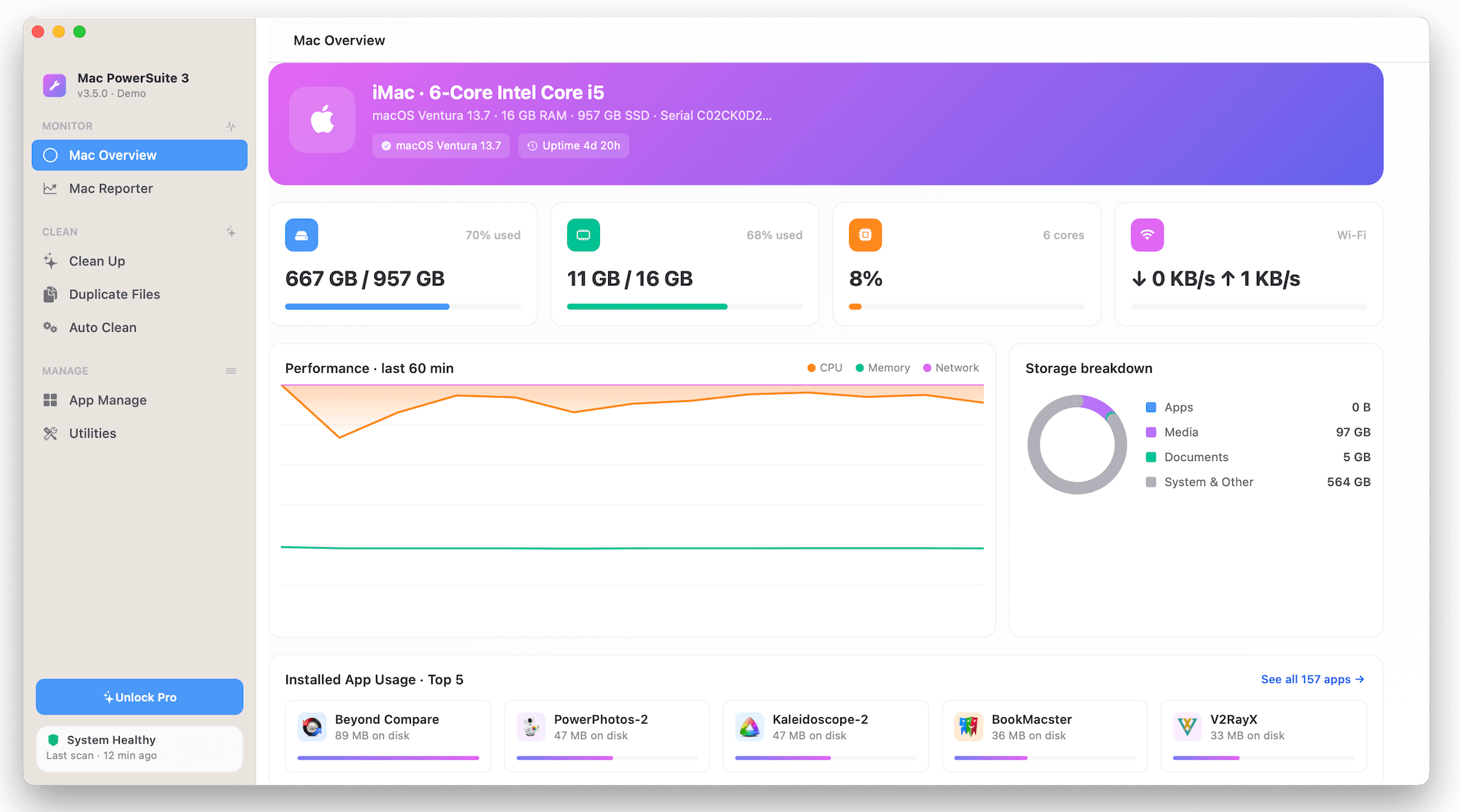
Mac PowerSuite 3 also includes a Mac Reporter feature that generates detailed reports covering macOS system information, hardware, storage, security, and network activity.
You can export these reports as TXT or PDF files for further analysis or to share with technical support.
Comparing system resource usage before and after a macOS upgrade can help you identify unusual changes in system behavior and narrow down potential causes of battery drain and overheating.
2. Free Up Mac Storage Space, Especially System Data
Insufficient storage space can affect overall macOS performance and may contribute to excessive background activity. After a major macOS upgrade, temporary installation files, application caches, system logs, and other unnecessary data may occupy considerable disk space.
Pay particular attention to System Data in macOS Storage settings. Although this category includes legitimate system files, it can also contain caches, logs, and other data that may no longer be needed.
You can use Mac PowerSuite 3 to review and remove unnecessary files, including application caches, logs, and other system junk. Its cleanup tools can also help you identify large files, old iOS backups, downloaded installers, and other files that are taking up valuable storage space.
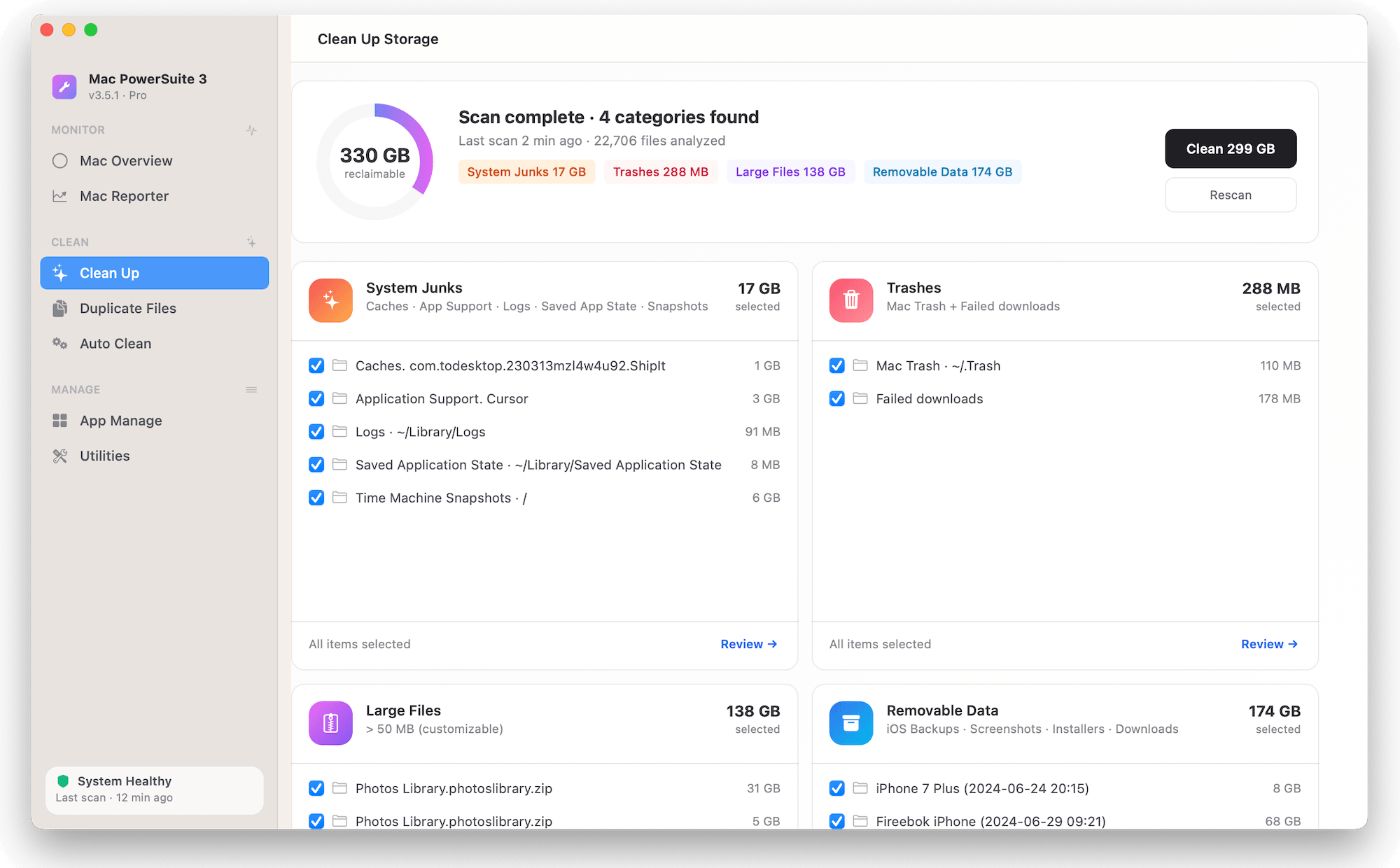
You can also manually review the following locations:
• Downloads: Remove installers, archives, and other files you no longer need.
• Trash: Empty Trash after confirming that you do not need the deleted files.
• Application caches: Review unnecessary application cache files.
• Old backups: Remove outdated iPhone, iPad, or Time Machine backups when they are no longer required.
• Large files: Identify and remove large files that are no longer useful.
Freeing up unnecessary storage can improve disk space availability and overall system management. However, low storage is not necessarily the direct cause of battery drain or overheating, so continue investigating other possible causes if the problem persists.
3. Check Spotlight, Time Machine, and Other Background System Services
After installing a major macOS update, some system services may perform additional background tasks. These activities can temporarily increase CPU usage, power consumption, and operating temperatures.
Here are some services worth checking:
A. Check Spotlight Indexing
Spotlight may need to rebuild its search index after a major macOS upgrade. During this process, indexing services can consume considerable CPU resources and battery power.
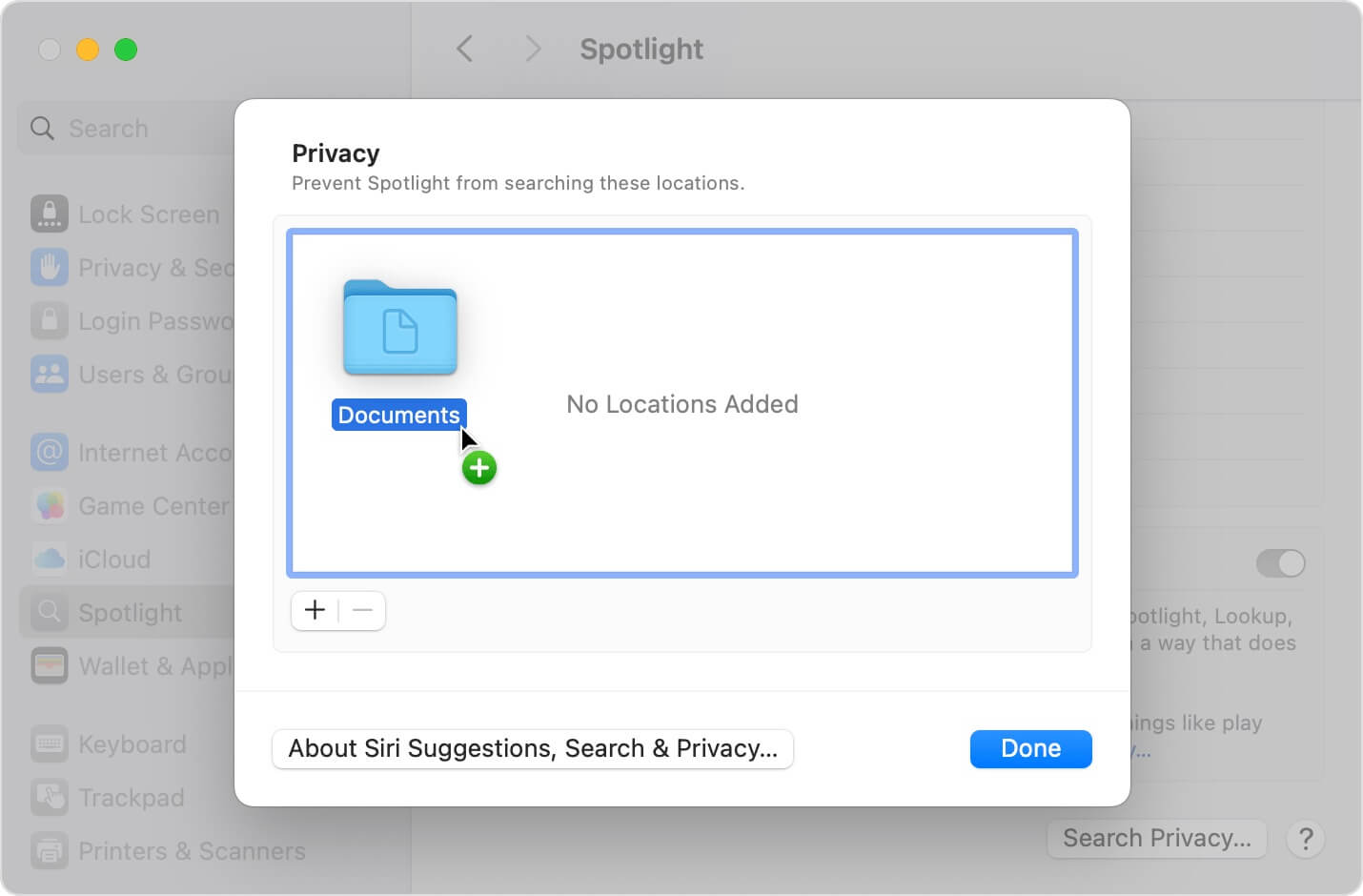
Open Activity Monitor and look for processes such as mds and mdworker.
If these processes are consuming significant resources shortly after the upgrade, Spotlight may still be indexing your files.
Allow the indexing process to finish and check whether CPU usage and battery consumption return to normal. Avoid repeatedly interrupting or rebuilding the Spotlight index unless there is evidence that indexing is malfunctioning.
B. Check Time Machine Backups
Time Machine may perform backup operations automatically, including creating local snapshots and preparing data for backups.
These activities can increase disk activity and CPU usage, particularly when a large amount of data has changed after a macOS upgrade.
To investigate:
1. Open System Settings > General > Time Machine.
2. Check your backup schedule and recent backup activity.
3. If an external backup drive is connected, check whether a backup is currently running.
4. If necessary, temporarily pause automatic backups for troubleshooting and observe whether power consumption changes.
Remember to restore your normal backup schedule afterward. Regular backups are important for protecting your data.

C. Check Other Background Processes
Other macOS services may also consume system resources, including:
• iCloud Drive synchronization
• Photos library analysis and synchronization
• Software updates and installation tasks
• Mail synchronization
• File synchronization applications
• Cloud backup utilities
Open Activity Monitor and check for processes that consistently consume unusually high CPU, memory, or energy resources.
If your MacBook is performing background synchronization or maintenance tasks after the upgrade, allow them to finish before determining whether the battery drain is abnormal.
4. Check for New macOS Updates
Apple may release additional macOS updates to address bugs, improve system stability, and resolve performance or battery-related issues.
If your MacBook started experiencing excessive battery drain or overheating immediately after upgrading to macOS 27, check whether a newer macOS version or maintenance update is available.
Follow these steps:
1. Open System Settings.
2. Select General > Software Update.
3. Wait for macOS to check for available updates.
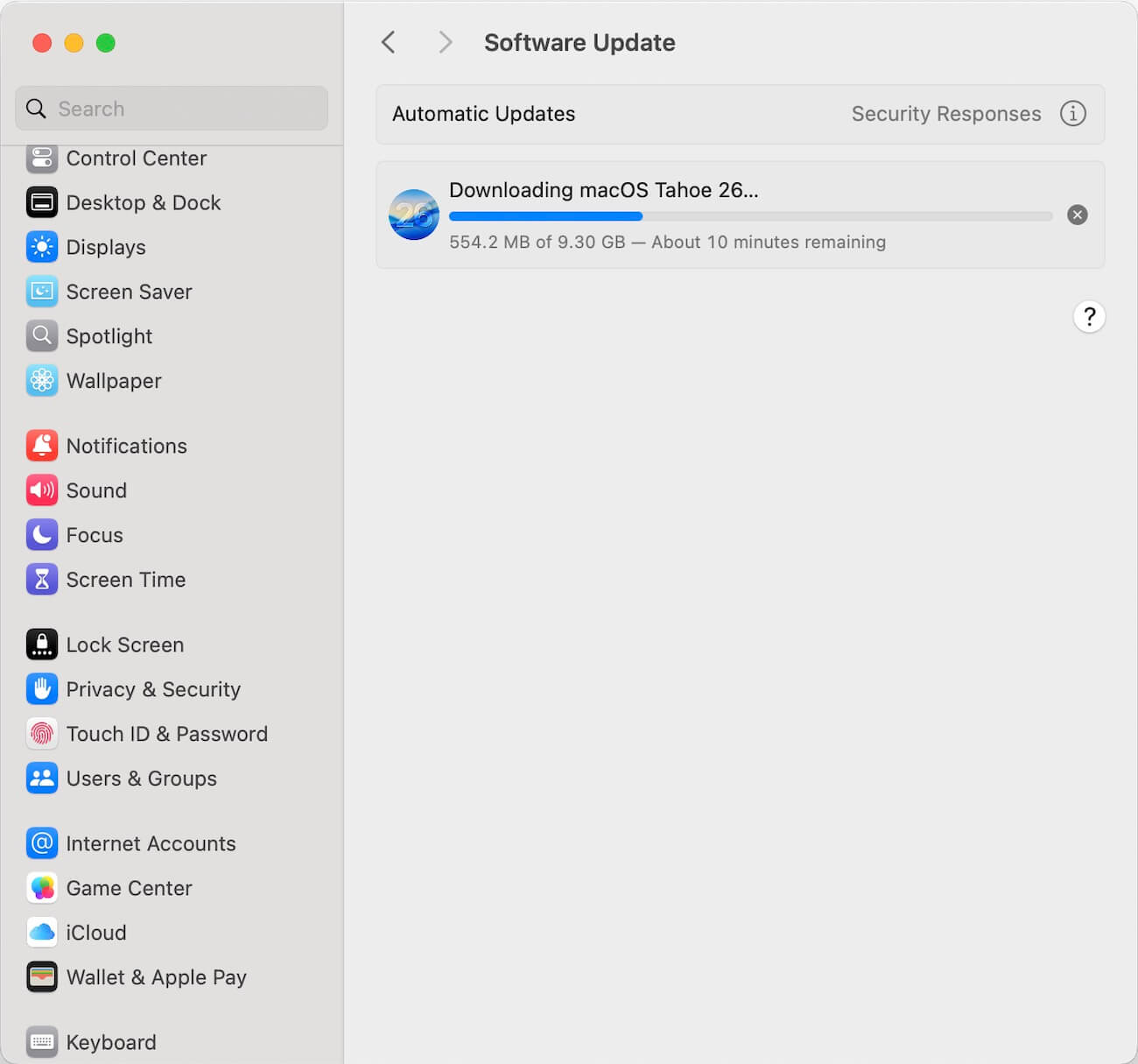
4. If a newer update is available, review its release notes and install it if appropriate.
5. Restart your MacBook and monitor its battery consumption and operating temperature.
It is also worth checking Apple's release notes and support announcements for known battery, sleep, and performance issues affecting your particular Mac model.
Keeping macOS up to date can help resolve software-related problems, although an update does not guarantee that every battery or overheating issue will be fixed.
5. Check Your MacBook's Battery Health
If your MacBook continues to lose battery power quickly after checking applications and background services, examine its battery condition.
Follow these steps:
1. Open System Settings.
2. Select Battery.
3. Click Battery Health.

4. Review the battery condition and maximum capacity.
If macOS reports that your battery needs service, or its maximum capacity has declined significantly, battery degradation may be contributing to poor battery life.
You should also consider your MacBook's age, battery cycle count, and usage history when evaluating its battery condition.
If the battery condition is normal but your MacBook continues to lose a large amount of charge while sleeping, investigate its sleep and wake behavior rather than assuming the battery itself is defective.
6. Check Whether Your MacBook Enters Sleep Mode Properly
Excessive overnight battery drain can sometimes occur because a MacBook does not enter or remain in its expected low-power sleep state.
Certain applications, connected devices, network activity, and background processes can prevent normal sleep behavior or wake the MacBook unexpectedly.
Try the following:
• Disconnect unnecessary USB devices and external accessories.
• Close applications that may prevent your Mac from sleeping.
• Check whether network-related activity is waking your MacBook.
• Review your Battery settings for options that affect sleep and network access.
• Test overnight battery consumption with unnecessary peripherals disconnected.
You can also use Terminal commands such as pmset -g assertions to check whether applications or system processes are holding power-management assertions that may prevent sleep.
If your MacBook repeatedly wakes up during the night, identifying the responsible application or service can help you narrow down the cause.
Conclusion
Excessive battery drain and overheating after upgrading to macOS 27 Golden Gate can have several possible causes, including resource-intensive applications, Spotlight indexing, background synchronization, Time Machine backups, insufficient storage, and sleep-related problems.
Rather than immediately assuming that the macOS upgrade has damaged your battery, start by monitoring system resource usage and identifying processes that consume excessive energy.
Tools such as Activity Monitor and Mac PowerSuite 3 can help you examine system activity, monitor resource usage, generate diagnostic reports, and remove unnecessary files.
If the problem persists after completing these checks, consider checking your battery health, investigating sleep and wake activity, and installing available macOS updates.
| More Related Articles | ||||
 |
1. How to merge two photo libraries on Mac? 2. How to find and remove duplicate photos from Photos? |
|||
About Fireebok Studio
Our article content is to provide solutions to solve the technical issue when we are using iPhone, macOS, WhatsApp and more. If you are interested in the content, you can subscribe to us. And We also develop some high quality applications to provide fully integrated solutions to handle more complex problems. They are free trials and you can access download center to download them at any time.
| Popular Articles & Tips You May Like | ||||
 |
 |
 |
||
| Five ways to recover lost iPhone data | How to reduce WhatsApp storage on iPhone | How to Clean up Your iOS and Boost Your Device's Performance | ||