Many iPhone, iPad, and Mac users delete photos and videos to free up storage space. However, if iCloud Photos is enabled, deleting a photo or video from one device also deletes it from the iCloud Photos library and other devices synced with the same Apple Account.
If you accidentally delete important photos, you may wonder whether you can recover them from iCloud Photos and how to restore permanently deleted pictures.
The good news is that recently deleted photos can usually be recovered within a limited period. Even if they are no longer available in the Recently Deleted album, there may be other recovery options worth exploring.
In this guide, we'll explain how to recover deleted photos from iCloud Photos, restore pictures from available backups, and use third-party tools such as Fone Rescue to recover lost photos and other iOS data.
Why Do Deleted Photos Disappear from All Your Devices?
Before exploring recovery methods, it's important to understand how iCloud Photos works.
iCloud Photos is a photo synchronization service, not a traditional backup service. It keeps your photos and videos synchronized across your iPhone, iPad, Mac, and iCloud.com.
When you delete a photo from one device, the deletion is synchronized with your iCloud Photos library. As a result, the same photo is also removed from other devices using the same iCloud Photos account.
For example:
• You delete a photo from your iPhone to free up storage space.
• iCloud Photos synchronizes the deletion.
• The photo also disappears from your iPad, Mac, and iCloud.com.
Fortunately, Apple provides a Recently Deleted album that temporarily stores deleted photos and videos.
Deleted photos normally remain in Recently Deleted for up to 30 days. During this period, you can restore them to your photo library. After 30 days, they are permanently deleted and can no longer be recovered through this album.
Method 1: Recover Deleted Photos from Recently Deleted
The easiest way to recover accidentally deleted photos from iCloud Photos is to restore them from the Recently Deleted album.
If iCloud Photos is enabled, the recovery will synchronize across your connected devices.
On iPhone or iPad
1. Open the Photos app.
2. Tap Albums or navigate to the Utilities section, depending on your iOS version.
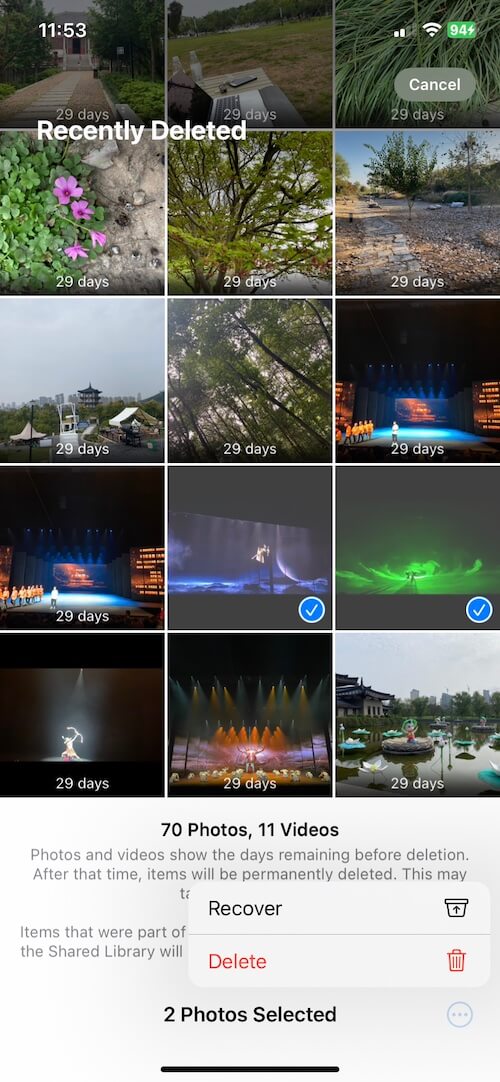
3. Open Recently Deleted.
4. Authenticate with Face ID, Touch ID, or your device passcode if prompted.
5. Select the photos and videos you want to restore.
6. Tap Recover to restore the selected items.
Restored photos will return to your photo library and synchronize with your other devices when iCloud Photos is enabled.
On Mac
1. Open the Photos app.
2. Click Recently Deleted in the sidebar.
3. Select the photos or videos you want to recover.
4. Click Recover.
The recovered photos will return to your Photos library and synchronize with iCloud.
On iCloud.com
You can also recover deleted photos directly from Apple's website without using your iPhone or Mac.
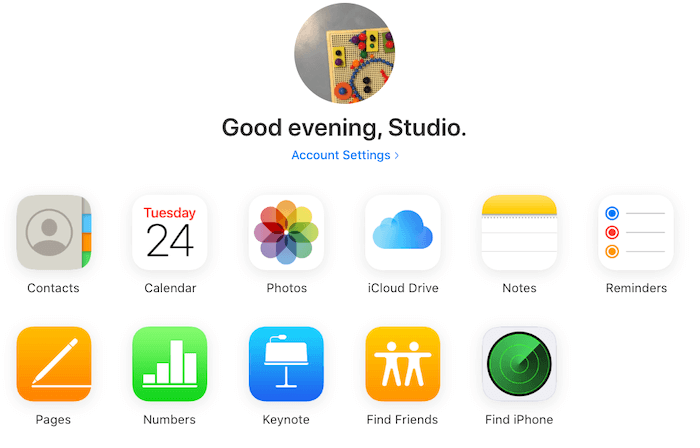
1. Visit iCloud.com.
2. Sign in with the Apple Account associated with your iCloud Photos library.
3. Open Photos.
4. Select Recently Deleted.
5. Choose the photos you want to restore.
6. Click Recover.
If your deleted photos are still in Recently Deleted, this is the simplest and safest recovery method.
However, if the photos have been permanently deleted or the 30-day recovery period has expired, you'll need to consider other options.
Method 2: Recover Photos from an Available Backup
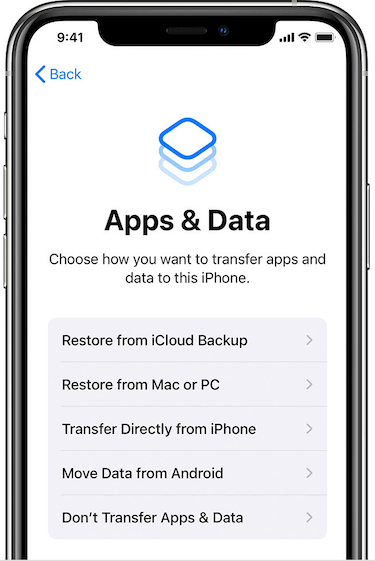
If your deleted photos are no longer available in Recently Deleted, check whether you have an older backup or another copy of the original photos.
There is an important distinction between iCloud Photos and iCloud device backups.
When iCloud Photos is enabled, photos and videos synchronized with iCloud are generally not included separately in your iCloud device backup. Therefore, restoring an iCloud backup does not normally bring back photos that were deleted from the synchronized iCloud Photos library.
However, an older backup may contain photos if iCloud Photos was disabled when that backup was created.
You can also check other possible backup locations:
• Computer backups: Check whether you have an older Finder or iTunes backup that contains the missing photos.
• External drives: Look for previously exported or backed-up copies of your photos.
• Other cloud services: Check Google Photos, Dropbox, OneDrive, or other services where you may have uploaded your pictures.
• Mac Photos libraries: If you previously created a separate Photos library or copied your original image files, those copies may still be available.
Before restoring an older backup, make sure you understand what data will be replaced. Create a backup of your current device data first to avoid losing newer files.
Method 3: Use Fone Rescue to Recover Deleted Photos and Other iOS Data
If your photos have disappeared from iCloud Photos and are no longer available in Recently Deleted, you may want to try a dedicated iOS data recovery tool.
Fone Rescue provides recovery capabilities for lost or accidentally deleted iPhone and iPad data. It can scan supported iOS devices and encrypted iPhone backups for recoverable data.
Instead of restoring an entire device backup, Fone Rescue allows you to preview and selectively recover supported data types without rewriting current iPhone data.
What Can Fone Rescue Recover?
Fone Rescue supports recovery of 15+ types of iOS data, including:
• Photos and videos
• Contacts
• Text messages and message attachments
• Notes
• WhatsApp data
• Other supported iOS data types
It also supports recovering data from encrypted iPhone backups, which can be useful when you have an existing backup containing the photos or other information you need.
Key Features of Fone Rescue
1. Recover Deleted Photos from an iOS Device
Scan a supported iPhone or iPad to look for recoverable photos and other deleted data. This can be useful when photos have been accidentally removed and are no longer visible in the Photos app.
2. Recover Data from Encrypted iPhone Backups
If you have an encrypted iPhone backup, Fone Rescue can help extract and recover supported data without requiring you to restore the entire backup to your device.

3. Preview and Selectively Recover Data
Preview supported recoverable items and select the files you actually need instead of restoring all available backup data.
4. Recover Multiple Types of iOS Data
In addition to photos, Fone Rescue supports more than 15 types of iOS data, including videos, contacts, messages, notes, and WhatsApp data.
Important Notes About iCloud Photos Recovery
Third-party recovery software cannot guarantee the recovery of permanently deleted iCloud Photos.
When iCloud Photos is enabled, deleting a photo generally removes it from the synchronized library. Recovery software may be able to find remaining copies in supported device storage or existing backups, but it cannot simply download photos that Apple has permanently removed from iCloud.
Recovery success depends on factors such as the device, iOS version, available backups, and whether recoverable copies of the original data still exist.
For the best chance of recovery, avoid unnecessary changes to your device and check all available backups before attempting more advanced recovery methods.
Conclusion
Accidentally deleting important photos from iCloud Photos can be frustrating, especially when the deletion is synchronized across your iPhone, iPad, and Mac.
Fortunately, there are several recovery methods worth trying:
1. Recently Deleted: Check the Recently Deleted album on your iPhone, iPad, Mac, or iCloud.com first. Photos are normally recoverable for up to 30 days.
2. Available Backups: Check older computer backups, eligible iCloud backups, external drives, and other cloud storage services for additional copies of your photos.
3. Fone Rescue: Use Fone Rescue to scan supported iOS devices and encrypted iPhone backups for recoverable photos and other iOS data.
To prevent future photo loss, consider maintaining separate backups of your important photos rather than relying exclusively on iCloud Photos synchronization. Regularly exporting important pictures to an external drive or another cloud storage service can provide an additional layer of protection.
| More Related Articles | ||||
 |
1. How to merge two photo libraries on Mac? 2. How to find and remove duplicate photos from Photos? |
|||
About Fireebok Studio
Our article content is to provide solutions to solve the technical issue when we are using iPhone, macOS, WhatsApp and more. If you are interested in the content, you can subscribe to us. And We also develop some high quality applications to provide fully integrated solutions to handle more complex problems. They are free trials and you can access download center to download them at any time.
| Popular Articles & Tips You May Like | ||||
 |
 |
 |
||
| Five ways to recover lost iPhone data | How to reduce WhatsApp storage on iPhone | How to Clean up Your iOS and Boost Your Device's Performance | ||