Is your iPhone filled with 50,000 or more photos and videos? If you've been using your iPhone for years, your photo library has probably grown into a massive collection of family memories, travel photos, screenshots, videos, receipts, and duplicate images.
As your photo library grows, finding a specific picture becomes increasingly difficult. A cluttered photo library also consumes valuable storage space and makes your iPhone feel harder to manage.
The good news is that organizing a large photo library doesn't have to be overwhelming. By following a simple step-by-step process, you can clean up your library, free up storage, and quickly find any photo whenever you need it.
In this guide, you'll learn how to organize 50,000+ photos on your iPhone using three practical steps:
• Free up iPhone storage
• Remove unnecessary photos and videos
• Organize your library with Smart Albums
Step 1. Free Up iPhone Storage
A library containing 50,000 photos and videos can easily fill a 128GB or even 256GB iPhone. Before organizing your photos, make sure you have enough free storage.
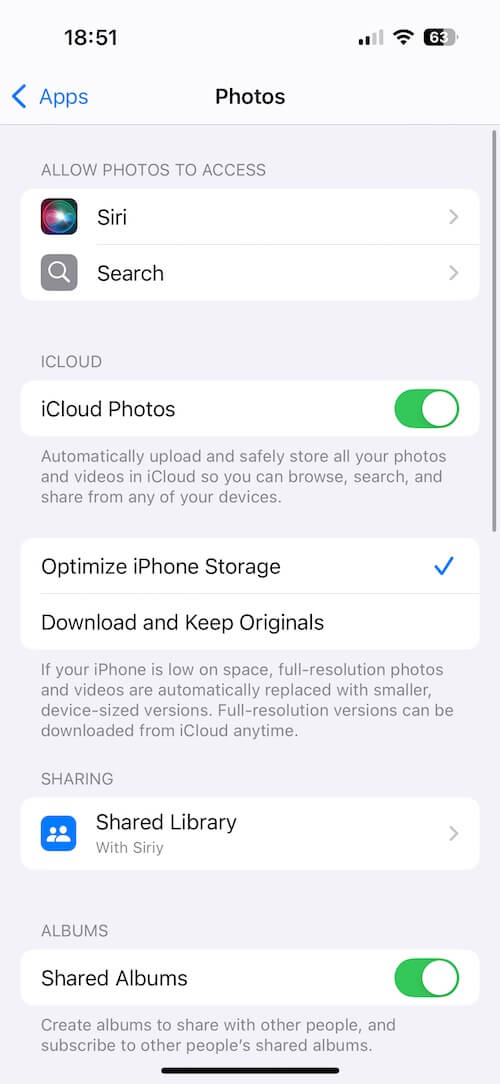
Enable Optimize iPhone Storage
Apple's Optimize iPhone Storage feature stores full-resolution photos in iCloud while keeping smaller versions on your iPhone. This can save dozens or even hundreds of gigabytes without removing your photos.
To enable it: Settings → Your Name → iCloud → Photos → Optimize iPhone Storage. Your original photos remain safely stored in iCloud and automatically download whenever you need them.
Move Large Videos to an External Drive
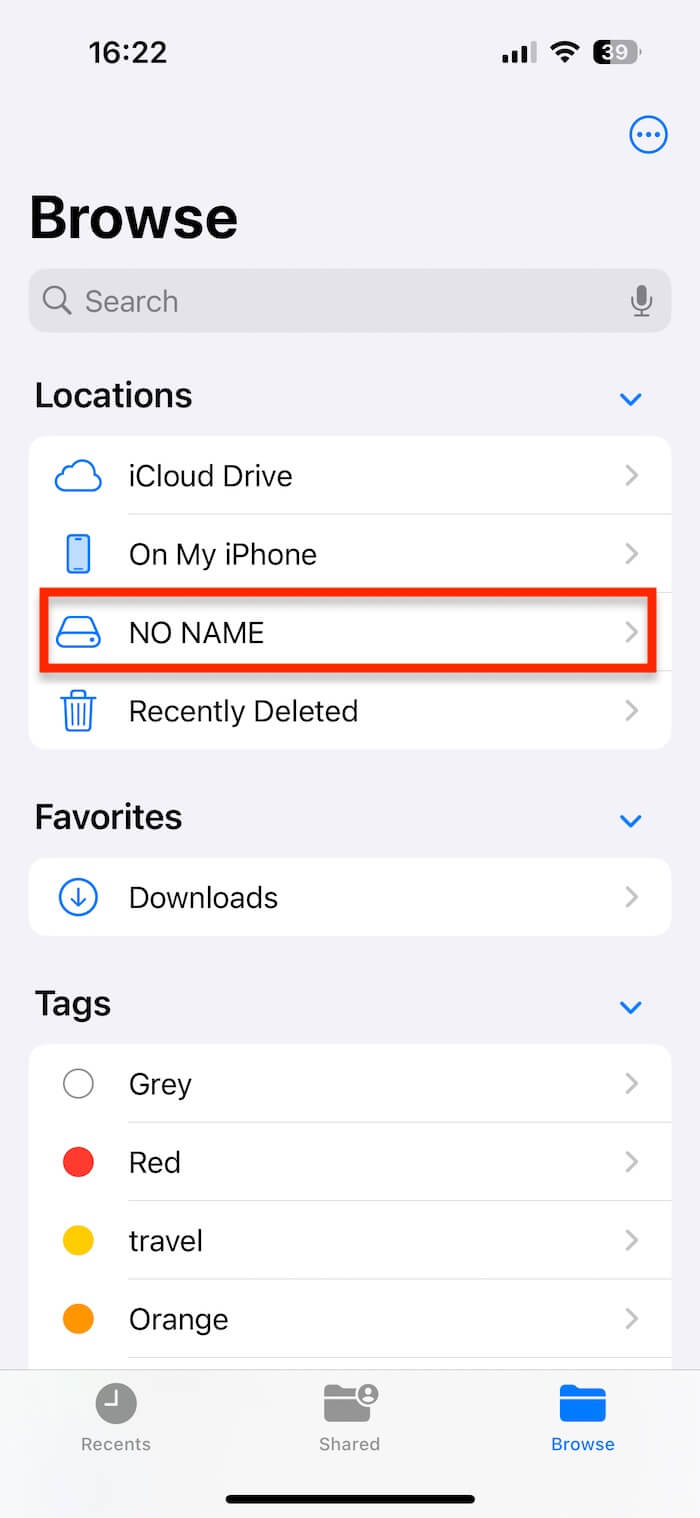
If you record lots of 4K or ProRes videos, they can quickly consume storage. For iPhone 15 (USB-C) and newer models, simply connect a portable SSD or USB flash drive. Older iPhones can also use compatible Lightning storage devices. Popular options include: SanDisk iXpand Flash Drive, Samsung T7 Portable SSD.
Open the Files app, select large videos from Photos, then choose Save to Files to move them onto the external drive. This is one of the fastest ways to recover storage while keeping your videos safely backed up.
Step 2. Remove Unnecessary Photos and Videos
Before creating albums, spend some time removing photos you no longer need.
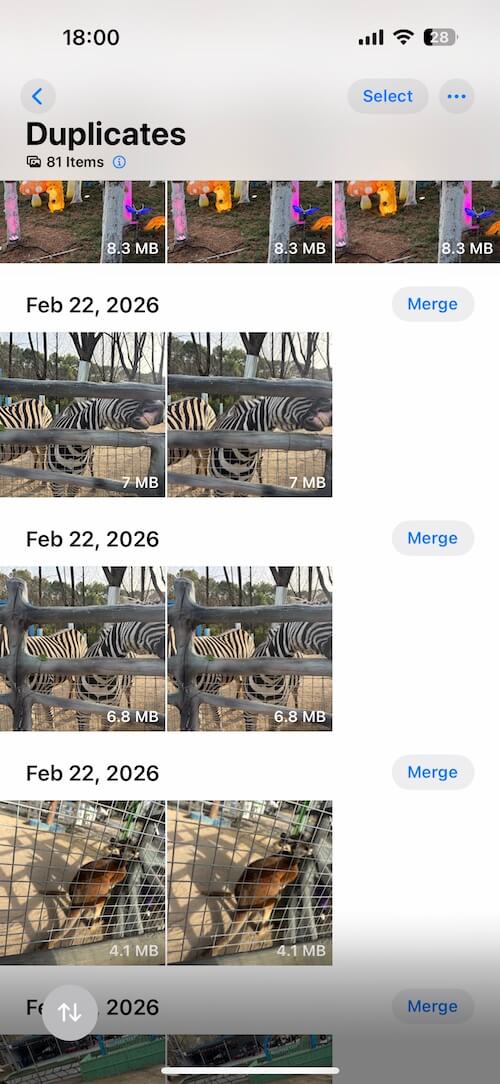
Merge Duplicate Photos
If you're running iOS 16 or later, Apple automatically detects duplicate photos. Open: Photos → Albums → Utilities → Duplicates. Tap Merge to keep the highest-quality version while safely removing the duplicates.
Delete Screenshots
Screenshots often take up surprising amounts of storage. Open: Photos → Media Types → Screenshots. Screenshots often take up surprising amounts of storage. Open: Photos → Media Types → Screenshots. These images usually aren't worth keeping forever.
Review Burst Photos
Burst mode often captures 10–30 nearly identical images. Go to: Photos → Media Types → Bursts. Keep only the best shot and delete the rest.
Remove Large Videos
Videos occupy far more storage than photos. Sort through your longest recordings and remove: Accidental recordings, Duplicate videos, Unnecessary screen recordings, Old clips you no longer need. You'll recover storage much faster than deleting photos alone.
Step 3. Organize Photos with Smart Albums
Once your library is clean, it's time to organize everything. Regular albums are helpful, but when you have 50,000+ photos, manually sorting every image becomes nearly impossible. Many users create albums such as:Family, Friends, Travel, Pets, Work, Projects, Holidays, Food, Events.
Unfortunately, the built-in Photos app on iPhone doesn't include the powerful Smart Album feature available on Mac. On macOS, Smart Albums can automatically collect photos that match multiple conditions, such as: Photos not added to any album, Specific keywords or captions.
This makes finding photos much faster without manually organizing thousands of images.
Create Smart Albums on iPhone with Smart Album Pro
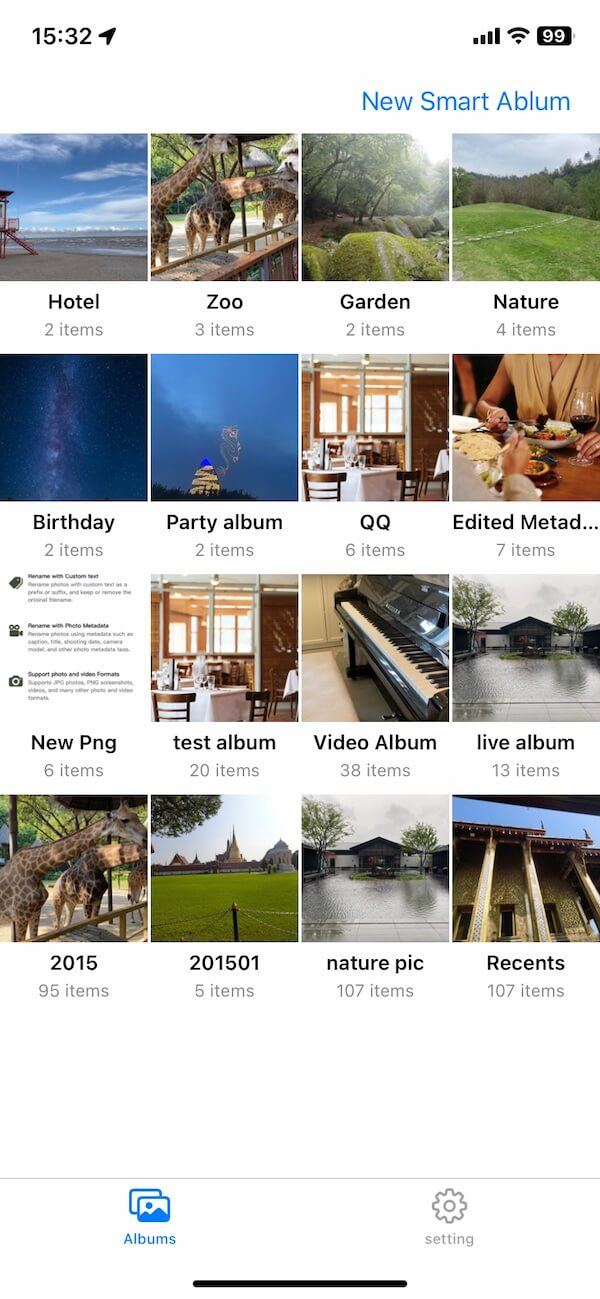
SmartAlbum Pro brings powerful Smart Album functionality to iPhone and iPad. Instead of manually sorting photos, you simply choose the rules, and the app automatically finds every matching photo in your library.
Step 1. Create a Smart Album
After installing SmartAlbum Pro from the App Store: Grant access to your photo library. Tap New Smart Album. Give your album a name, such as Summer 2025, Family, or Travel.
Step 2. Configure Smart Filters
Choose one or multiple filter conditions, including: Photo type, Album, File name, Caption, Title, Keywords, Favorites, Edited photos, Live Photos, Portrait photos, Panoramas, Videos
You can also combine multiple conditions using rules like: Is / Is Not, Includes / Does Not Include. For example, you can instantly create albums like: Live Photos taken in 2025, Favorite family photos, Edited vacation photos, Videos longer than one minute, Photos not added to any album
Instead of spending hours organizing your library manually, Smart Album Pro automatically groups matching photos for you.
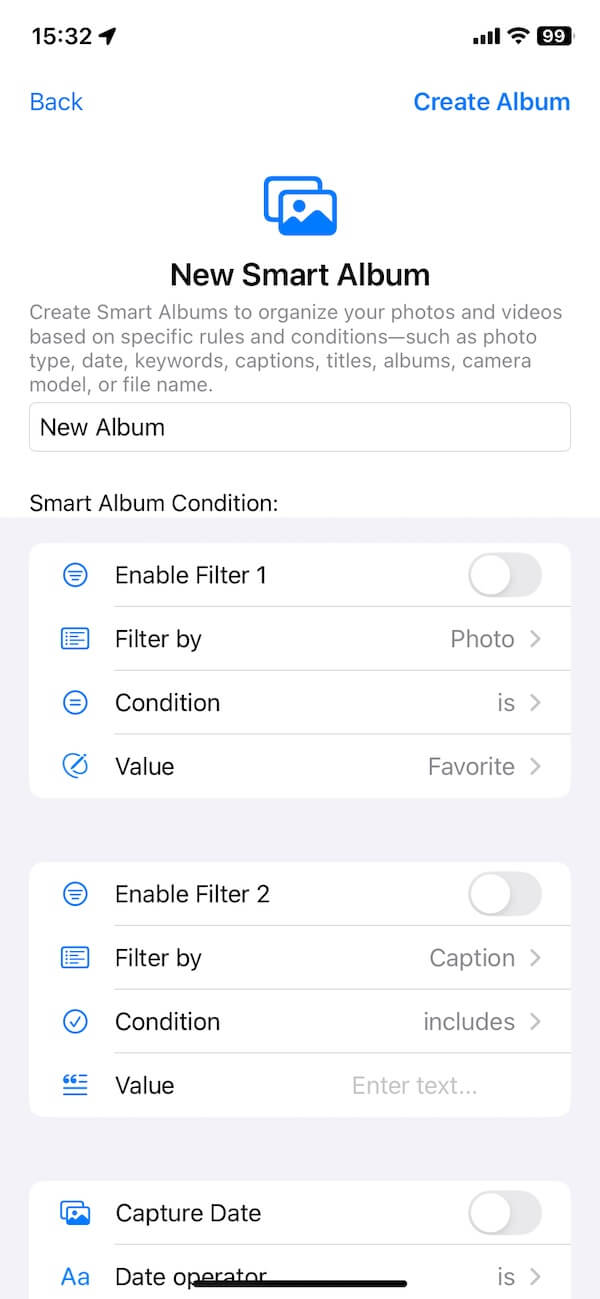
Step 3. Filter by Date
Enable the Capture Date filter to organize photos from: A vacation, A birthday, A holiday, A specific month, A specific year.
Simply select a start date and end date, and the app will automatically display every matching photo.
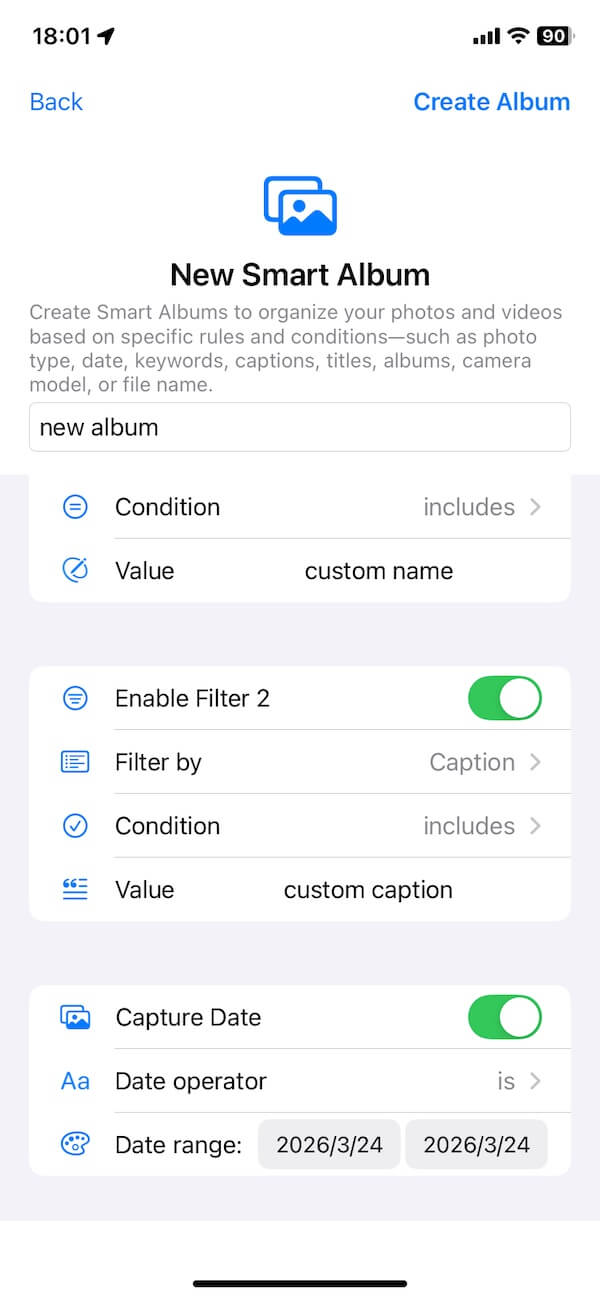
Step 4. Create Your Album
Tap Create Album, and SmartAlbum Pro immediately scans your photo library and displays every photo that matches your selected conditions.
Whenever new photos meet those rules, you can quickly refresh the Smart Album to keep everything organized.
Bonus Tips for Managing Large Photo Libraries
Even after organizing your photos, these habits will help keep your library clean:
• Mark your best photos as Favorites.
• Delete screenshots every few weeks.
• Remove duplicate photos regularly.
• Archive old videos to an external drive.
• Create Smart Albums for trips, family events, work, and hobbies.
• Review your photo library once a month instead of waiting until it becomes overwhelming.
Final Thoughts
Managing 50,000+ photos on an iPhone may seem impossible at first, but it becomes much easier when you follow a simple workflow. First, free up storage. Next, remove duplicate and unnecessary photos. Finally, organize your collection using Smart Albums instead of manually sorting thousands of images.
If you want Mac-style Smart Albums on your iPhone or iPad, SmartAlbum Pro is an excellent solution. With powerful filtering options, date ranges, metadata searches, and automatic photo grouping, it makes managing even the largest photo libraries fast, efficient, and enjoyable.
| More Related Articles | ||||
 |
1. How to Edit Video and MP4 Metadata on iPhone and iPad? 2. How to Rename Photos on iPhone Without a Computer? |
|||
About Fireebok Studio
Our article content is to provide solutions to solve the technical issue when we are using iPhone, macOS, WhatsApp and more. If you are interested in the content, you can subscribe to us. And We also develop some high quality applications to provide fully integrated solutions to handle more complex problems. They are free trials and you can access download center to download them at any time.
| Popular Articles & Tips You May Like | ||||
 |
 |
 |
||
| Five ways to recover lost iPhone data | How to reduce WhatsApp storage on iPhone | How to Clean up Your iOS and Boost Your Device's Performance | ||