Have you ever found it difficult to manage bookmarks across multiple browsers? Whether you use Safari, Chrome, Microsoft Edge, Firefox, Opera, Brave, Arc, or other popular browsers, each browser comes with its own unique features and bookmark system.
Over time, many Mac users save bookmarks in different browsers for work, research, shopping, and personal browsing. As a result, bookmarks can become scattered across multiple browsers, making it difficult to remember where a specific bookmark was saved. Importing bookmarks from one browser to another may seem like a solution, but it often creates duplicate bookmarks, duplicate folders, and an unorganized bookmark library.
A better solution is to sync bookmarks between Safari and other browsers on your Mac, allowing you to keep all your bookmarks organized and accessible no matter which browser you use.
Can You Sync Bookmarks Between Safari and Other Browsers?
Since Safari, Chrome, Firefox, Edge, and other browsers are developed by different companies, there is no built-in feature that can directly sync bookmarks between all browsers. Most browsers only provide synchronization within their own ecosystem. For example, Safari syncs through iCloud, while Chrome uses Google Sync.
So, is there a way to sync bookmarks between Safari and other browsers on Mac?
Yes. A third-party bookmark manager can help you synchronize bookmarks across multiple browsers while keeping your bookmark folders organized.
Sync Safari Bookmarks with Other Browsers Using One Bookmark
To easily sync bookmarks between Safari and other browsers on Mac, you can use One Bookmark, a bookmark management app designed to organize, search, and sync bookmarks from multiple browsers.
One Bookmark supports popular browsers including Safari, Chrome, Firefox, Microsoft Edge, Opera, Arc, Vivaldi, Brave, DuckDuckGo, and Orion. It allows you to sync bookmarks between different browsers without manually exporting and importing bookmark files.
Step 1: Install One Bookmark on Your Mac
Download and install One Bookmark on your Mac.
When you launch the app for the first time, allow One Bookmark to access your Home folder so it can read bookmark data from installed browsers. You will also need to allow access to your Safari bookmark folder.
Step 2: Enable Bookmark Sync
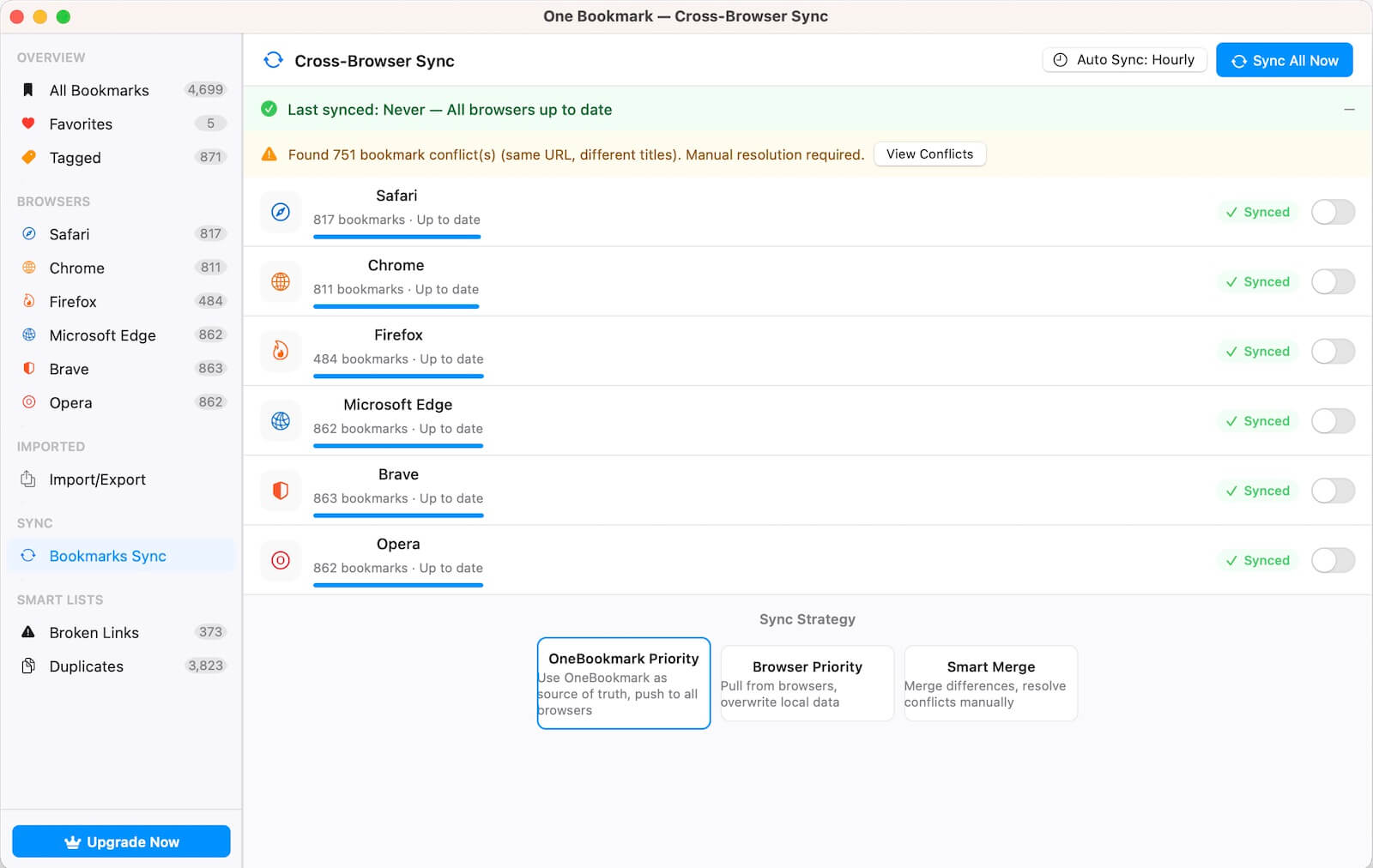
1. Open One Bookmark. Select Bookmarks Sync from the sidebar.
2. Choose your preferred sync strategy at the bottom of the window. Turn on the Sync switch for the browsers you want to synchronize.
After enabling sync, One Bookmark will help keep bookmarks updated between Safari and your other installed browsers.
Quickly Access All Browser Bookmarks
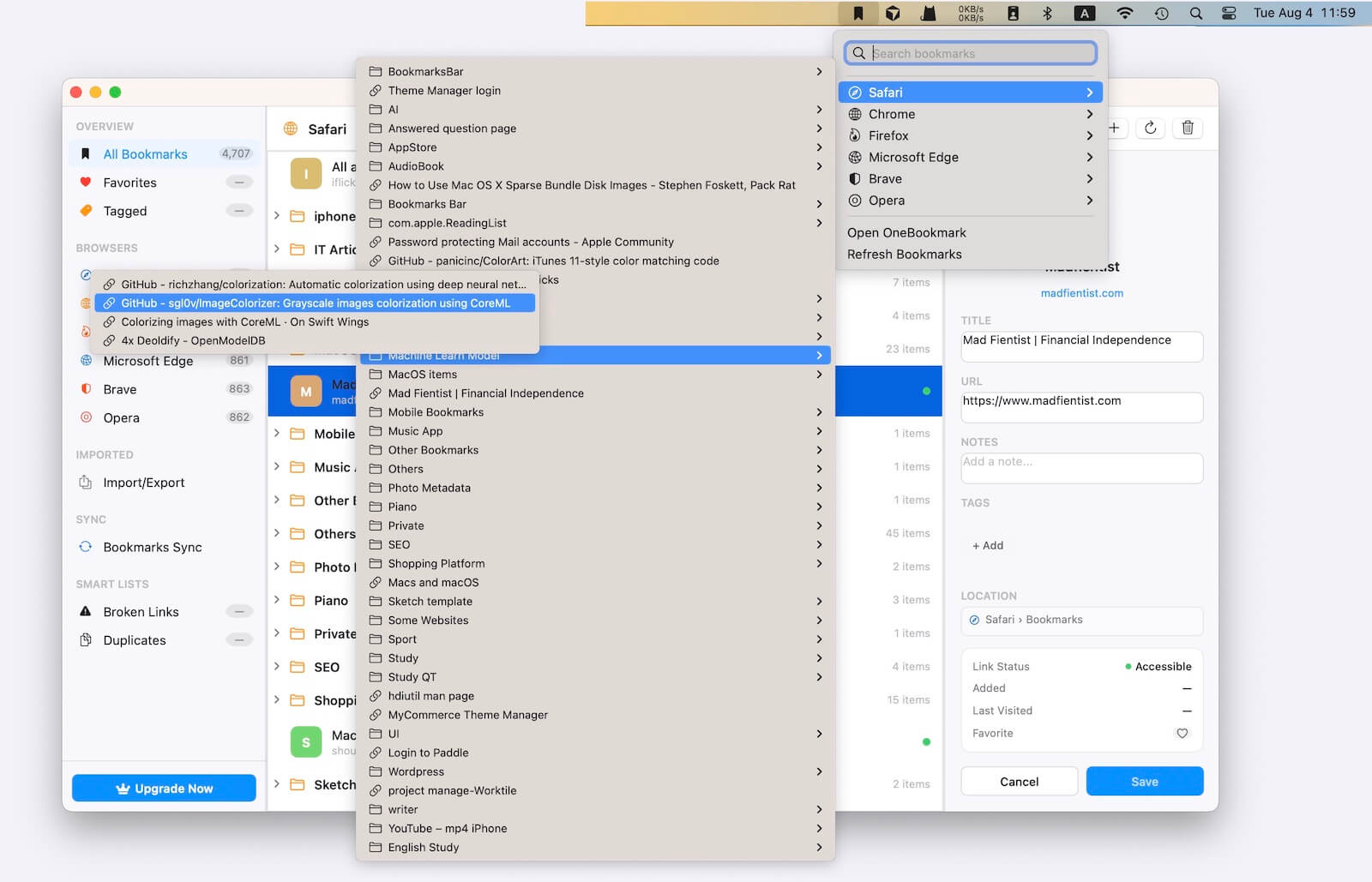
In addition to bookmark synchronization, One Bookmark provides a unified way to browse and search bookmarks from multiple browsers.
You can quickly find and search any bookmark from the toolbar menu without opening each browser individually. This makes it easier to manage bookmarks when you frequently switch between different browsers.
More Bookmark Management Features
Besides syncing bookmarks between browsers, One Bookmark also provides additional tools to help organize your bookmark collection:
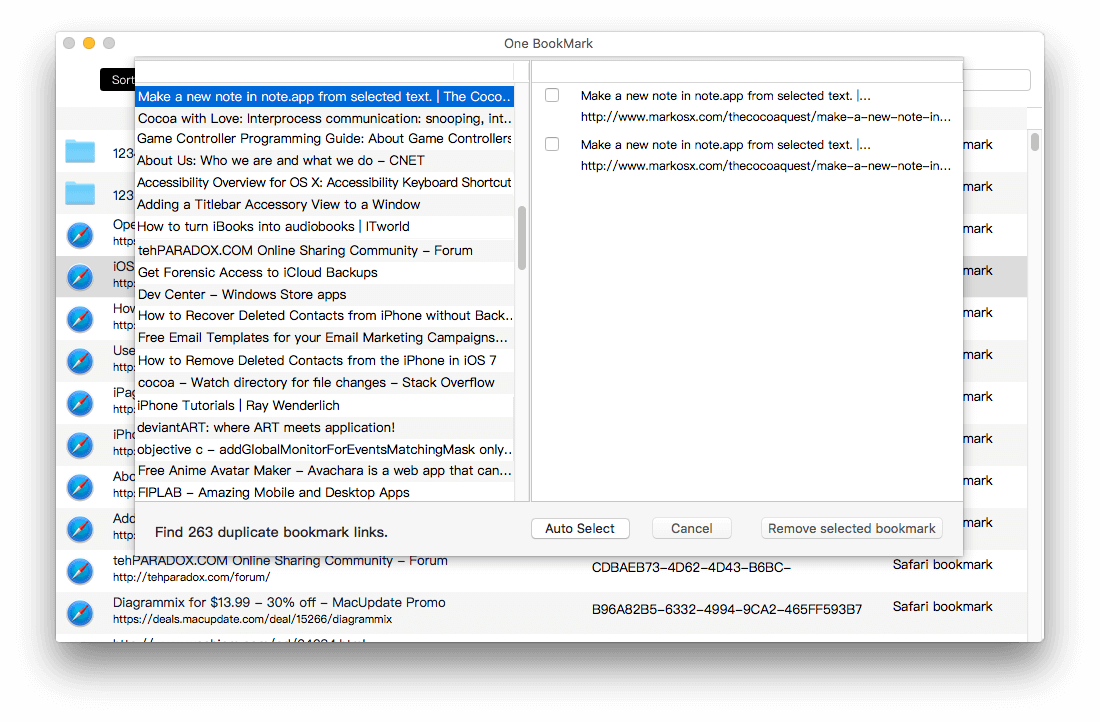
• Find and remove duplicate bookmarks.
• Detect and clean broken bookmarks.
• Backup browser bookmark data.
• Search bookmarks from multiple browsers in one place.
• Manage bookmarks more efficiently across different browsers.
Conclusion
Managing bookmarks across multiple browsers can become complicated when each browser stores bookmarks separately. Instead of manually exporting and importing bookmarks, using a dedicated bookmark manager can help you sync Safari bookmarks with Chrome, Firefox, Edge, and other browsers on Mac.
With One Bookmark, you can keep your bookmarks synchronized, organized, and easily accessible across all your favorite browsers.
| More Related Articles | ||||
 |
1. How to find and remove duplicate photos from Photos? 2. How to batch rename photos within the Photos app on Mac? |
|||
About Fireebok Studio
Our article content is to provide solutions to solve the technical issue when we are using iPhone, macOS, WhatsApp and more. If you are interested in the content, you can subscribe to us. And We also develop some high quality applications to provide fully integrated solutions to handle more complex problems. They are free trials and you can access download center to download them at any time.
| Popular Articles & Tips You May Like | ||||
 |
 |
 |
||
| Five ways to recover lost iPhone data | How to reduce WhatsApp storage on iPhone | How to Clean up Your iOS and Boost Your Device's Performance | ||