Have you ever encountered missing, incorrect, or outdated album artwork for your music on an iPhone or iPad? This can happen when you transfer or sync music from a computer to your iPhone or iPad. Some songs may display the wrong album cover, while others may have no artwork at all.
On a Mac or Windows PC, you can use Apple Music or iTunes to add or change album artwork for supported music files. However, Apple Music on iPhone and iPad does not provide a direct way to edit embedded album artwork or other audio metadata.
So, how can you add album art to an MP3 file directly on an iPhone or iPad?
In this guide, we'll show you how to add or change album artwork on MP3 files on iPhone and iPad using a third-party audio metadata editor.
Why Can't You Add Album Art Directly on iPhone or iPad?
Apple Music is primarily designed for streaming and playing music, managing your music library, and syncing music across Apple devices. It provides limited access to the underlying metadata of individual audio files.
If you need to edit MP3 album art, ID3 tags, song titles, artists, albums, or other audio metadata directly on an iPhone or iPad, you may need a dedicated audio metadata editor.
1. Why Use AudioInfo to Edit MP3 Album Art?
AudioInfo is an audio metadata viewer and editor designed for iPhone and iPad. It supports a wide range of audio formats, including: MP3, M4A, WAV, AAC, AIFF, FLAC, MIDI, OGG, OPUS, PCM, WMA, and more.
With AudioInfo, you can view detailed audio metadata, including ID3 tags and embedded album artwork. You can also edit various audio metadata fields and replace or add album artwork directly from your iPhone or iPad.
What audio metadata can it edit?
Depending on the audio format, you can edit information such as: Album artwork, Song title, Artist, Album, Composer, Band, Recording date, Release year, Copyright, Comments, Other supported metadata tags
This makes AudioInfo useful if you want to fix incorrect MP3 album art or add missing album artwork without using a computer. Note: AudioInfo works with local audio files that you can access through the Files app. If your music file is already stored locally or in iCloud Drive, you can import it directly into AudioInfo.
2. Save Your Music Files to iCloud Drive
Before editing album artwork, you need to have the actual audio file available in the Files app -> iCloud Drive on your iPhone or iPad.
f you already have an MP3 or other supported audio file in iCloud Drive, you can skip this step. If the music was purchased from the iTunes Store or is stored only in your Apple Music library, you may first need to obtain a local copy of the audio file.
Download purchased music from Apple Music to iCloud Drive
Open the iTunes Store app on your iPhone. Tap More (...) in the bottom right, then select Purchased. Tap Music, find your purchased song or album, and tap the Cloud/Download icon to download it to your local library.
On your Mac or Windows PC, open the Apple Music app or iTunes, depending on your operating system, and sign in with the Apple Account used to purchase the music. Download the purchased song or album to your computer.
On a Mac, you can right-click the song and choose Show in Finder. On Windows, use Show in File Explorer to locate the downloaded audio file. You can then copy or upload the supported audio file, such as an .mp3 or .m4a file, to iCloud Drive.
Important: Music downloaded through Apple Music, especially subscription-based or DRM-protected content, may have restrictions that prevent it from being copied as a normal audio file. The steps above are intended for music files that you are permitted to access and modify.
3. Add or Change Album Art on iPhone and iPad
Once your audio file is available in the Files app -> iCloud Drive, you can use AudioInfo to edit its embedded album artwork.
Step 1. Import the MP3 file
Download and install AudioInfo on your iPhone or iPad.
Open AudioInfo and tap Import. Select the MP3 file or another supported audio file from iCloud Drive, On My iPhone/iPad, or another location available through the Files app.
Step 2. View the audio metadata
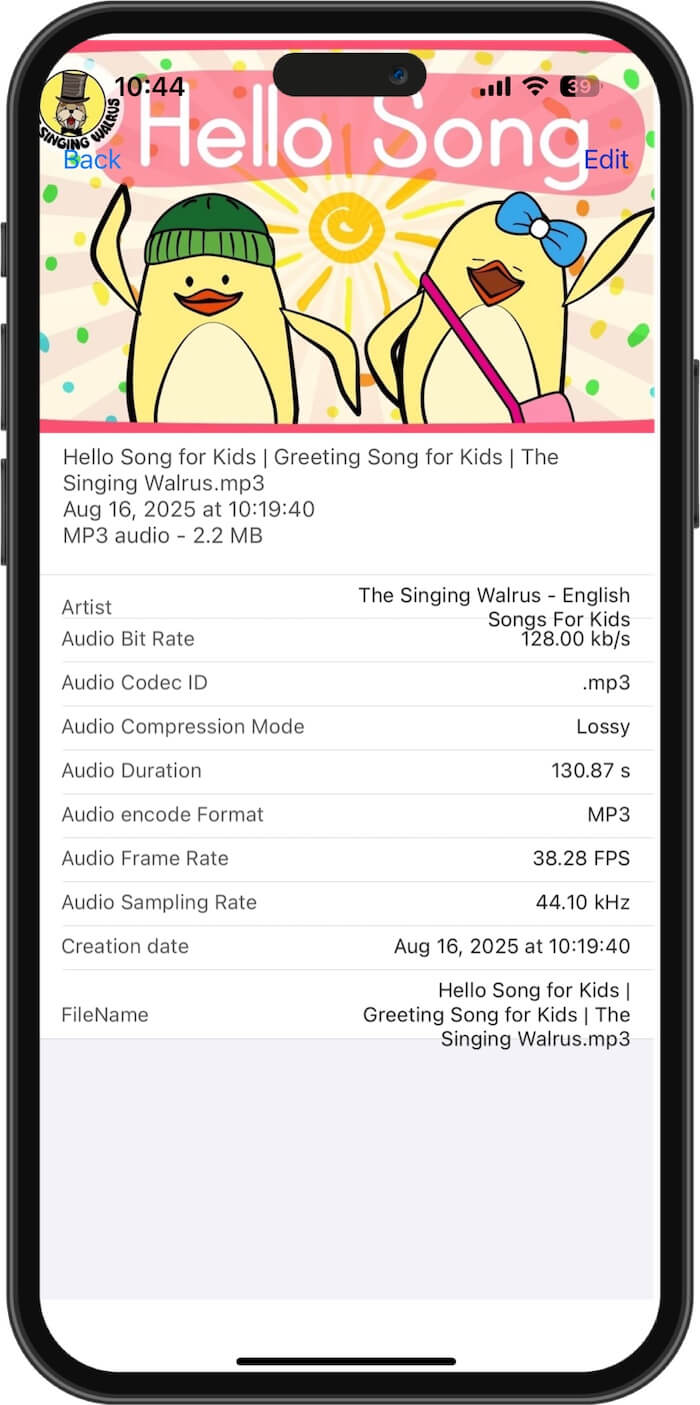
After importing the file, tap the audio file to view its metadata. You can view all audio information such as the title, artist, album, genre, duration, audio format, ID3 tags, and embedded artwork and more. Tap Edit to modify the audio metadata.
Step 3. Add or replace album artwork
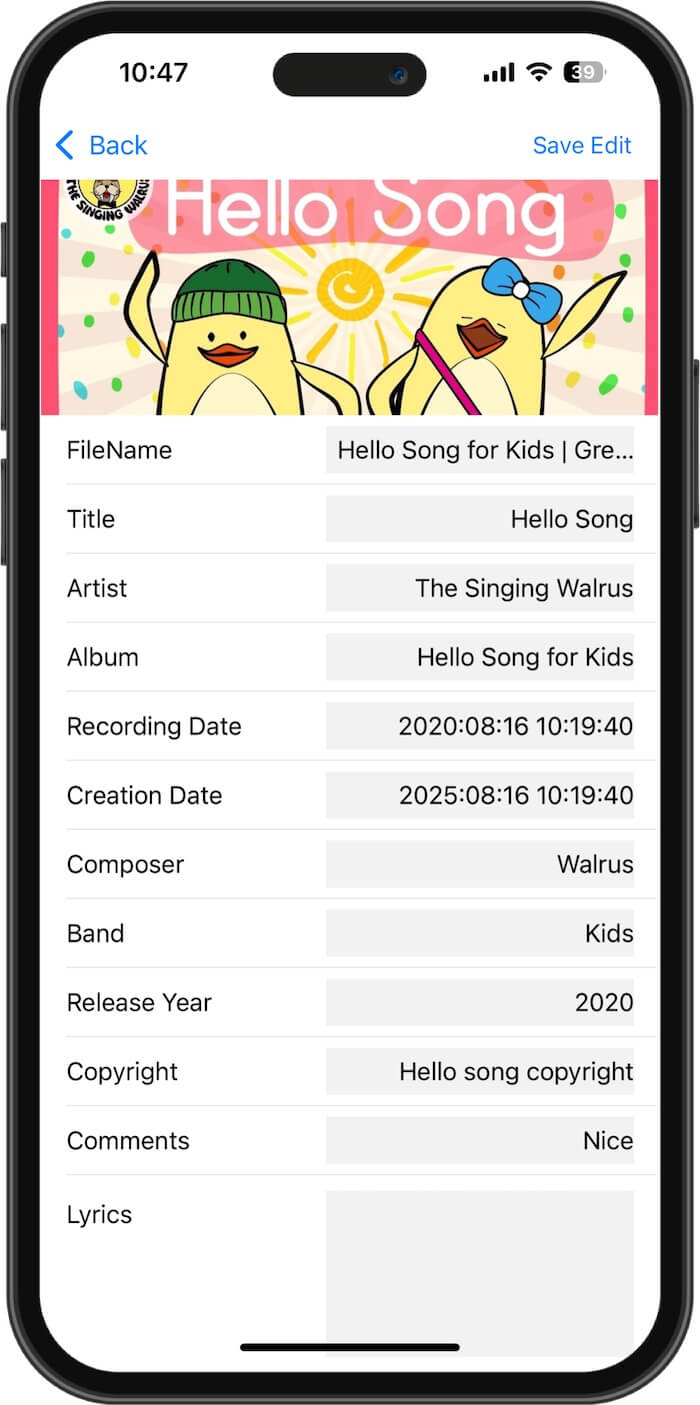
Tap the artwork and choose Add Artwork. Select the desired image from your iPhone or iPad's photo library. You can use the correct album cover, artist artwork, or another image as the embedded album artwork.

Step 4. Save the changes
After selecting the artwork, tap Save Edit. AudioInfo will save the updated metadata to the audio file, including the new album artwork. You can then open the edited audio file and check whether the new album cover is displayed correctly.
Edit Other MP3 Metadata on iPhone and iPad
Adding album artwork isn't the only reason to edit MP3 metadata. Incorrect or incomplete ID3 tags can also make it difficult to organize your music library. AudioInfo can also help you edit supported metadata fields such as: title, Artist, Album, Composer, Band, Recording date, Release year, Copyright, Comments,and more.
This can be particularly useful for music files that were ripped from CDs, downloaded from different sources, or transferred between computers and mobile devices.
Final Thoughts
Although Apple Music on iPhone and iPad doesn't provide a built-in option to directly edit album artwork or ID3 tags, you can use a dedicated audio metadata editor to manage this information.
With AudioInfo, you can import local MP3 and other supported audio files, view their metadata, and add or replace album artwork directly on your iPhone or iPad. You can also edit other supported audio metadata, such as the title, artist, album, composer, release year, copyright, and comments.
If you're looking for a way to add album art to MP3 files on iPhone without a computer, AudioInfo provides a convenient solution for editing your local music files directly on your iPhone or iPad.
| More Related Articles | ||||
 |
1. How to Edit Video and MP4 Metadata on iPhone and iPad? 2. How to Rename Photos on iPhone Without a Computer? |
|||
About Fireebok Studio
Our article content is to provide solutions to solve the technical issue when we are using iPhone, macOS, WhatsApp and more. If you are interested in the content, you can subscribe to us. And We also develop some high quality applications to provide fully integrated solutions to handle more complex problems. They are free trials and you can access download center to download them at any time.
| Popular Articles & Tips You May Like | ||||
 |
 |
 |
||
| Five ways to recover lost iPhone data | How to reduce WhatsApp storage on iPhone | How to Clean up Your iOS and Boost Your Device's Performance | ||