Updating to the latest iOS version usually brings new features, security improvements, and performance enhancements. However, major iOS updates can sometimes introduce unexpected bugs or compatibility issues.
Recently, some iPhone users have reported that third-party apps stop working after updating to iOS 26.6, while Apple built-in apps continue to work normally. In some cases, apps may fail to open, crash immediately, freeze, or lose access to network connections.
If you are experiencing third-party apps not working after the iOS 26.6 update, this guide provides several troubleshooting methods to help you fix the issue.
1. Restart Your iPhone
A simple restart can often resolve temporary system glitches after an iOS update. Restarting your iPhone clears temporary system processes and reloads installed apps.
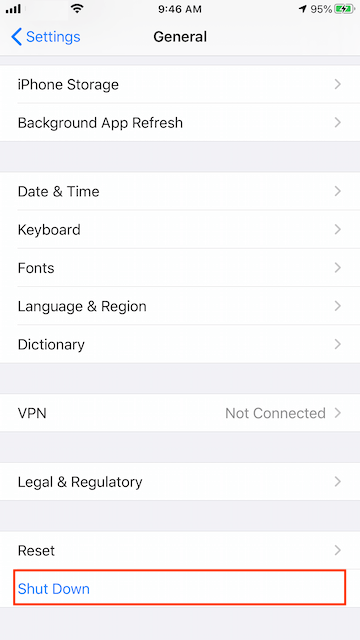
To restart your iPhone:
• Open Settings-> General. Tap Shut Down. Drag the slider to turn off your iPhone. Press and hold the Side button until the Apple logo appears to turn it back on.
After restarting, open the affected third-party apps again and check whether they work normally.
2. Check iPhone Storage Space
Insufficient storage space can prevent apps from launching correctly or cause unexpected crashes, especially after installing a major iOS update.
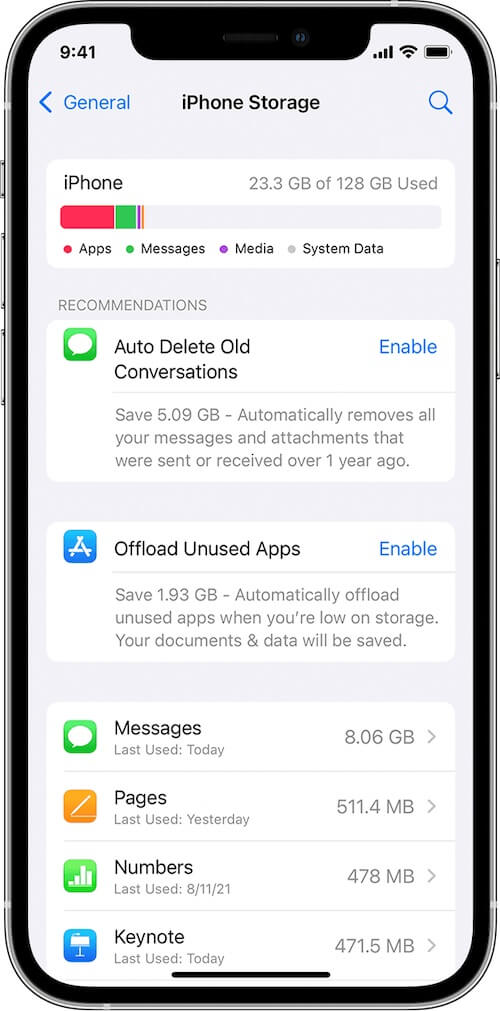
To check your iPhone storage:
• Open Settings -> General. Select iPhone Storage. Check the available storage space.
If your iPhone is almost full, try removing unnecessary apps, large videos, duplicate photos, or other files to free up storage space.
3. Check Network Connection and App Permissions
Some third-party apps rely on an internet connection to work properly. After an iOS update, network settings or app permissions may sometimes change.
Try the following:
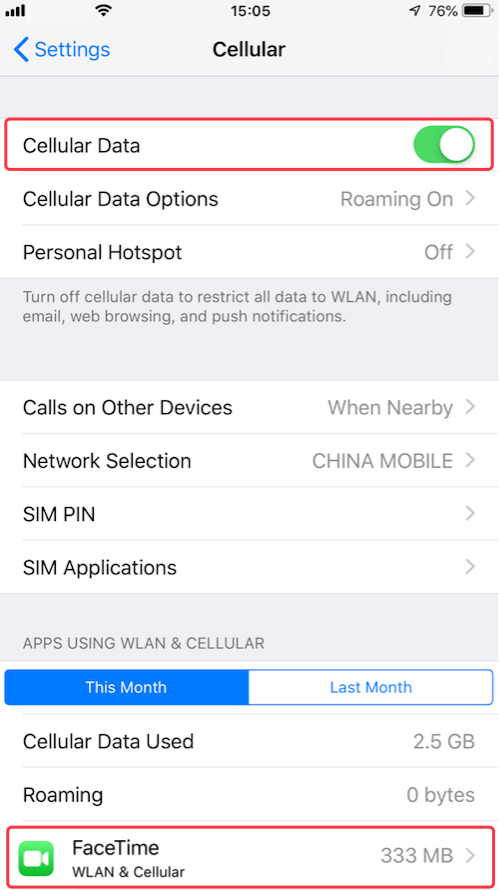
• Make sure your iPhone is connected to a stable Wi-Fi or cellular network.
• Check whether the affected apps are allowed to use network data: Open Settings. Tap Cellular. Scroll down and make sure the apps are enabled.
• Disable VPN apps or network filtering tools temporarily, as they may interfere with app connections.
4. Update or Reinstall Third-Party Apps
Some apps may not be fully compatible with the latest iOS version until developers release an update. Reinstalling an app can also repair corrupted app files.
To reinstall an app:
• Press and hold the app icon. Select Remove App. Tap Delete App. Open the App Store. Search for the app and download it again.
Before deleting an app, make sure your important app data is backed up or synchronized with an account if needed.
5. Reset All iPhone Settings
If multiple third-party apps stop working after updating to iOS 26.6, incorrect system settings may be the cause. Resetting all settings can restore default system configurations without deleting your personal data.
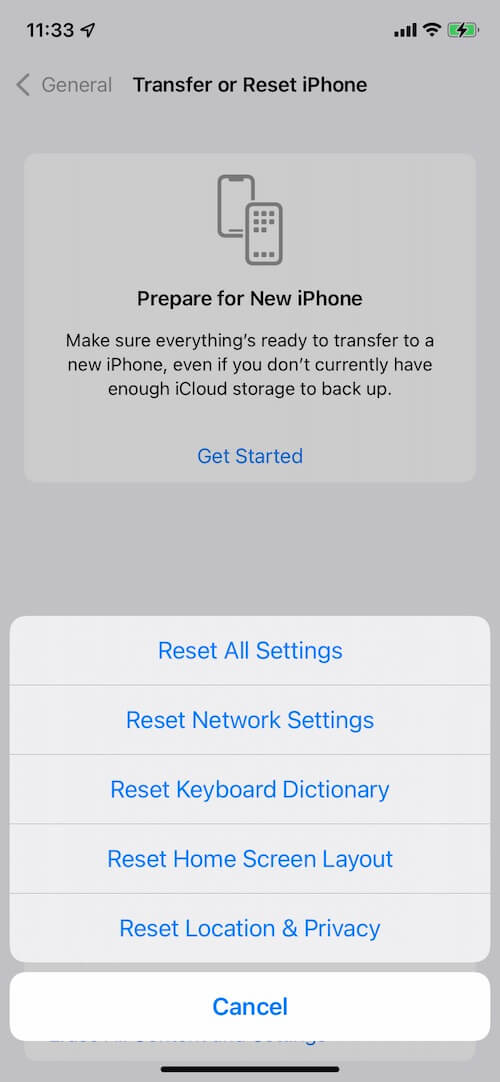
To reset all settings:
• Open Settings. Tap General. Select Transfer or Reset iPhone. Tap Reset. Choose Reset All Settings.
This will reset Wi-Fi passwords, network settings, privacy settings, and other system preferences, but it will not delete your photos, apps, or personal files.
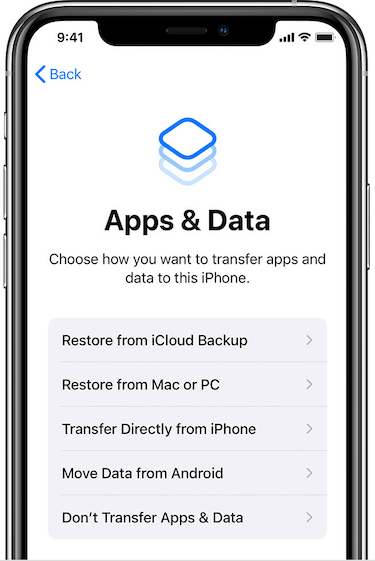
6. Restore iPhone from a Backup
If none of the above solutions work, restoring your iPhone from a previous backup may help fix serious system problems caused by the iOS update.
You can restore your iPhone using an iCloud backup or a computer backup created before upgrading to iOS 26.6.
However, restoring a backup will replace the current data on your iPhone with the backup data. Before restoring, make sure you have saved any important new files or photos.
7. Check for an iOS Update
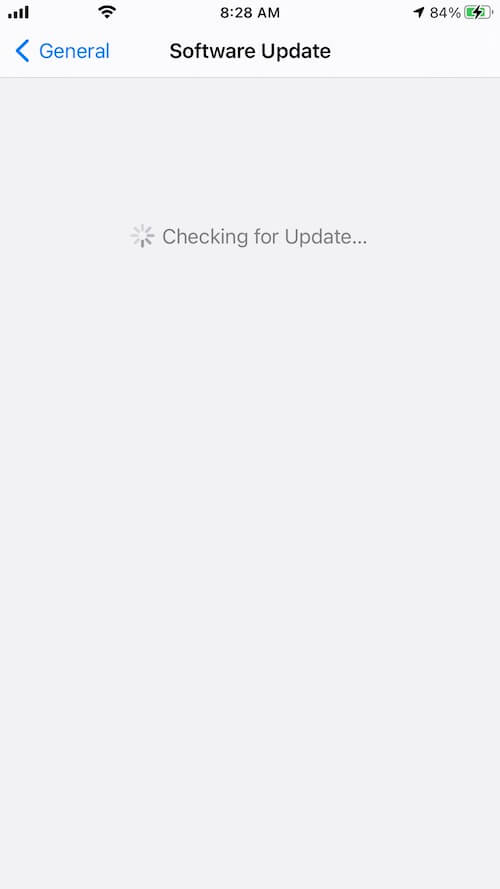
If the issue is caused by an iOS 26.6 compatibility bug, you may need to wait for Apple or the app developer to release a fix. Developers usually update their apps shortly after major iOS releases to address compatibility issues.
You can check for available updates:
• Open iPhone Settings. Tap Apple ID. Scroll down to Software Updates. Check for the latest iOS version.
Conclusion
Third-party apps not working after updating to iOS 26.6 can be caused by temporary iOS glitches, insufficient storage, network problems, app compatibility issues, or corrupted app data. Restarting your iPhone, checking settings, reinstalling apps, resetting settings, or restoring from a backup can usually resolve the problem.
If the issue continues after trying these methods, it is recommended to wait for the next iOS update or contact the app developer for further assistance.
| More Related Articles | ||||
 |
1. How to Edit Video and MP4 Metadata on iPhone and iPad? 2. How to Rename Photos on iPhone Without a Computer? |
|||
About Fireebok Studio
Our article content is to provide solutions to solve the technical issue when we are using iPhone, macOS, WhatsApp and more. If you are interested in the content, you can subscribe to us. And We also develop some high quality applications to provide fully integrated solutions to handle more complex problems. They are free trials and you can access download center to download them at any time.
| Popular Articles & Tips You May Like | ||||
 |
 |
 |
||
| Five ways to recover lost iPhone data | How to reduce WhatsApp storage on iPhone | How to Clean up Your iOS and Boost Your Device's Performance | ||