Have you ever needed to compare two documents or other files to find out what is different between them? Normally, you can open both files in a document editor and check their contents manually. However, this can become difficult and time-consuming, especially when working with large documents or files containing a lot of content.
In addition, two media files may look exactly the same while still having different file contents or metadata. For example, two photos may have different EXIF information, camera details, file sizes, or other metadata even though they appear identical. This makes it difficult to identify all differences by simply viewing the files.
After finding differences between two files, manually copying, moving, or merging the different content can also be complicated.
A specialized file comparison tool can make this process much easier. In this guide, we'll show you how to compare and merge files on Mac using WhatsDiff. WhatsDiff can compare files, folders, documents, PDFs, photos, videos, audio files, and other types of files. It can compare both file content and media metadata, helping you find differences that may not be visible when you open the files normally.
Compare and Merge Document Files on Mac
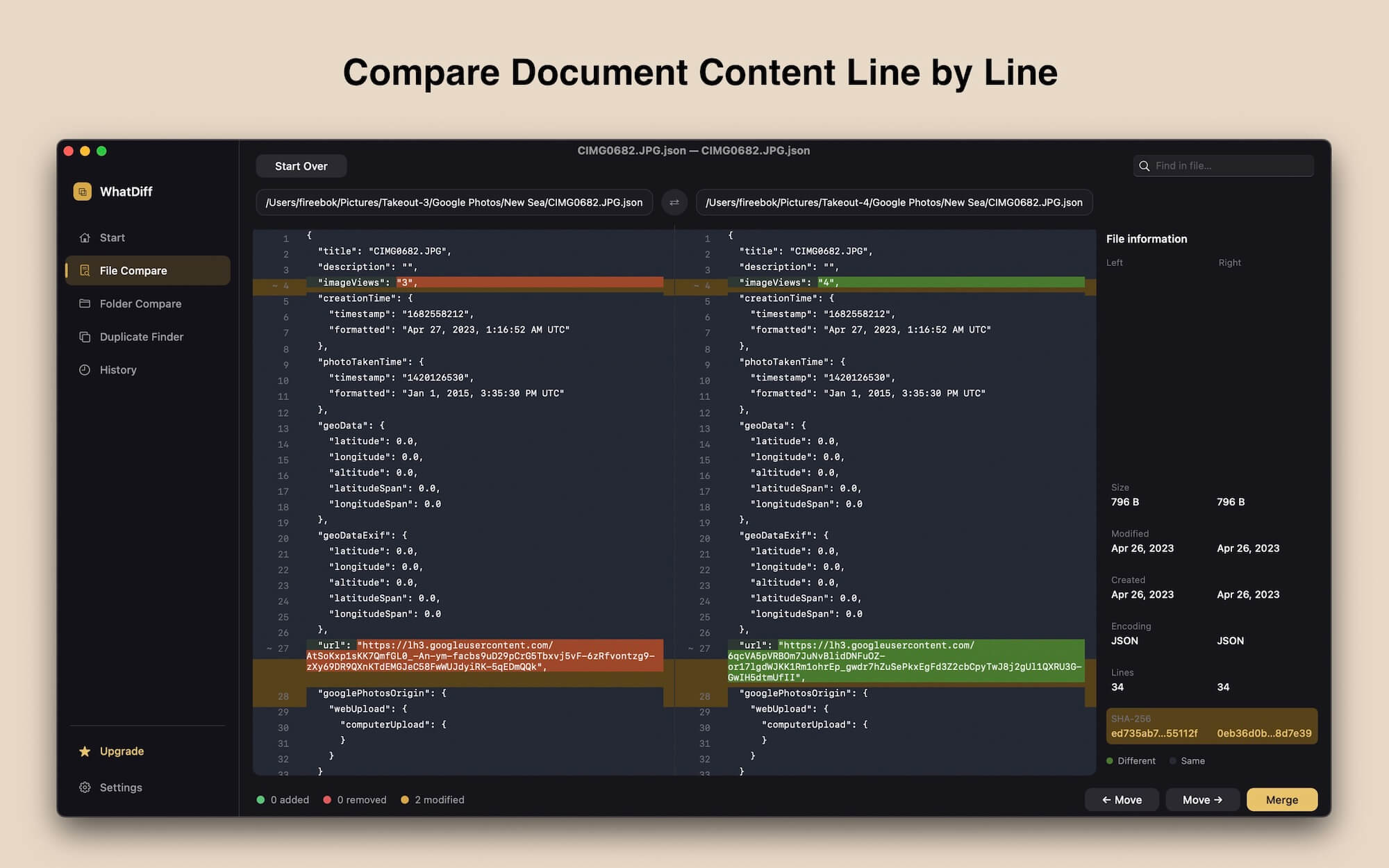
For supported document files, WhatsDiff can compare the content of two documents line by line. Differences are clearly identified as added, removed, modified, or unchanged content, making it easier to understand exactly what has changed.
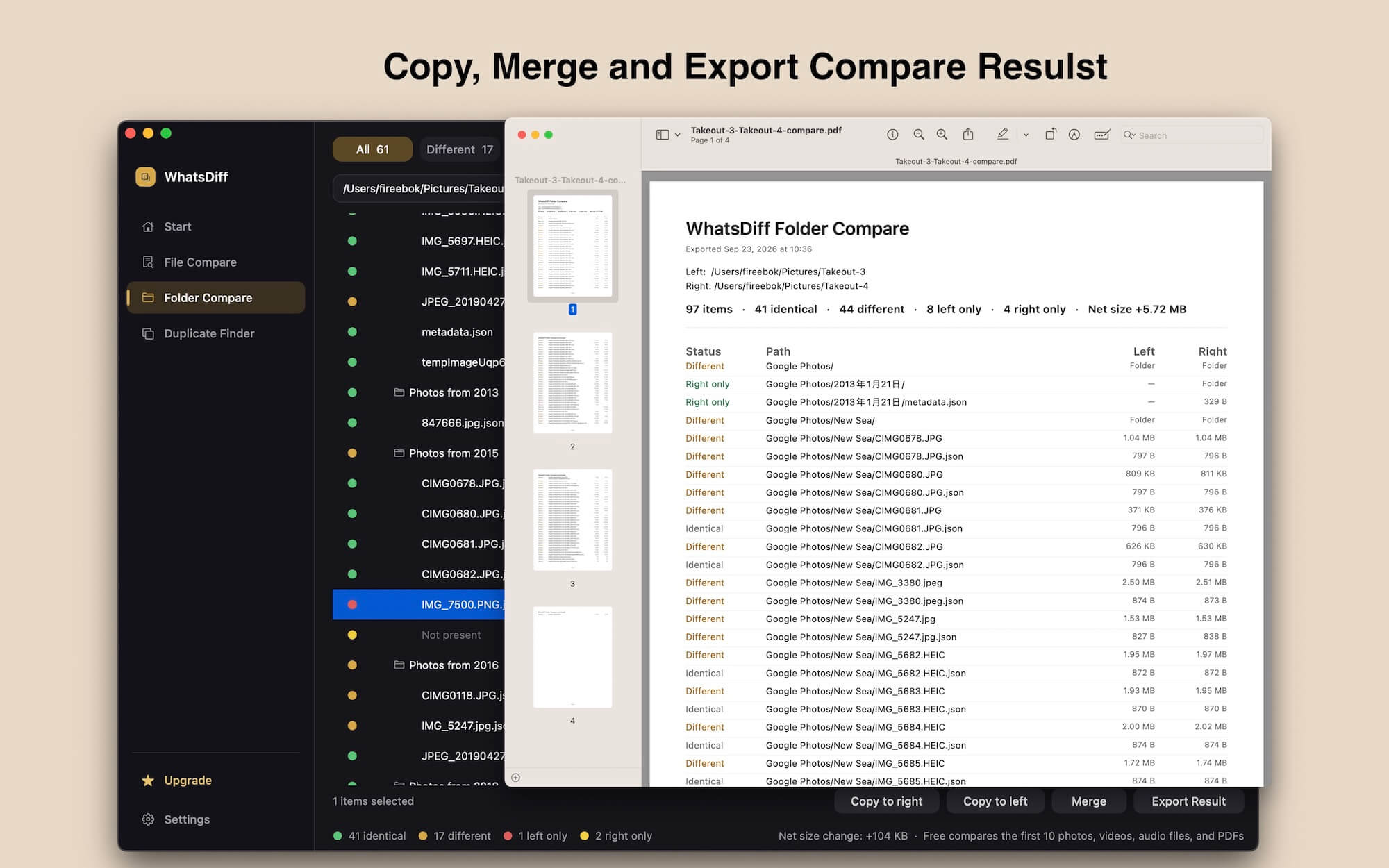
You can also copy or move content from one document to the other and merge differences directly from the comparison window. When you finish comparing the files, you can export the comparison results as a PDF for sharing, reviewing, or keeping as a record.
For PDF files, WhatsDiff supports page-by-page comparison, making it easier to find differences between two PDF documents.
How to Compare and Merge Files on Mac with WhatsDiff
Follow these steps to compare and merge files on your Mac:
1. Download and Install WhatsDiff
Download and install WhatsDiff on your Mac, then launch the application.
2. Open the Files You Want to Compare
Open the File Compare feature in WhatsDiff and select the two files you want to compare.
3. Compare the File Contents
If you import supported document files, WhatsDiff compares their contents line by line. Different types of changes are highlighted so you can easily identify added, removed, modified, and unchanged content.
This makes it much easier to compare large documents than checking them manually in a document editor.
4. Review and Merge Differences
Use the difference filters at the bottom of the comparison window to quickly view added, removed, or modified content.
You can then use the Move ←, Move →, and Merge functions to transfer or combine content and resolve differences between the two files.
This allows you to merge files more efficiently without manually copying and pasting every difference.
5. Export the Comparison Results
After comparing the files, click the Export Comparison Result button to save the comparison results as a PDF.
The exported PDF can be saved for future reference, shared with others, or used as a record of the differences between the two files.
Compare Photos, Videos, Audio Files, and Other Files
WhatsDiff is not limited to document comparison. You can also use it to compare photos, videos, audio files, and other types of files. For media files, WhatsDiff can compare file information and metadata, including details such as:
• File size
• File type
• Photo EXIF metadata
• Camera information
• Image information
• Video metadata
• Audio metadata
• Other available file properties
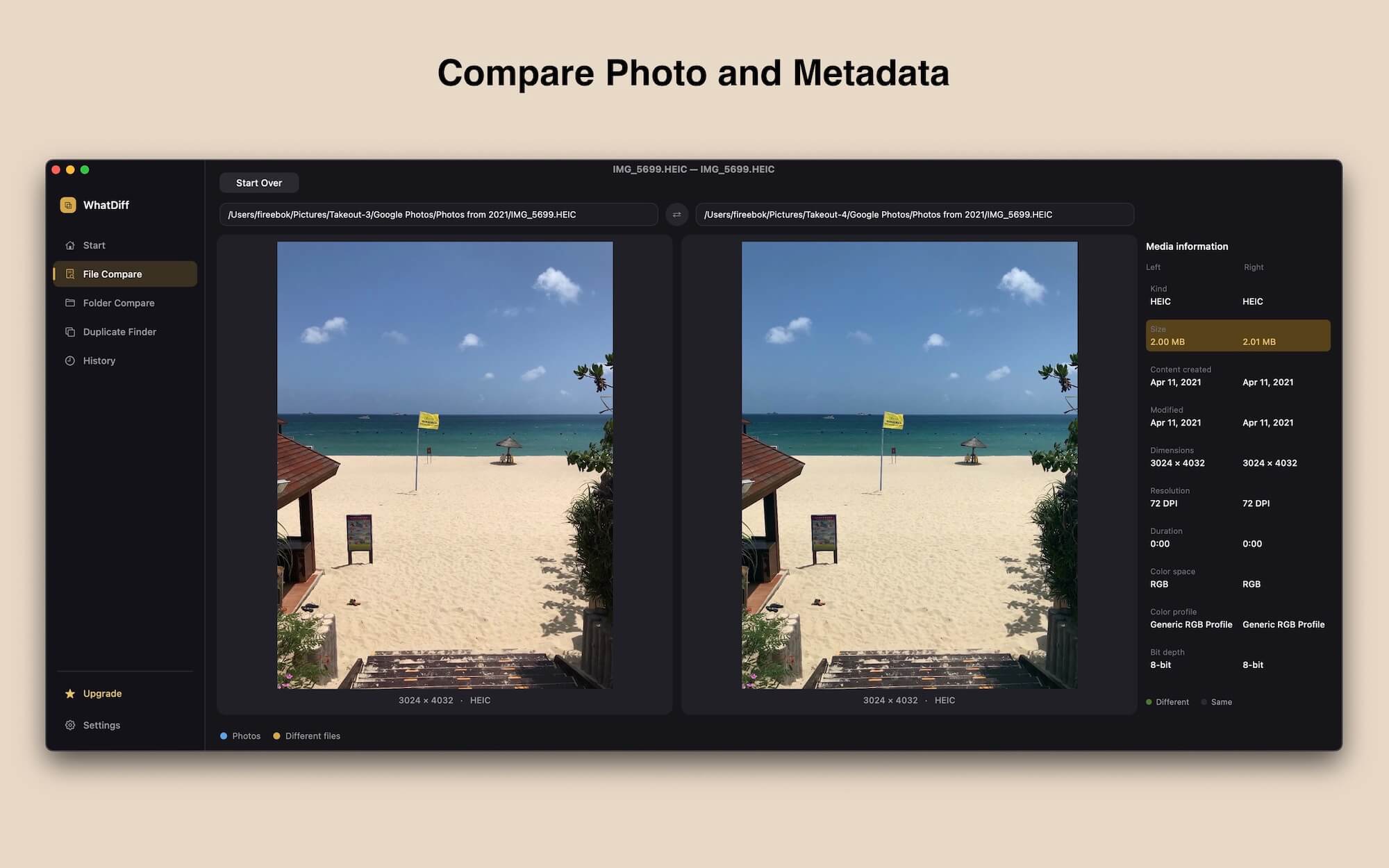
This can help you find differences between media files that may look or sound identical when opened normally.
For example, two photos may have the same visual content but different camera information, GPS data, capture dates, or other EXIF metadata. WhatsDiff can help reveal these differences.
Compare Folders on Mac
In addition to comparing individual files, WhatsDiff also supports folder comparison.
You can compare two folders, including their subfolders and files, to quickly understand how their contents differ. WhatsDiff can identify files and folders that exist only on the left side, only on the right side, or in both locations with differences.
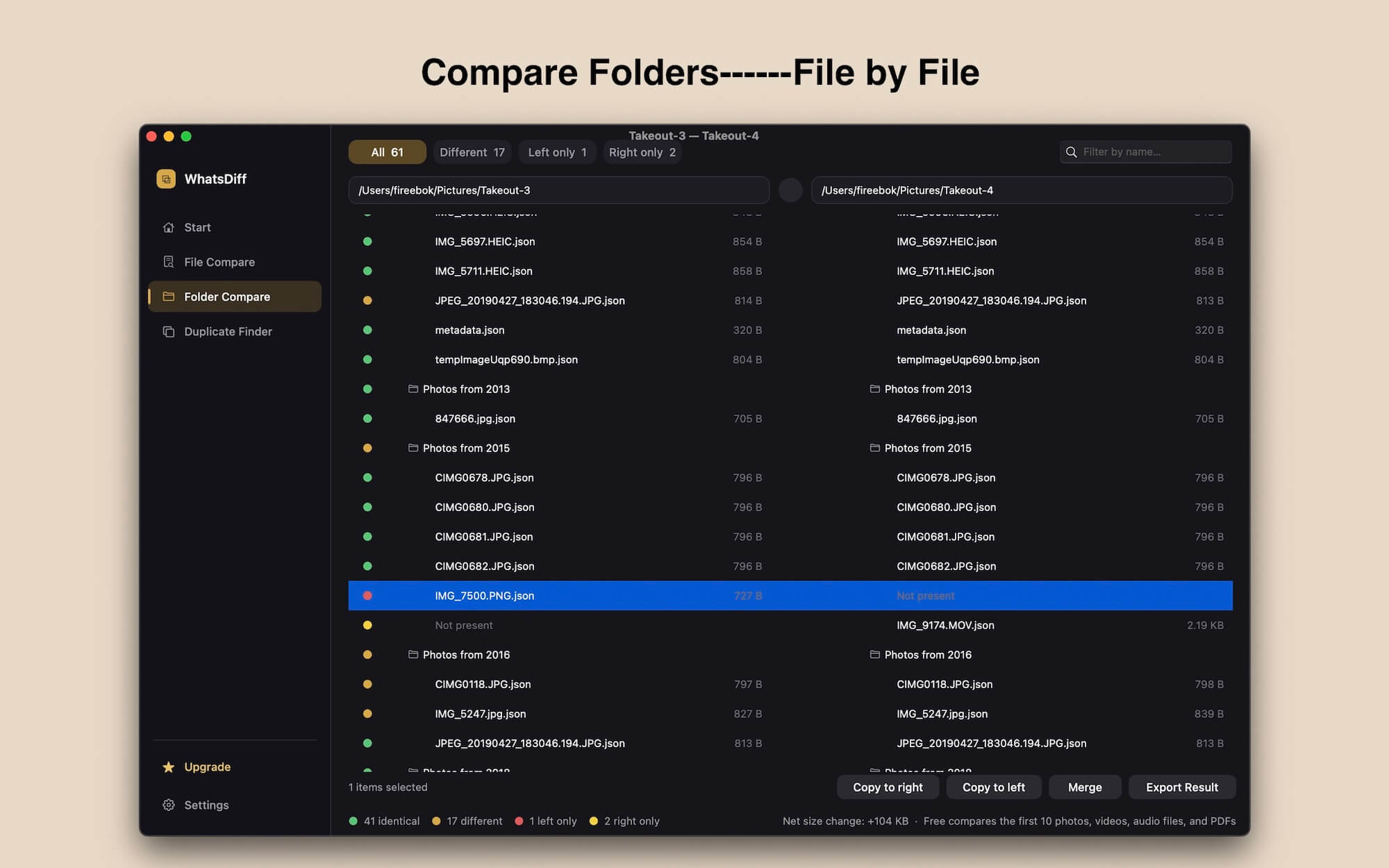
Folder comparison is useful when you want to compare backups, project folders, transferred files, or different versions of a folder.
Conclusion
Comparing files manually can be difficult, especially when working with large documents, PDFs, media files, or folders containing hundreds or thousands of files.
With WhatsDiff, you can compare and merge files on Mac, compare document content line by line, compare PDFs page by page, check media metadata, and compare entire folders and their contents. Its built-in move and merge tools also make it easier to resolve differences after they are found.
If you regularly need to compare files, merge document changes, check media metadata, or compare folders on Mac, WhatsDiff provides a convenient way to find and manage file differences in one application.
| More Related Articles | ||||
 |
1. How to merge two photo libraries on Mac? 2. How to find and remove duplicate photos from Photos? |
|||
About Fireebok Studio
Our article content is to provide solutions to solve the technical issue when we are using iPhone, macOS, WhatsApp and more. If you are interested in the content, you can subscribe to us. And We also develop some high quality applications to provide fully integrated solutions to handle more complex problems. They are free trials and you can access download center to download them at any time.
| Popular Articles & Tips You May Like | ||||
 |
 |
 |
||
| Five ways to recover lost iPhone data | How to reduce WhatsApp storage on iPhone | How to Clean up Your iOS and Boost Your Device's Performance | ||