Since iOS 18, Apple has supported RCS (Rich Communication Services) messaging, allowing iPhone users to send high-quality photos, videos, files, reactions, and group messages to Android users. RCS offers a more modern messaging experience than traditional SMS and MMS by using an internet connection, similar to popular messaging apps.
However, some users have reported that after updating their iPhone, iPad, or Mac to iOS 26, RCS messages are no longer delivered from iPad or Mac to Android users. In many cases, RCS messaging continues to work on the iPhone itself, but fails on other Apple devices connected to the same Apple ID.
If you're experiencing this issue, follow the troubleshooting steps below to restore RCS messaging between your Apple devices and Android contacts.
Why Can't My iPad or Mac Send RCS Messages to Android?
RCS messaging is a carrier-supported service that is registered through your iPhone's phone number. Unlike the iPhone, the iPad and Mac do not connect directly to your carrier's RCS network.
Instead, Apple uses the iPhone as a bridge, similar to how SMS Text Message Forwarding works. For RCS messaging to function on iPad and Mac, the following requirements must be met:
• An iPhone running iOS 18 or later
• RCS Messaging enabled on the iPhone
• A Mac running macOS Sequoia 15 or later
• An iPad running iPadOS 18 or later
• All devices signed in with the same Apple ID
• The carrier supports RCS messaging
This means that a Wi-Fi-only iPad or a Mac cannot independently register for RCS service without a properly configured iPhone.
1. Verify That RCS Messaging Is Enabled on iPhone
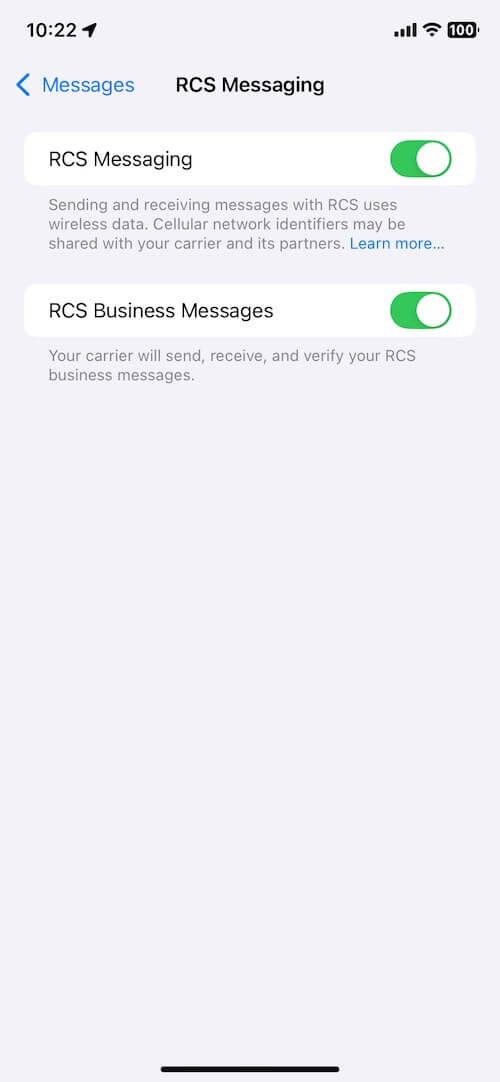
First, make sure RCS messaging is enabled on your iPhone. Open Settings -> tap Apps. Tap Messages -> select RCS Messaging. Make sure RCS Messaging is turned on
If it is already enabled, try turning it off, wait a few seconds, and then turn it back on.
2. Check That RCS Is Enabled on the Android Device
The Android recipient must also have RCS messaging enabled. Most Android devices use Google Messages or a carrier-supported RCS service.
Open the messaging app on the Android phone. Go to Settings, locate RCS Chats, Chat Features, or a similar option. Confirm that RCS is enabled and connected.
If RCS is disabled on the Android device, messages may fall back to SMS or fail to deliver.
3. Delete the Failed RCS Conversation
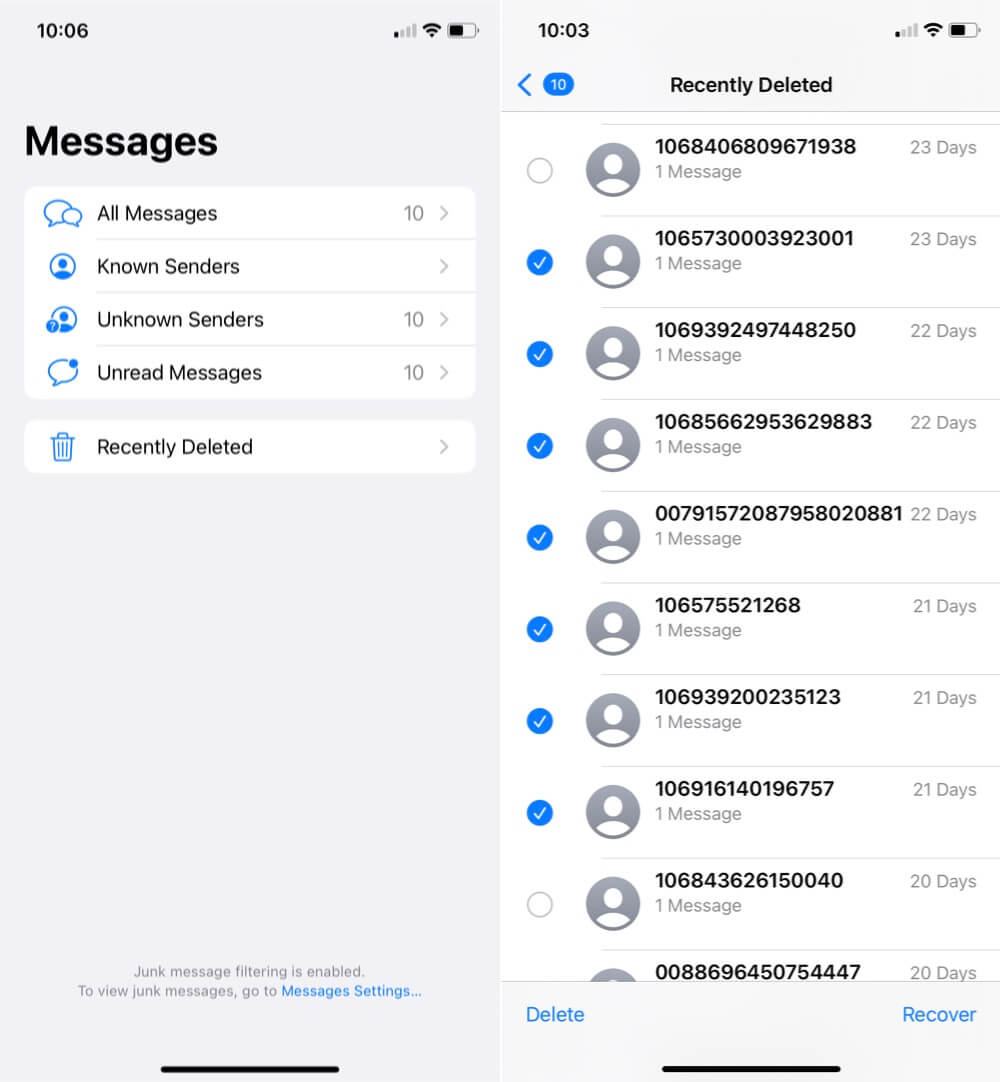
Corrupted message threads can sometimes prevent new RCS messages from being delivered. To remove a problematic conversation:
Open the Messages app on your iPad or Mac. Delete the conversation with the Android contact, open Recently Deleted. Locate the deleted conversation, permanently delete it.
After removing the conversation, create a new message thread and test RCS messaging again.
4. Turn iMessage Off and Back On
Refreshing the Messages service can help rebuild the messaging database and resolve synchronization issues.
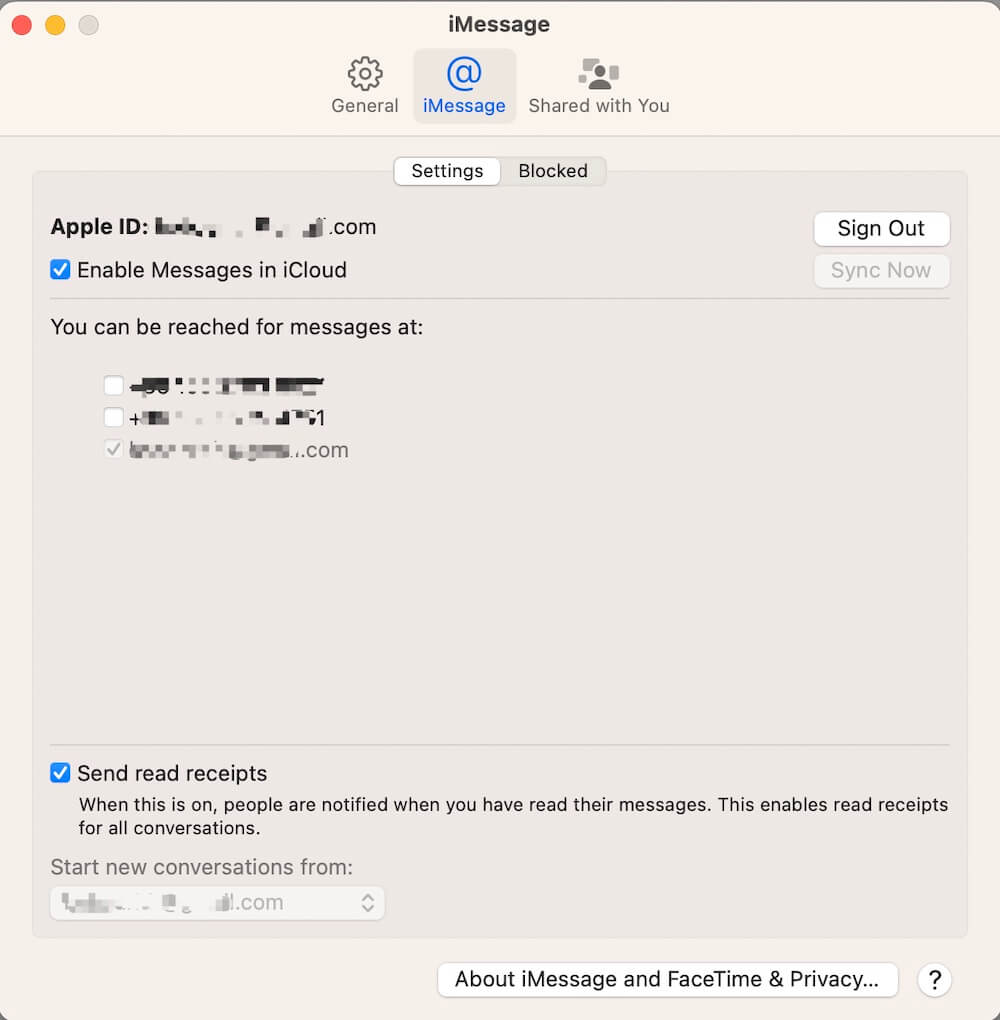
On iPad. Open Settings, tap Apps > Messages. Turn iMessage off, Wait 5–10 seconds, Turn iMessage back on.
After re-enabling iMessage, restart the Messages app and test RCS delivery.
On Mac. Quit the Messages app completely. Reopen the app, sign out and back into your Apple ID if necessary.
5. Reset Network Settings
If RCS messaging still does not work, resetting network settings may resolve underlying connectivity issues.
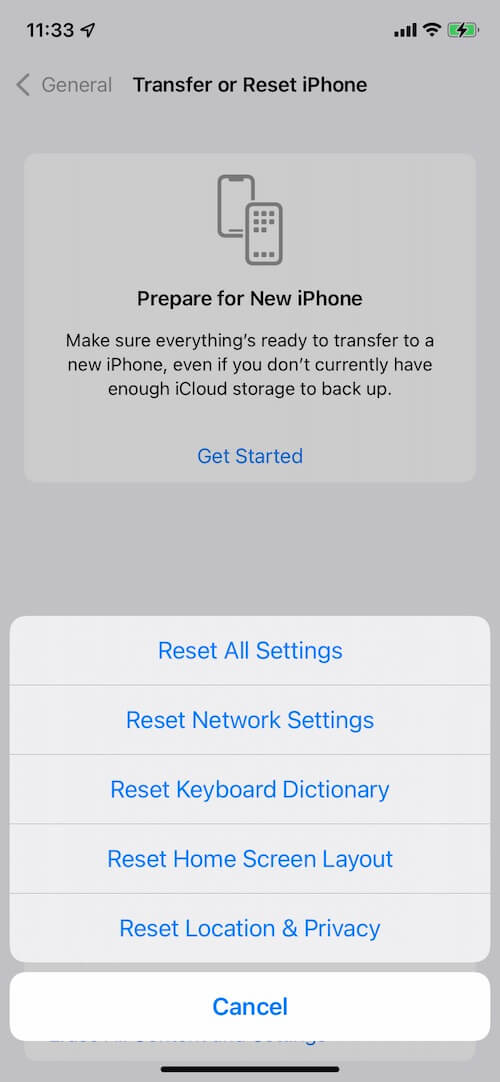
How to Reset Network Settings on iPhone or iPad:
Open Settings, go to General, tap Transfer or Reset iPhone/iPad. Select Reset, tap Reset Network Settings.
Note: This process removes saved Wi-Fi passwords, VPN settings, and Bluetooth connections, but it does not erase personal data, photos, apps, or documents.
Conclusion
If RCS messages are not being delivered to Android users after updating to iOS 26, the issue is usually related to RCS registration, carrier support, message synchronization, or network configuration. By verifying RCS settings, removing failed message threads, refreshing iMessage, and resetting network settings, most users can restore RCS messaging on their iPhone, iPad, and Mac.
With RCS properly configured, you can continue sending high-quality photos, videos, files, and group messages between Apple and Android devices without relying on traditional SMS.
| More Related Articles | ||||
 |
1. How to Edit Audio and MP3 Metadata on iPhone? 2. How to Rename Photos on iPhone Without a Computer? |
|||
About Fireebok Studio
Our article content is to provide solutions to solve the technical issue when we are using iPhone, macOS, WhatsApp and more. If you are interested in the content, you can subscribe to us. And We also develop some high quality applications to provide fully integrated solutions to handle more complex problems. They are free trials and you can access download center to download them at any time.
| Popular Articles & Tips You May Like | ||||
 |
 |
 |
||
| Five ways to recover lost iPhone data | How to reduce WhatsApp storage on iPhone | How to Clean up Your iOS and Boost Your Device's Performance | ||