Have you imported photos into Apple Photos on your Mac only to discover that they are sorted by the Modified Date instead of the Date Taken? This issue can completely disrupt your photo timeline, making years of memories appear in the wrong order.
Although Apple Photos allows you to manually adjust the date and time of each photo, doing this one image at a time is impractical when you have hundreds or even thousands of imported photos.
Fortunately, there is a much faster solution. In this guide, you'll learn why Apple Photos displays the wrong date and how to automatically restore the correct Date Taken for imported photos using Photo Exifer 3.
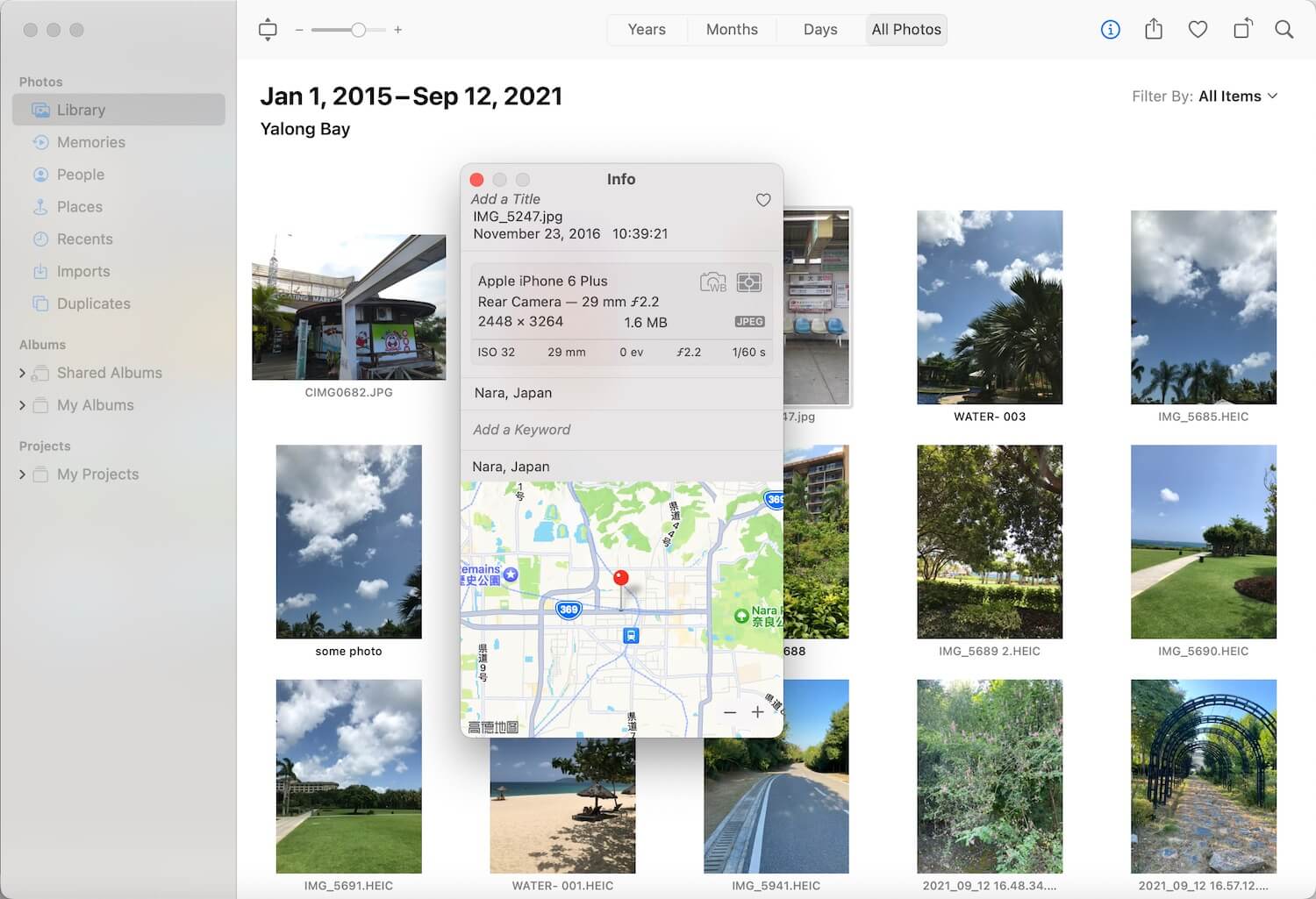
Why Does Apple Photos Use the Modified Date?
Every digital photo contains several different date values. Understanding these dates helps explain why Apple Photos sometimes displays the wrong one.
• Date Taken (Content Creation Date / EXIF Date) – Stored inside the photo's metadata by the camera or smartphone. This is the actual time the photo was captured.
• Modified Date – Updated whenever the file is edited or copied.
• Created Date – The date the file was created on the current storage device.
• Imported Date – The date the photo was imported into Apple Photos.
• Added Date – The date the photo was added to the photo library.
Normally, Apple Photos reads the EXIF Date Taken from the image metadata and uses it to organize your library.
However, if the EXIF creation date is missing, damaged, or incompatible, Apple Photos may fall back to the file's Modified Date or Created Date. In addition, different versions of Apple Photos may handle imported photos differently. Occasionally, bugs or changes in the import process can cause imported photos to display incorrect dates. As a result, recently copied or restored photos may all appear with incorrect dates, causing your photo library to be sorted incorrectly.
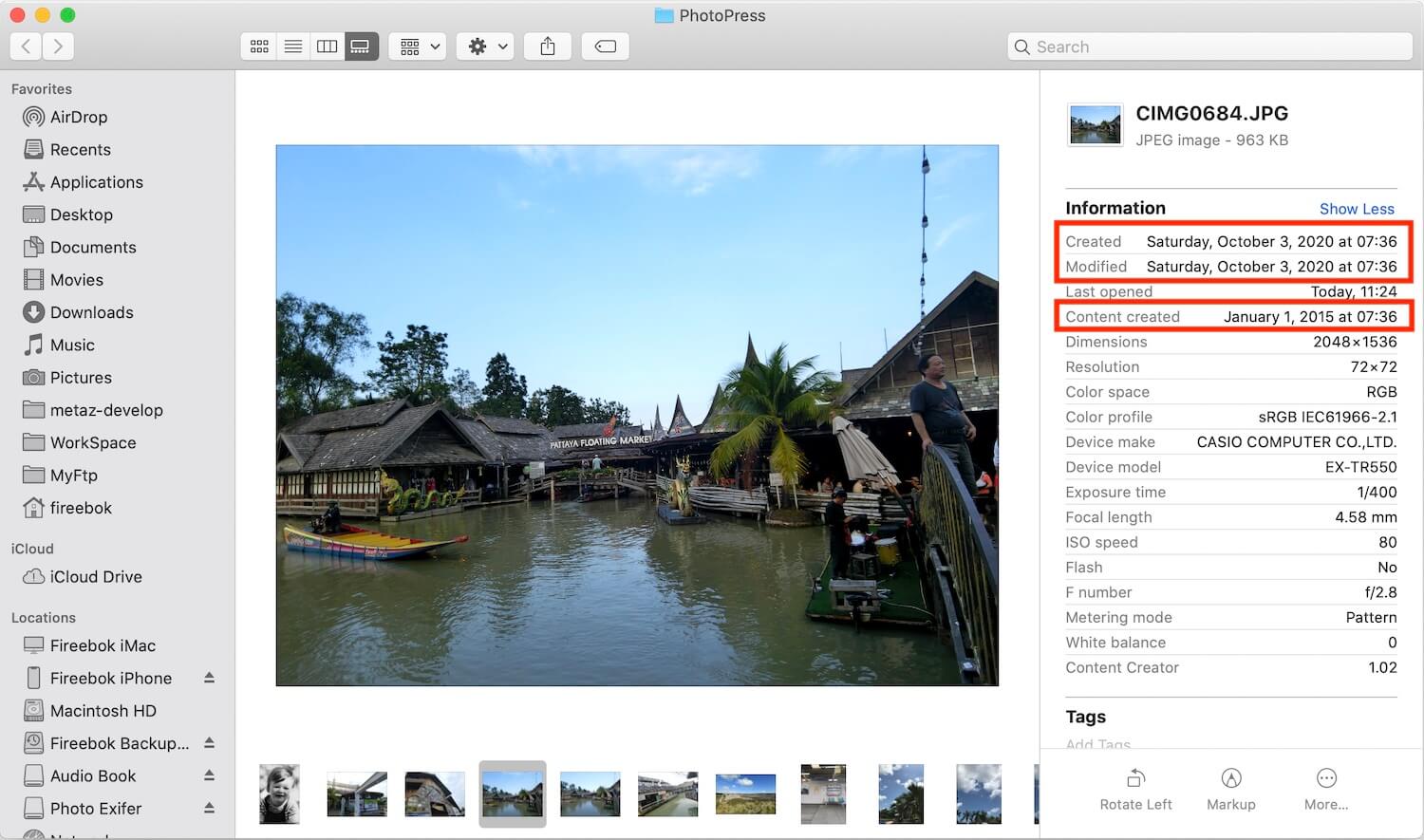
The Fastest Way to Restore the Correct Date Taken
Instead of manually correcting every photo in Apple Photos, you can use Photo Exifer 3 to batch restore the photo library date from each photo's original EXIF Date Taken.
Photo Exifer 3 is a professional photo metadata editor for macOS that works with both local image files and Apple Photos libraries. Besides editing metadata, it can automatically synchronize the photo library's display date with the original camera date stored inside each image.
This allows you to restore hundreds or even thousands of incorrectly dated photos with just a few clicks.
How to Fix Imported Photos Using Photo Exifer 3
Step 1. Download and Install Photo Exifer 3
Download and install Photo Exifer 3 on your Mac.
To allow the application to read and update your Apple Photos library, grant Full Disk Access: System Settings → Privacy & Security → Full Disk Access
Step 2. Load Your Apple Photos Library
Launch Photo Exifer 3 and open the Photo Library tab.
The application will automatically load all photos and videos from your Apple Photos library.
You can Click Showing: All Items to filter your library by: Album, Date range, Media type and more. This makes it easy to locate only the imported photos with incorrect dates.
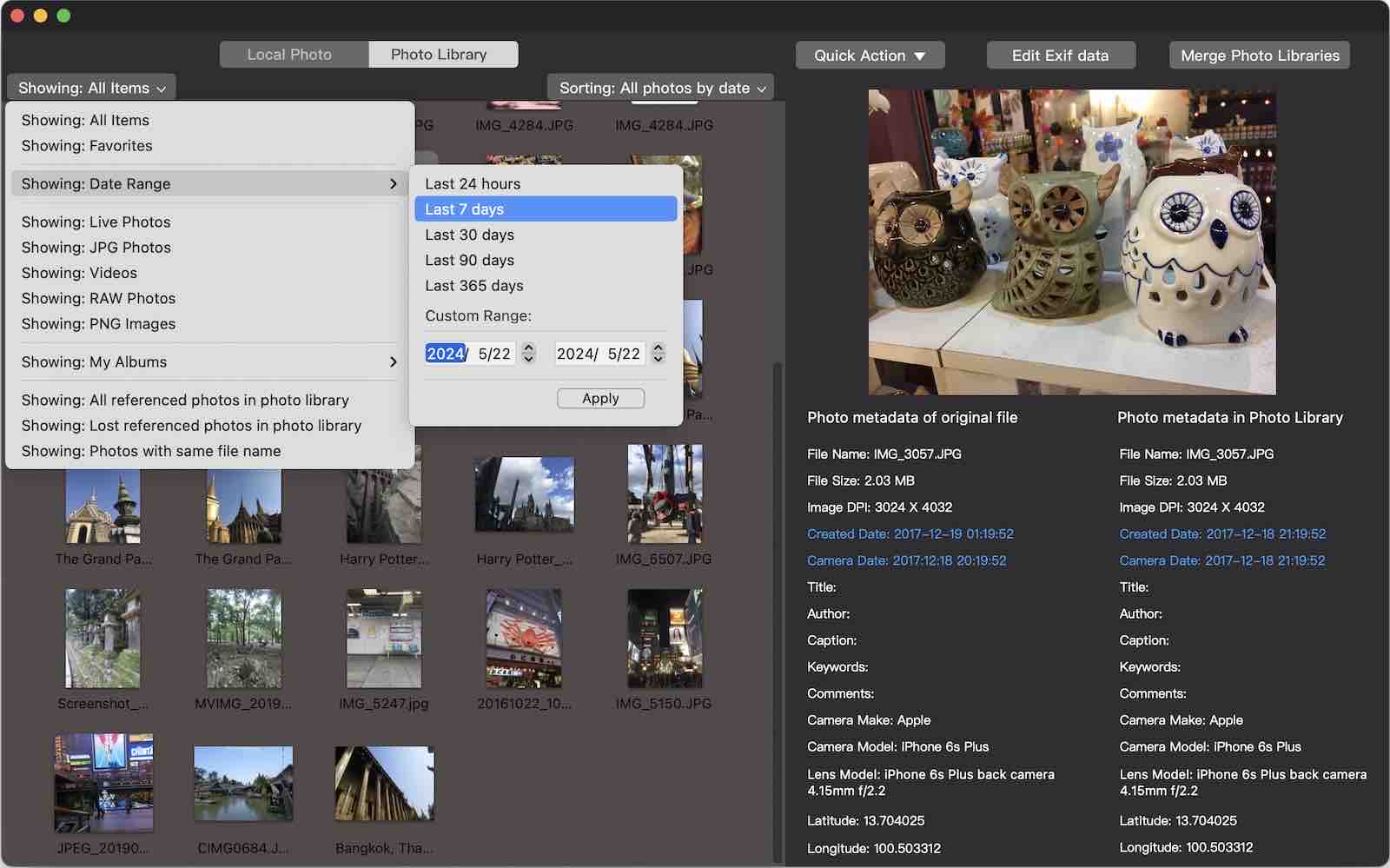
Step 3. Restore the Correct Date Taken
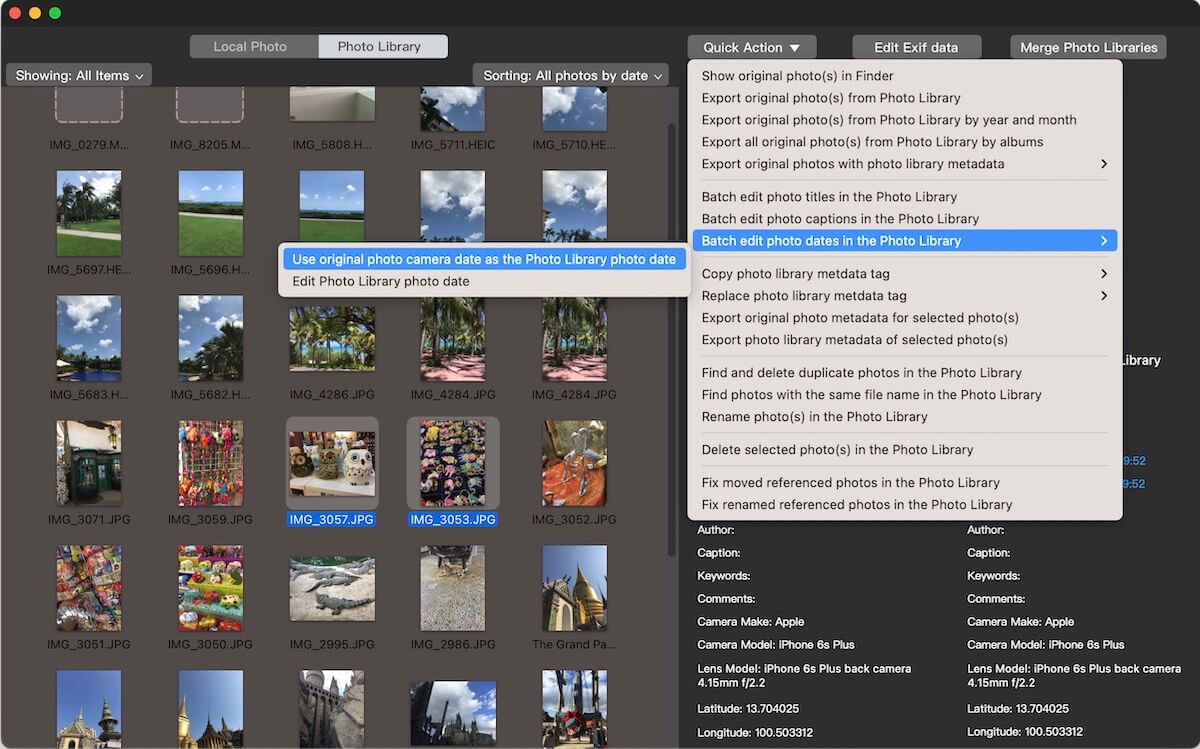
Select the affected photos, then choose: Quick Action → Batch Edit Photo Date in Photo Library → Use Original Photo Camera Date as Photo Library Date
Photo Exifer 3 will automatically read the original EXIF Date Taken from each image and update the photo's display date inside Apple Photos. Within minutes, your imported photos will be restored to their proper position in your photo timeline—without manually editing each photo.
More Features in Photo Exifer 3
In addition to fixing incorrect photo dates, Photo Exifer 3 offers many batch editing features that Apple Photos does not provide, including:
• Batch rename photo files
• Batch Copy filenames to photo titles
• Batch edit EXIF, IPTC, and GPS metadata
• Copy metadata between photos
• Merge multiple Apple Photos libraries
• Edit metadata for both local photos and Apple Photos libraries
These tools make Photo Exifer 3 an excellent solution for photographers, families, and anyone managing a large Apple Photos library.
Conclusion
If Apple Photos is displaying your imported photos using the Modified Date instead of the original Date Taken, you don't need to spend hours correcting each image manually.
By using Photo Exifer 3, you can quickly batch restore the correct photo dates from the original EXIF metadata, allowing Apple Photos to organize your memories in the correct chronological order again.
Whether you've imported a few hundred photos or an entire photo archive, Photo Exifer 3 provides a simple, accurate, and time-saving way to repair your Apple Photos library.
| More Related Articles | ||||
 |
1. How to merge two photo libraries on Mac? 2. How to find and remove duplicate photos from Photos? |
|||
About Fireebok Studio
Our article content is to provide solutions to solve the technical issue when we are using iPhone, macOS, WhatsApp and more. If you are interested in the content, you can subscribe to us. And We also develop some high quality applications to provide fully integrated solutions to handle more complex problems. They are free trials and you can access download center to download them at any time.
| Popular Articles & Tips You May Like | ||||
 |
 |
 |
||
| Five ways to recover lost iPhone data | How to reduce WhatsApp storage on iPhone | How to Clean up Your iOS and Boost Your Device's Performance | ||