If you store your photos in regular folders instead of using Apple Photos, you may eventually end up with thousands of duplicate images scattered across multiple folders and external drives. This is especially common if you back up photos from iPhones, digital cameras, SD cards, USB drives, Google Photos, iCloud Photos, or other cloud storage services.
Duplicate photos waste valuable storage space, make photo management more difficult, and slow down the process of organizing your image collection. In many cases, duplicate photos are stored in different folders, have different filenames, or are copied from different devices, making them almost impossible to locate manually.
So, how can you quickly and accurately find and remove duplicate photos from large folders on your Mac?
In this guide, we'll show you the easiest way to scan large folders and subfolders for duplicate photos and safely remove them while keeping the original files.
Why Duplicate Photos Accumulate
Duplicate photos can appear for many reasons, including:
• Importing photos from multiple iPhones, iPads, cameras, or SD cards.
• Backing up the same photo collection several times.
• Downloading photos from cloud services such as iCloud Photos, Google Photos, Dropbox, or OneDrive.
• Copying photo folders between Macs or external hard drives.
• Saving edited copies alongside the original images.
• Organizing photos into multiple folders over time.
As your collection grows to tens or even hundreds of thousands of photos, manually identifying duplicates becomes nearly impossible.
Can Apple Photos Remove Duplicate Photos Outside the Photos Library?
Apple Photos includes a built-in Duplicates album that can detect duplicate photos inside your Photos library. However, it cannot scan:
• Regular folders in Finder
• External hard drives and USB flash drives
• NAS storage and Shared folders
• Multiple custom folders
If your photos are stored outside the Photos library, you'll need a dedicated duplicate file finder.
The Best Way to Find Duplicate Photos in Large Folders
Mac PowerSuite 3 is an all-in-one macOS utility that helps you:
• Find and remove duplicate photos, videos, documents, and other files
• Scan one or multiple folders simultaneously
• Search through nested subfolders automatically
• Preview duplicate files before deleting them
• Clean unnecessary files to free up disk space
• Manage installed applications and monitor Mac performance
Its Duplicate Files feature is specifically designed to locate duplicate files across large folders, even when they are stored in different directories.
How to Remove Duplicate Photos from Large Folders on Mac
Mac PowerSuite 3 is an all-in-one macOS utility that helps you:
Step 1. Install Mac PowerSuite 3
Download and install Mac PowerSuite 3, then launch the application.
Step 2. Add Your Photo Folder
Click Duplicate Files in the sidebar. Select Add Custom Folder, then choose the large photo folder (or multiple folders) you want to scan.
The software supports scanning folders on: Your Mac's internal drive, External hard drives, USB flash drives, Network storage, Other mounted volumes.
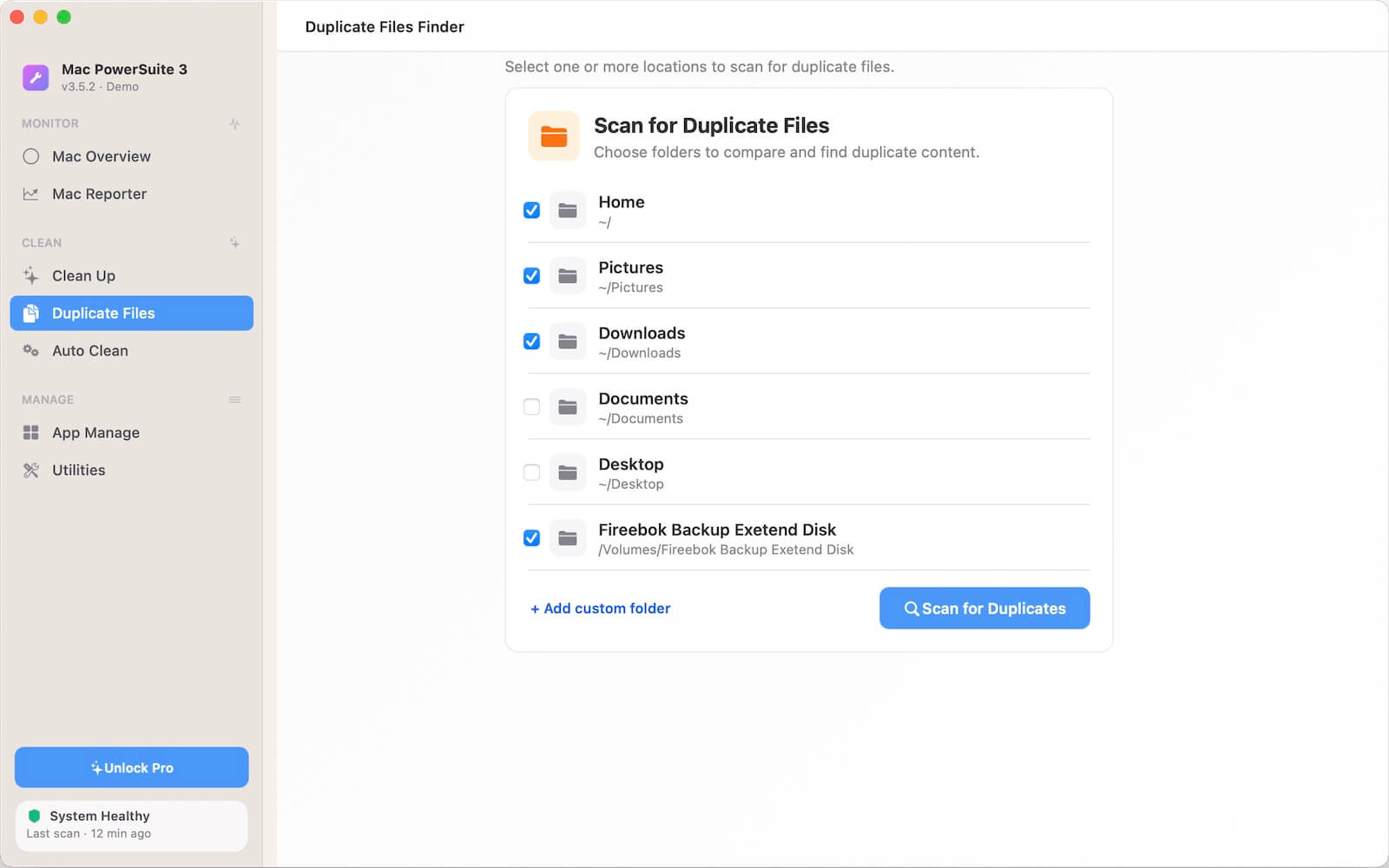
Step 3. Scan for Duplicate Photos
Click Scan for Duplicates. Mac PowerSuite 3 will quickly analyze all selected folders and their subfolders to identify duplicate files.
Step 4. Review Duplicate Results
After scanning is complete, duplicate files are grouped together for easy review. You can preview duplicate photos and videos before deleting them, including: Image preview, File name, File location, File size, Creation date.
This makes it easy to verify that the selected files are true duplicates.
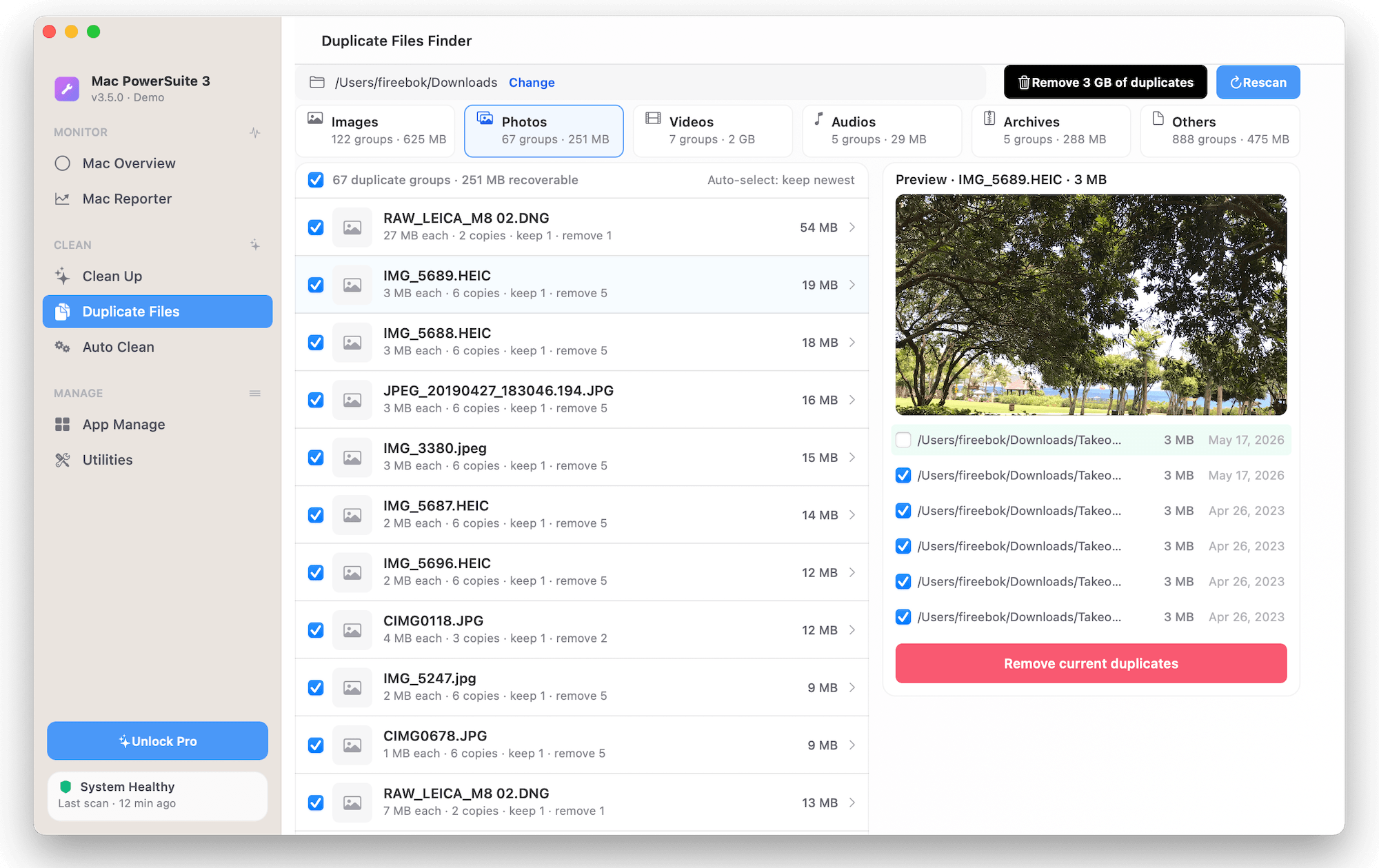
Step 5. Remove Duplicate Photos
By default, Mac PowerSuite 3 automatically keeps one copy of each duplicate group and selects the remaining duplicates for removal.
Simply click Remove Duplicates to delete all selected duplicate files.
If you prefer more control, you can manually choose which copy to keep in the right-hand preview panel, then click Remove Current Duplicates button to delete only the selected duplicates in the current group.
Benefits of Using Mac PowerSuite 3
Compared with manually searching through Finder folders, Mac PowerSuite 3 offers several advantages:
• Fast scanning of large photo collections
• Supports multiple folders and subfolders
• Finds duplicate photos, videos, documents, and other files
• Preview files before deletion
• Automatically keeps one original copy
• Safe and accurate duplicate detection
• Works with internal and external storage devices
Conclusion
Large photo collections often contain duplicate images created by repeated imports, backups, and transfers between devices. While Apple Photos can detect duplicates inside its own library, it cannot scan ordinary Finder folders or external drives.
If your photos are stored outside the Photos library, Mac PowerSuite 3 provides a fast and reliable way to scan large folders, identify duplicate photos, preview the results, and safely remove unnecessary copies. Whether your photos are stored on your Mac, an external hard drive, or multiple folders, you can quickly reclaim storage space and keep your photo collection clean and organized.
| More Related Articles | ||||
 |
1. How to merge two photo libraries on Mac? 2. How to find and remove duplicate photos from Photos? |
|||
About Fireebok Studio
Our article content is to provide solutions to solve the technical issue when we are using iPhone, macOS, WhatsApp and more. If you are interested in the content, you can subscribe to us. And We also develop some high quality applications to provide fully integrated solutions to handle more complex problems. They are free trials and you can access download center to download them at any time.
| Popular Articles & Tips You May Like | ||||
 |
 |
 |
||
| Five ways to recover lost iPhone data | How to reduce WhatsApp storage on iPhone | How to Clean up Your iOS and Boost Your Device's Performance | ||