Apple has announced that it will eventually end support for Intel-based applications by removing the Rosetta 2 translation layer in a future version of macOS. Once Rosetta 2 is no longer available, Intel-only applications will no longer run on Apple Silicon Macs. This makes it important to identify any Intel applications you still rely on and replace or update them before upgrading to a future version of macOS.
In this guide, you'll learn how to find all Intel applications on your Apple Silicon Mac and determine which apps need to be updated.
Why Check for Intel Applications?
Apple Silicon Macs (M1, M2, M3, and newer) can currently run most Intel applications through Rosetta 2. However, when Rosetta 2 support is discontinued in a future macOS release, Intel-only applications will stop working.
By checking your installed applications now, you can:
• Find Intel-only applications before they become incompatible.
• Update apps to their Apple Silicon versions.
• Replace abandoned software with modern alternatives.
• Remove unused Intel applications to free up storage space.
Types of Mac Applications
Mac applications generally fall into three categories:
1. Intel
These applications are built only for Intel-based Macs. They require Rosetta 2 to run on Apple Silicon Macs and will no longer work once Rosetta 2 is removed.
2. Universal (Intel + Apple Silicon)
Universal applications contain both Intel and Apple Silicon code. They run natively on both Intel Macs and Apple Silicon Macs, providing the best compatibility and performance.
3. Apple Silicon
These applications are built exclusively for Apple Silicon Macs and run natively without Rosetta 2.
If you're unsure which type your applications belong to, you can easily check them using Mac PowerSuite 3.
Find All Intel Applications with Mac PowerSuite 3
We recommend using Mac PowerSuite 3, an all-in-one Mac management utility that makes it easy to identify Intel applications and manage installed software. Besides displaying the application architecture, Mac PowerSuite 3 also shows useful information including:
Application Type (Intel, Universal, or Apple Silicon), Application Size, Download Date, Last Opened Date, Download Source, Application Location, Related files and folders
Simply download and install Mac PowerSuite 3, then follow these steps:
1. Launch Mac PowerSuite 3. Select the App Manage tab.
2. Wait while the application scans all installed apps. Review the App Type column, which labels each application as: Intel, Intel & Apple Silicon, Apple Silicon
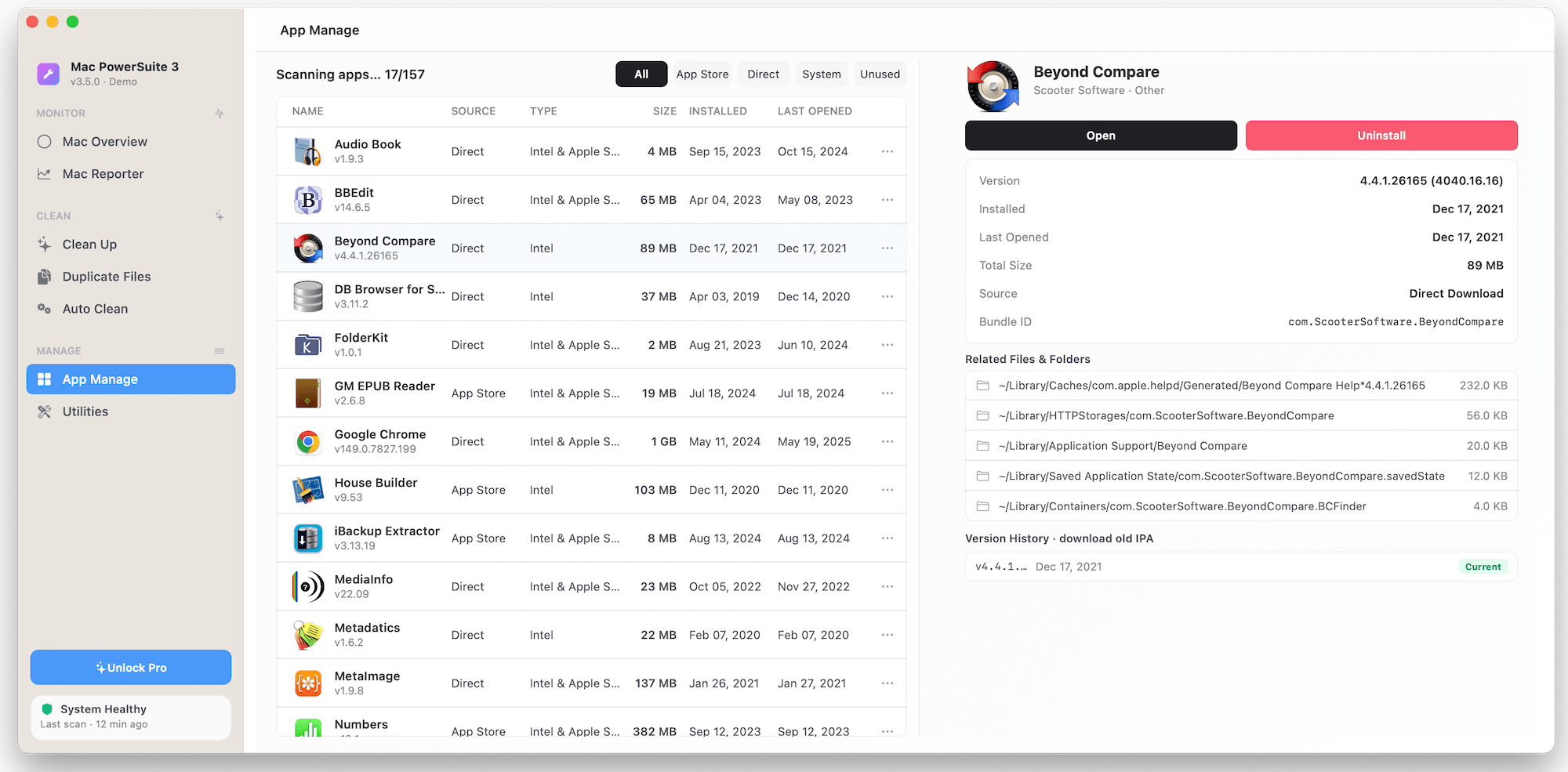
You can quickly identify every Intel-only application on your Mac and view additional details about each one.
Update Intel Applications
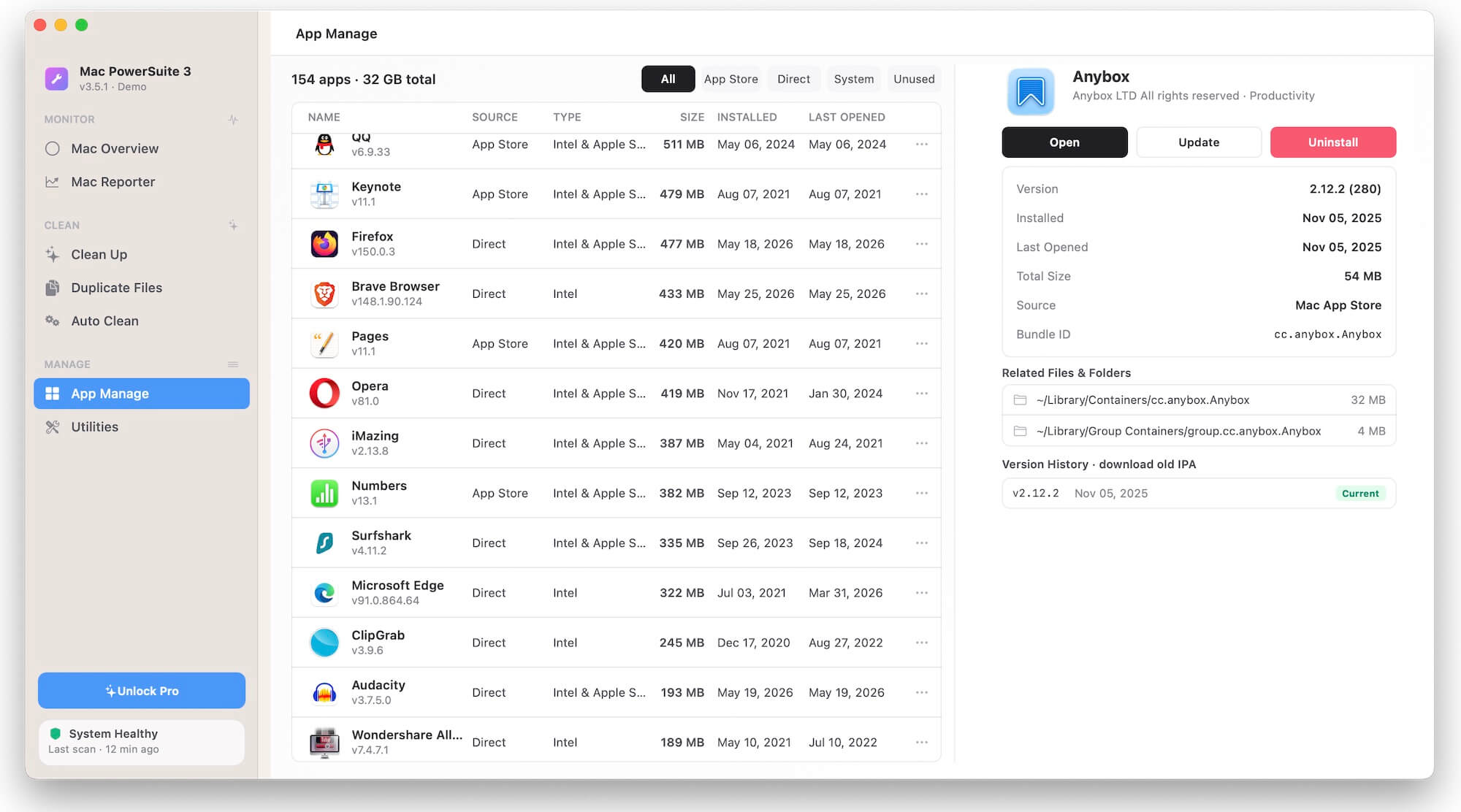
If an Intel application is available in the Mac App Store, Mac PowerSuite 3 provides an Update option in the application's details panel, allowing you to open the App Store and install the latest version.
For applications downloaded from a developer's website, visit the developer's website to check whether an Apple Silicon or Universal version is available. Updating your applications now helps ensure they'll continue working on future versions of macOS.
Uninstall Old Intel Applications
If you no longer use an Intel application, Mac PowerSuite 3 can completely remove it.
Simply select the application and click Uninstall. The app will remove the application along with its related files and folders, helping reclaim valuable disk space and keep your Mac organized.
Check a Single Application Without Third-Party Software
If you only want to determine whether one application is Intel or Apple Silicon, macOS includes a built-in method.
1. Open the Applications folder in Finder. Select the application.
2. Press Command (⌘) + I or choose File > Get Info. Look for the Kind field.

3. Possible values include: Application (Intel) — Intel-only application, Application (Universal) — Supports both Intel and Apple Silicon
This method is convenient for checking individual applications but isn't practical if you have hundreds of installed apps.
Conclusion
As Apple continues its transition away from Intel, it's a good idea to identify Intel-only applications before upgrading to future versions of macOS. Updating or replacing these applications now will help you avoid compatibility issues later.
If you need to audit every installed application, Mac PowerSuite 3 provides the fastest solution by scanning your Mac and clearly identifying Intel, Universal, and Apple Silicon applications while also offering powerful application management and complete uninstall capabilities.
| More Related Articles | ||||
 |
1. How to merge two photo libraries on Mac? 2. How to find and remove duplicate photos from Photos? |
|||
About Fireebok Studio
Our article content is to provide solutions to solve the technical issue when we are using iPhone, macOS, WhatsApp and more. If you are interested in the content, you can subscribe to us. And We also develop some high quality applications to provide fully integrated solutions to handle more complex problems. They are free trials and you can access download center to download them at any time.
| Popular Articles & Tips You May Like | ||||
 |
 |
 |
||
| Five ways to recover lost iPhone data | How to reduce WhatsApp storage on iPhone | How to Clean up Your iOS and Boost Your Device's Performance | ||