Have you ever wanted to recover WhatsApp chat messages from an old iPhone backup without restoring the entire backup to your iPhone?
When you back up your iPhone to a Mac or Windows PC using Finder or iTunes, the backup contains almost all of your device data, including third-party app data such as WhatsApp chats, contacts, photos, videos, voice messages, and documents.
Normally, restoring an iPhone backup restores all of this data back to your iPhone. However, restoring a full backup also replaces the current data on your device, which means your existing photos, messages, apps, and settings could be overwritten.
Fortunately, you don't have to restore the entire backup just to access your WhatsApp conversations. A professional WhatsApp backup extractor allows you to browse and export only the WhatsApp data you need.
Why Is It Difficult to Extract WhatsApp Data from an Encrypted iPhone Backup?
Many users enable Encrypt Local Backup in Finder or iTunes to protect sensitive information. In some cases, encrypted backups may already be enabled on the computer used to create the backup.
While encryption provides better security, it also creates a challenge:
• Most iPhone backup extractors cannot decrypt encrypted iPhone backups.
• Many iPhone data recovery tools can extract photos, contacts, messages, notes, and call history, but do not support extracting WhatsApp chat messages.
• Some tools require restoring the entire backup before you can access WhatsApp data.
If you're looking for a way to extract WhatsApp chat messages directly from an encrypted iPhone backup, the following method is one of the easiest solutions.
Extract WhatsApp Chat Messages from an Encrypted iPhone Backup
WhatsApp Pocket is a professional WhatsApp backup and recovery tool that lets you access WhatsApp data from:
• iPhone devices
• Local iPhone backups (Finder or iTunes)
• iCloud backups
It supports decrypting encrypted iPhone backups and extracting various types of WhatsApp data, including: WhatsApp chat messages, Group chats, Contacts, Photos, Videos, Voice messages, Documents, Call history, Other WhatsApp attachments.
Step 1. Download and Install WhatsApp Pocket
Download and install WhatsApp Pocket on your Mac or Windows computer.
For macOS users: Before using the application, go to System Settings > Privacy & Security > Full Disk Access, then add WhatsApp Pocket to the Full Disk Access list. This permission allows the application to access your local iPhone backup files stored on your Mac.
Step 2. Open Your Encrypted iPhone Backup
Launch WhatsApp Pocket.
The application automatically detects available data sources, including: Connected iPhone devices, Local Finder or iTunes backups, iCloud backups
Expand your encrypted local iPhone backup and select WhatsApp Chats.
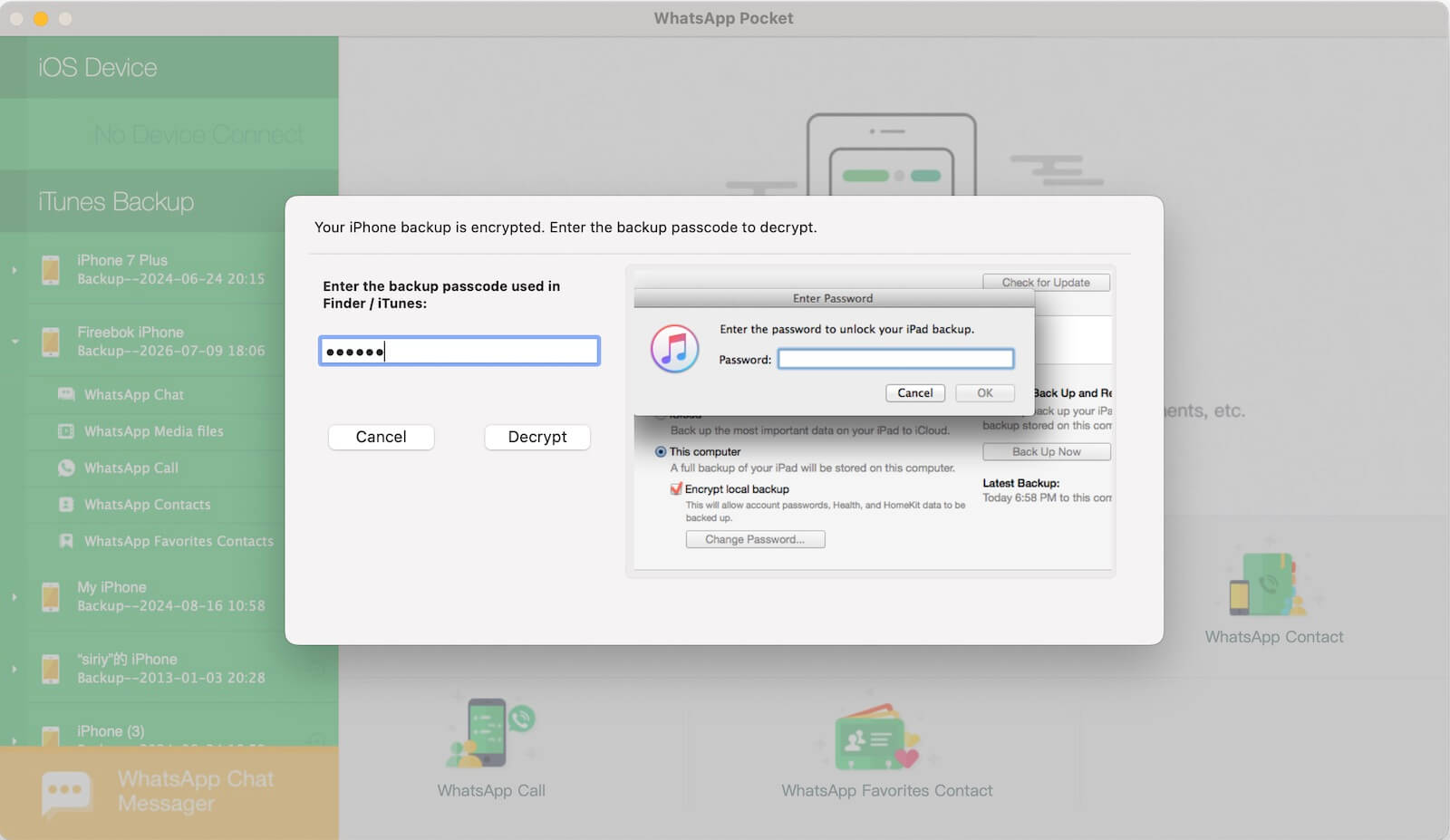
Step 3. Enter the Backup Password
When prompted, enter the password used to encrypt your iPhone backup.
WhatsApp Pocket will decrypt the backup and begin scanning the WhatsApp database.
Step 4. Preview WhatsApp Data
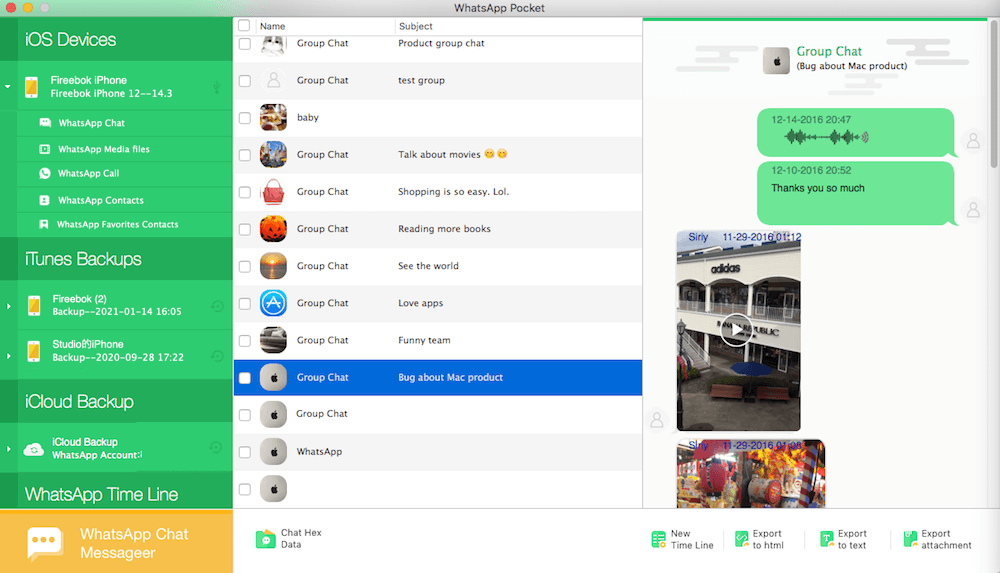
After the scan is complete, all WhatsApp data will be displayed in an organized interface.
You can browse and preview: Individual and group chat messages, Contacts, Photos and videos, Voice messages, Documents, Attachments, Call history.
This allows you to recover only the conversations or files you need without restoring your entire iPhone.
Step 5. Export WhatsApp Chats
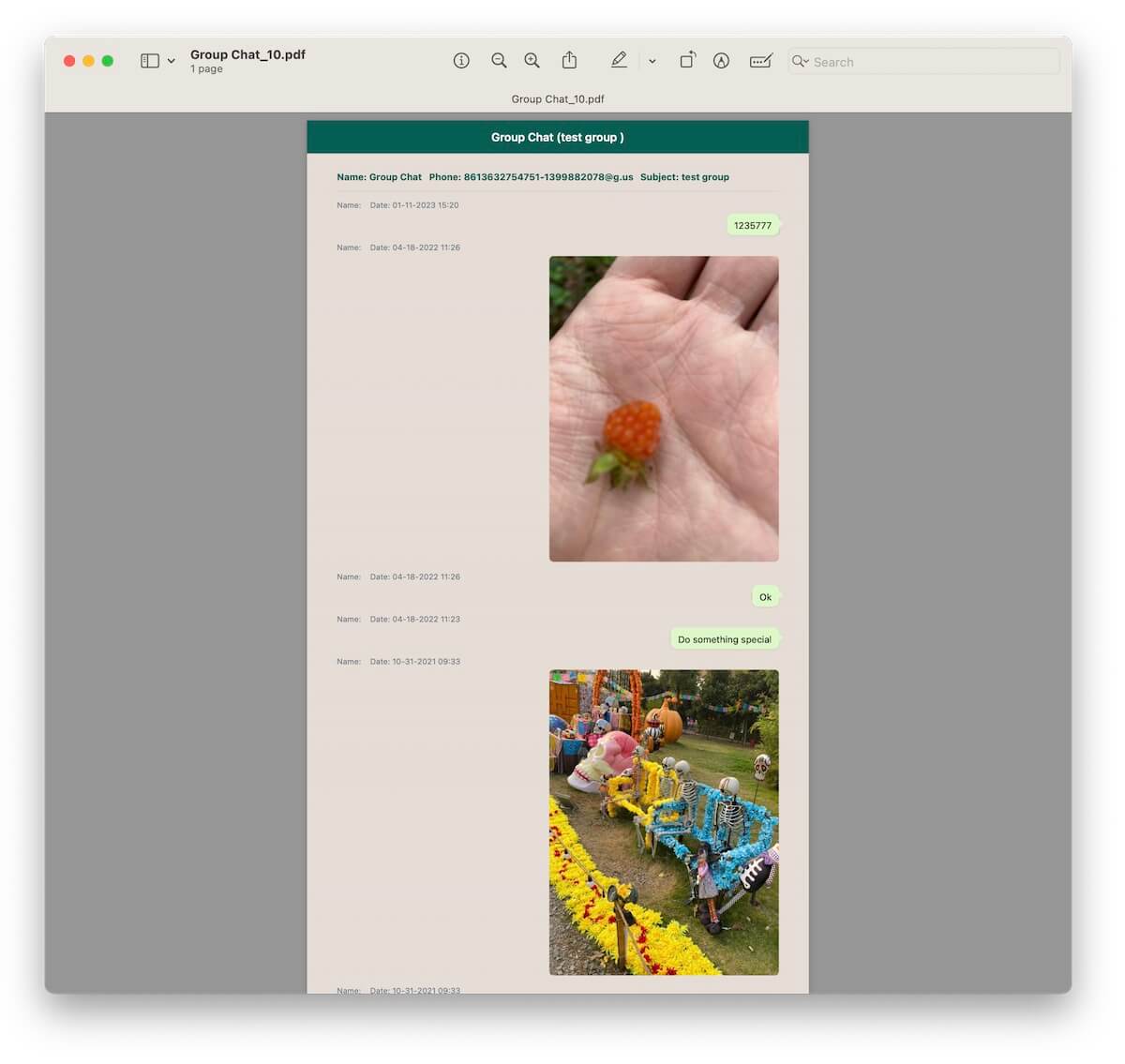
Select any WhatsApp conversation or group chat you want to save. Click Export to PDF.
WhatsApp Pocket exports the selected conversation as:
• A PDF document for easy reading and printing
• An HTML file that preserves the original chat layout
• All associated media files, including photos, videos, voice messages, and other attachments
The exported files can be viewed on your computer or archived as a permanent backup.
Why Use WhatsApp Pocket?
WhatsApp Pocket offers several advantages over traditional iPhone backup extractors:
• Extract WhatsApp data without restoring your iPhone
• Supports encrypted Finder and iTunes backups
• Reads WhatsApp data from iPhone, local backups, and iCloud backups
• Preview WhatsApp chats before exporting
• Export conversations as PDF or HTML
• Preserve photos, videos, voice messages, and other attachments
• Recover only the WhatsApp data you need
Conclusion
If your iPhone backup is encrypted, many traditional backup extractors cannot access the WhatsApp database. Restoring the entire backup is also unnecessary if you only need specific conversations.
With WhatsApp Pocket, you can securely decrypt an encrypted Finder or iTunes backup, preview your WhatsApp chat history, and export conversations, contacts, media files, and attachments without overwriting the data on your current iPhone. It's a fast and reliable solution for recovering important WhatsApp messages from encrypted iPhone backups.

About Fireebok Studio
Our article content is to provide solutions to solve the technical issue when we are using iPhone, macOS, WhatsApp and more. If you are interested in the content, you can subscribe to us. And We also develop some high quality applications to provide fully integrated solutions to handle more complex problems. They are free trials and you can access download center to download them at any time.


