If you regularly work with large folders containing hundreds of files and nested subfolders, you may need to create a clean, printable inventory of their contents. Whether you're preparing a client deliverable, documenting files for an audit, organizing a digital archive, or simply keeping track of your documents, having a detailed folder listing can save you time and effort.
Unfortunately, macOS Finder does not provide a built-in feature to print a list of files and folders. Although Finder lets you view files in List View, there is no direct option to print the file names, sizes, dates, and folder hierarchy. Pressing Command (⌘) + P with files selected opens the print function for the selected documents rather than printing a directory listing.
So, how can you print a folder's contents on a Mac?
In this guide, we'll explore several free methods for generating and printing file lists using Finder, TextEdit, and Terminal. We'll also introduce FolderKit, a more convenient solution for creating detailed, customizable PDF reports with file metadata, folder summaries, and hierarchical folder structures.
Why Can't You Print a File List Directly from Mac Finder?
Finder provides several ways to browse and organize files. You can switch to List View to see file names, sizes, modification dates, and other information. However, macOS does not include a native command to print the current Finder window as a file inventory.
This means that if you want to print a list of all files in a folder, including its subfolders, you need to use an alternative method.
The best approach depends on how much information you need. If you only need file names, a simple copy-and-paste method may be sufficient. If you need file sizes, timestamps, or recursive folder listings, Terminal provides more flexibility.
Method 1: Copy and Paste File Names into TextEdit
This is one of the easiest free methods to create a basic file list on Mac. It works well when you only need file and folder names without additional metadata.
Steps to Create a File List Using TextEdit
1. Open Finder and navigate to the folder whose contents you want to print.
2. Press Command (⌘) + A to select all visible items.
3. Press Command (⌘) + C to copy the selected items.
4. Open TextEdit and create a new document.
5. Select Format → Make Plain Text or press Shift (⇧) + Command (⌘) + T.
6. Press Command (⌘) + V to paste the copied content.
7. Press Command (⌘) + P to print the list, or select Save as PDF from the print dialog.
You now have a basic text document containing the copied file and folder names.
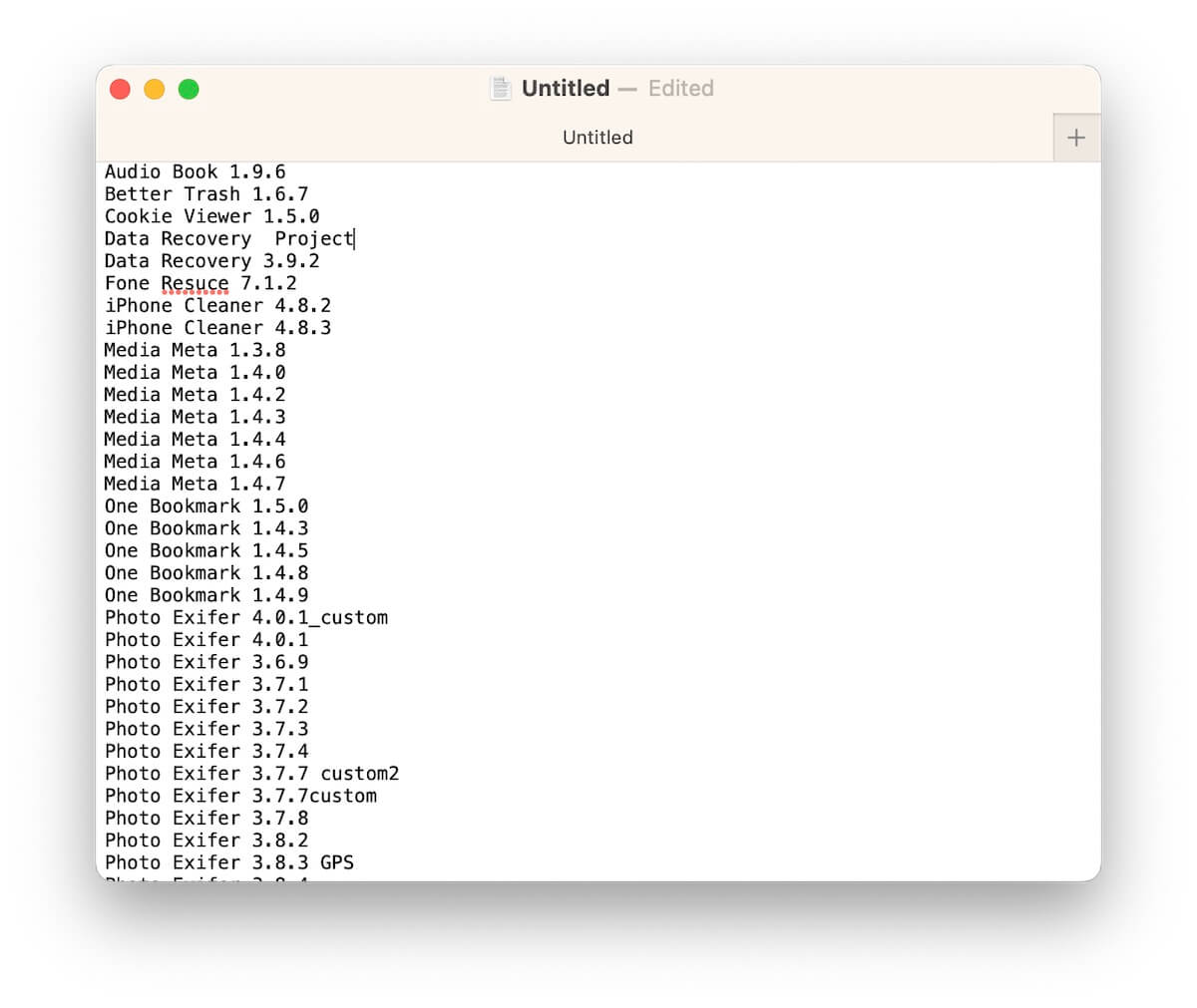
Limitations: This method is suitable for simple lists, but it does not provide a complete recursive inventory of nested folders. It also lacks file sizes, creation dates, modification dates, and full file paths.
Best for: Quickly creating and printing a simple list of file names in a single folder.
Method 2: Use Mac Terminal to Generate a Detailed File List
If you need more information than Finder provides, Terminal offers several useful commands for generating file and folder listings.
With commands such as ls and find, you can include file sizes, modification dates, subfolder contents, and full file paths.
Option 1: List File Names, Sizes, and Modification Dates
To generate a detailed listing of a folder, open Terminal and enter:
ls -lh ~/Documents/YourFolder > ~/Desktop/file_list.txt
Replace YourFolder with the actual folder name.
This command creates a text file named file_list.txt on your Desktop. The -l option displays detailed file information, while -h formats file sizes in a human-readable format, such as KB, MB, and GB.
You can open the generated file in TextEdit using:
open -e ~/Desktop/file_list.txt
Once opened, you can review the information, print the document, or export it as a PDF.
Option 2: Recursively List Files in All Subfolders
If your folder contains multiple levels of subfolders, you may want to include their contents in the listing.
Use the following command:
ls -lhR ~/Documents/YourFolder > ~/Desktop/full_list.txt
The -R option tells Terminal to recursively list the contents of all subdirectories.
This is useful when you need to see the complete directory structure rather than just the items in the top-level folder.
Option 3: Generate a Full-Path File Inventory
If you need the complete path of every file, the find command is particularly useful.
Enter:
find ~/Documents/YourFolder -type f > ~/Desktop/paths.txt
This generates a text file containing the full paths of all files within the specified folder and its subfolders.
To include both files and directories, remove the -type f option:
find ~/Documents/YourFolder > ~/Desktop/all_items.txt
You can then open the generated text file in TextEdit and print it or save it as a PDF.
Limitations of Terminal: Although Terminal is powerful, it requires some familiarity with command-line syntax. The generated output is also plain text, so you must manually format it if you want a professional-looking document. Adding summary statistics, customizable columns, page numbers, and a visual folder tree requires additional work.
Best for: Mac users who are comfortable with Terminal and need a flexible way to generate basic file inventories.
Why Free Methods May Not Be Enough for Professional File Reports
The methods above work well for simple tasks, but they become less convenient when you need to document a large directory containing hundreds or thousands of files.
For professional use, a useful file inventory should provide more than a plain list of names.
Here are some important details to consider:
• Complete file information: Include file names, sizes, creation dates, modification dates, and full paths.
• Folder hierarchy: Clearly display the relationship between parent folders, subfolders, and individual files.
• Customizable columns: Choose which file attributes appear in the report based on your specific requirements.
• Folder statistics: Show the total number of files and folders, as well as storage usage.
• Print-friendly formatting: Organize information into readable pages with headers, page numbers, and consistent formatting.
• Easy sharing: Export the inventory as a PDF that can be printed, emailed, or included in project documentation.
For example, photographers may want to document image names and capture dates, while businesses may need file inventories for audits, project handovers, and digital asset management.
Unfortunately, Finder and basic Terminal commands do not provide an easy way to generate this type of fully formatted report.
That's where a dedicated folder analysis tool can help.
Method 3: Use FolderKit to Print a Detailed Folder Listing as a PDF
FolderKit is an all-in-one macOS application for analyzing, organizing, and synchronizing folders. Its Folder Analyze feature makes it easy to examine large directory structures and generate detailed file inventories without manually writing Terminal commands or formatting text documents.
Instead of opening folders one by one, FolderKit allows you to view files across multiple folder levels in a unified interface, examine their properties, and export the results as a professionally formatted PDF report.
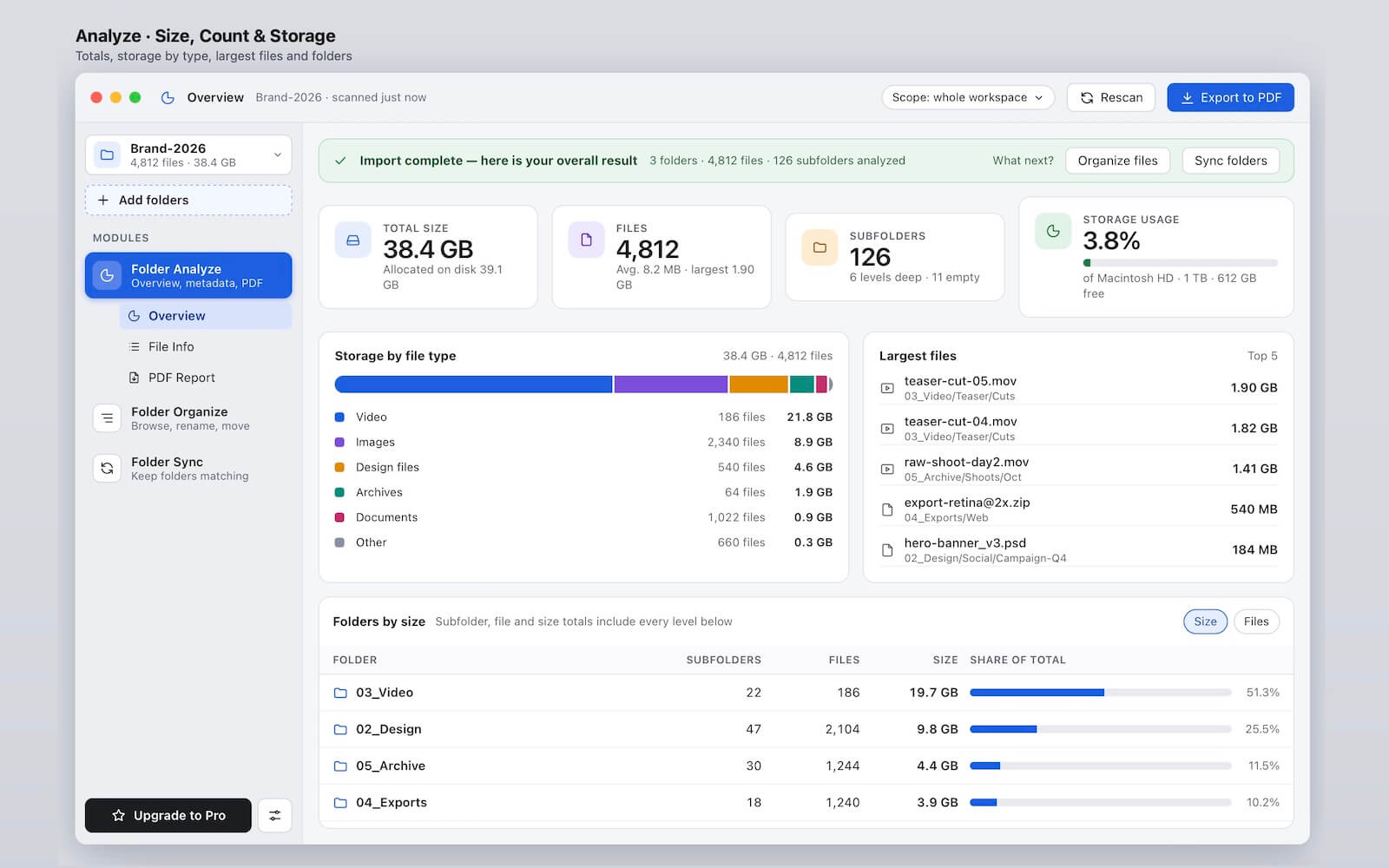
1. Detailed File and Folder List
• Comprehensive metadata: Display file names, sizes, creation and modification dates, file paths, and custom metadata tags in a single unified table.
• Customizable columns: Choose exactly which fields appear in the report, so the output matches the recipient's requirements.
• One-view hierarchy: FolderKit lists all files from multilevel folders and subfolders in one view, eliminating the need to open folders one by one.
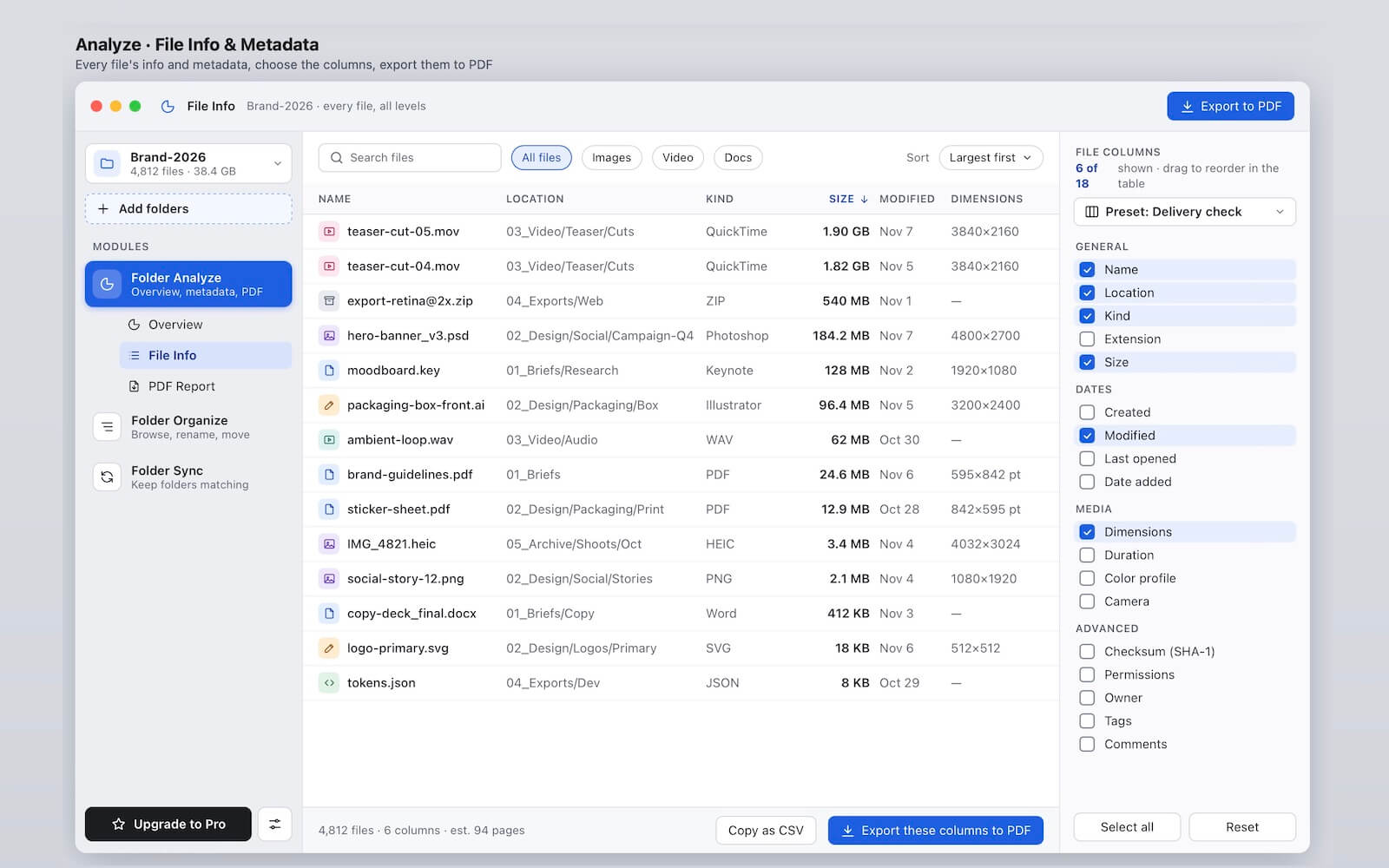
PDF Reports
• Folder summary and storage statistics: Automatically include the source folder, total file count, and size breakdown at the top of the report.
• Hierarchical folder trees: Export a visual tree structure so recipients can instantly understand the folder hierarchy.
• Paginated, print-ready PDFs: Generate a polished PDF with page numbers and headers—ready to print, email, or attach to a client deliverable.
4. How to Print a Detailed Folder List Using FolderKit
Creating a printable folder inventory is straightforward:
1. Download and launch FolderKit on your Mac.
2. Add your target folder or drive by dragging and dropping it into the FolderKit window.
3. Open Folder Analyze to view the File Info List.
4. Customize the displayed columns to include the file properties and metadata you want in your report.
5. Click PDF Report to generate and preview a detailed report containing folder information, storage statistics, and hierarchical folder structures. Then click Export PDF... button to save the pdf file on your local Mac.
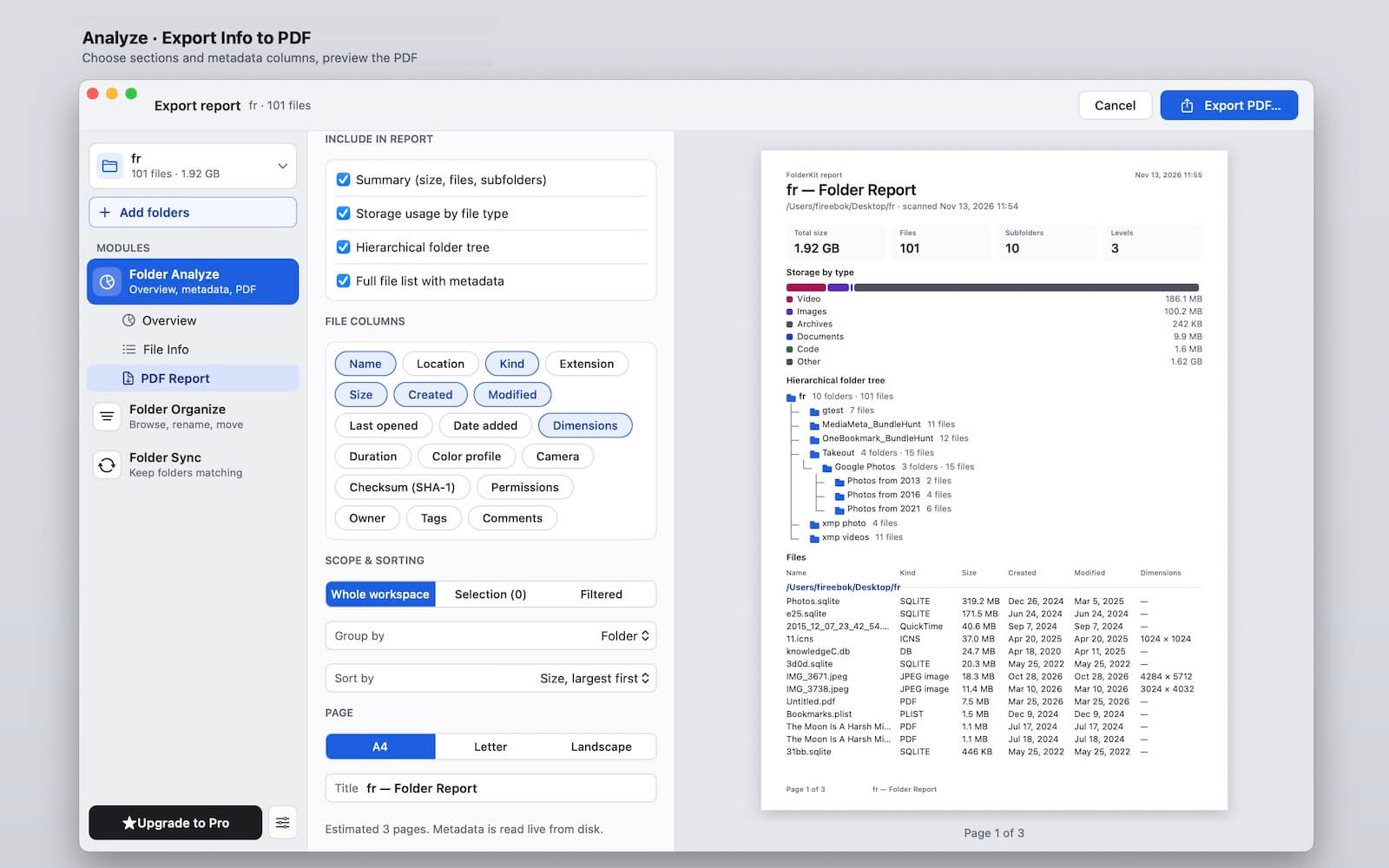
6. Print or share the PDF whenever needed.
With FolderKit, you can turn a complex folder structure into an organized, readable document in just a few steps.
Conclusion: The Easiest Way to Print a Detailed File List on Mac
Although macOS Finder does not include a native option to print a folder listing, there are several ways to work around this limitation.
• TextEdit: Best for quickly printing a basic list of file and folder names.
• Terminal: Best for generating text-based listings with file sizes, modification dates, and recursive folder contents.
• FolderKit: Best for creating detailed, customizable, and professionally formatted PDF reports with file information, folder statistics, and hierarchical folder trees.
If you only need a simple list, the built-in macOS tools may be sufficient. However, if you regularly manage large directories or need printable file inventories for business, archiving, or project documentation, FolderKit can make the entire process much easier.
Download FolderKit for Mac and turn your folders into detailed, organized, and shareable PDF reports without the hassle of command-line operations or manual document formatting.
| More Related Articles | ||||
 |
1. How to find and remove duplicate photos from Photos? 2. How to batch rename photos within the Photos app on Mac? |
|||
About Fireebok Studio
Our article content is to provide solutions to solve the technical issue when we are using iPhone, macOS, WhatsApp and more. If you are interested in the content, you can subscribe to us. And We also develop some high quality applications to provide fully integrated solutions to handle more complex problems. They are free trials and you can access download center to download them at any time.
| Popular Articles & Tips You May Like | ||||
 |
 |
 |
||
| Five ways to recover lost iPhone data | How to reduce WhatsApp storage on iPhone | How to Clean up Your iOS and Boost Your Device's Performance | ||