Apple Photos makes it easy to organize your pictures and videos into albums. Many users create multiple albums to categorize family photos, travel memories, work projects, and other collections. On Mac, Apple Photos also provides Smart Albums that automatically group photos based on specific criteria such as date, location, keywords, camera model, or other metadata.
However, when exporting photos from Apple Photos, the built-in export feature only allows you to export selected photos and videos into a single folder. It does not preserve the original album structure. As a result, all exported files are mixed together, making it difficult to maintain your organization outside of Apple Photos.
If you want to export Apple Photos albums by album name and keep each album as a separate folder on an external hard drive, this guide will show you how to do it on both Mac and iPhone.
Export Mac Photos Albums by Album Name to an External Hard Drive
If you manage your photo collection on a Mac and want to export Apple Photos albums while preserving album names as folder names, you can use Photo Exifer. Photo Exifer is a photo metadata management tool that supports exporting Apple Photos albums to an external hard drive while maintaining the original album structure.
Step 1: Install Photo Exifer
1. Download and install Photo Exifer on your Mac.
2. Open System Settings → Privacy & Security → Full Disk Access. Add Photo Exifer to the Full Disk Access list so it can access your Apple Photos library.
Step 2: Load Your Apple Photos Library
1. Launch Photo Exifer. Click Photo Library to load the current system photo library.
2. If you use a different Photos library, select File → Open Photo Library and choose the desired library.
Step 3: Select an Album
1. Click the Filter button: Showing My Albums. Select the album you want to export.
2. The photos and videos contained in the selected album will be displayed.
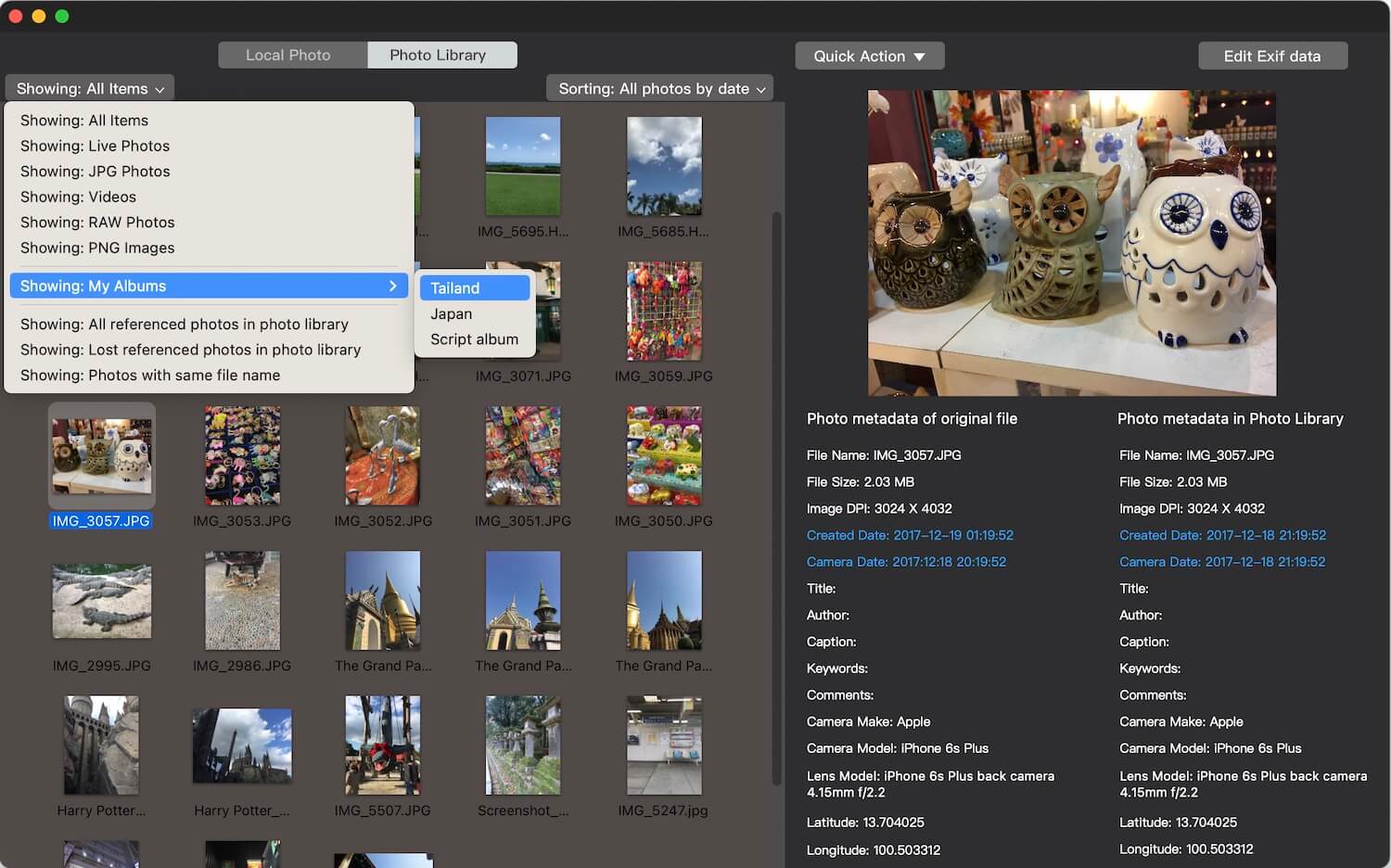
Step 4: Export Photos by Album Name
1. Click Quick Action. Select Export Original Photo(s) from Photo Library by Albums.
2. Choose your external hard drive as the destination folder. Start the export process.
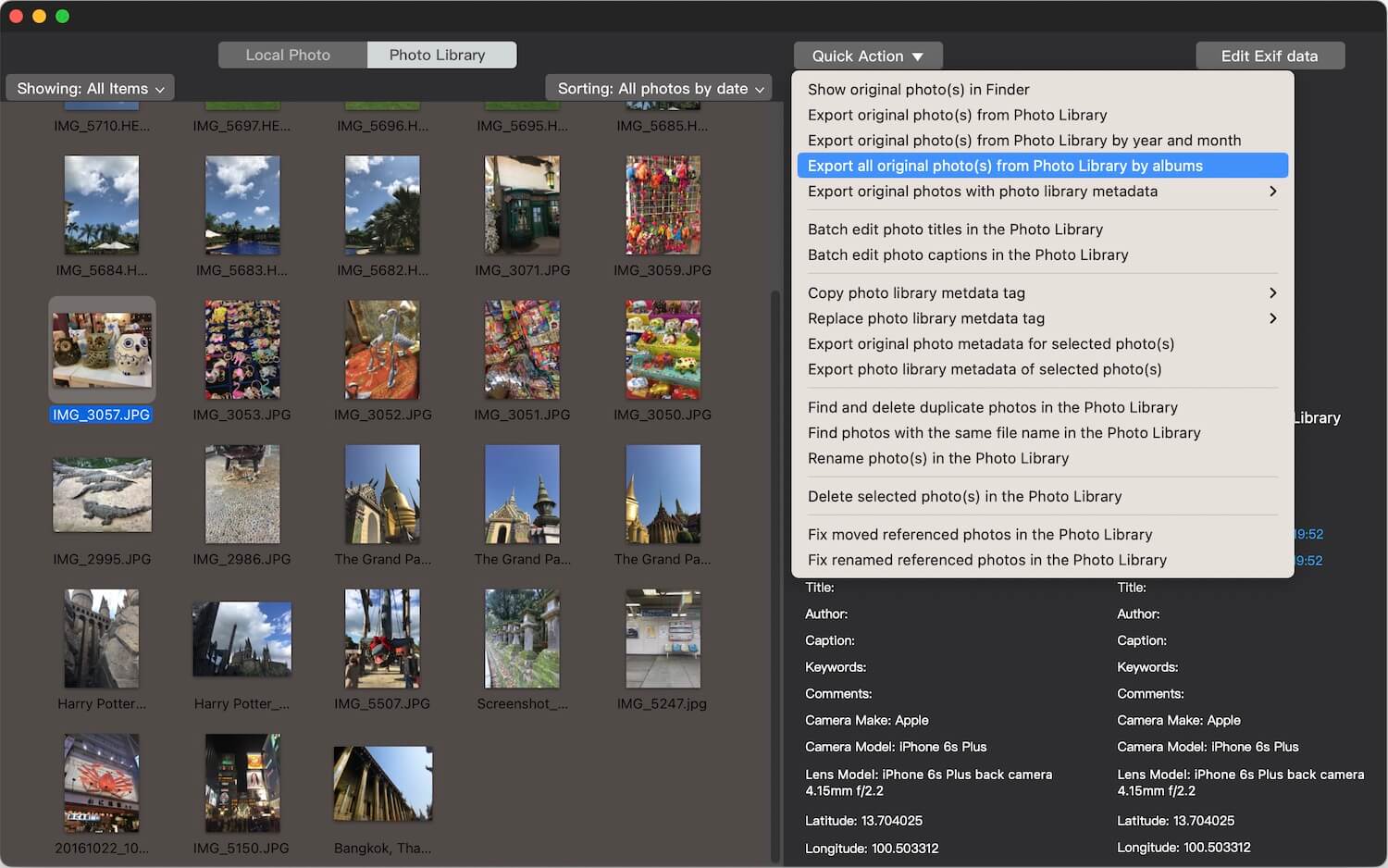
Photo Exifer will automatically create folders using the original album names and export the corresponding photos and videos into each album folder.
Step 5: Verify the Exported Albums
After the export is complete, open your external hard drive in Finder. You will find each Apple Photos album saved as an individual folder containing all photos and videos from that album.

Export iPhone Photos Albums by Album Name to an External Hard Drive
If you want to export albums directly from an iPhone or iPad to a USB flash drive, you can use the PhotosDrive app.
Step 1: Connect a USB Flash Drive
1. Connect a USB flash drive to your iPhone or iPad using: A Lightning-to-USB adapter (for Lightning devices), or A USB-C flash drive (for USB-C devices).
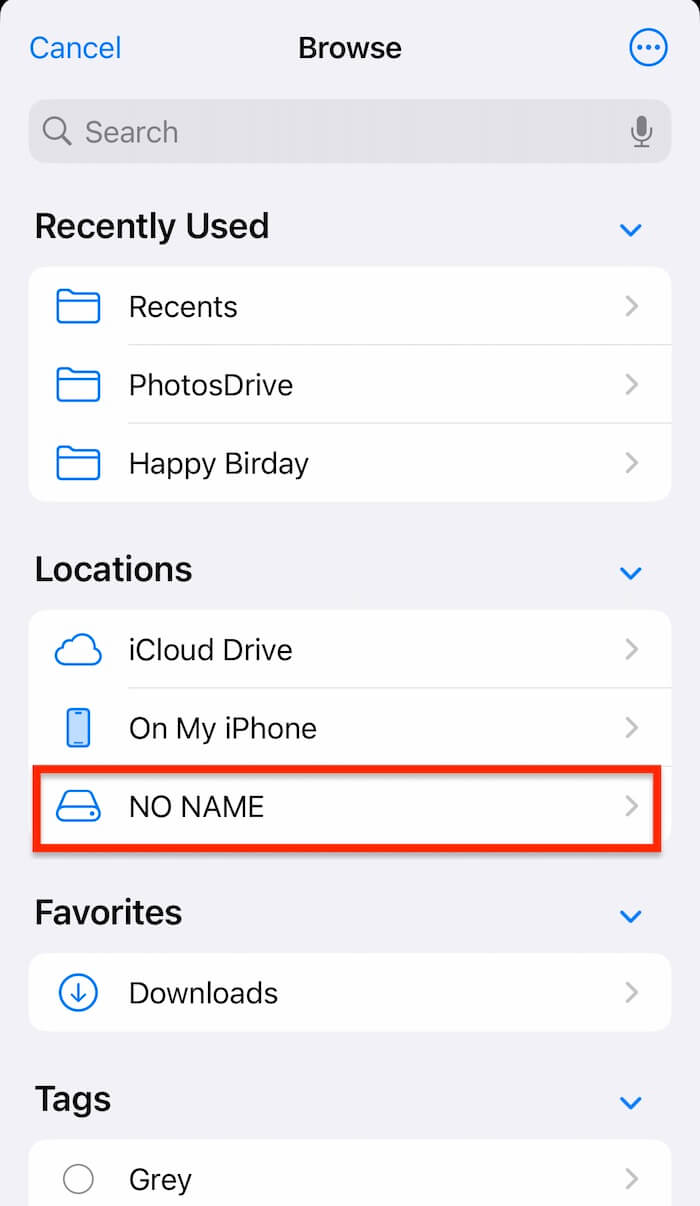
2. Open the Files app. Tap Browse → Locations. Confirm that your flash drive appears under Locations.
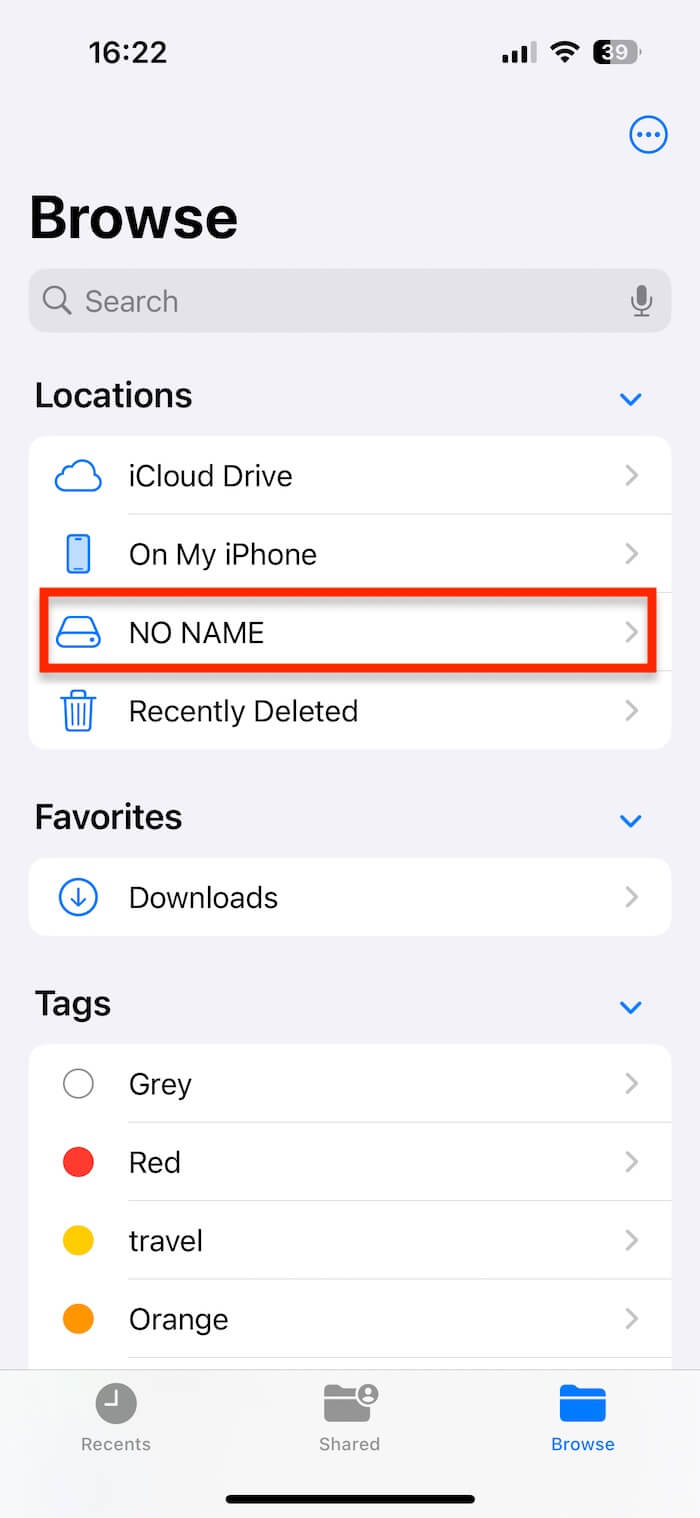
Step 2: Install PhotosDrive
1. Download and install PhotosDrive from the App Store.
2. Launch the app. Allow PhotosDrive to access your photo library when prompted.
Step 3: Select the Photo Album
1. Tap Select. Choose the album you want to export. Tap Export Selected Photo Album.
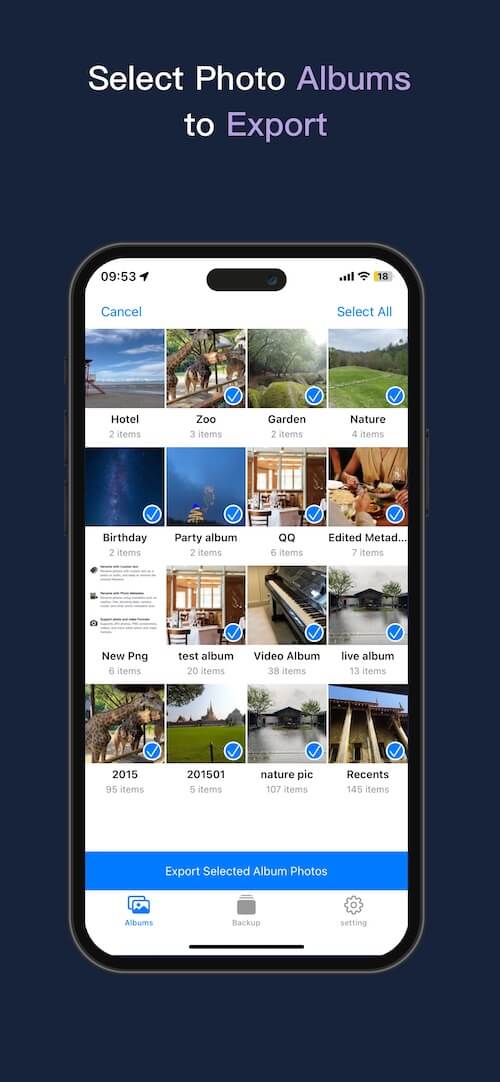
Step 4: Save the Album to the Flash Drive
1. In the file picker, select your USB flash drive under Browse → Locations.
2. Choose a destination folder. Tap Open to begin exporting.
PhotosDrive will export all photos and videos from the selected album and preserve the album name as the destination folder name.
Conclusion
Although Apple Photos does not provide a built-in option to export albums while preserving the album structure, you can still export Apple Photos albums by album name using third-party tools. On Mac, Photo Exifer allows you to export albums directly to an external hard drive while keeping album names as folders. On iPhone and iPad, PhotosDrive enables you to export photo albums to a USB flash drive without losing album organization.
By preserving your album structure during export, you can create better-organized backups, transfer photo collections to other devices, and easily browse your albums outside of Apple Photos.
| More Related Articles | ||||
 |
1. How to Edit Audio and MP3 Metadata on iPhone? 2. How to Rename Photos on iPhone Without a Computer? |
|||
About Fireebok Studio
Our article content is to provide solutions to solve the technical issue when we are using iPhone, macOS, WhatsApp and more. If you are interested in the content, you can subscribe to us. And We also develop some high quality applications to provide fully integrated solutions to handle more complex problems. They are free trials and you can access download center to download them at any time.
| Popular Articles & Tips You May Like | ||||
 |
 |
 |
||
| Five ways to recover lost iPhone data | How to reduce WhatsApp storage on iPhone | How to Clean up Your iOS and Boost Your Device's Performance | ||