Audio metadata plays an important role in organizing your music library. Apple Music and the iPhone Music app rely heavily on ID3 tags to sort songs by artist, album, genre, track number, and album artwork. When MP3 files contain missing or incorrect metadata, your music collection can quickly become disorganized.
For example, voice recordings, lectures, podcasts, downloaded MP3 files, and independent music tracks often contain incomplete or blank ID3 tags. As a result, songs may appear without album artwork, display incorrect artist information, or be grouped into separate albums even though they belong to the same release.
Unfortunately, Apple does not provide a built-in way to edit ID3 tags directly in the iPhone Files app or Music app. While desktop applications can easily modify audio metadata, many users want to edit MP3 tags directly on their iPhone without using a computer.
In this guide, you'll learn how to edit ID3 tags on iPhone, including artist name, album title, track number, release year, comments, and album artwork.
Why Edit ID3 Tags on iPhone?
Manually managing your ID3 tags ensures your media player reads and displays your files correctly. Here are the most common reasons you might need an MP3 ID3 tag editor for iOS:
• Fix Fragmented Albums: A single album can split into multiple entries if the metadata is slightly inconsistent. For example, if the Album Artist field varies even slightly: “Kendrick Lamar” “Kendrick Lamar feat. Jay-Z”
• Add Missing Album Artwork: Replace generic gray icons with high-quality cover art.
• Correct Track Orders: Update track and disc numbers so albums play in the right sequence.
• Organize Non-Music Audio: Clean up titles and dates for voice memos, lectures, audiobooks, and podcasts.
• Inject Custom Metadata: Add release years, genres, copyright info, or custom comments.
The Best App to Edit ID3 Tags on iPhone
To modify audio metadata without a computer, we recommend AudioInfo, a powerful, user-friendly audio metadata editor designed specifically for iPhone and iPad.
Key Features of AudioInfo:
• Full Metadata Editing: Easily change song titles, artists, albums, composers, and genres.
• Advanced Field Support: Update track sequences, release dates, and disc numbers.
• Artwork Manager: Seamlessly embed or replace album covers using your camera roll.
• Technical Inspector: View deep file analytics like bitrate, sample rate, codec, file size, and exact duration.
How to Edit MP3 Tags on iPhone Using AudioInfo
Follow these steps to edit MP3 metadata directly on your iPhone and iPad.
Step 1: Install AudioInfo
Head to the App Store, search for AudioInfo, and download the app onto your iPhone or iPad.
Step 2: Import Your Audio File
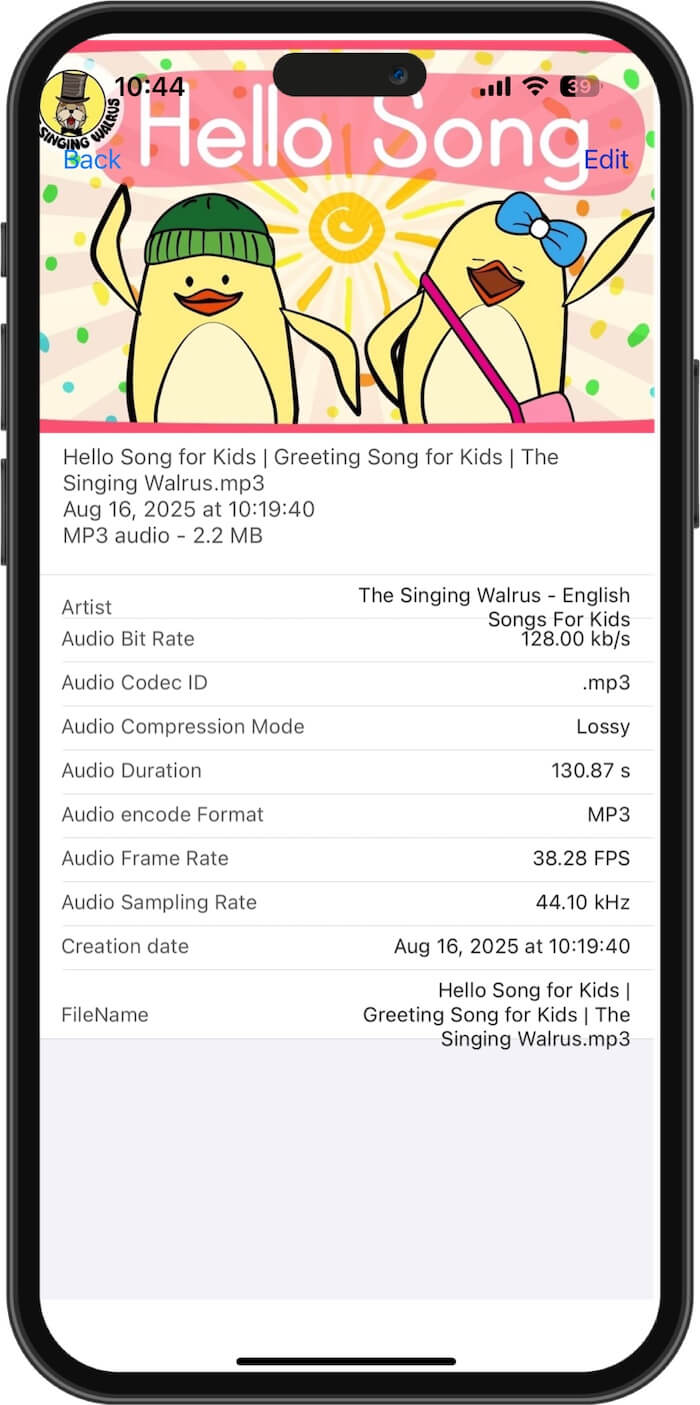
Open AudioInfo and select the MP3 or audio file you want to modify from your device. Once imported, the app will display a comprehensive overview of the file's current properties (including codec, bitrate, and existing ID3 tags).
Step 3: Modify the ID3 Tags
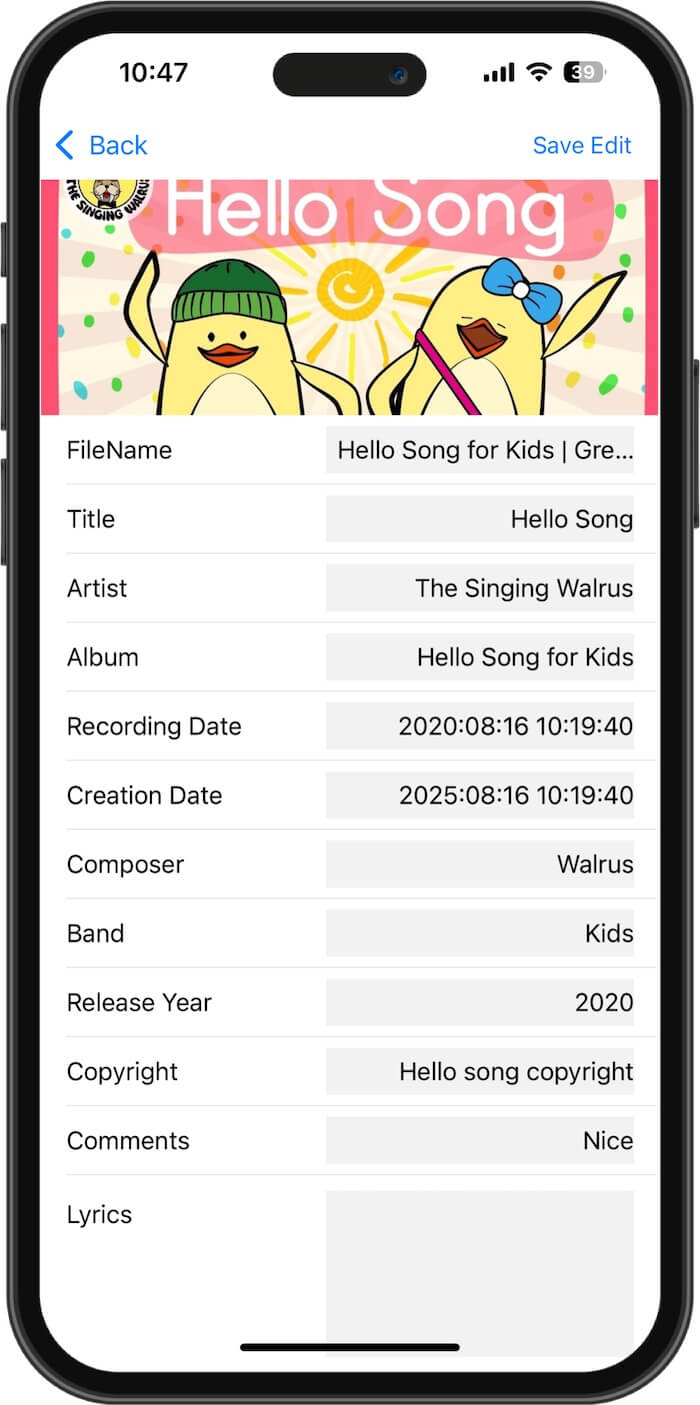
Tap the Edit button. You can now type directly into the metadata fields. AudioInfo supports a wide array of tags, including: Title & Artist, Album & Album Artist, Composer & Band, Release Year & Recording Date Copyright & Comments
Step 4: Add or Change Album Artwork
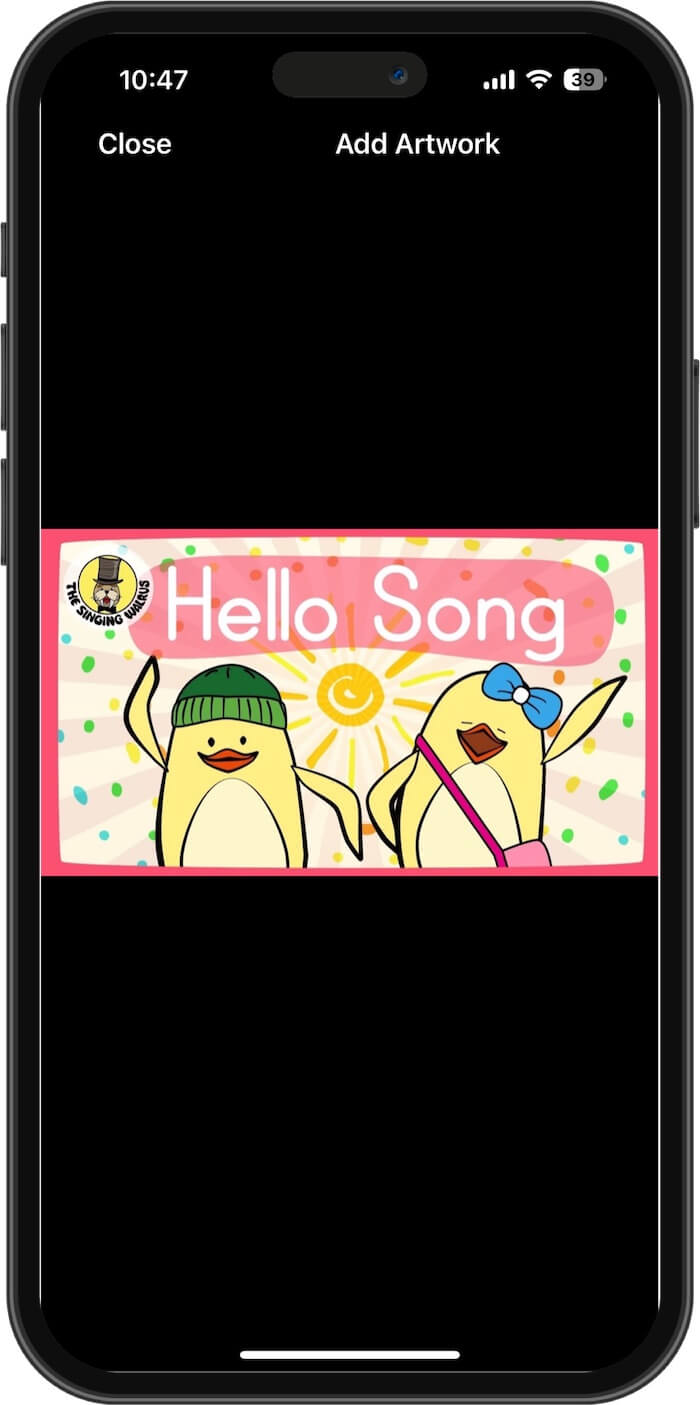
Tap on the Artwork section. You can choose any image from your iPhone’s Photos library to embed as the official cover art. This ensures the correct image displays across all iOS media players.
Step 5: Save and Sync Your Changes
Once you are satisfied with your edits, tap Save Edit. AudioInfo will instantly rewrite the ID3 tags directly into the audio file container.
Final Thoughts
You don't need a Mac or PC to keep your music library immaculate. If you want to edit MP3 metadata on an iPhone without a computer, AudioInfo provides a seamless, mobile-first solution. By spending a few moments correcting your ID3 tags, you’ll enjoy a cleaner library, accurate search results, and a much better overall listening experience on iOS.
| More Related Articles | ||||
 |
1. How to Edit Video and MP4 Metadata on iPhone? 2. How to Rename Photos on iPhone Without a Computer? |
|||
About Fireebok Studio
Our article content is to provide solutions to solve the technical issue when we are using iPhone, macOS, WhatsApp and more. If you are interested in the content, you can subscribe to us. And We also develop some high quality applications to provide fully integrated solutions to handle more complex problems. They are free trials and you can access download center to download them at any time.
| Popular Articles & Tips You May Like | ||||
 |
 |
 |
||
| Five ways to recover lost iPhone data | How to reduce WhatsApp storage on iPhone | How to Clean up Your iOS and Boost Your Device's Performance | ||