Apple Photos introduced the Duplicates Album feature in macOS Ventura and later, making it easier to find and merge duplicate photos in your library. However, many Mac users report that the Duplicates Album is missing in Apple Photos after upgrading macOS or enabling iCloud Photos.
Some users wait for days or even weeks, but the Duplicates Album never appears. Others notice duplicate photos in their library, yet those photos are not collected into the Duplicates Album. If you are experiencing this issue, the following solutions may help.
Why the Duplicates Album Is Missing in Apple Photos
1. Your MacBook Battery Is Too Low
The background process photoanalysisd is responsible for scanning your Photos library and identifying duplicates. Apple limits this resource-intensive process when your MacBook is running on low battery power.
If your MacBook is not connected to a power source, the duplicate detection process may be delayed or paused.
Solution: Connect your MacBook to a power adapter and leave it plugged in while Photos performs the analysis.
2. The Photos App Is Open
When the Photos app is actively running in the foreground, macOS may postpone certain background analysis tasks, including duplicate detection.
Solution: Quit the Photos app completely and allow your Mac to remain idle for some time so the background scanning process can run.
3. Your Mac Need Remain Idle
Apple Photos typically performs duplicate analysis when your Mac is not being actively used. If your Mac is busy with heavy disk activity, file transfers, video editing, backups, or other resource-intensive tasks, the duplicate detection process may not start.
Solution: Leave your Mac powered on, connected to power, and idle for several hours or overnight.
4. Apple's Duplicate Detection Rules Are Limited
Some photos may appear identical to you but are not considered duplicates by Apple Photos. For example, the images may have:
Different file sizes, Different resolutions, Slight edits or adjustments, Different metadata, Minor visual differences
As a result, Apple Photos may not include these images in the Duplicates Album even though they look the same.
Find More Duplicate Photos with Photo Exifer
If Apple Photos cannot detect all duplicate images, you can use a third-party duplicate photo finder such as Photo Exifer. Photo Exifer can identify not only exact duplicates but also visually similar photos that Apple Photos may miss. This helps recover additional storage space and keep your photo library organized.
How to Remove Duplicate Photos with Photo Exifer
Step 1: Install Photo Exifer. Download and install Photo Exifer on your Mac. To allow the application to access your Photos library, add Photo Exifer to Full Disk Access in macOS Privacy & Security settings.
Step 2: Load Your Photos Library. Open Photo Exifer and select the Photo Library tab. The application will load all photos and videos from your Apple Photos library.
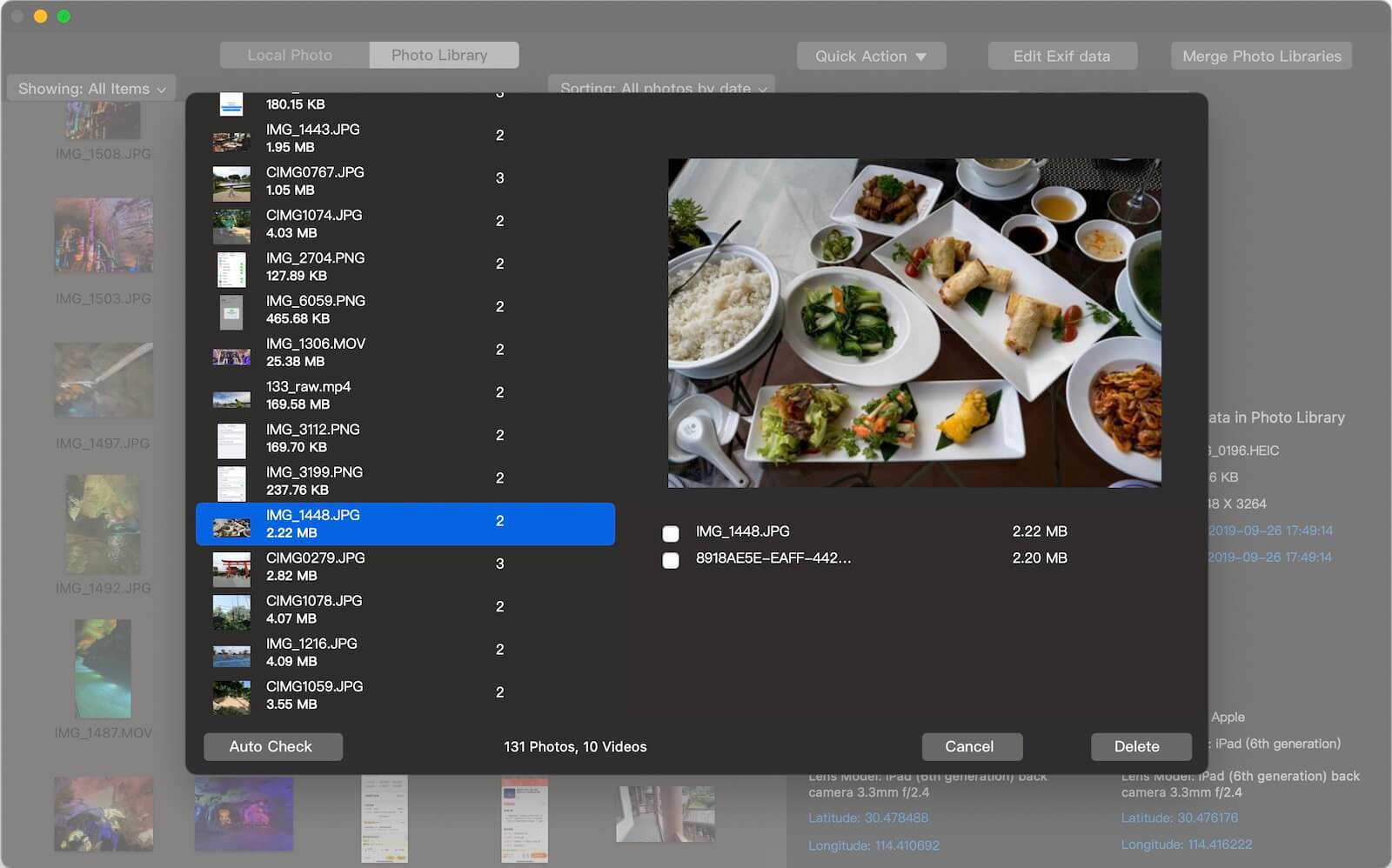
Step 3: Scan for Duplicate Photos. Click: Quick Action → Find and Remove Duplicate Photos in Photo Library. Photo Exifer will scan your entire library and identify duplicate and similar photos.

Step 4: Review and Delete Duplicates. After the scan is complete, you can: Manually select duplicate photos for deletion. Click Auto Check to automatically select duplicates. Click Delete to remove the selected photos.
Conclusion
If the Duplicates Album is missing in Apple Photos, the issue is often caused by insufficient battery power, the Photos app remaining open, lack of idle time, or Apple's strict duplicate detection rules. By allowing macOS enough time to analyze your library, the Duplicates Album may eventually appear.
If you need to find more duplicates than Apple Photos can detect, Photo Exifer provides a more powerful solution for identifying and removing both duplicate and similar photos from your Mac photo library.
| More Related Articles | ||||
 |
1. How to merge two photo libraries on Mac? 2. How to find and remove duplicate photos from Photos? |
|||
About Fireebok Studio
Our article content is to provide solutions to solve the technical issue when we are using iPhone, macOS, WhatsApp and more. If you are interested in the content, you can subscribe to us. And We also develop some high quality applications to provide fully integrated solutions to handle more complex problems. They are free trials and you can access download center to download them at any time.
| Popular Articles & Tips You May Like | ||||
 |
 |
 |
||
| Five ways to recover lost iPhone data | How to reduce WhatsApp storage on iPhone | How to Clean up Your iOS and Boost Your Device's Performance | ||