The QuickTime file format (.MOV) is an industry standard developed by Apple for capturing and storing digital video content. Many digital cameras, smartphones, and video recording devices use QuickTime technology, and QuickTime Player is widely used on macOS and Windows to record, play, and edit videos.
Every QuickTime video file contains QuickTime metadata, which stores important information about the video, such as: Video title and description, Creation and modification date, Author and copyright information, Camera and recording details, GPS location data, Artwork, actors, and directors.
So, how do you view QuickTime metadata on Mac? And how can you edit, add, or remove QuickTime metadata tags? This guide will walk you through everything step by step.
How to View QuickTime Metadata Tags on Mac
We can read and view some metadata tags in Finder or Photos application, if you’re using macOS Catalina and later, use new Finder Gallery view mode to preview some QuickTime metadata tags on the right window. Or you can view title, description, camera Information and GPS information of QuickTime video in Photos application with Get Info feature.

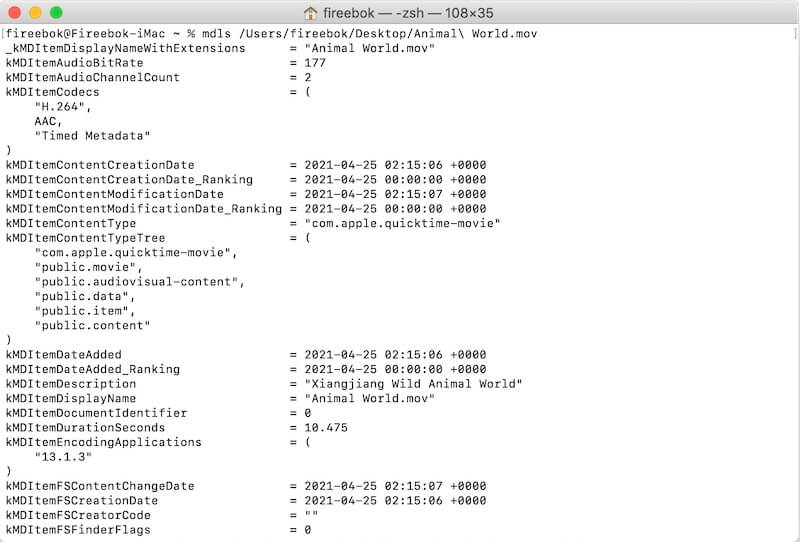
If you want to read and view more QuickTime metadata tags, you can use mdls command line. Open Terminal.app, and then enter mdls [videofilepath], it will display more QuickTime video metadata tags.
How to Edit, Add, or Remove QuickTime Metadata Tags on Mac
To fully edit QuickTime metadata on Mac, you’ll need a dedicated video metadata editor.
Edit QuickTime Metadata with Media Meta
We recommend Media Meta – Video Metadata Editor for Mac, a professional tool designed to edit, add, and remove QuickTime metadata tags easily.
With Media Meta, you can modify: QuickTime video creation date, Video title and description, Copyright and author information, GPS location metadata, Video artwork (cover image), Actors, directors, and other video metadata tags.
How to Change QuickTime Metadata Using Media Meta
1. Download and Install: Download Media Meta – Video Metadata Editor for Mac, or get it from the Mac App Store.
2. Open Media Meta application, you can choose to import quicktime video files from a local computer folder or photo library.
3. And select the video file you want to change in Media Meta, and then add, delete and change in the corresponding metadata tag field, click Save Changes button to apply. Or use the Quick Action button to change the shooting date of video files.
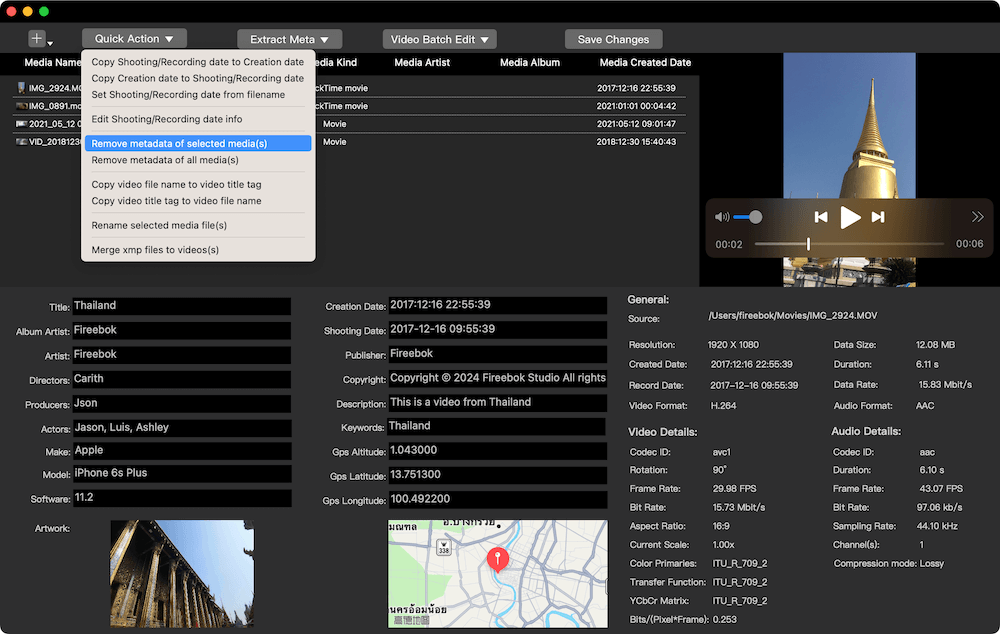
Media Meta does not overwrite original video files, it will save the changed video files in another location.
Final Thoughts
Viewing and editing QuickTime metadata tags on Mac is essential for organizing videos, protecting privacy, and managing large media libraries. While Finder, Photos, and Terminal allow you to view QuickTime metadata, a dedicated tool like Media Meta provides full control to edit, add, and remove video metadata safely and efficiently.
If you frequently work with MOV files, video metadata editing, or QuickTime videos on macOS, using a professional metadata editor will save you time and give you complete flexibility.

About Fireebok Studio
Our article content is to provide solutions to solve the technical issue when we are using iPhone, macOS, WhatsApp and more. If you are interested in the content, you can subscribe to us. And We also develop some high quality applications to provide fully integrated solutions to handle more complex problems. They are free trials and you can access download center to download them at any time.
| Popular Articles & Tips You May Like | ||||
 |
 |
 |
||
| Five ways to recover lost iPhone data | How to reduce WhatsApp storage on iPhone | How to Clean up Your iOS and Boost Your Device's Performance | ||