Have you ever transferred photos from your iPhone to your Mac, only to find that the creation date has changed to the current transfer time? This is a common issue when transferring iPhone photos using AirDrop, Image Capture, or even when downloading photos from the iCloud website.
Ideally, the creation date of transferred photos should reflect the original EXIF date stored in the photo metadata—not the transfer date or download date shown in Finder. Keeping the correct creation date makes it much easier and more convenient to organize, sort, and manage photos on a Mac.
If you’re facing this problem, don’t worry. In this article, we’ll explain why iPhone photos lose their creation date and show you how to transfer iPhone photos to Mac without losing the original date.
Why Do iPhone Photos Lose the Creation Date on Mac?
There are several common reasons why the creation date changes after transferring iPhone photos to a Mac:
1. macOS Creates New Files During Transfer
When you transfer iPhone photos to a Mac or download them from the iCloud website, macOS often reads and rewrites the data to create new files, rather than performing a true copy-and-paste operation. As a result, macOS assigns the transfer date and time as the new file creation date.
2. Photo Metadata Is Not Fully Preserved
Some third-party apps or sharing methods do not preserve complete photo metadata, including the EXIF date (Date Original or Date Digitized). When this metadata is missing or ignored, macOS has no choice but to use the transfer or download date as the creation date.
How to Check If Transferred iPhone Photos Contain an EXIF Date
Before fixing the issue, you should confirm whether your photos still contain EXIF date information. You can check this using the macOS Preview app:
Open the photo in Preview, click Tools in the menu bar, select Show Inspector, go to the Exif tab, look for Date Original or Date Digitized.
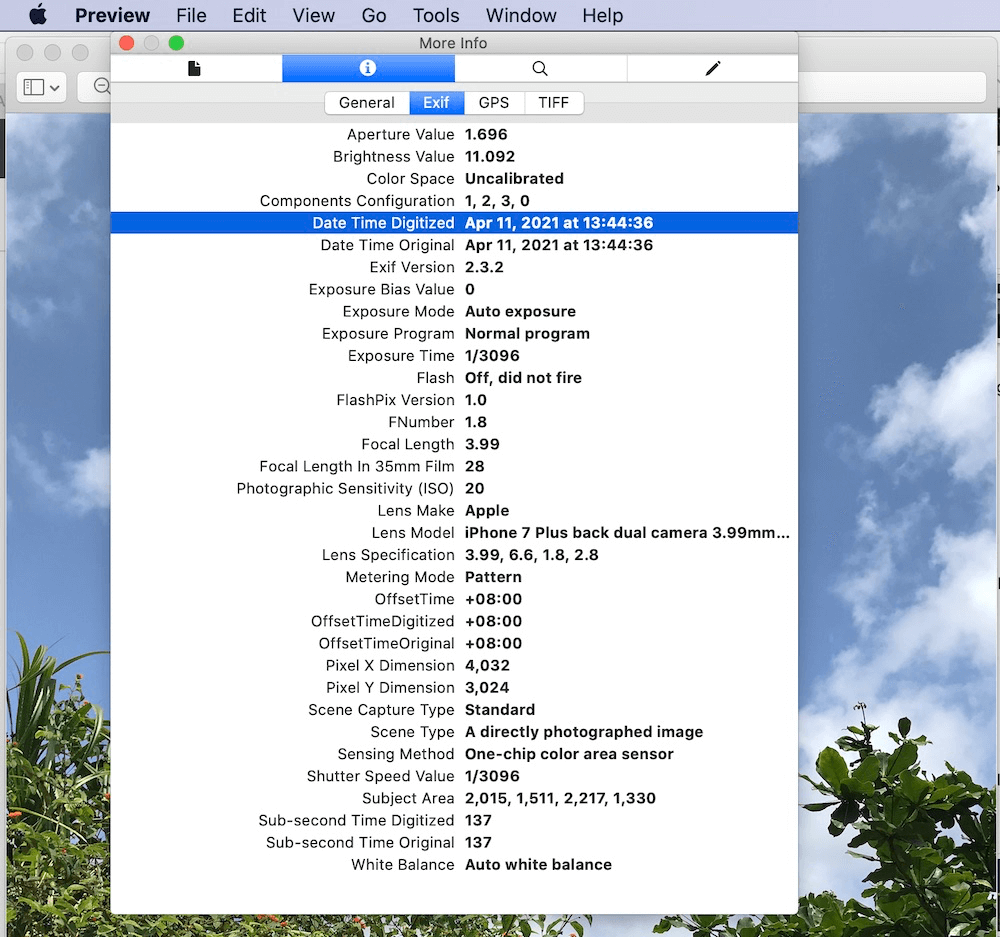
If these EXIF dates exist, the original shooting time can be restored. Otherwise, you will need to re-add the EXIF dates for these photos.
How to Transfer iPhone Photos to Mac Without Losing the Creation Date
To fix photos that have lost their original creation date, we recommend using Photo Exifer, a professional photo metadata editor for Mac designed for viewing, editing, and managing photo metadata.
Photo Exifer allows you to batch copy EXIF dates to the file creation date, making it an ideal solution to fix iPhone photo creation date issues on macOS.
Step 1: Download and Install Photo Exifer
Download and install Photo Exifer on your Mac.
Case 1: Photos Have EXIF Date but Wrong Creation Date
If your transferred photos still contain EXIF dates, but the creation date shows the transfer date and time:
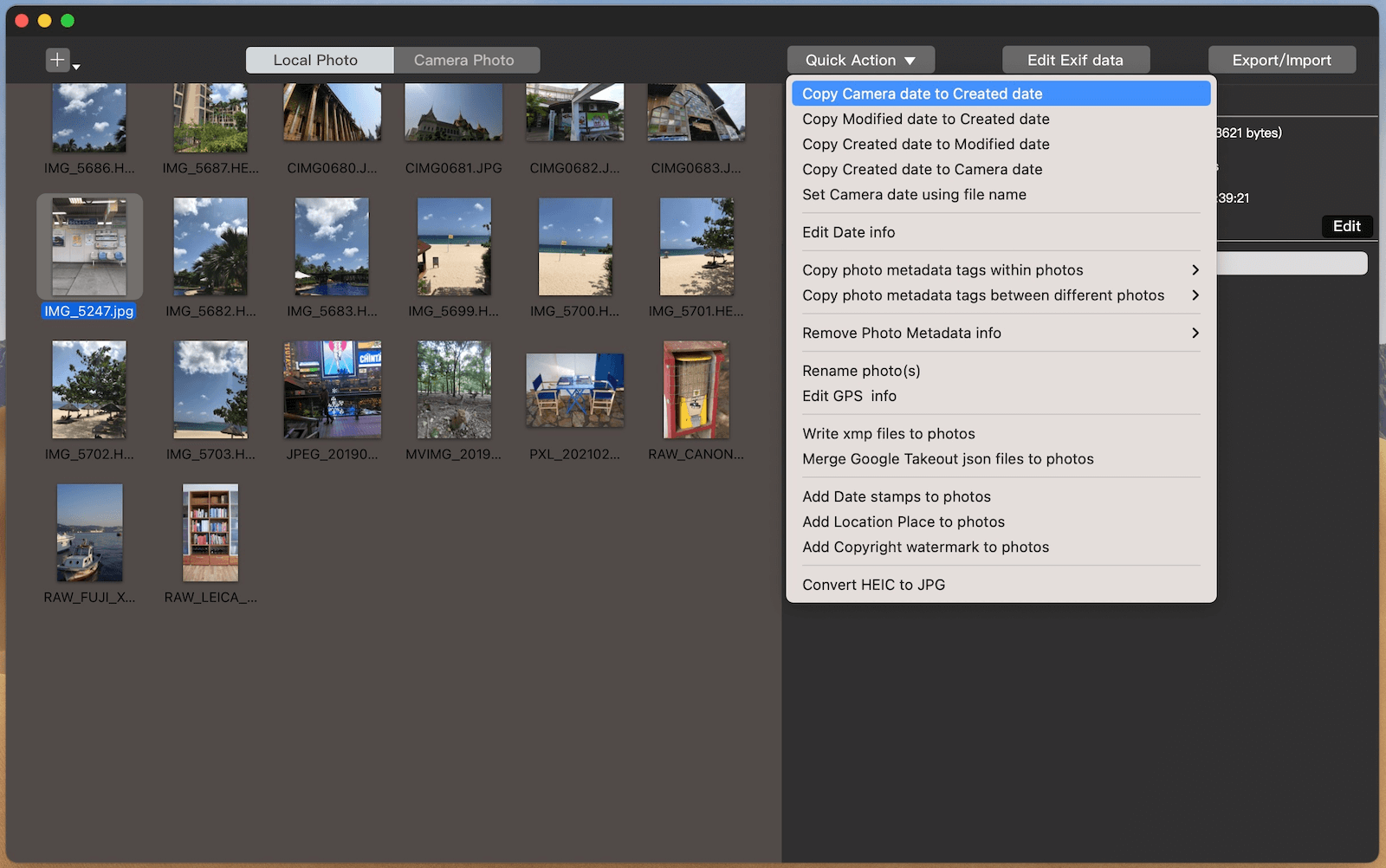
1. Launch Photo Exifer, import all transferred photos and select the photos in Photo Exifer.
2. Click Quick Action → Copy Photo Camera Date, Choose Copy Camera Date to Creation Date. Photo Exifer will batch restore the correct creation date automatically.
Case 2: Photos Have Missing or Incorrect EXIF Dates
If your transferred photos have no EXIF date or an incorrect EXIF date:
1. Launch Photo Exifer, Import and select all transferred photos in Photo Exifer.
2. Click Quick Action → Edit Date Info.
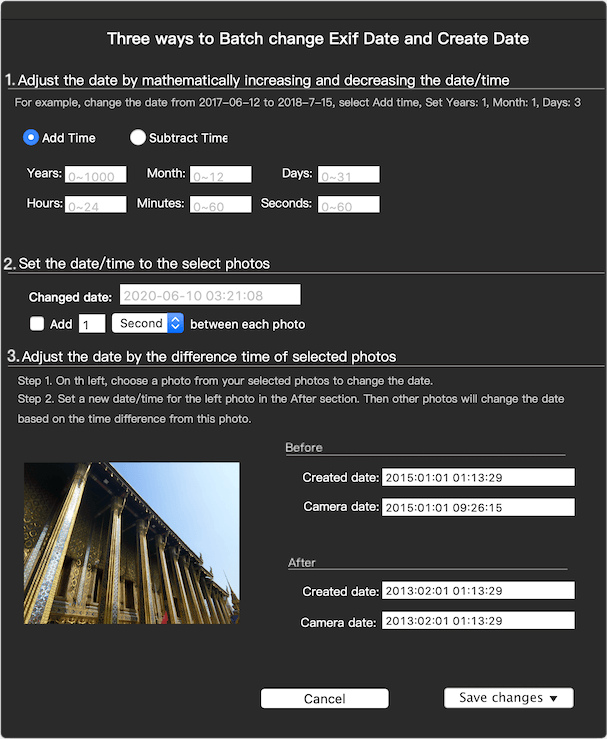
3. Manually adjust the year, month, and day for the EXIF date and creation date of the photo, or choose other options to adjust the EXIF date and creation date of the photo.
Edit More Photo Metadata on Mac
In addition to fixing photo dates, Photo Exifer also lets you edit and manage other photo metadata, including: Photo title and caption, Keywords and comments, Copyright information, Camera and lens details, GPS location data, IPTC and XMP metadata.
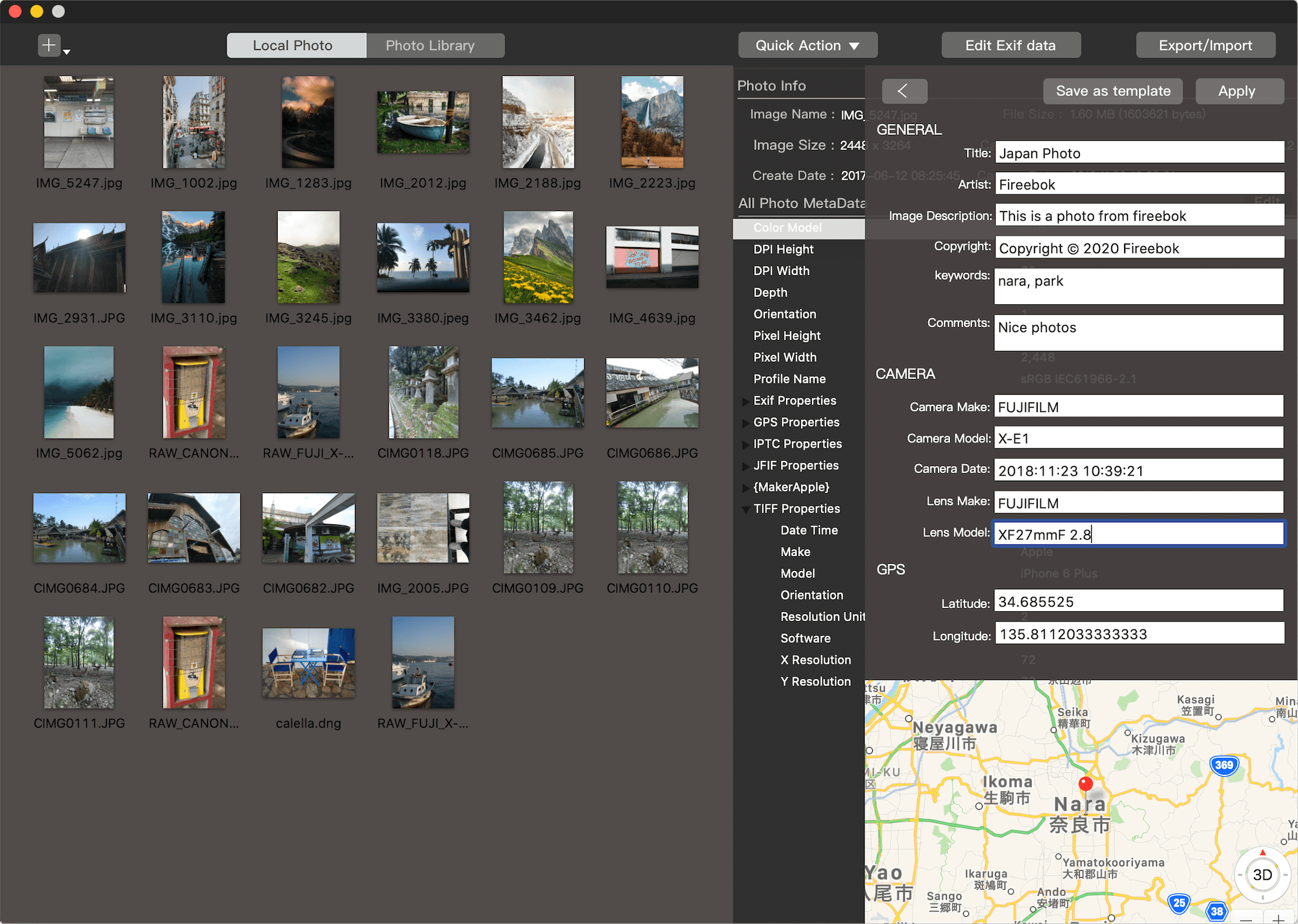
You can even use the Export / Import metadata feature to add and edit more metadata information.
Final Thoughts
Losing the creation date when transferring iPhone photos to Mac is a common but fixable problem. By understanding why it happens and using the right tools, you can easily preserve or restore the original EXIF date and keep your photo library well organized.
If you regularly manage large photo collections on macOS, using a dedicated photo metadata editor for Mac like Photo Exifer can save you a lot of time and frustration.
| More Related Articles | ||||
 |
1. How to merge two photo libraries on Mac? 2. How to find and remove duplicate photos from Photos? |
|||
About Fireebok Studio
Our article content is to provide solutions to solve the technical issue when we are using iPhone, macOS, WhatsApp and more. If you are interested in the content, you can subscribe to us. And We also develop some high quality applications to provide fully integrated solutions to handle more complex problems. They are free trials and you can access download center to download them at any time.
| Popular Articles & Tips You May Like | ||||
 |
 |
 |
||
| Five ways to recover lost iPhone data | How to reduce WhatsApp storage on iPhone | How to Clean up Your iOS and Boost Your Device's Performance | ||