As your photo and video collection grows, it can quickly consume most of your iPhone storage space. To free up storage, many iPhone users choose to enable iCloud Photos, while others transfer photos and videos to an external USB flash drive.
Modern iPhones support connecting external storage devices through a Lightning-to-USB adapter or a USB-C flash drive, making it easy to move photos off the device. However, some users discover that certain photos are missing or accidentally deleted after transferring them to a flash drive.
So, can you recover lost iPhone photos after transferring them to a flash drive?
The answer is yes. In many cases, lost photos can still be recovered. If you have an iPhone backup, you may be able to restore the photos from iCloud or iTunes/Finder backup. If no backup is available, data recovery software may help recover deleted photos directly from the flash drive.
Below are the most effective methods to restore lost iPhone photos.
Method 1: Restore Lost iPhone Photos Without a Backup
If your photos were accidentally deleted and you don't have an iPhone backup, you can try recovering them directly from the flash drive using Fireebok Data Recovery.
Fireebok Data Recovery supports recovering deleted and lost photos from USB flash drives, external hard drives, memory cards, and other storage devices.
Step 1: Connect the Flash Drive to Your Computer
Connect the USB flash drive that previously stored your iPhone photos to a Windows PC or Mac.
Step 2: Download and Install Fireebok Data Recovery
Download and install Fireebok Data Recovery on your computer. Launch the application after installation.
Step 3: Scan the Flash Drive
In the storage device list, select your USB flash drive.
Choose the Deleted Recovery mode and click the Start Scan button to begin scanning the drive for recoverable photos.

Step 4: Preview and Recover Lost Photos
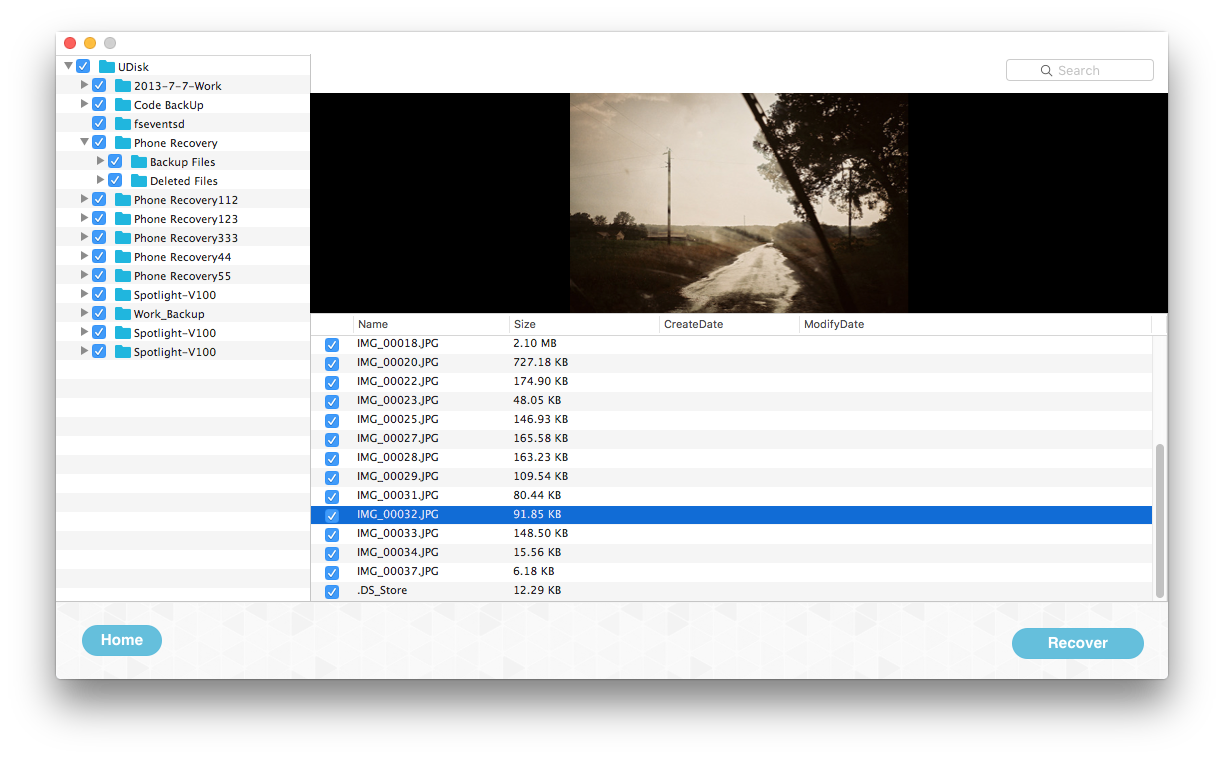
After the scan is completed, browse and preview the found photos. Select the photos you want to recover, click the Recover button, and save them to a secure location on your computer.
Method 2: Restore Lost iPhone Photos from an iPhone Backup
If you created an iPhone backup before the photos were lost, you can restore them from an iCloud backup or an iTunes/Finder backup.
However, Apple's built-in restore process typically restores the entire backup, which may overwrite your current iPhone data. If you only want to recover photos without restoring the whole device, you can use Fone Rescue.
Fone Rescue allows you to scan iCloud and iTunes/Finder backups and selectively extract photos, messages, contacts, notes, and other iPhone data.
Step 1: Install Fone Rescue
Download and install Fone Rescue on your Windows PC or Mac.
For Mac users, add Fone Rescue to Full Disk Access in System Settings -> Privacy & Security -> Full Disk Access so the software can access local iPhone backup files.
Step 2: Select a Recovery Mode
Launch Fone Rescue and choose one of the following options: Recover From iTunes Backup and Recover From iCloud Backup.
Select the backup that contains your lost photos and start the scan.

Step 3: Preview Backup Data
After the scan finishes, Fone Rescue will display recoverable content, including: Photos, Contacts, Messages, Notes, Calendars, Voice Memos, Other iPhone data

Step 4: Export Lost Photos
Select the photos you want to recover and click Export to save them to your computer.
Tips to Prevent Photo Loss During Flash Drive Transfers
To avoid losing photos when transferring them from your iPhone to a USB flash drive:
• Always verify that the photos were successfully copied before deleting them from your iPhone.
• Keep at least one backup in iCloud, Finder, or iTunes.
• Safely eject the flash drive after transferring files.
• Use reliable flash drives with sufficient storage space.
• Periodically create backups of important photos and videos.
Final Thoughts
If you lost iPhone photos after transferring them to a flash drive, don't panic. In many situations, the photos can still be recovered. If no backup is available, a recovery tool such as Fireebok Data Recovery may help retrieve deleted photos directly from the flash drive. If you have an iCloud or iTunes/Finder backup, Fone Rescue allows you to selectively restore photos without performing a full iPhone restore.
The sooner you stop using the flash drive after discovering the loss, the higher the chance of successfully recovering your deleted iPhone photos.
| More Related Articles | ||||
 |
1. How to merge two photo libraries on Mac? 2. How to find and remove duplicate photos from Photos? |
|||
About Fireebok Studio
Our article content is to provide solutions to solve the technical issue when we are using iPhone, macOS, WhatsApp and more. If you are interested in the content, you can subscribe to us. And We also develop some high quality applications to provide fully integrated solutions to handle more complex problems. They are free trials and you can access download center to download them at any time.
| Popular Articles & Tips You May Like | ||||
 |
 |
 |
||
| Five ways to recover lost iPhone data | How to reduce WhatsApp storage on iPhone | How to Clean up Your iOS and Boost Your Device's Performance | ||