Have you ever imported photos from an Android phone, computer, or DSLR camera only to discover that their dates are incorrect? Perhaps hundreds of photos appear under the same date, or some pictures are missing their original timestamps entirely.
Incorrect photo dates can make it difficult to organize your iPhone photo library, find specific memories, and keep your pictures in chronological order.
Fortunately, you don't have to correct every photo individually. You can batch change the date and time of multiple photos on your iPhone using Apple's built-in Photos app or a dedicated metadata editor like Photos Exifer.
This guide explains how to adjust photo timestamps, correct time zone errors, and update photo metadata in batches so your photo library stays organized.
Why Are iPhone Photos Showing the Wrong Date?
When you import photos from another device, the date displayed in your photo library may not match the actual date the pictures were taken. Several factors can cause this problem:
• Missing EXIF metadata: Some photos, especially scanned images, edited pictures, and exported images, may not contain their original capture date.
• Incorrect camera timestamps: Photos transferred from another device may have incorrect date or time settings.
• Time zone differences: A photo taken in another time zone may display a different local time when imported.
• Metadata changes during export: Some applications remove or modify photo metadata when exporting or sharing images.
• Import dates mistaken for capture dates: When the original capture date is unavailable, some applications may use another available date, such as the file creation date or import date.
The important distinction is that a photo can have several different dates. The date displayed in your photo library may come from the image's capture date, while the file itself may also contain file-system timestamps and other metadata.
To correct your photo timeline, you need to identify which date is incorrect and choose a method that updates the appropriate information.
Method 1: Batch Change Photo Dates Using the iPhone Photos App
The built-in Photos app is the easiest way to adjust the dates of multiple photos without installing another application.
Apple provides an Adjust Date & Time feature that lets you change the date and time of selected photos. Depending on the photos and your iOS version, you can set a new date and time or adjust the existing timestamps by a time difference.
Step 1: Select the Photos You Want to Edit
1. Open the Photos app on your iPhone. Navigate to your Library or the album containing the photos.
2. Tap Select. Choose all the photos you want to correct.
Step 2: Open Adjust Date & Time
1. Tap the More button (three dots). Select Adjust Date & Time
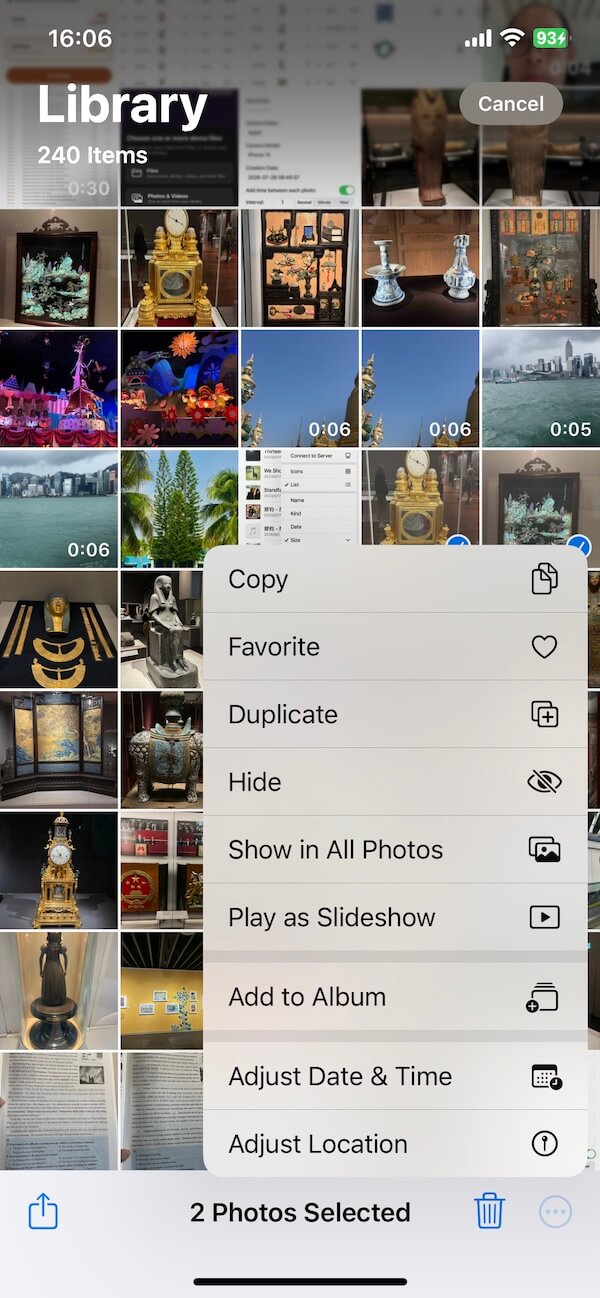
Step 3: Set the Correct Date and Time
1. Review the current date and time displayed for the selected photos. Choose the appropriate adjustment for your photos.
For example, if a group of photos was taken on June 15, 2024, but all the pictures show June 16, you can select the correct date and time for the group. Review the resulting timestamps before confirming the change.
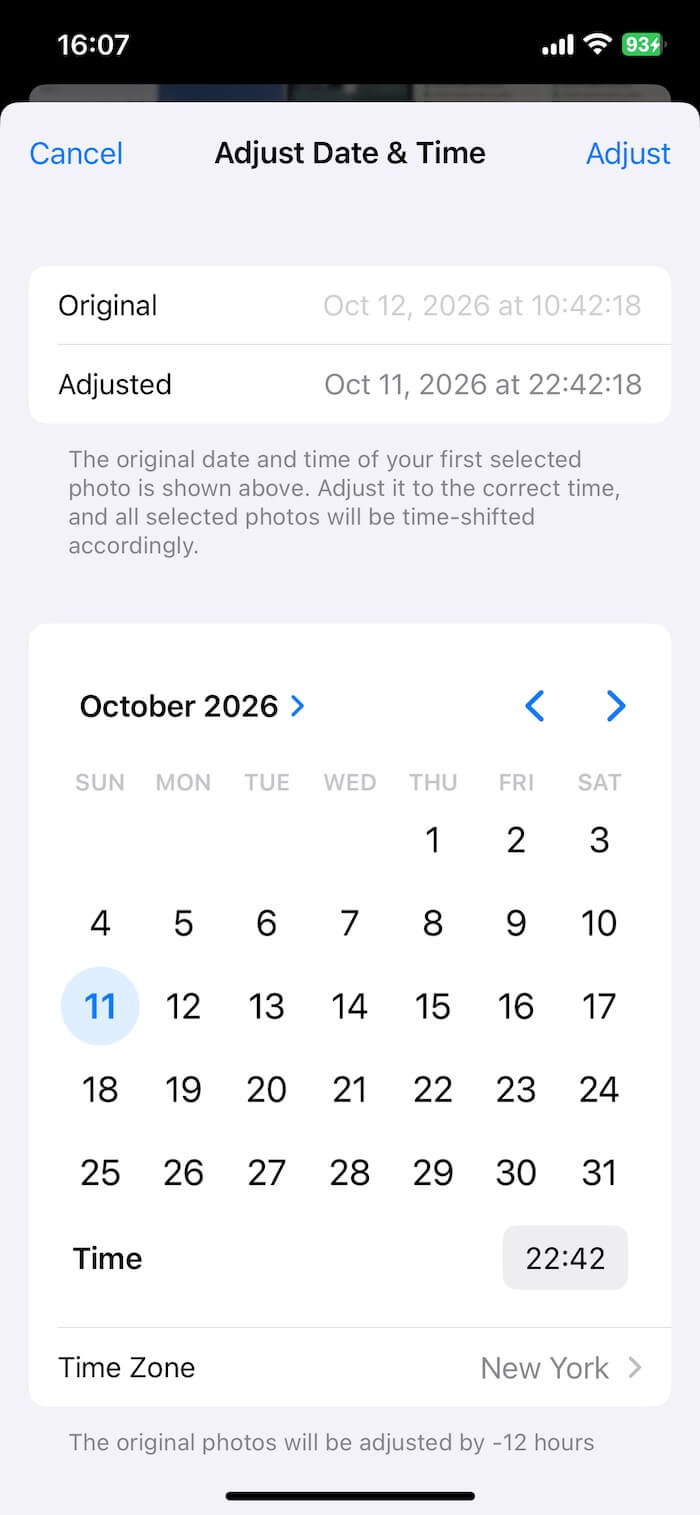
Limitations of the Photos App
The Photos app is convenient for correcting dates, but when you select multiple photos and use Adjust Date & Time, all selected photos will be assigned the same date and time. And it may not be suitable for photos taken at different times.
In addition, it is not a complete photo metadata editor, changing the date displayed in Photos does not necessarily mean that every date-related field in the original image file has been updated. If you need to correct the metadata stored inside the image files themselves, a dedicated metadata editor may be a better choice.
Method 2: Batch Edit Photo Dates with Photos Exifer
If you need more control over photo metadata, Photos Exifer provides a dedicated solution for viewing, editing, and managing photo information. In addition to date and time information, Photos Exifer supports editing various photo metadata fields, including:
• File name and title
• Copyright and keywords
• Camera make and model
• Lens information
• GPS location
• Other supported EXIF and photo metadata fields

How to Batch Change Photo Dates with Photos Exifer
Follow these steps to correct the dates of multiple photos.
Step 1: Install Photos Exifer
1. Install and launch Photos Exifer and select the photos you want to edit. Tap the Filter button to quickly find the photos for batch processing.
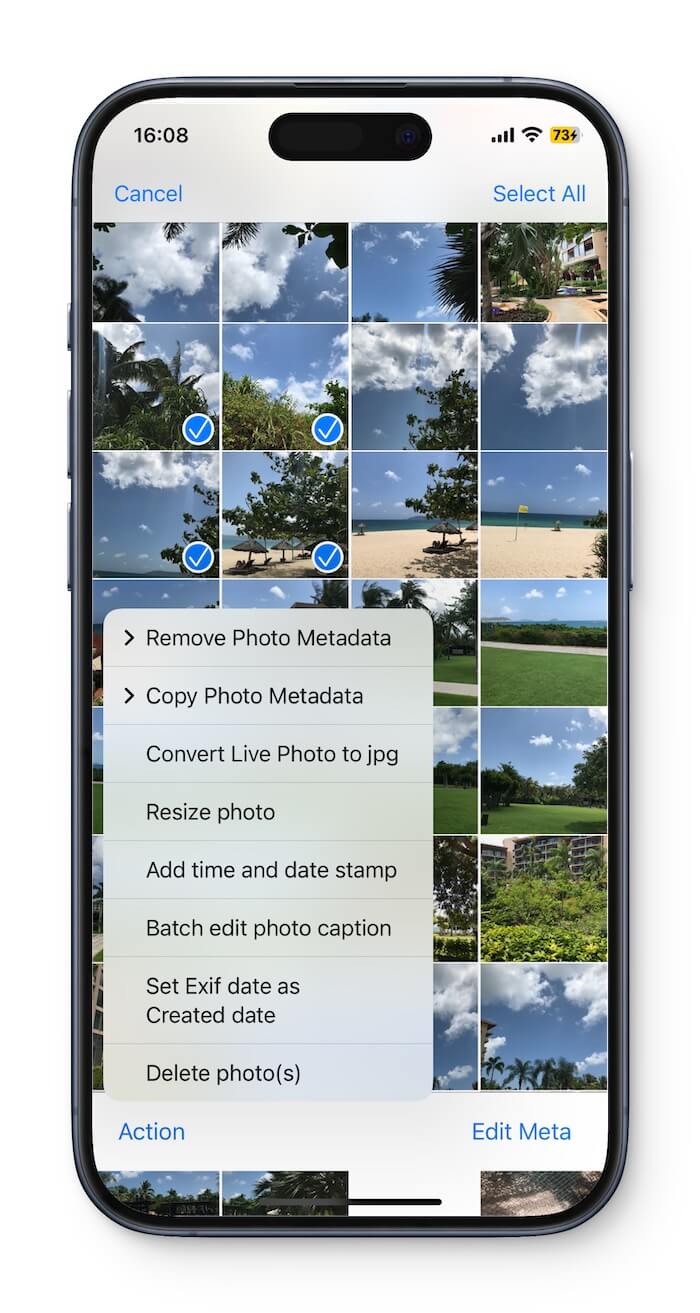
Step 2: Batch Edit the Correct Date and Time
1. Tap Edit Meta to batch edit metadata tags. Change the values of Creation date and turn on the option: Add time between each photo
This prevents all photos from having the same date and time set. Click "Save" to apply the changes and check the resulting metadata to confirm that the dates have been updated correctly.
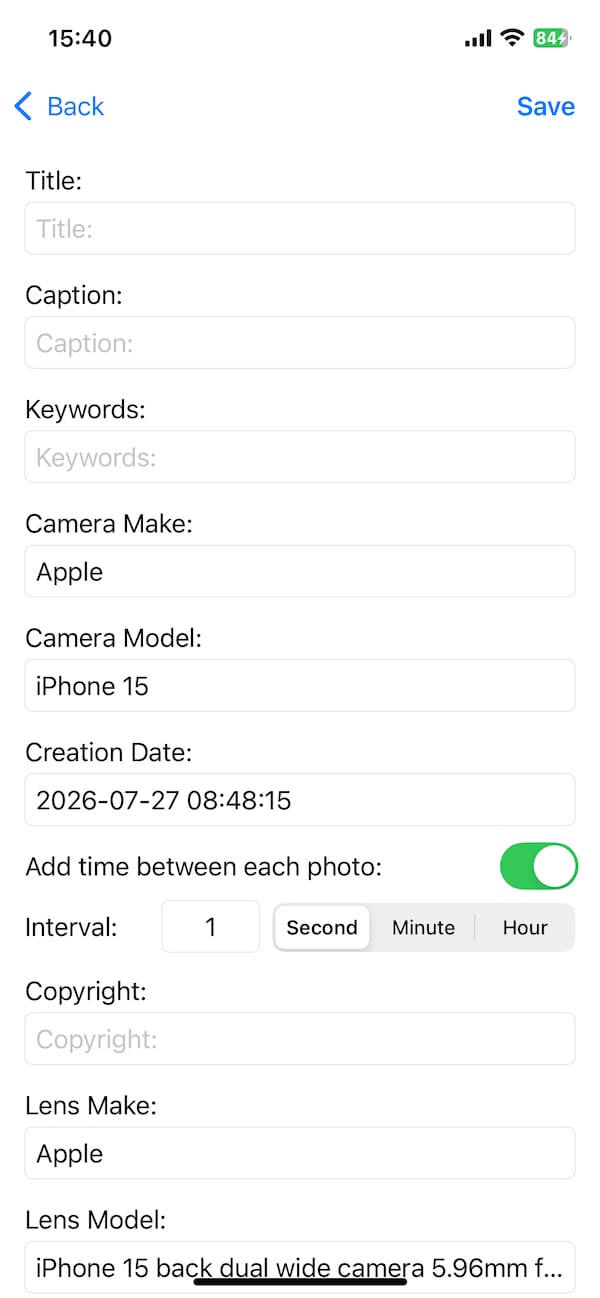
Method 3: Correct Photo Dates Before Importing Them
If you regularly transfer photos from other devices, correcting their timestamps before importing them into your iPhone can help prevent future organization problems.
For example, if you are transferring a large collection from an Android phone, DSLR camera, or computer, you can check the original files for missing or incorrect metadata before adding them to your Apple Photos library.
After correcting the files, import them into your iPhone and verify that the Photos app displays the expected capture dates. This approach can be especially helpful when organizing older photo collections or migrating pictures from multiple devices.
Frequently Asked Questions
Can I change the date of multiple photos at once on my iPhone?
Yes. The built-in Photos app includes an Adjust Date & Time feature that lets you select multiple photos and change their timestamps together.
For more extensive metadata editing, a dedicated application such as Photos Exifer can help you manage additional photo information.
Can I change the date of a photo without changing its filename?
Yes. Changing a photo's date metadata does not inherently require changing its filename.
However, if you use an application that renames files based on their dates, the filename may also change. Check the editing options before applying batch changes.
Why do some imported photos show the same date?
This can happen when the original capture dates are missing, incorrect, or not recognized by the importing application.
Some software may use another available timestamp, which can make a large group of imported photos appear to have been taken on the same day.
Will changing the date in Photos update the original image file?
Not necessarily. The date displayed in Apple Photos and the date stored in the original image file are not always the same thing.
If you need to update the metadata embedded in the original image file, use a metadata editor that supports the relevant date fields and verify the resulting file.
Can I correct the date of hundreds of photos at once?
Yes. Batch editing allows you to apply date changes to multiple photos in one operation.
The built-in Photos app is useful for straightforward corrections, while Photos Exifer provides additional metadata editing capabilities for more extensive photo management.
Conclusion
Incorrect photo timestamps can make a large iPhone photo library difficult to organize, especially when importing pictures from Android devices, DSLR cameras, or computers. Fortunately, you don't have to correct every photo individually.
For simple date adjustments, the built-in Photos app provides a convenient way to batch change the date and time of selected photos.
If you need more extensive metadata editing, Photos Exifer offers additional control over photo information, including capture dates, camera details, keywords, and other supported metadata fields.
Whether you're correcting imported photos, organizing a large collection, or preparing images for another application, batch editing can help you save time and keep your photo library organized.
| More Related Articles | ||||
 |
1. How to Edit Video and MP4 Metadata on iPhone and iPad? 2. How to Rename Photos on iPhone Without a Computer? |
|||
About Fireebok Studio
Our article content is to provide solutions to solve the technical issue when we are using iPhone, macOS, WhatsApp and more. If you are interested in the content, you can subscribe to us. And We also develop some high quality applications to provide fully integrated solutions to handle more complex problems. They are free trials and you can access download center to download them at any time.
| Popular Articles & Tips You May Like | ||||
 |
 |
 |
||
| Five ways to recover lost iPhone data | How to reduce WhatsApp storage on iPhone | How to Clean up Your iOS and Boost Your Device's Performance | ||