When you record photos or videos, your device may automatically embed GPS location data (latitude and longitude) into the media file. This allows apps and websites to detect where and when a video was recorded, as long as Camera Location Services are enabled.
While many photo editors can easily view, edit, or remove photo GPS data, removing video location metadata is much more difficult. Most apps don’t show full video metadata, and even fewer support removing GPS information from videos.
In this guide, we’ll show you how to remove GPS location from videos on Mac and iPhone, including videos stored both inside and outside the Apple Photos library.
How to Remove GPS Location from Videos on Mac
Apple Photos offers a way to hide location information for photos and videos by going to: Image menu → Location → Hide Location.
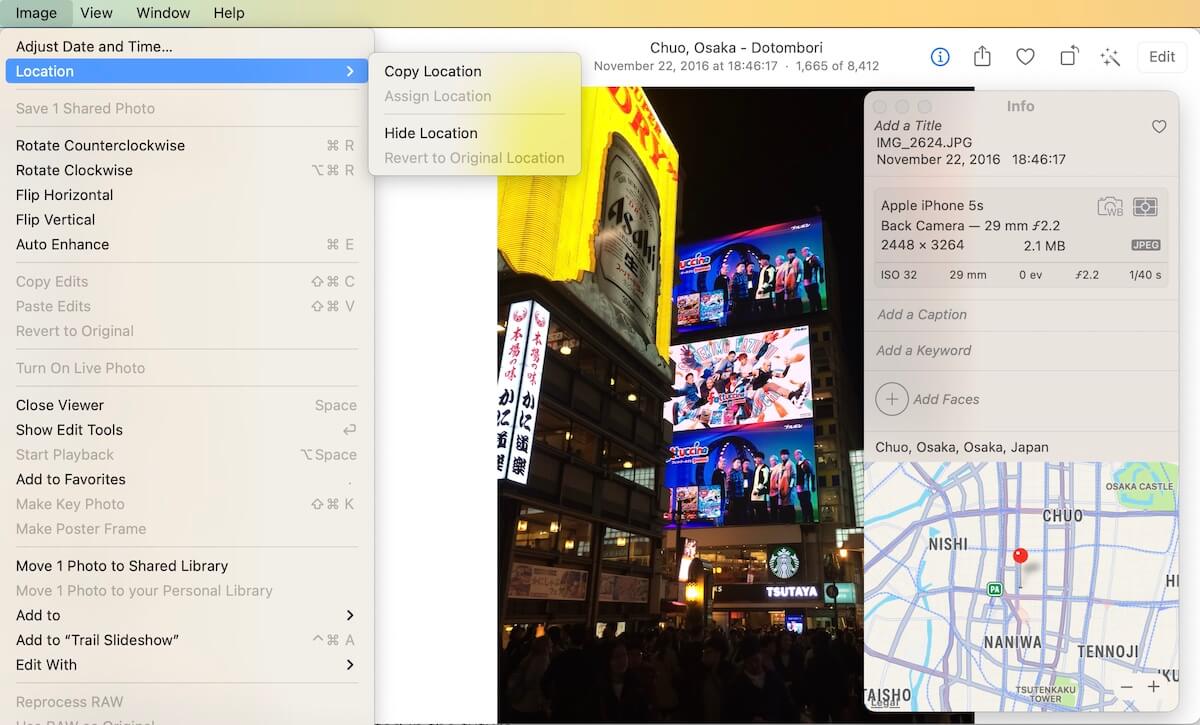
However, this only hides the location—it does not permanently remove the GPS metadata from the video file. In addition, Apple Photos can only manage videos stored in the Photos library. Videos saved elsewhere on your Mac (such as Downloads, external drives, or Finder folders) cannot be processed this way.
Best Solution: Use Media Meta on Mac
To fully remove GPS location and other metadata from videos, we recommend Media Meta, a Mac app designed for batch editing and removing media metadata. Media Meta supports: Removing GPS location from videos, Batch metadata removal, Local video files and Apple Photos videos.
Editing video metadata such as: Title, Description, Shooting date, Keywords, Copyright, Artwork, GPS location and more.
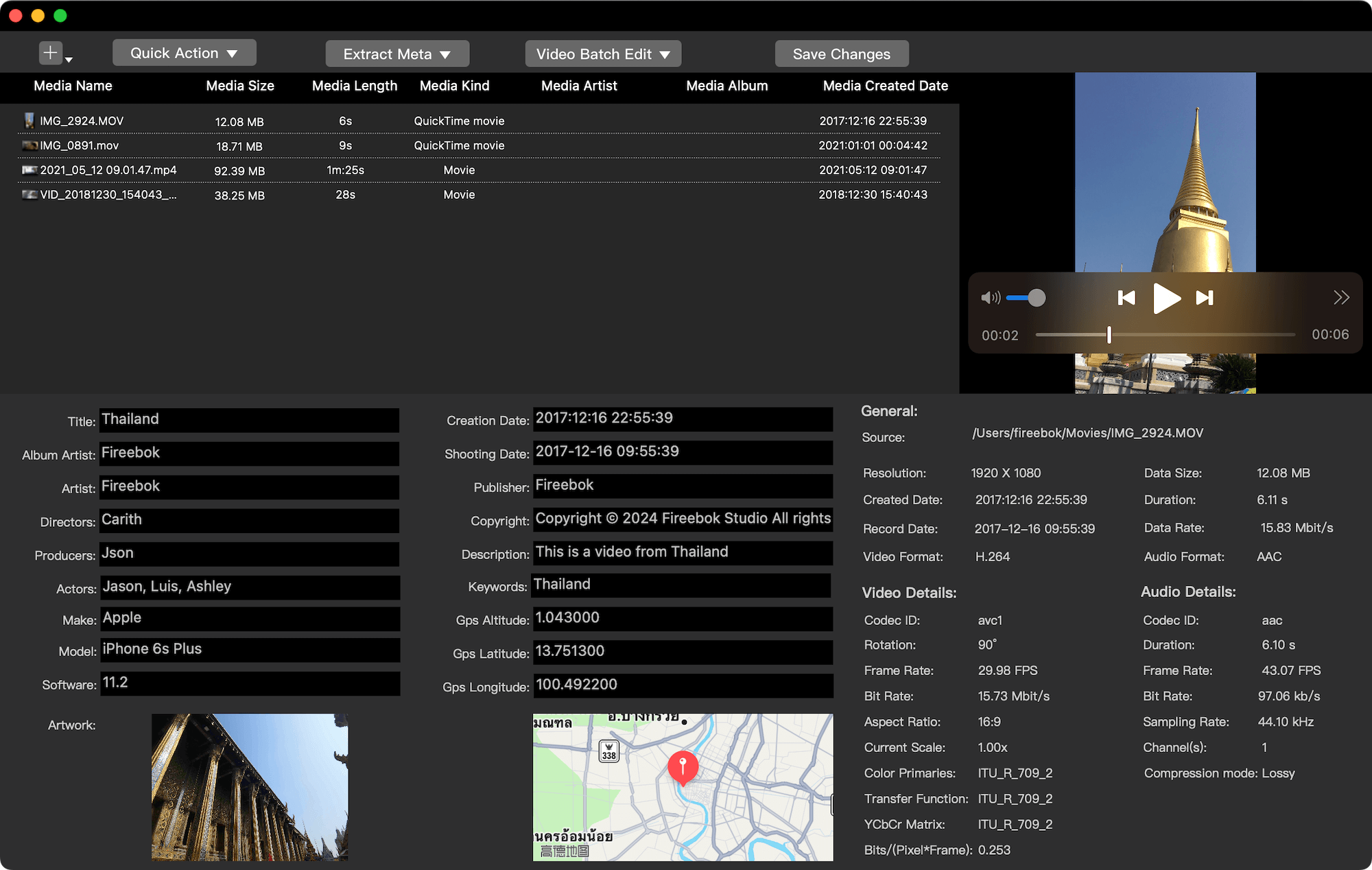
Steps to Remove Video GPS Location on Mac:
1. Download and install Media Meta on your Mac.
2. Open the app and import your video files (or select videos from Apple Photos). Select one or multiple videos. Click Quick Action → Remove metadata of selected media(s).
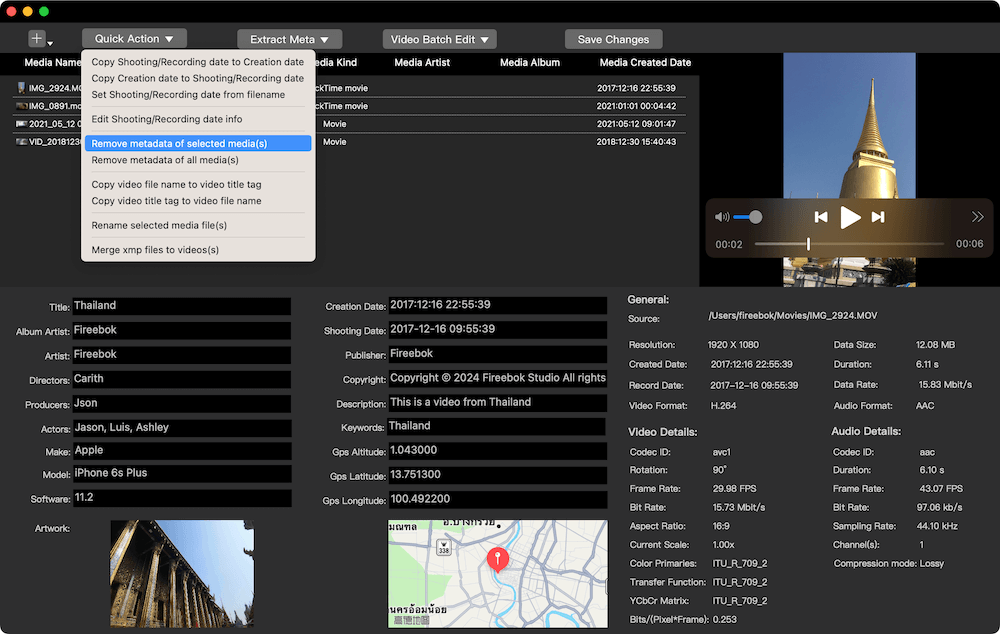
GPS location and other embedded metadata will be permanently removed.
How to Remove GPS Location from Videos on iPhone
Apple Photos on iPhone does not provide an option to remove location metadata directly. It only allows you to exclude location information when sharing a video, which does not affect the original file stored in your photo library.
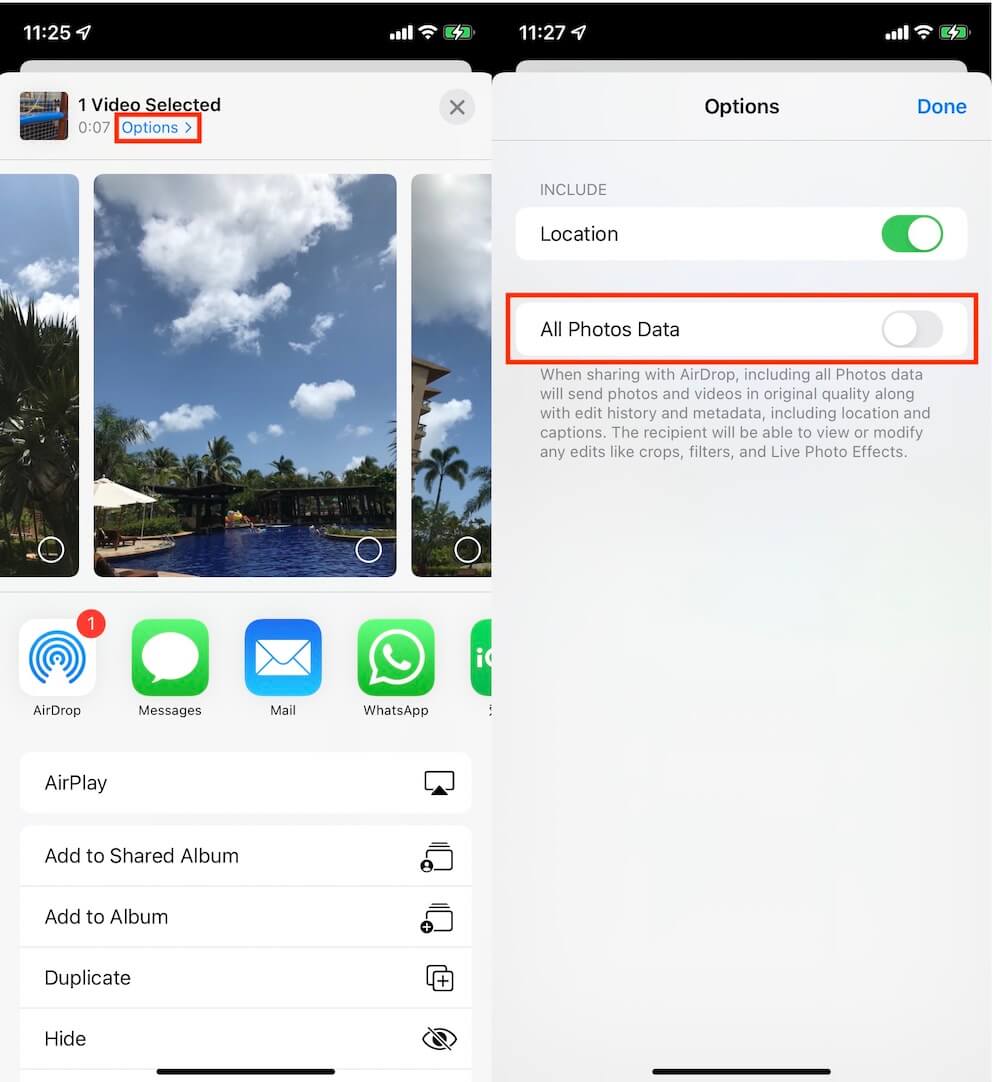
To permanently remove GPS location data from videos on iPhone or iPad, you’ll need a third-party tool.
Use Media MetaX on iPhone and iPad
Media MetaX is the iOS version of Media Meta and supports removing and editing video metadata directly on your device. Steps to Remove Video GPS Location on iPhone:
1. Download and install Media MetaX on your iPhone or iPad.
2. Open the app and select a video to view its metadata. Tap Edit → Three-dot menu → Remove metadata. Choose Remove Location or Remove All Metadata.
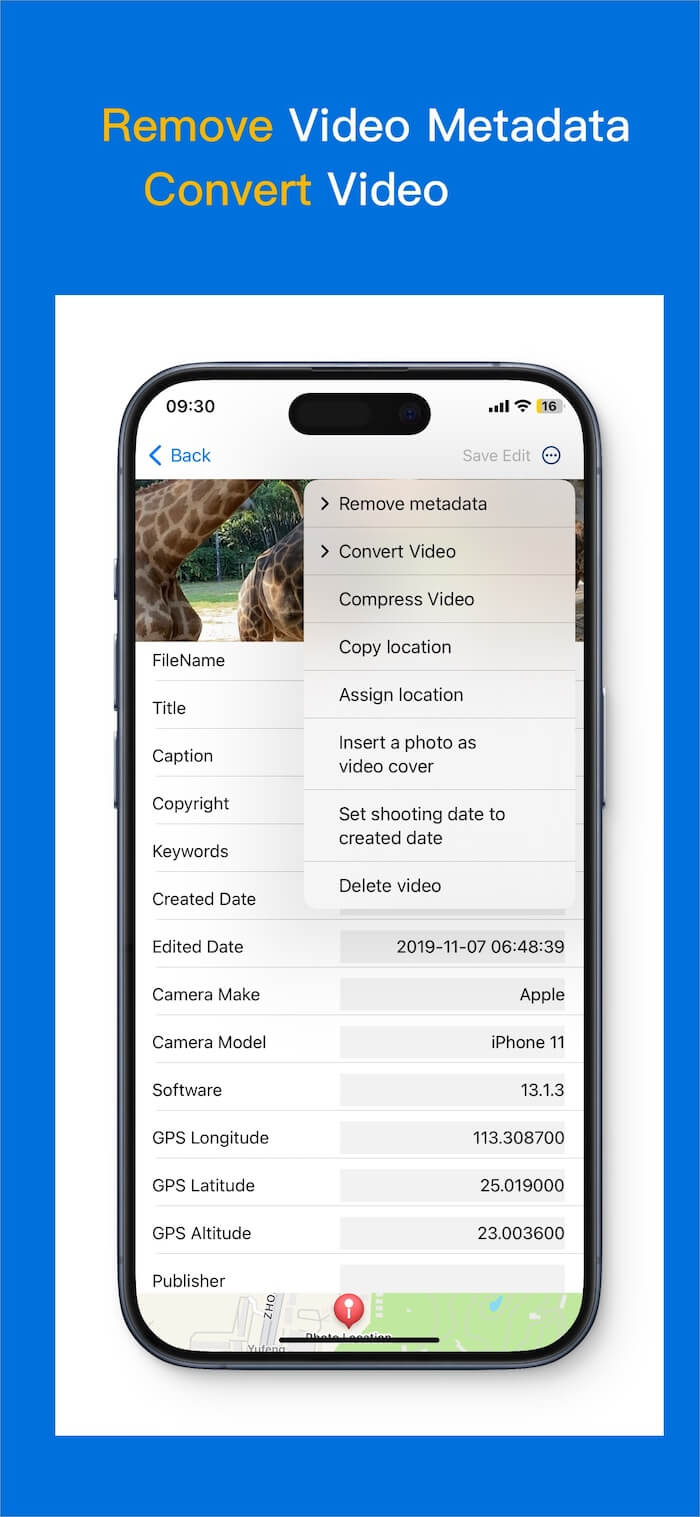
3. The GPS location will be permanently removed from the video.
In addition to removing location data, Media MetaX also allows you to edit video metadata such as title, date, keywords, and more—right on your iPhone.
Final Thoughts
If privacy matters to you, removing GPS location from videos is essential before sharing or publishing them online. While Apple’s built-in tools only hide location data, Media Meta (Mac) and Media MetaX (iOS) provide a complete solution to view, edit, and permanently remove video GPS metadata across all your devices.
| More Related Articles | ||||
 |
1. How to View and Remove Video Metadata on iPhone? 2. How to Fix Photos Showing the Incorrect Date on iPhone? |
|||
About Fireebok Studio
Our article content is to provide solutions to solve the technical issue when we are using iPhone, macOS, WhatsApp and more. If you are interested in the content, you can subscribe to us. And We also develop some high quality applications to provide fully integrated solutions to handle more complex problems. They are free trials and you can access download center to download them at any time.
| Popular Articles & Tips You May Like | ||||
 |
 |
 |
||
| Five ways to recover lost iPhone data | How to reduce WhatsApp storage on iPhone | How to Clean up Your iOS and Boost Your Device's Performance | ||