With each new generation of iPhones, camera resolution continues to improve. While this results in sharper and more detailed photos, it also means larger photo and video file sizes. Large files take up more storage space and can cause issues when sharing photos online—many platforms still have file size limits such as 2MB per image.
Fortunately, there are several effective ways to reduce iPhone photo file size, optimize storage usage, and make photos easier to share. In this article, we’ll show you how to reduce iPhone photo file size using iPhone camera settings, iCloud storage options, and third-party tools.
Adjust iPhone Camera Settings to Reduce Photo File Size
Apple provides built-in camera settings that allow you to control photo and video formats, which directly affect file size.
Choose HEIC Instead of JPG
iPhone supports two photo formats:
~ High Efficiency (HEIC) – smaller file size
~ Most Compatible (JPG) – larger file size
To change the photo format: Go to Settings → Camera → Formats, Select High Efficiency.
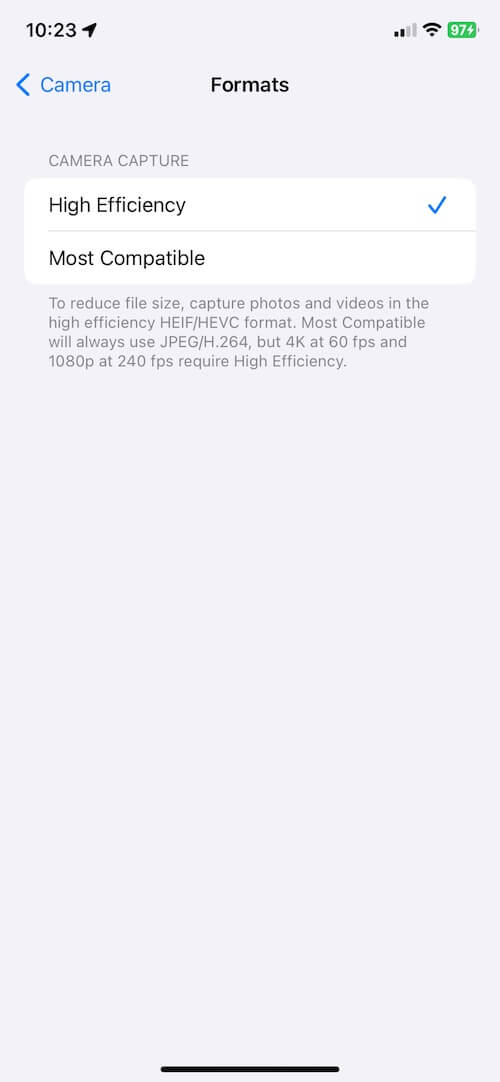
Important note: Many users assume JPG files are smaller, but this is usually incorrect. Under normal conditions on the same iPhone, an HEIC photo is about 40–50% smaller than a JPG file at the same visual quality.
Reduce iPhone Photo Storage Usage
If your goal is to free up iPhone storage, consider these options:
Enable iCloud Photos
1. Go to Settings → Apps → Photos → turn on iCloud Photos, choose Optimize iPhone Storage.
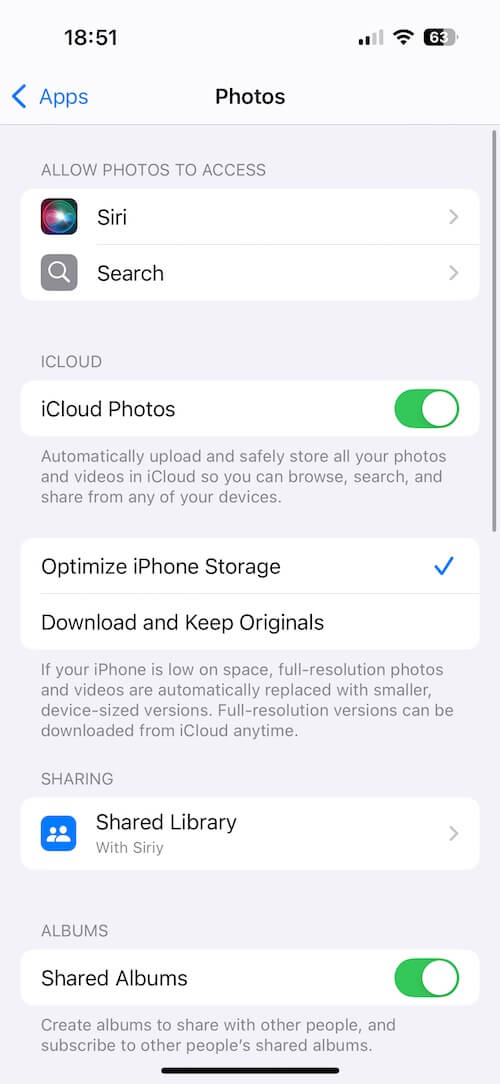
This stores full-resolution photos in iCloud while keeping smaller, optimized versions on your iPhone.
Transfer Photos to Computer or Cloud Storage
You can also:
• Transfer photos to a Mac or Windows PC
• Back them up to Google Photos or other cloud services
• Delete local copies after backup
This helps keep your iPhone storage under control.
Reduce iPhone Photo File Size with Photos Exifer
Another effective way to reduce photo file size is by using lossless compression or resizing image dimensions. Photos Exifer for iOS is a powerful iPhone photo compression app that helps you reduce iPhone photo file size without losing quality.
Photos Exifer supports batch processing, making it ideal for users who need to optimize many photos at once.
Learn more about Photos Exifer:
Photos Exifer – Photo Size Reducer & Metadata Editor
Losslessly Compress iPhone Photos with Photos Exifer
Lossless compression reduces file size without affecting image quality. Step:
1. Open Photos Exifer, tap Select and choose multiple photos, tap Action → Resize Photos.
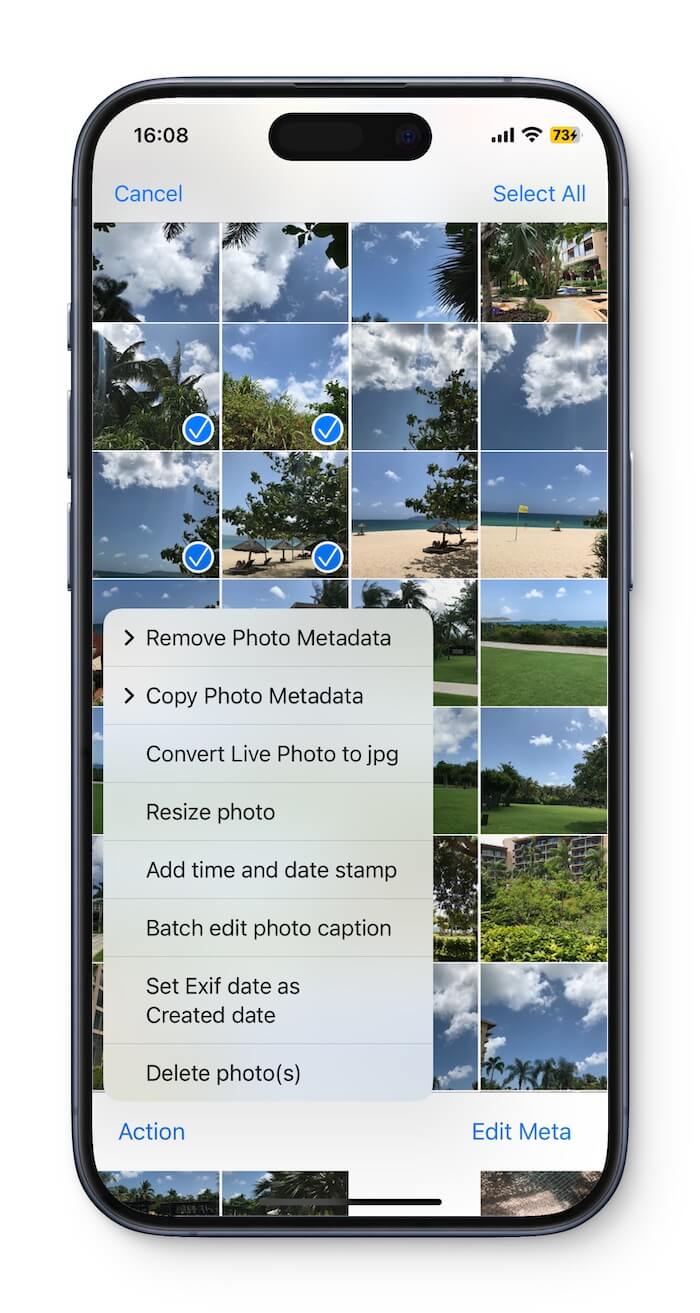
2. Choose Lossless Resize, tap Resize.
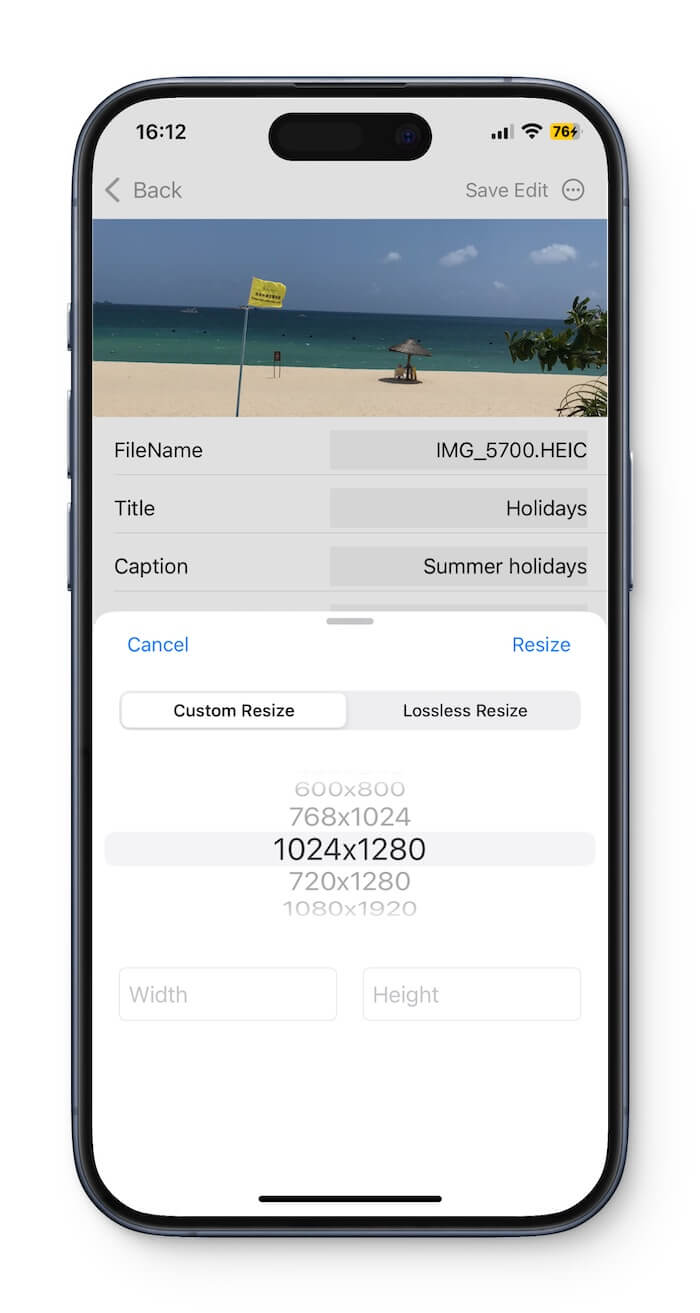
Resize iPhone Photos to Reduce File Size
Reducing photo dimensions significantly lowers file size. Step:
1. Open Photos Exifer, select multiple photos. Tap Action → Resize Photos → Custom Resize
2. Enter a custom width and height or choose preset sizes such as 1024 × 1080. Tap Resize
More Features in Photos Exifer
In addition to reducing file size, Photos Exifer also lets you:
1. Edit photo metadata (EXIF, IPTC)
2. Convert HEIC to JPG
3. Batch process photos
4. Manage photo information more efficiently
Final Thoughts
Large iPhone photo files are common, but they’re easy to manage. By adjusting camera settings, enabling storage optimization, and using a dedicated iPhone photo size reducer app like Photos Exifer, you can effectively reduce iPhone photo file size without losing quality.
If you frequently work with large photo libraries, combining iPhone settings with a professional photo management app is the most efficient solution.
| More Related Articles | ||||
 |
1. How to View and Remove Video Metadata on iPhone? 2. How to Fix Photos Showing the Incorrect Date on iPhone? |
|||
About Fireebok Studio
Our article content is to provide solutions to solve the technical issue when we are using iPhone, macOS, WhatsApp and more. If you are interested in the content, you can subscribe to us. And We also develop some high quality applications to provide fully integrated solutions to handle more complex problems. They are free trials and you can access download center to download them at any time.
| Popular Articles & Tips You May Like | ||||
 |
 |
 |
||
| Five ways to recover lost iPhone data | How to reduce WhatsApp storage on iPhone | How to Clean up Your iOS and Boost Your Device's Performance | ||