Apple Photos Can't Find Your Photo Library or Original Photos? Apple Photos uses a Photos Library to manage, organize, and store your photos and videos. However, you may sometimes encounter issues where Apple Photos cannot connect to your photo library, displays an empty library, or shows missing photos after opening the Photos app.
Many Mac users report that after moving their Photos Library to an external hard drive, Apple Photos can no longer open the library. Other users who use a referenced photo library find that Apple Photos cannot locate their original photos after the files or folders have been moved to a new location.
In these situations, you need to redirect the Photos Library or reconnect the original referenced photos to Apple Photos.
Method 1: Redirect Apple Photos Library After Moving the Library
By default, Apple Photos opens the System Photo Library located at: ~/Pictures/Photos Library.photoslibrary
How to Redirect Apple Photos Library from an External Drive
Step 1: Open the Moved Photo Library
1. Quit the Photos app. Press and hold the Option (⌥) key while launching Photos.
2. In the library selection window, choose the Photos Library.photoslibrary located on your external hard drive. Click Choose Library to open it.
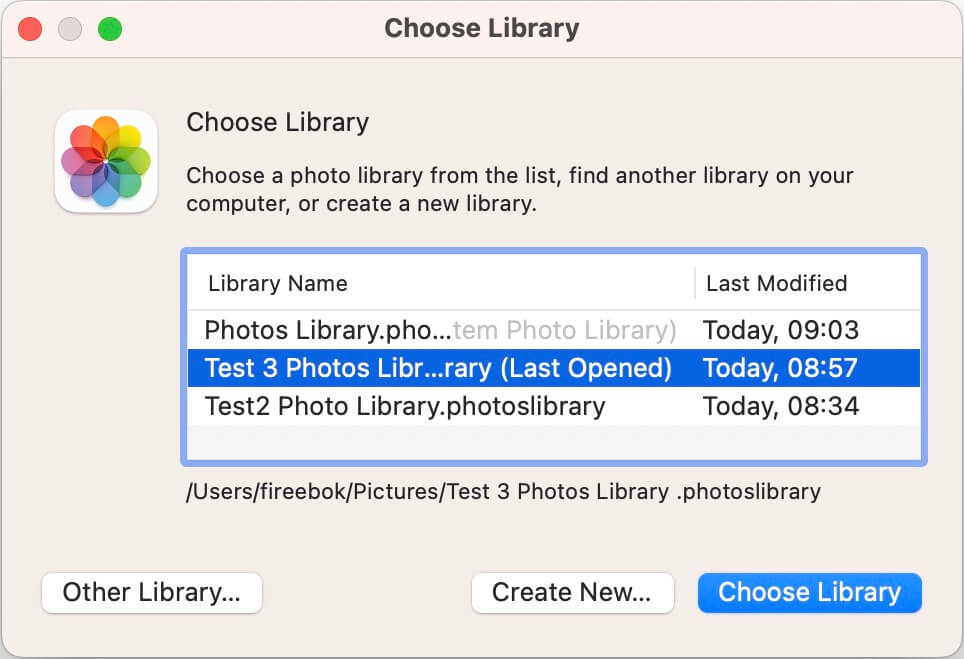
Step 2: Set It as the System Photo Library
1. Open Photos. Go to Photos > Settings (Preferences) > General. Under Library, click Use as System Photo Library.
Once configured, Apple Photos will automatically open this library the next time you launch the Photos app.
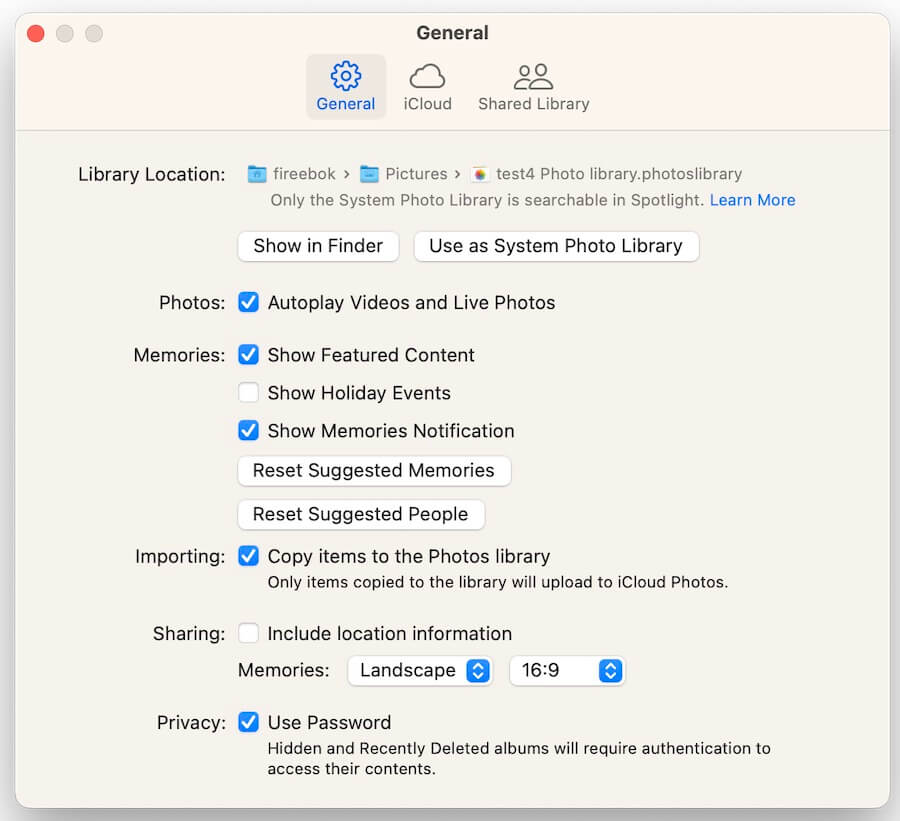
Method 2: Redirect Missing Referenced Photos in Apple Photos
If the "Copy items to the Photos library" option is disabled in Photos settings, imported photos and videos remain in their original locations outside the Photos Library.
In this setup, Apple Photos stores only references and previews, while the original files remain in external folders. If any of the following changes occur:
• The original photo folder is moved
• The photo files are renamed
• The storage drive name changes
• The folder structure is modified
Apple Photos may lose the connection to the original files and display missing or unavailable photos.
How to Redirect Apple Photos Library from an External Drive
Apple Photos may occasionally display a "Find Original" warning and allow you to manually locate the missing file. However, this process can be time-consuming when hundreds or thousands of referenced photos are affected.

In some cases, Photos may also fail to reconnect the files due to metadata or database inconsistencies.
To efficiently repair and redirect moved referenced photos, you can use Photo Exifer, a photo library management and repair tool for macOS.
Step 1: Install Photo Exifer
1. Download and install Photo Exifer on your Mac. Add Photo Exifer to System Settings > Privacy & Security > Full Disk Access so it can access your photo libraries.
Step 2: Open Your Photo Library
1. Launch Photo Exifer. Click the Photo Library tab to load the current System Photo Library. Alternatively, choose File > Open Photo Library to open another Photos Library.
Step 3: Find Lost Referenced Photos
1. After the library has loaded, select the filter option - Showing: Lost referenced photos in photo library. Photo Exifer will display all photos whose original files can no longer be located.
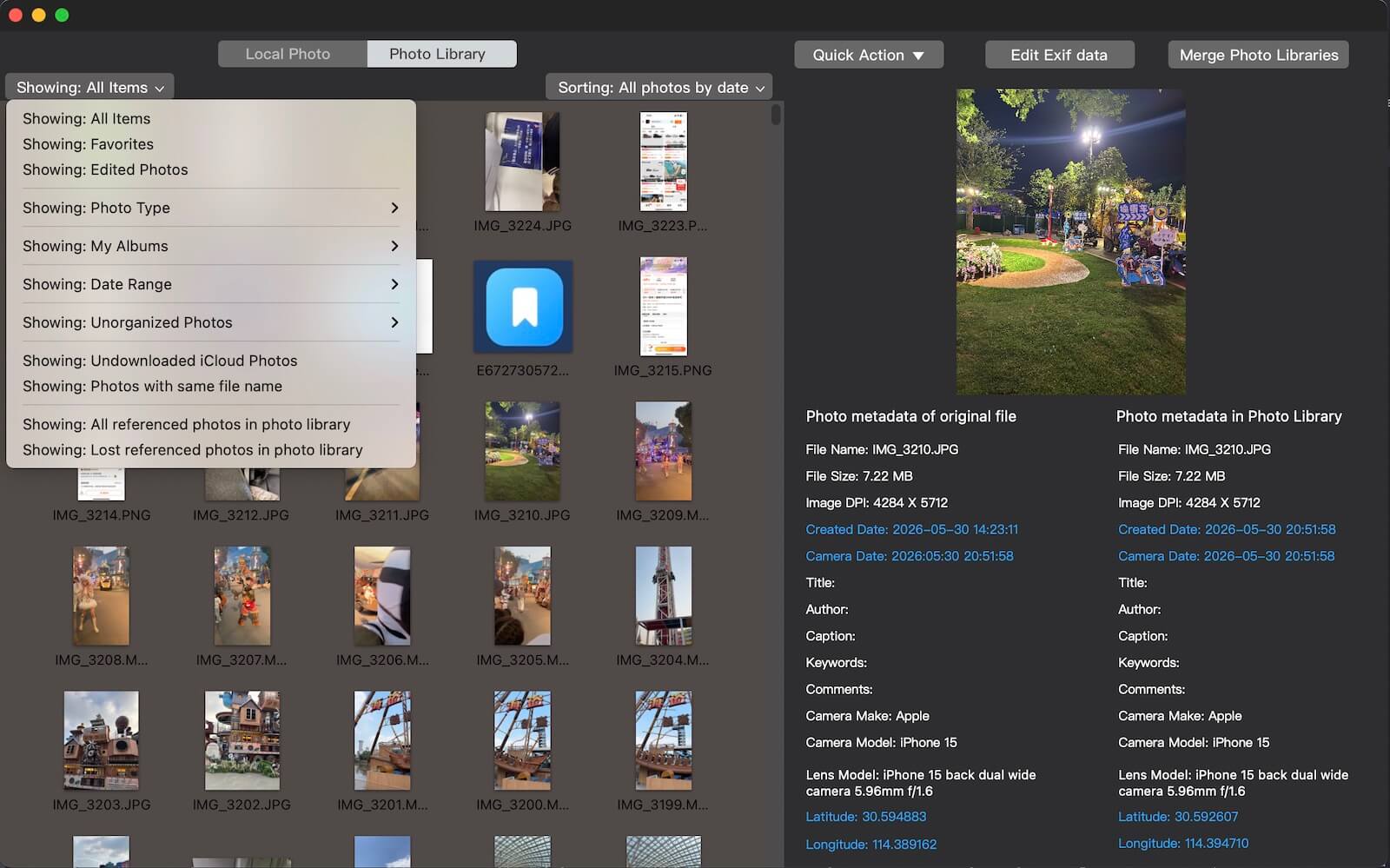
Step 4: Fix Moved Referenced Photos
1. Select the missing referenced photos. Click Quick Action > Fix Moved Referenced Photos in Photo Library. Browse to the folder containing the original photos.
Photo Exifer will automatically locate matching files and update the Apple Photos database with the new file locations.
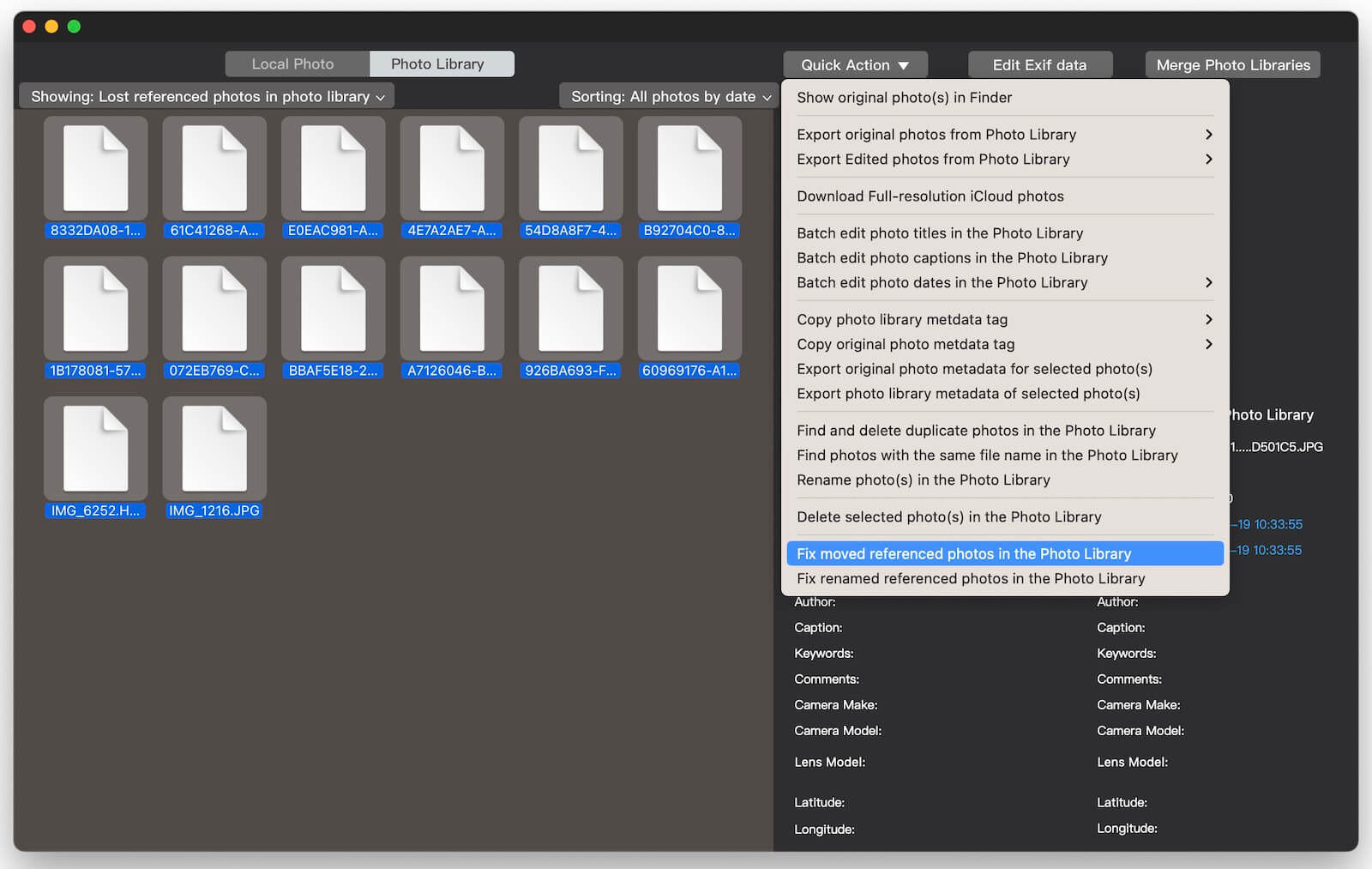
Step 5: Verify the Results
Open Apple Photos again. The repaired referenced photos should now be accessible and display normally.
Conclusion
When Apple Photos cannot find your library or original photos, the issue is usually caused by a moved Photos Library or relocated referenced files.
If you have moved your entire Photos Library.photoslibrary, simply reconnect it and set it as the System Photo Library. If your original referenced photos have been moved or renamed, you can reconnect them manually or use Photo Exifer to automatically repair broken photo references and restore access to your images.
By correctly redirecting your Photos Library and referenced photos, you can prevent missing photos, blank libraries, and library connection errors in Apple Photos.
| More Related Articles | ||||
 |
1. How to merge two photo libraries on Mac? 2. How to find and remove duplicate photos from Photos? |
|||
About Fireebok Studio
Our article content is to provide solutions to solve the technical issue when we are using iPhone, macOS, WhatsApp and more. If you are interested in the content, you can subscribe to us. And We also develop some high quality applications to provide fully integrated solutions to handle more complex problems. They are free trials and you can access download center to download them at any time.
| Popular Articles & Tips You May Like | ||||
 |
 |
 |
||
| Five ways to recover lost iPhone data | How to reduce WhatsApp storage on iPhone | How to Clean up Your iOS and Boost Your Device's Performance | ||