External hard drives are widely used to save storage space and transfer data across different platforms, including macOS, Windows, and iPhone devices. Many users rely on external drives to back up photos, videos, and important files.
However, data loss can happen unexpectedly. For example, if a USB drive is unplugged during file transfer, or if the process is interrupted, files may become corrupted, deleted, or missing. In some cases, users may suddenly discover that their backup data is no longer accessible—and without another backup, recovery becomes critical.
So, is it possible to recover deleted or lost data from an external hard drive on macOS 26? The answer is yes.
Why Does External Drive Data Loss Occur?
There are several common reasons why data loss happens on external drives:
1. Improper Ejection or Interrupted Transfer
Disconnecting the drive before file transfers are complete can lead to:
• File corruption
• Missing data
• Drive errors
2. File System Compatibility Issues
Modern macOS versions mainly support:
• APFS
• Mac OS Extended (Journaled)
Some external drives use formats like:
• ExFAT
• FAT32
• NTFS
These formats may not be fully compatible with macOS features (such as Apple Photos libraries), which can cause issues during file transfers or backups.
3. Accidental Deletion or Formatting
• Files may be deleted unintentionally
• Drives may be formatted by mistake
4. System or Software Errors
• macOS updates
• App crashes
• Disk errors
How to Recover External Drive Data on macOS 26
Even on the latest macOS 26, you can recover lost or deleted data from external drives with various file systems, including:
• APFS
• Mac OS Extended (Journaled)
• ExFAT
• FAT32
• NTFS
One effective solution is Fireebok Data Recovery, which supports macOS 10.9 through macOS 26 and offers multiple recovery modes.
Step 1: Install Data Recovery Software. Download and install Fireebok Data Recovery on your Mac.
Step 2: Connect the External Drive. Attach your external hard drive to your Mac and ensure it is recognized.
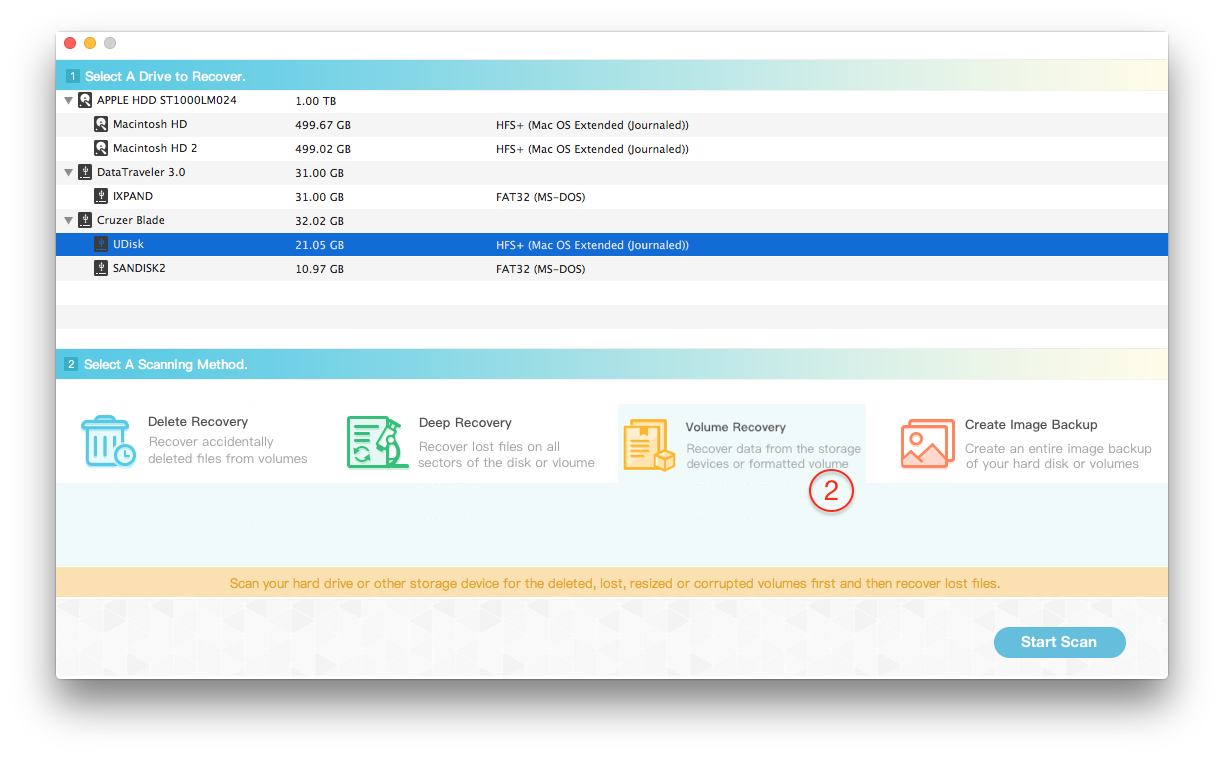
Step 3: Select the Drive and Recovery Mode. Launch the software, select your external drive. Choose Deleted Recovery mode, click Start Scan.
Step 4: Preview and Recover Files. After scanning, preview the recoverable files. Select the photos or files you want, click Recover to save them
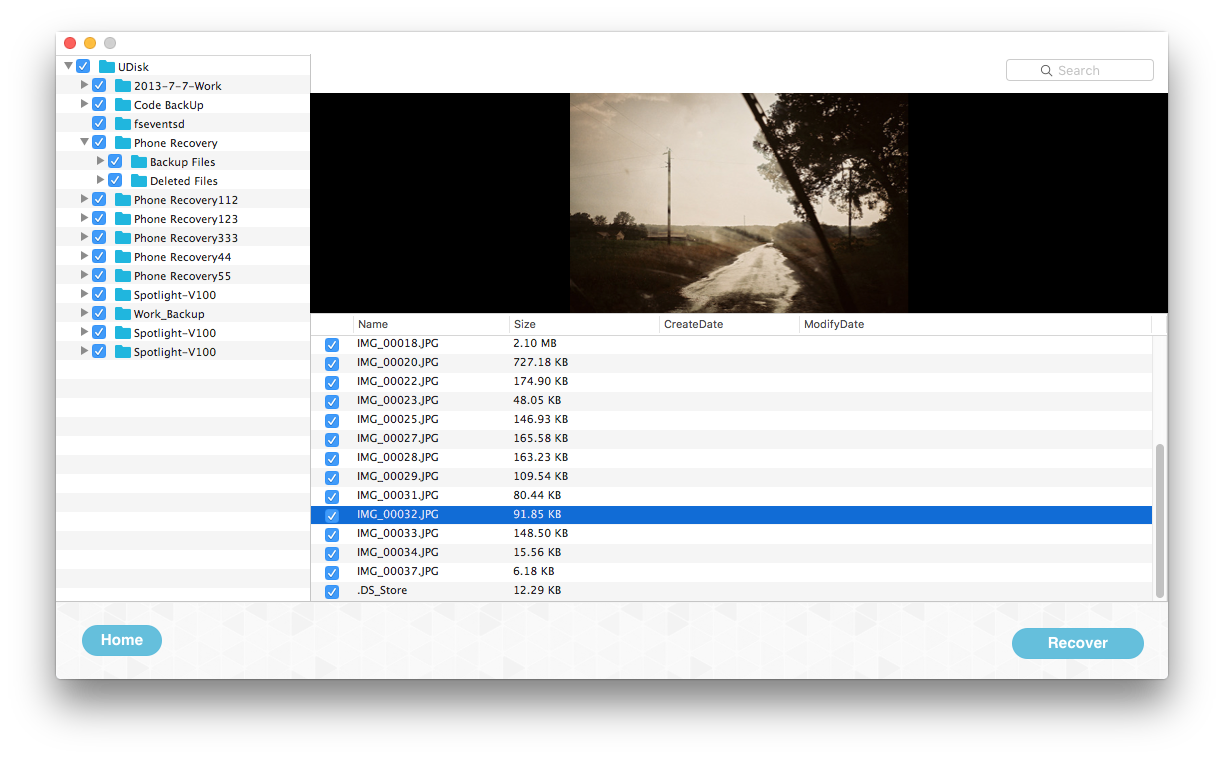
Important: Do NOT save recovered files back to the same external drive, as this may overwrite lost data.
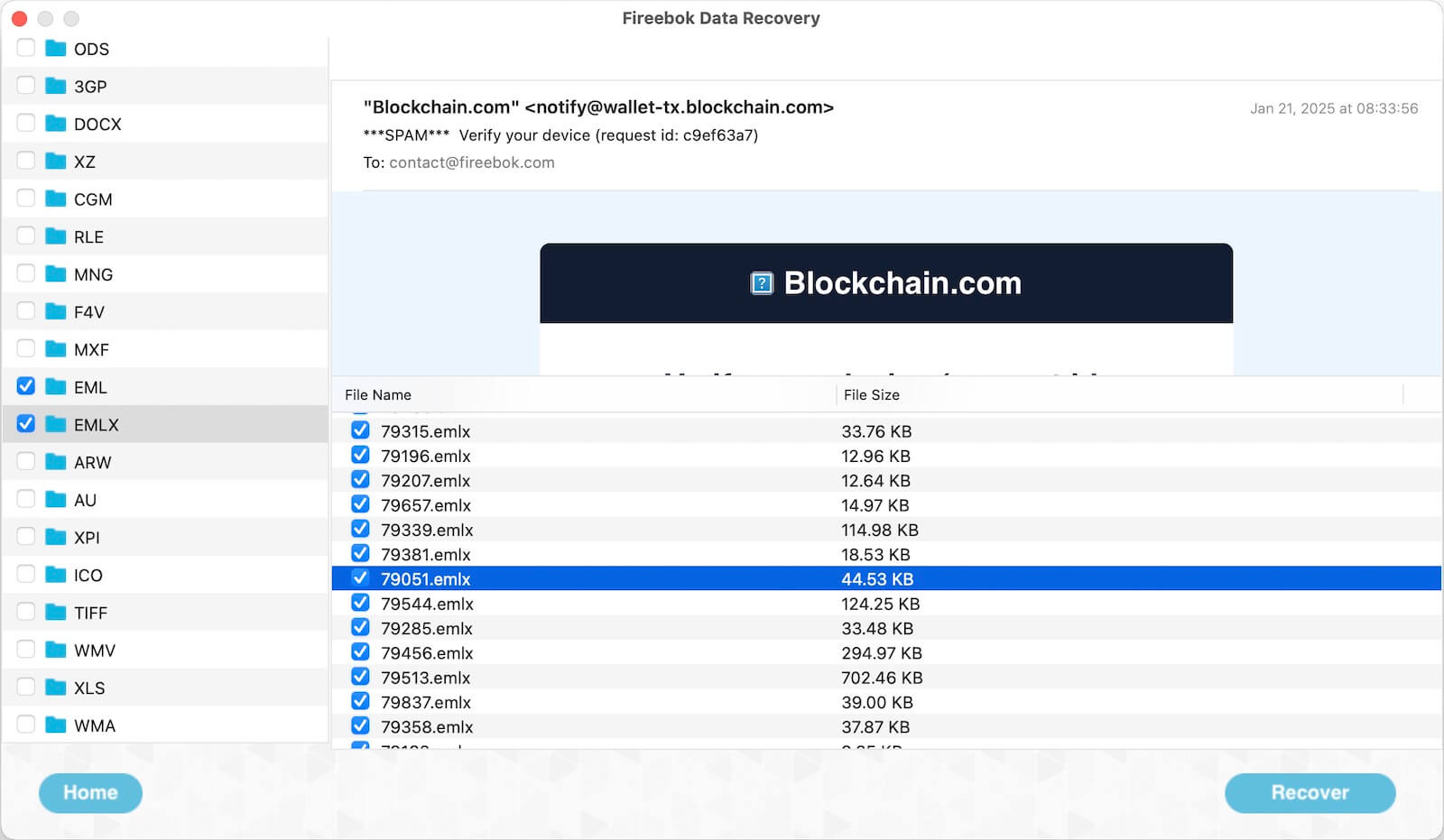
Step 5: Use Deep Recovery (if needed). If you cannot find your files using Deleted Recovery: Return to the home screen, choose Deep Recovery, perform a more thorough scan. This mode takes longer but can recover more data.
Tips to Prevent External Drive Data Loss
• Always eject drives safely before unplugging
• Avoid interrupting file transfers
• Use compatible file systems (APFS or Mac OS Extended for Mac workflows)
• Keep multiple backups (Time Machine, cloud storage, etc.)
• Regularly check disk health
Final Thoughts
Losing data from an external hard drive can be stressful, especially when no backup is available. Fortunately, with the right tools and methods, you can recover deleted or lost files on macOS 26. Using reliable recovery software like Fireebok Data Recovery, along with proper handling of external drives, can significantly increase your chances of successful data recovery.
| More Related Articles | ||||
 |
1. How to merge two photo libraries on Mac? 2. How to find and remove duplicate photos from Photos? |
|||
About Fireebok Studio
Our article content is to provide solutions to solve the technical issue when we are using iPhone, macOS, WhatsApp and more. If you are interested in the content, you can subscribe to us. And We also develop some high quality applications to provide fully integrated solutions to handle more complex problems. They are free trials and you can access download center to download them at any time.
| Popular Articles & Tips You May Like | ||||
 |
 |
 |
||
| Five ways to recover lost iPhone data | How to reduce WhatsApp storage on iPhone | How to Clean up Your iOS and Boost Your Device's Performance | ||