After taking photos with your camera or iPhone, you may often enhance them to look better — by adjusting colors, brightness, or fixing photo metadata tags. However, you might have noticed that after editing a photo in Apple Photos or another photo editor, the photo’s date sometimes changes to the edit date instead of keeping the original capture date.
If you want your photos to retain the original date taken after editing, there’s a simple way to prevent this. This guide will show you how to stop edited photos from changing their date on your Mac.
Why Do Edited Photos Change Their Date?
Whether your photos are stored in a local photo folder or within the Photos Library on Mac, most editing apps create a new file when you make changes. The newly created file automatically adopts the edit date as its creation date.
To fix this issue, you can copy the original EXIF date from the unedited photo to the edited version using Photo Exifer, a powerful Mac app that helps manage, copy, and edit photo metadata.
Option 1: Prevent Date Changes in Local Photos
If your photos are stored and edited in local folders (outside the Photos Library), you can use Photo Exifer to copy the original EXIF date to your edited photo. Steps:
1. Open Photo Exifer on your Mac. Import both your original photos and edited photos into the app.
2. Select the original photo, then click Quick Action → Copy photo metadata tags between different photos → Copy EXIF date from selected photos.
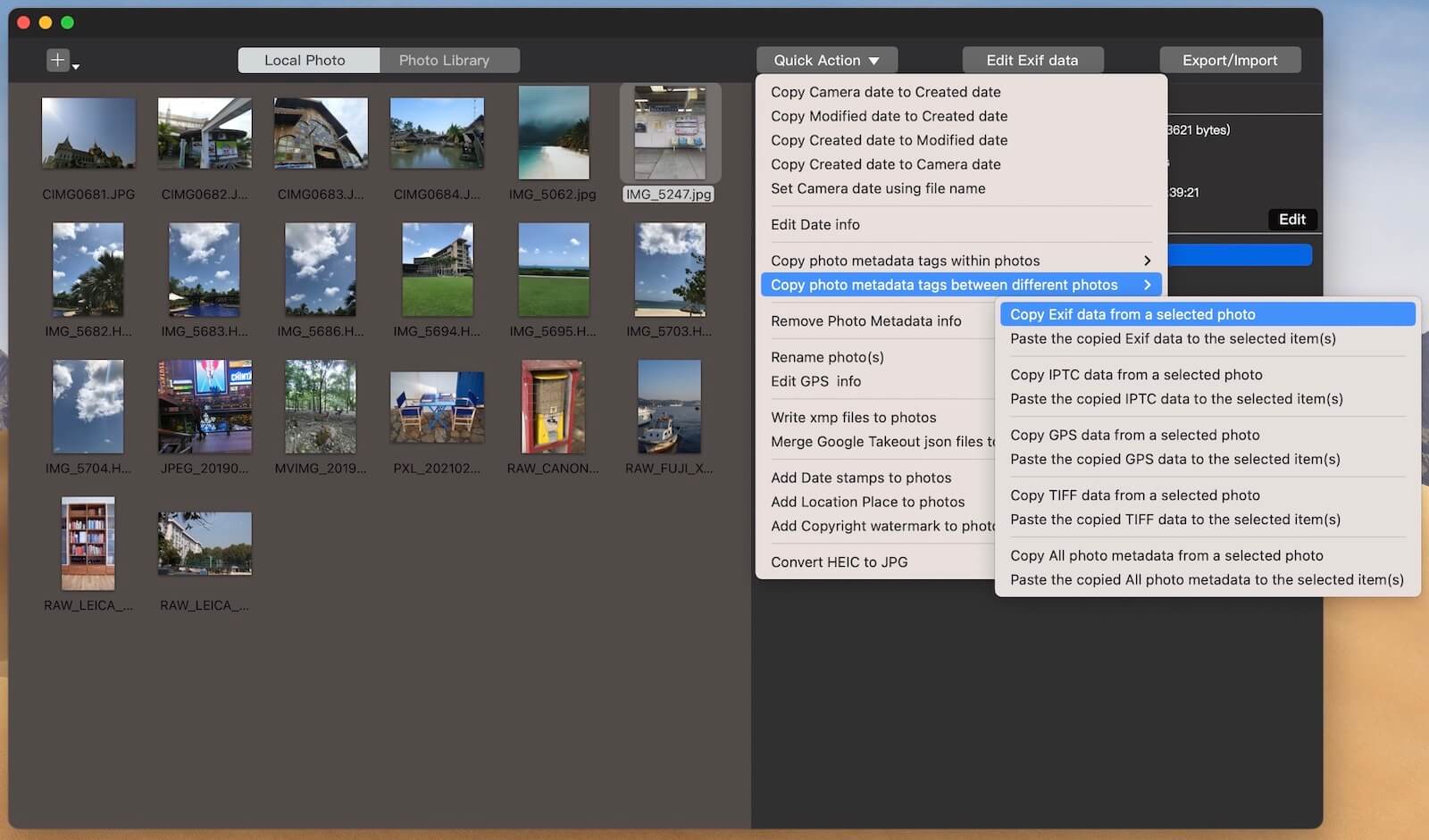
3. Next, select your edited photo, and click Quick Action → Copy photo metadata tags between different photos → Paste copied EXIF date to selected item(s).
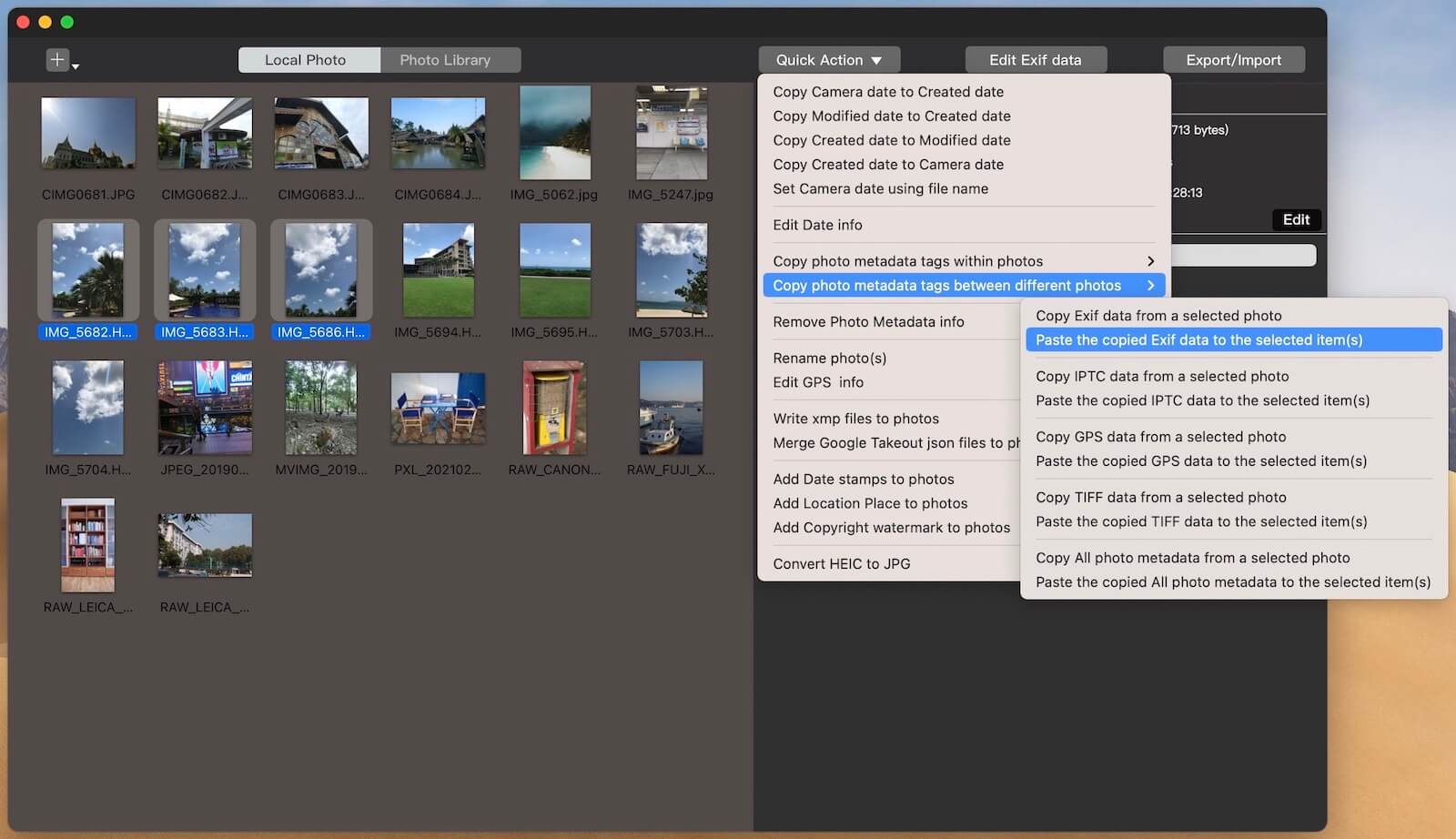
Your edited photo will now keep the same original date and time as the unedited photo.
Tip: If your original photo doesn’t contain EXIF date information or you need to modify it, use Quick Action → Edit Date Info to manually edit or adjust the EXIF and creation dates.
Option 2: Preserve Original Dates in Photos Library
If your photos are stored in the Apple Photos Library and you’ve edited them using the Photos app, you can still use Photo Exifer to export edited photos while keeping their original photo library date. Steps:
1. Add Photo Exifer to the Full Disk Access list: Go to System Settings → Security & Privacy → Privacy → Full Disk Access, then enable access for Photo Exifer.
2. Open Photo Exifer, and click the Photo Library tab to load all your photos and videos. Click Showing: All items → Showing: Edited Photos to filter and display all edited photos in your library.
3. Select your edited photos, then click Quick Action → Export Edited Photos from Photo Library → Export edited photos with all photo library metadata.
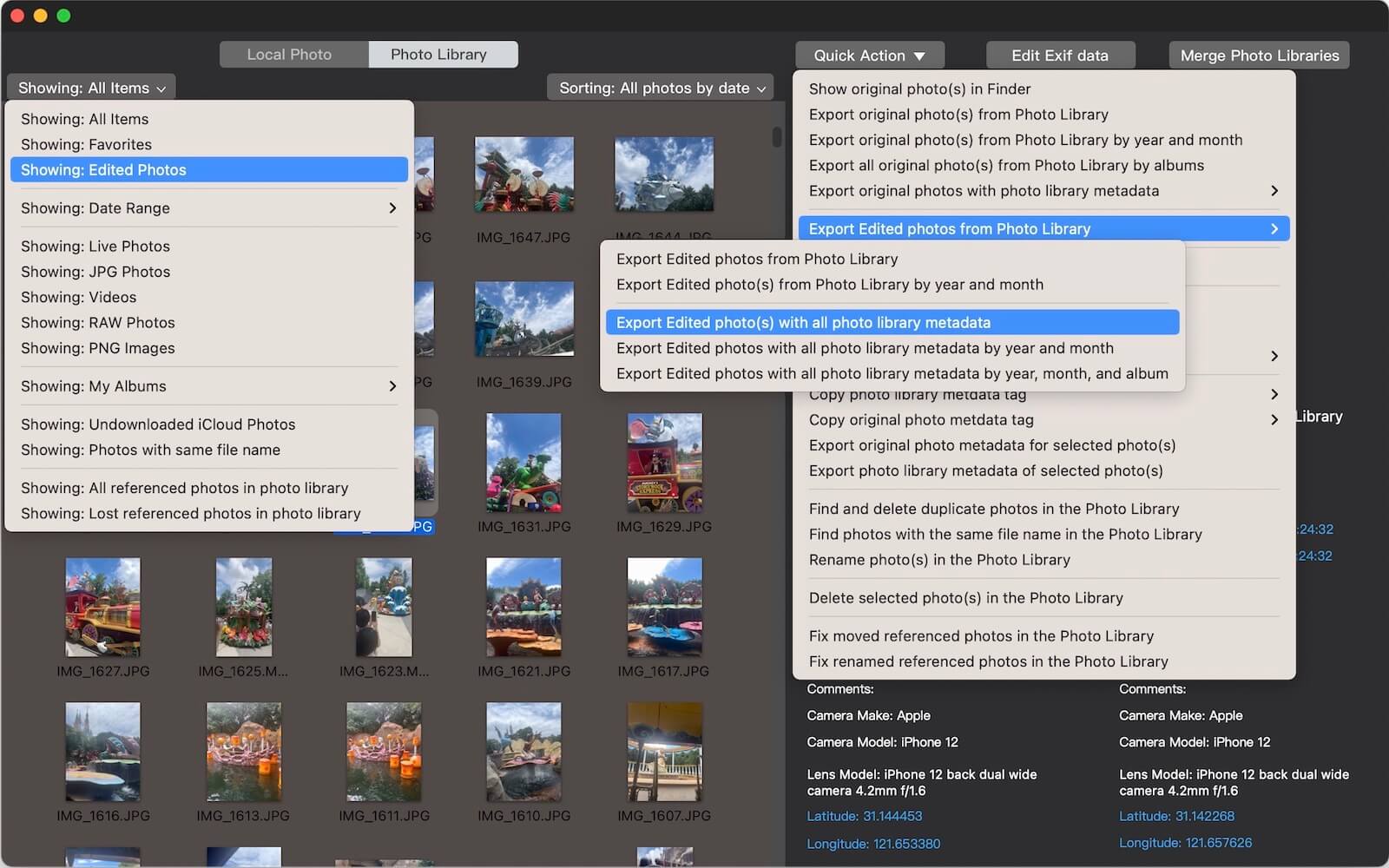
This will export your edited photos with their original Photo Library capture date and metadata preserved.
In addition, Photo Exifer also supports: Copying EXIF dates from original photos in the Photos Library, Editing photo dates directly within the library, Performing various photo library metadata management operations.
Final Thoughts
Photo Exifer provides an effective way to keep your photo dates consistent even after editing. Whether you’re managing local photo folders or working inside the Photos Library, you can easily maintain your original photo dates and metadata.
By copying or restoring the original EXIF date, you’ll ensure your photo collection remains organized and accurate — just the way you captured it.
| More Related Articles | ||||
 |
1. How to merge two photo libraries on Mac? 2. How to find and remove duplicate photos from Photos? |
|||
About Fireebok Studio
Our article content is to provide solutions to solve the technical issue when we are using iPhone, macOS, WhatsApp and more. If you are interested in the content, you can subscribe to us. And We also develop some high quality applications to provide fully integrated solutions to handle more complex problems. They are free trials and you can access download center to download them at any time.
| Popular Articles & Tips You May Like | ||||
 |
 |
 |
||
| Five ways to recover lost iPhone data | How to reduce WhatsApp storage on iPhone | How to Clean up Your iOS and Boost Your Device's Performance | ||