When you have thousands—or even tens of thousands—of photos and videos, managing them efficiently becomes essential. Many Mac users create multiple photo libraries to organize content by category, events, or devices. For example, you might have separate libraries on your work Mac and personal Mac, and eventually want to merge them into a single library.
While Apple Photos (on macOS Monterey or later) offers a built-in way to import media from another library, it has one massive drawback: it does not preserve your albums. If you have spent hours meticulously organizing your memories into albums, losing that structure during a merge is a nightmare. This guide explains how to merge your libraries while keeping every album and folder perfectly intact.
Import Photos from Another Photo Library in Apple Photos
Apple provides a built-in feature to import media from another photo library, but there are a few requirements and limitations.
Requirements
• Your Mac must run macOS Monterey or later
• The source library must contain original photos and videos
• If iCloud Photos is enabled, you must select “Download Originals to this Mac”
Steps
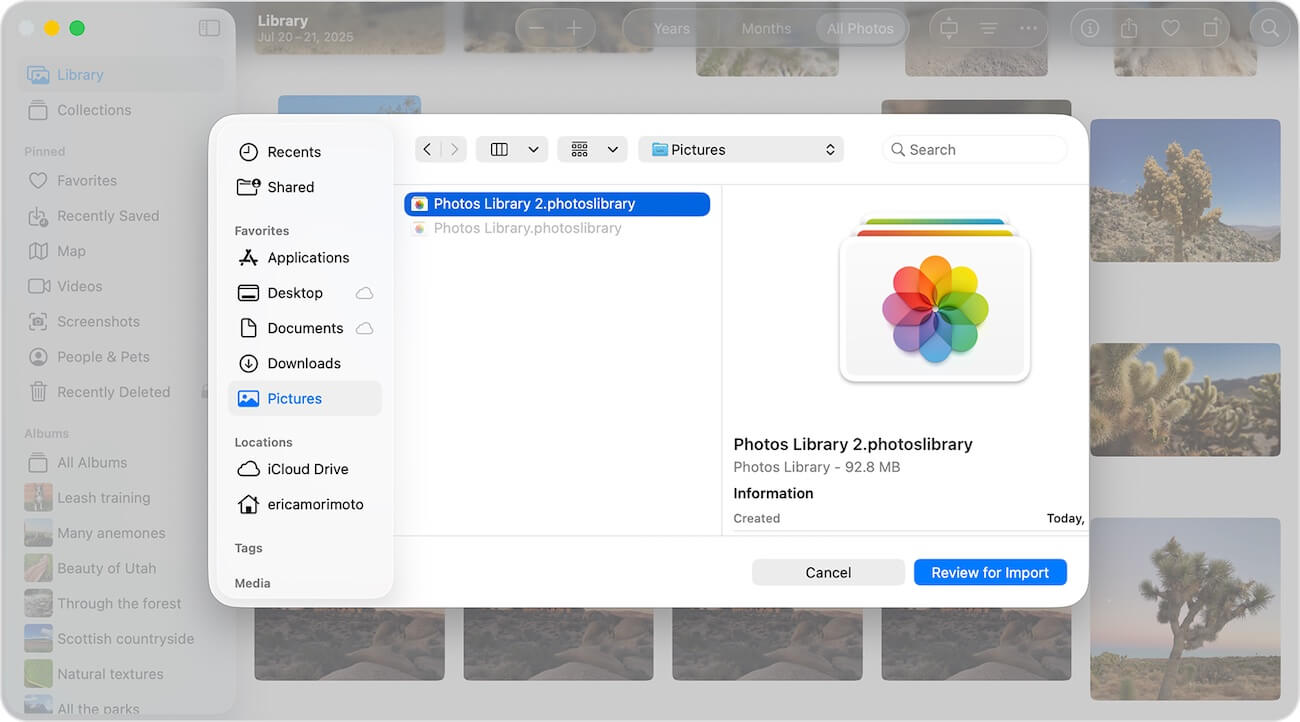
1. Open Apple Photos, go to File -> Import
2. Select the other photo library, choose the photos and videos to import
Limitations
• Albums are NOT preserved: Your photos will appear in one big "Recents" pile.
• Folder structures are destroyed: Any hierarchical organization is lost.
• Duplicates: This method often results in a cluttered library with multiple copies of the same image.
• Legacy Issues: Poor support for older iPhoto or Aperture libraries.
Best Way to Merge Photo Libraries with Albums (Recommended)
To merge libraries while preserving your organizational structure, metadata, and folders, you need a specialized tool. Photo Exifer is widely considered the best solution for this task. It acts as a bridge between libraries, ensuring that every album and tag migrates safely.
Key Benefits
• ✅ Full Album Preservation: Your albums and folder hierarchies remain exactly as they were.
• ✅ Metadata Integrity: Keeps all EXIF, GPS, and IPTC tags synchronized
• ✅ Smart Deduplication: Automatically identifies and skips duplicate files during the merge.
• ✅ Universal Support: Works with modern Photos libraries as well as legacy iPhoto libraries.
How to Merge Photo Libraries Using Photo Exifer
Follow these steps to safely merge your photo libraries:
Step 1: Install and Grant Permissions
Download and install Photo Exifer. To allow the app to move data between protected system libraries, go to System Settings > Privacy & Security > Full Disk Access and enable Photo Exifer.
Step 2: Add Your Photo Libraries
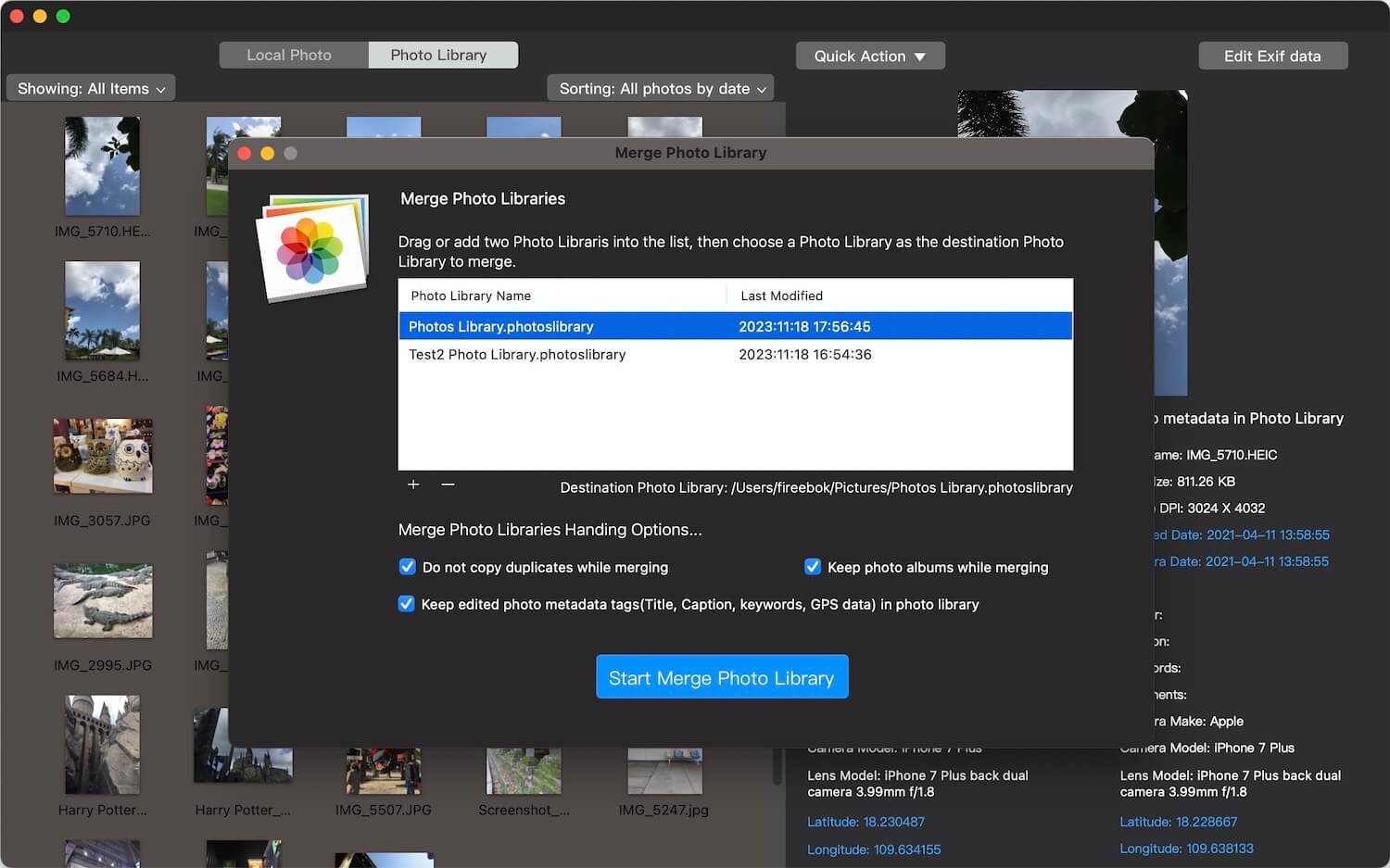
Launch the Photo Exifer app and select File -> Merge Photo Libraries…. Drag and drop the different library files (usually found in your Pictures folder) into the processing list.
Step 3: Configure Your Merge
Before starting, check your preferences. Ensure "Keep photo albums" and "Skip duplicate files" are selected. This ensures a clean, organized result.
Step 4: Execute and Verify
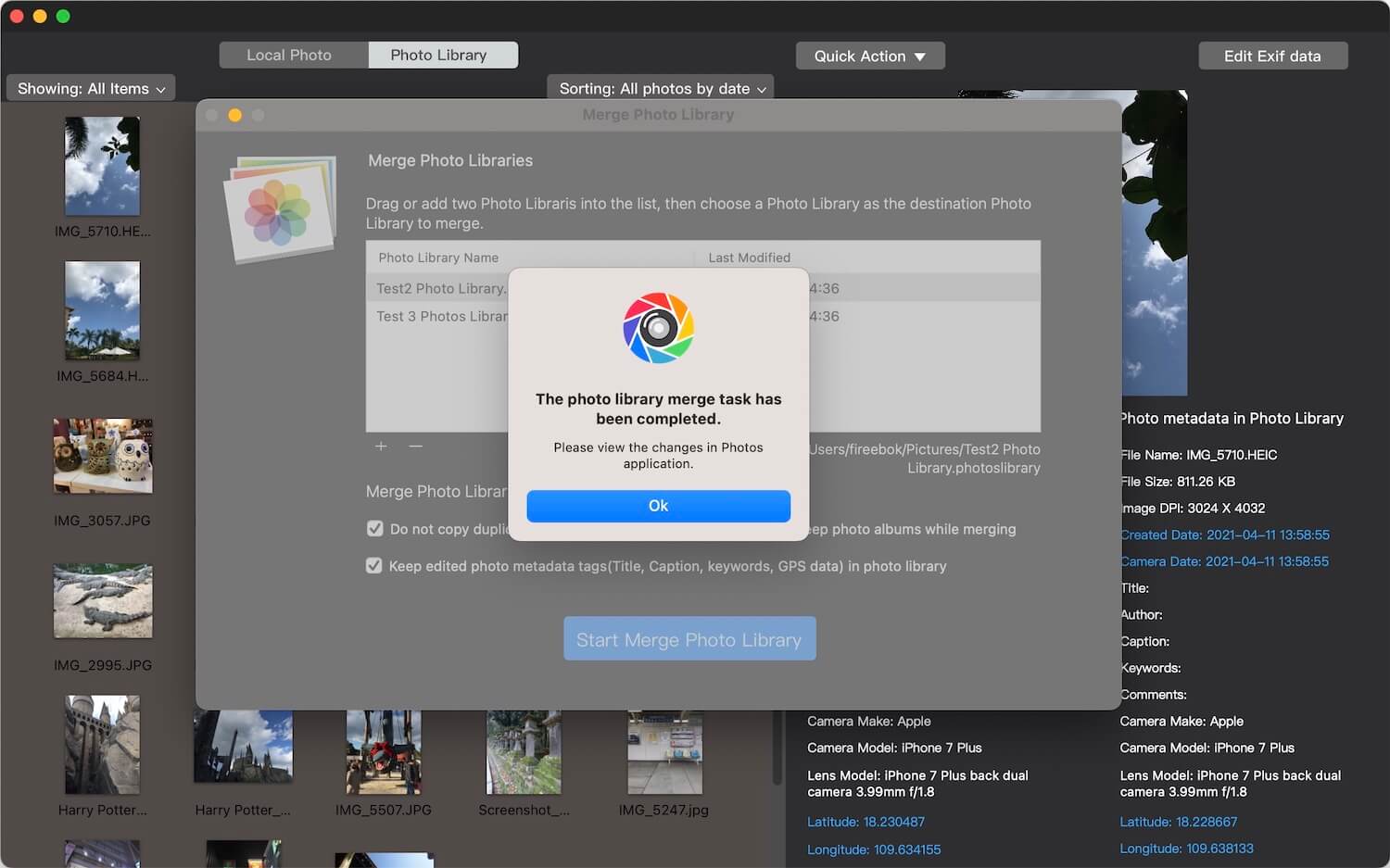
Choose your destination library (or create a new one) and click Start Merge Photo Library. Once the progress bar finishes, open the new library in Apple Photos. You will find all your photos exactly where they belong—inside their original albums.
Final Thoughts
Consolidating your digital life shouldn't mean losing your hard work. While Apple's native tools are fine for a basic transfer of files, they aren't designed for users who value organization. By using a professional tool like Photo Exifer, you can merge your libraries with total confidence, knowing your albums, folders, and metadata will be waiting for you on the other side.

About Fireebok Studio
Our article content is to provide solutions to solve the technical issue when we are using iPhone, macOS, WhatsApp and more. If you are interested in the content, you can subscribe to us. And We also develop some high quality applications to provide fully integrated solutions to handle more complex problems. They are free trials and you can access download center to download them at any time.
| Popular Articles & Tips You May Like | ||||
 |
 |
 |
||
| Five ways to recover lost iPhone data | How to reduce WhatsApp storage on iPhone | How to Clean up Your iOS and Boost Your Device's Performance | ||