Modern iPhones and iPads offer robust support for external storage devices like USB flash drives and SD cards, making it easier than ever to transfer high-resolution photos, 4K videos, and large documents. However, monitoring storage usage and organizing files isn't always intuitive using only built-in tools.
In this guide, you’ll learn how to connect external hardware to your iOS device and discover a more efficient way to manage your data and reclaim space.
Connecting External Storage to Your iPhone or iPad
Before you can organize your data, you must ensure your hardware is compatible and correctly connected.
Supported File Systems
To be recognized by iOS/iPadOS, your USB drive or SD card should be formatted as one of the following:
• APFS or APFS (Encrypted)
• macOS Extended (HFS+)
• exFAT (Recommended for cross-platform use)
• FAT32
Required Adapters
Depending on your specific device model, you may need an official Apple adapter or a high-quality third-party equivalent:
• * USB-C to SD Card Reader (For iPad Pro/Air and iPhone 15/16 series)
• * Lightning to USB 3 Camera Adapter (For older iPhones/iPads)
• * Lightning to SD Card Camera Reader
Power Requirements
Some external hard drives—particularly mechanical HDDs—require more power than a mobile device can provide. If your drive doesn't have its own power supply, you may need to use a powered USB hub to ensure a stable connection.
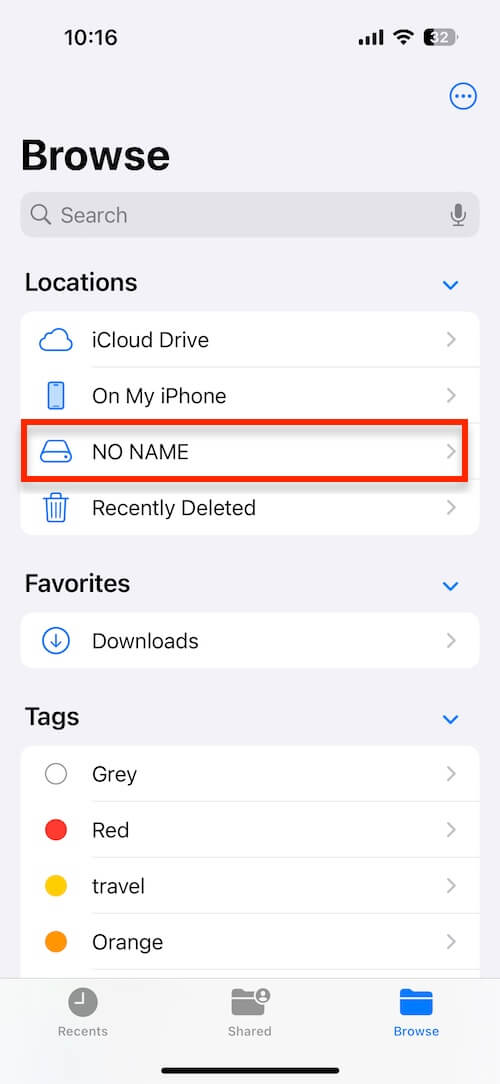
Once connected, your drive will appear under the Browse tab in the native Files app.
Limitations of the Native Files App
While the Files app provides basic access, it falls short for power users because:
• * It lacks a comprehensive overview of storage health.
• * There is no breakdown of file sizes by category (e.g., Photos vs. Documents).
• * It offers no automated way to find duplicate or oversized files.
• * Manual browsing is required to hunt down and delete clutter.
Manage Storage More Efficiently with DriveRadar
To overcome these limitations and gain full control over your hardware, you can use a specialized management tool like DriveRadar. DriveRadar is designed to provide the "missing" storage features for iOS. It helps you analyze usage instantly, organize files automatically, and free up space with surgical precision.
Key Features:
Some external hard drives—particularly mechanical HDDs—require more power than a mobile device can provide. If your drive doesn't have its own power supply, you may need to use a powered USB hub to ensure a stable connection.
• * Visual Storage Breakdown: View total and available space at a glance.
• * Automatic Categorization: Files are instantly sorted into Images, Videos, Audio, Documents, and Archives.
• * Smart Sorting: View your largest files first to identify what is consuming the most space.
How to Use DriveRadar to Clean Your External Drive
1. Connect Your Storage: Plug in your USB drive or SD card and ensure it is detected by iOS.
2. Install and Launch DriveRadar: Install DriveRadar in AppStore and open the DriveRadar app and select your external drive from the dashboard.
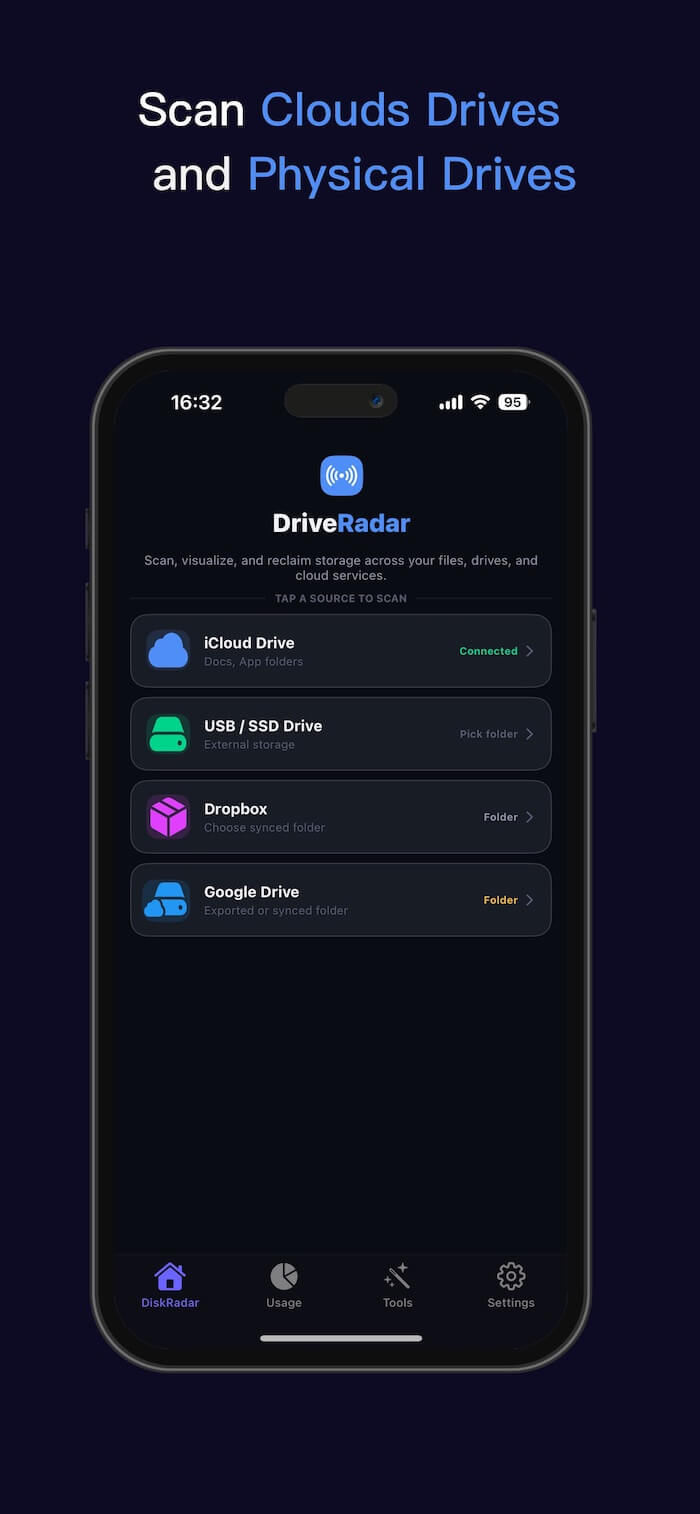
3. Scan the Device: The app will index the drive to provide a detailed map of your data.
4. Analyze Usage: View the storage overview to see which categories (like 4K video) are taking up the most room.
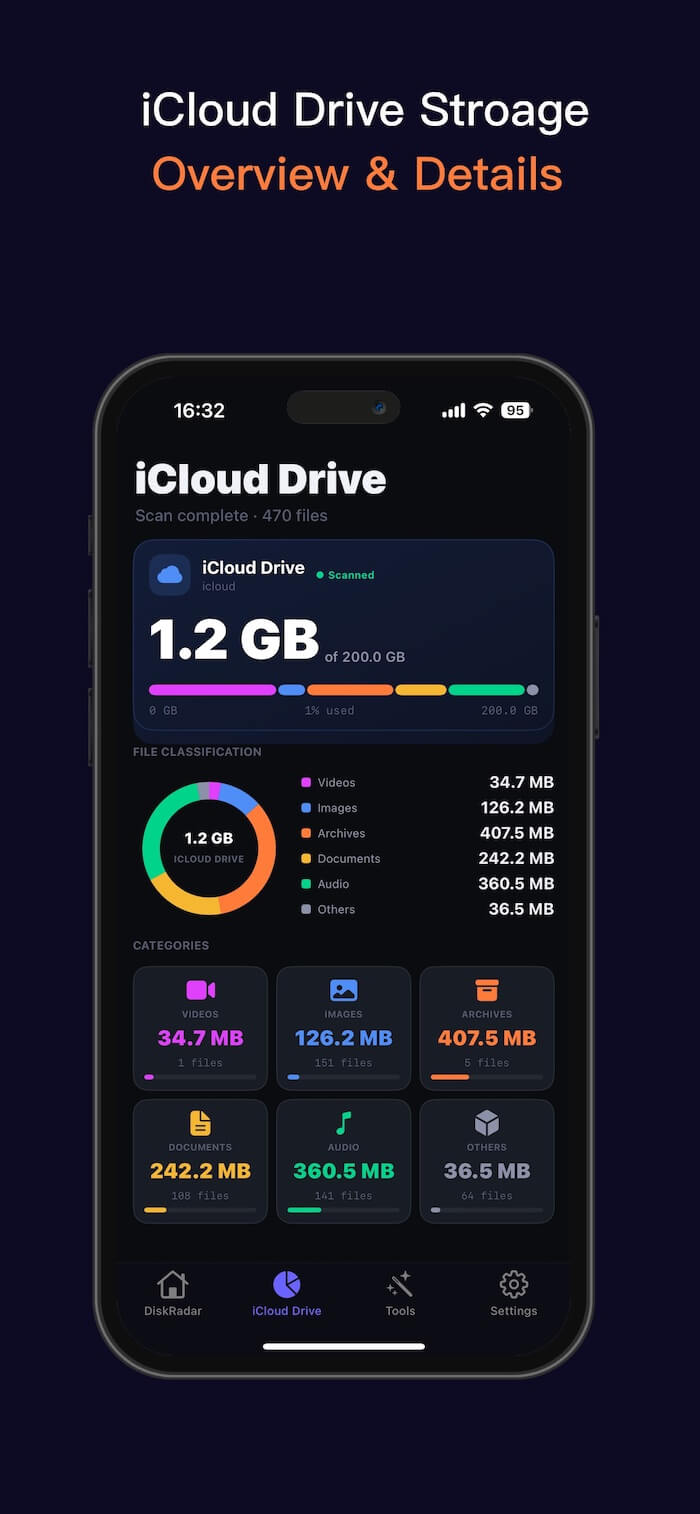
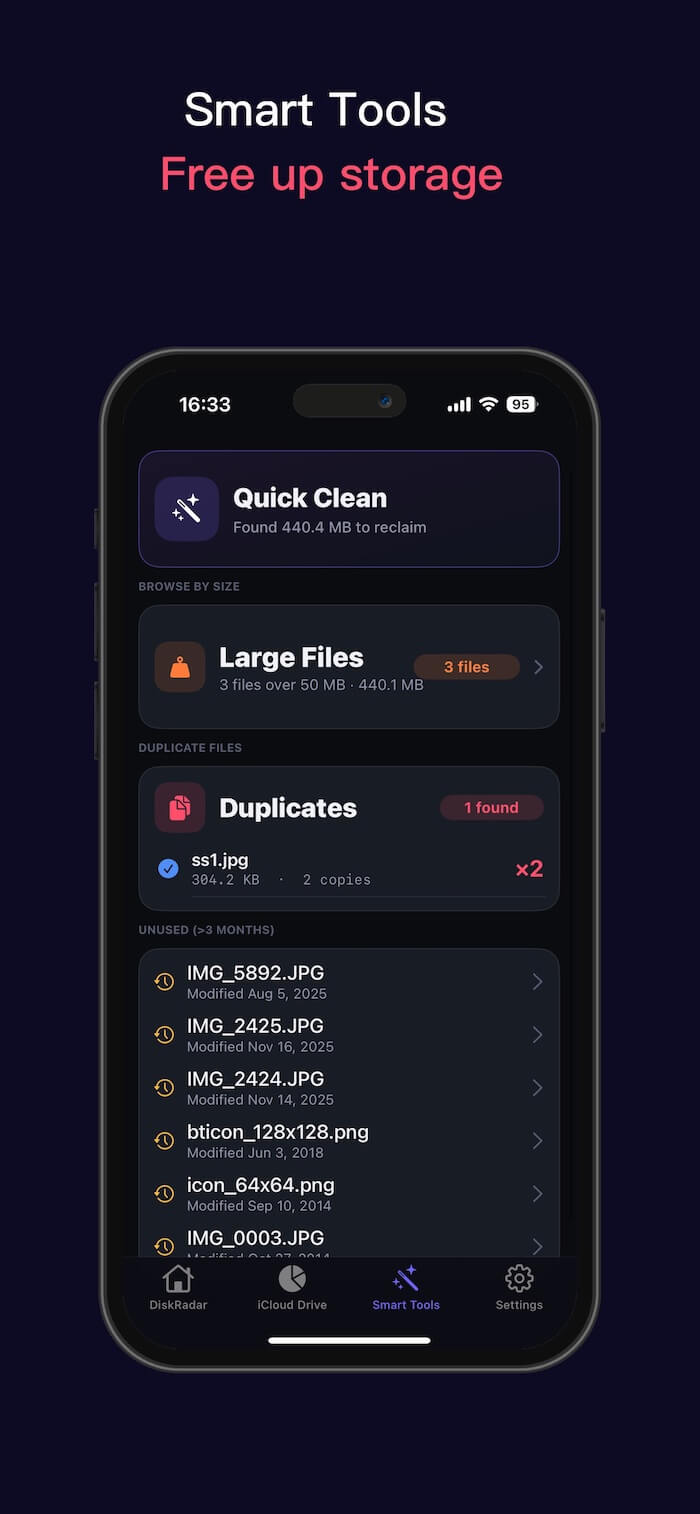
5. Clean & Organize: Use the "Largest Files" or "Duplicates" tools to identify unnecessary data and delete it directly within the app.
A Unified Hub for All Your Data
Beyond physical USB drives, DriveRadar acts as a centralized hub. You can manage your iCloud Drive, Dropbox, and Google Drive alongside your external hardware, allowing you to move files between the cloud and physical storage in one seamless interface.
Final Thoughts
Managing external storage on an iPhone or iPad doesn't have to be a manual chore. While the Files app is a good starting point, using a dedicated manager like DriveRadar allows you to visualize your storage and keep your devices clutter-free. If you frequently work with external media, a smarter management solution will save you time and ensure you never run out of space during a critical task.
| More Related Articles | ||||
 |
1. How to View and Remove Video Metadata on iPhone? 2. How to Fix Photos Showing the Incorrect Date on iPhone? |
|||
About Fireebok Studio
Our article content is to provide solutions to solve the technical issue when we are using iPhone, macOS, WhatsApp and more. If you are interested in the content, you can subscribe to us. And We also develop some high quality applications to provide fully integrated solutions to handle more complex problems. They are free trials and you can access download center to download them at any time.
| Popular Articles & Tips You May Like | ||||
 |
 |
 |
||
| Five ways to recover lost iPhone data | How to reduce WhatsApp storage on iPhone | How to Clean up Your iOS and Boost Your Device's Performance | ||