Most people make and receive many phone calls every day, but not every phone number is saved as a contact. Have you ever tried to find an old phone number in your iPhone call history, only to discover that the call is no longer listed?
This can be frustrating, especially when you remember receiving or making the call but cannot find it in the Recents list. There are several possible reasons why old call history may not appear on your iPhone, including iCloud syncing settings, carrier or network issues, the limited number of call records displayed by the Phone app, and changes to the Phone app in iOS 26.
In this guide, we'll explain the most common reasons why old call history is not showing on iPhone and provide several ways to find or recover your missing call records.
1. Restart Your iPhone
If the problem is caused by a temporary iOS system issue, background process, or cached data, restarting your iPhone may help refresh the Phone app and restore the missing call history.
To restart your iPhone: Open Settings. Tap General. Scroll down and tap Shut Down. Slide to power off your iPhone. Wait a few seconds, then turn it back on. After restarting your iPhone, open the Phone app and check the Recents list again.
2. Check the New Call Layout in iOS 26
If your iPhone is running iOS 26, the Phone app has a redesigned call interface with Unified and Classic layouts. The new layout also provides additional filters for organizing calls.
Depending on the selected layout and filter, a call may not appear in the list you are currently viewing. For example, the Phone app can filter calls by categories such as: Missed Calls, Voicemails, Unknown Callers, Spam
If you cannot find an old call, check whether a filter is currently enabled. Open the Phone app and check the call layout and filters at the top of the call history screen. Switch between Unified and Classic layouts if available, and check the Missed Calls or other relevant filters.
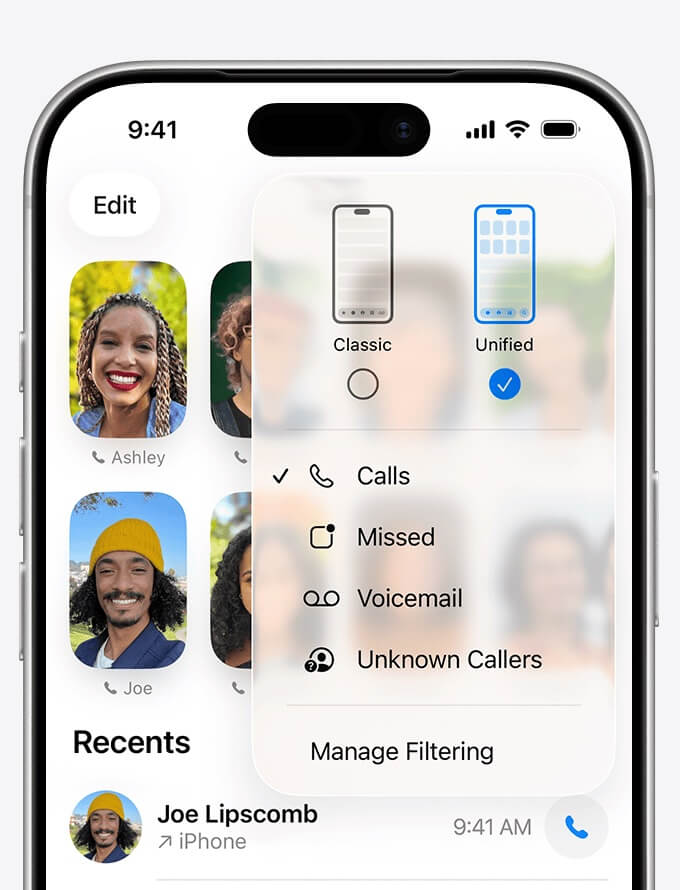
This is particularly important after updating to iOS 26 because the redesigned Phone app may display call history differently from earlier iOS versions.
3. Check iCloud Phone & FaceTime Sync
Your call history can be synchronized across Apple devices through iCloud when Phone & FaceTime syncing is enabled.
If Phone & FaceTime syncing is disabled, call history may remain only on the individual device and is not included in an iCloud Backup in the same way as other device data. To check this setting: Settings → [Your Name] → iCloud → See All → Phone & FaceTime
Make sure Phone & FaceTime syncing is enabled if you want your call history to be synchronized with iCloud and available across your Apple devices. If you recently changed iCloud settings, give your iPhone some time to synchronize before checking the Phone app again.
4. iPhone Call History Has a Limited Number of Visible Records
Another reason you may not be able to find an old call is that the Phone app does not display an unlimited number of call records in its normal call history list. When many calls have been made or received, older records can disappear from the visible Recents list as newer calls are added.
This does not necessarily mean that the older call data has been permanently deleted. If you need to find older call records that are no longer visible in the Phone app, you may need to check an iPhone backup or use specialized iPhone data recovery software.
Find Old iPhone Call History from a Backup
If you have an encrypted iPhone backup on your Mac or PC, you can use a tool such as Fone Rescue to scan the backup and look for older call history records. Before scanning an iPhone backup, make sure you know the backup password if the backup is encrypted.
To find call history from an iPhone backup with Fone Rescue:
1. Download and install Fone Rescue on your computer.
2. Open Fone Rescue. Select Recover from iTunes Backup. Select the encrypted iPhone backup you want to scan. Click Start Scan.
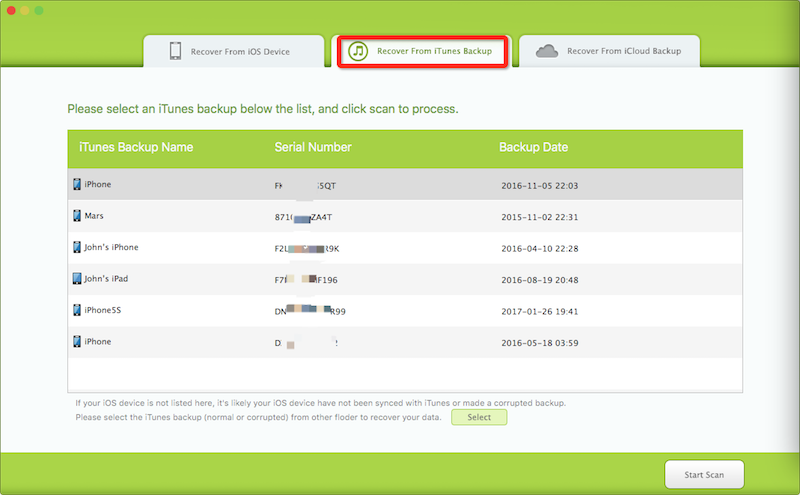
3. Enter the password for the encrypted iPhone backup when prompted. Wait for the scanning process to finish.
4. Go to Contacts & Messages & Call Log. Select Call History to view the available call records.
This can be useful when an old call is no longer visible in the Phone app but is still available in an older iPhone backup.
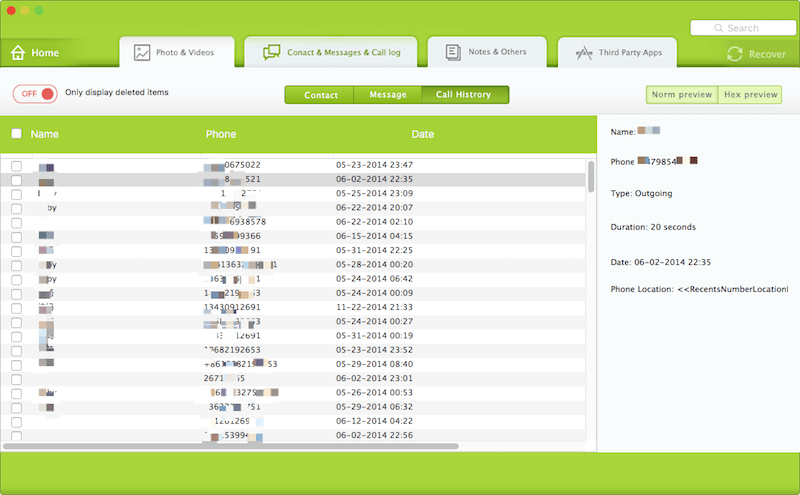
Find Call History Directly from an iPhone
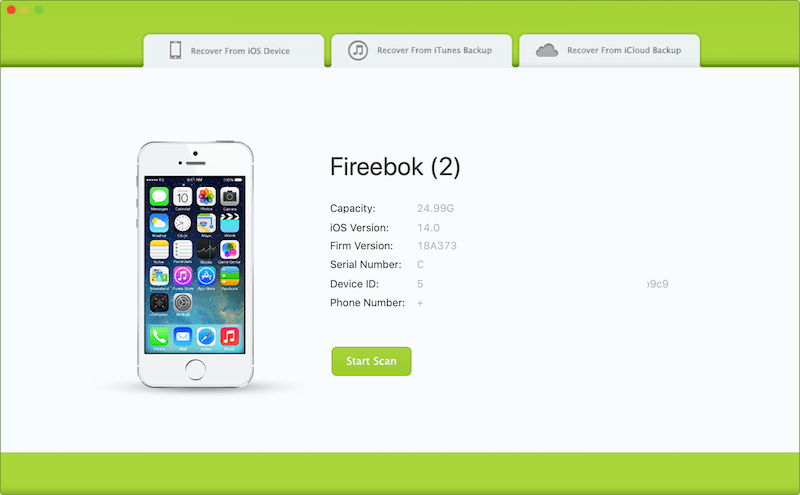
If you don't have a suitable iPhone backup, Fone Rescue also allows you to scan a connected iPhone. Connect your iPhone to your computer, open Fone Rescue, and select Recover from iOS Device.
Follow the instructions to scan the connected iPhone and go to Contacts & Messages & Call Log. Select Call History to check whether the missing call history can be found.
5. Check Your Carrier's Call History
If you cannot find an old phone number in the iPhone Phone app, another option is to check your mobile carrier's call records.
Depending on your carrier and mobile plan, your online account or monthly bill may contain incoming and outgoing call information. Carrier records can be especially useful when the call is too old to appear in the iPhone's local Recents list.
Keep in mind that carrier records and the iPhone's call history are separate. A number shown in your carrier account may not necessarily be available in the Phone app.
Conclusion
There are several reasons why old call history may not show on an iPhone. A temporary iOS issue, Phone app filters, the new iOS 26 call layout, iCloud synchronization settings, or a large number of newer calls can all make it difficult to find an older call.
Start by restarting your iPhone and checking the Phone app's layout and filters. Then verify your Phone & FaceTime iCloud settings. If the call is no longer available in the Phone app, check an existing encrypted iPhone backup or use an iPhone data recovery tool to look for older call records.
If you frequently need access to important call records, regularly backing up your iPhone can make it easier to recover older data when it is no longer visible on the device.
| More Related Articles | ||||
 |
1. How to Edit Video and MP4 Metadata on iPhone and iPad? 2. How to Rename Photos on iPhone Without a Computer? |
|||
About Fireebok Studio
Our article content is to provide solutions to solve the technical issue when we are using iPhone, macOS, WhatsApp and more. If you are interested in the content, you can subscribe to us. And We also develop some high quality applications to provide fully integrated solutions to handle more complex problems. They are free trials and you can access download center to download them at any time.
| Popular Articles & Tips You May Like | ||||
 |
 |
 |
||
| Five ways to recover lost iPhone data | How to reduce WhatsApp storage on iPhone | How to Clean up Your iOS and Boost Your Device's Performance | ||