Have you ever transferred a large amount of travel footage from your digital camera to your Mac, only to discover that the video files won’t sort by date in Finder or Final Cut Pro?
Many users notice that after importing videos, all files show the same creation date, making it impossible to organize footage by the actual shooting day. This becomes especially frustrating when working with hundreds of clips.
If your video files are not sorting correctly by date on Mac, don’t worry. In this article, we’ll explain why this happens and how to fix it properly.
Why Video Files Don’t Sort by Date in Finder or Final Cut Pro
When you sort videos by date in Finder or Final Cut Pro, macOS typically uses:
• Creation Date
• Modification Date
• Date Added
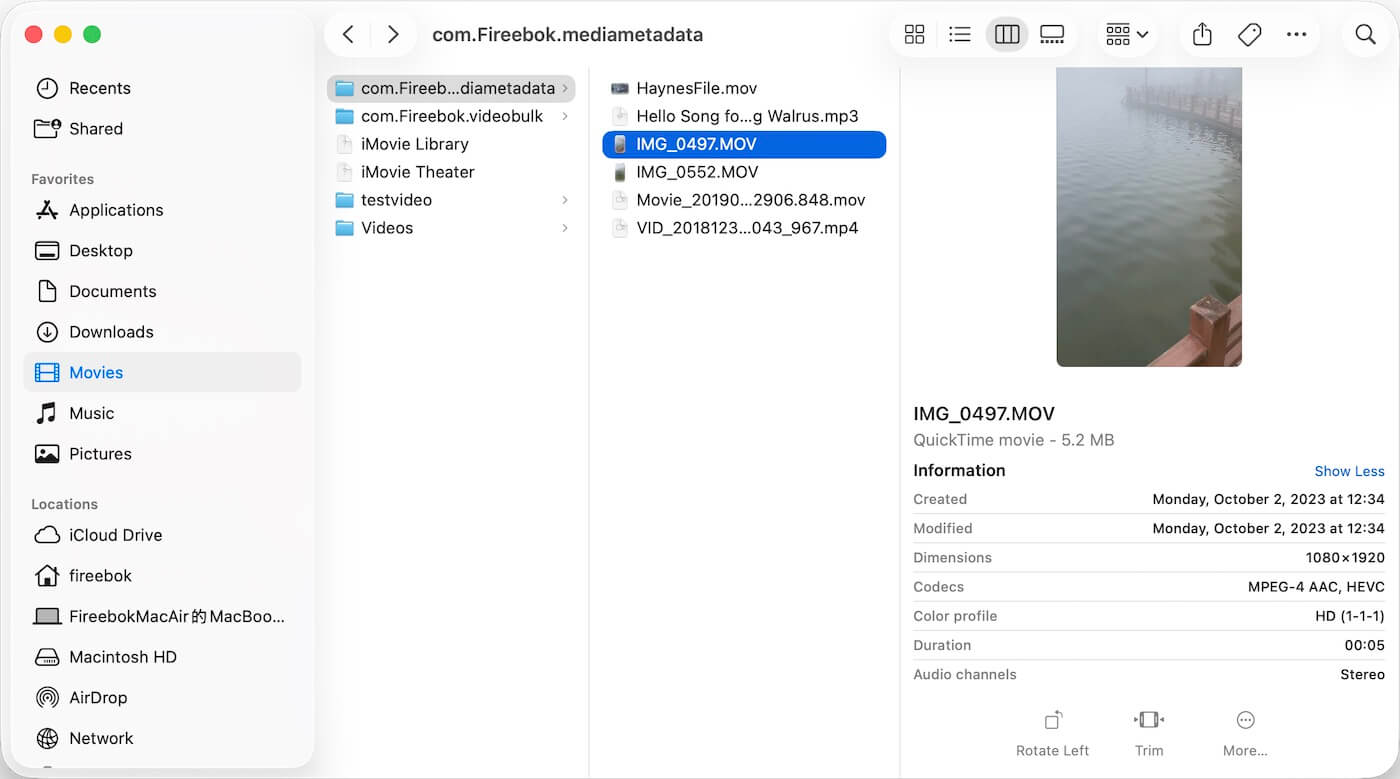
However, these system dates are often assigned when the files are copied or transferred to your Mac, not when the videos were actually recorded.
The real shooting date (also called capture date or recording date) is stored inside the video metadata, not in the macOS file creation date.
So when you transfer multiple video files at the same time, macOS gives them the same creation date — which is why they appear unsorted.
How to Fix Video Files Not Sorting by Date
To properly sort your videos by the actual shooting date, you need to update the macOS Creation Date to match the video’s Recording Date (metadata capture date).
Solution: Copy Shooting Date to Creation Date
You can use a third-party tool like Media Meta, which supports batch editing video metadata on Mac.
Steps to Update Video Creation Date:
1. Download and install Media Meta on your Mac
2. Launch the app and import your video files. Select the videos you want to fix. Click Quick Action → Copy Shooting/Recording Date to Creation Date
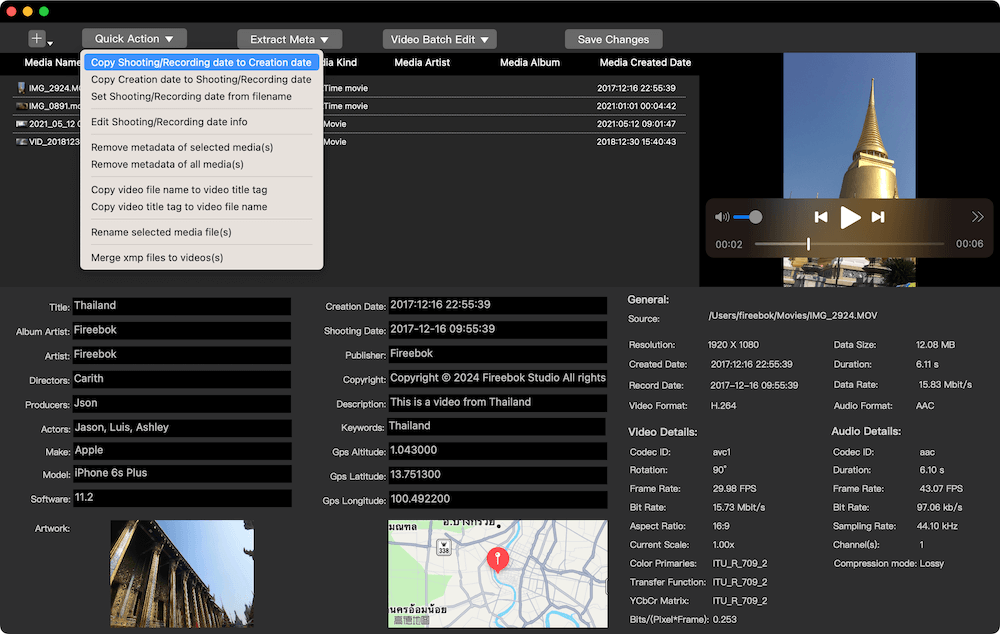
The software will update the file creation date to match the original shooting date stored in the metadata.
Verify in Finder: Once processed, go back to Finder or Final Cut Pro and sort by Date Created. Your footage will now be perfectly organized by the actual second the "Record" button was pressed.
Benefits of Updating Video Metadata
In addition to copying the shooting date to the file creation date, Media Meta also allows you to edit and modify the video capture date directly in the video metadata. Media Meta also allows you to:
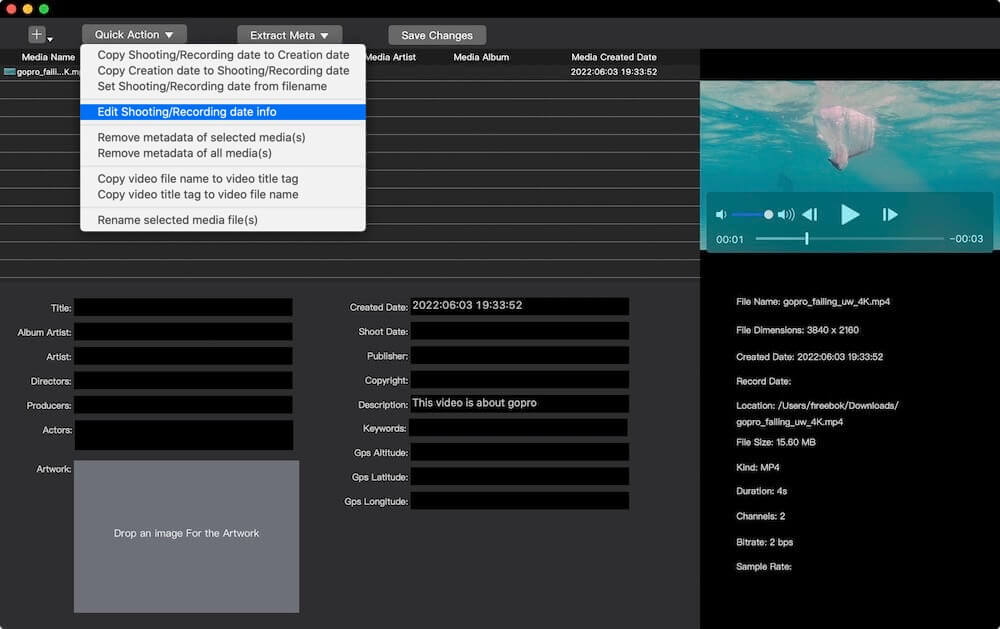
• Batch Rename & Tag: Add titles, descriptions, and copyright info to hundreds of clips at once.
• GPS Correction: Add or remove location data for privacy or project organization.
• Custom Artwork: Embed custom posters into your video files so they look professional in media players.
• Metadata Cleaning: Strip unwanted tags to reduce file size or protect sensitive shooting information.
This is especially helpful for filmmakers, vloggers, and content creators who need organized footage for editing projects.
Final Thoughts
If your video files are not sorting by date in Finder or Final Cut Pro, the problem is not with the apps — it’s because macOS uses the file creation date instead of the video’s actual shooting date.
By copying the recording date to the creation date, you can quickly restore proper chronological order and organize your footage efficiently.
| More Related Articles | ||||
 |
1. How to View and Remove Video Metadata on iPhone? 2. How to Fix Photos Showing the Incorrect Date on iPhone? |
|||
About Fireebok Studio
Our article content is to provide solutions to solve the technical issue when we are using iPhone, macOS, WhatsApp and more. If you are interested in the content, you can subscribe to us. And We also develop some high quality applications to provide fully integrated solutions to handle more complex problems. They are free trials and you can access download center to download them at any time.
| Popular Articles & Tips You May Like | ||||
 |
 |
 |
||
| Five ways to recover lost iPhone data | How to reduce WhatsApp storage on iPhone | How to Clean up Your iOS and Boost Your Device's Performance | ||