Some iPhone users have reported that their devices became almost unusable after updating to iOS 26.2.1. After the update, many apps may crash immediately after opening, freeze, or display error messages such as “Something went wrong. Try again.”
Many affected users tried deleting and reinstalling apps from the App Store, but the problem continued. In most cases, the iPhone worked normally before the iOS update, making the issue particularly frustrating.
If you or someone you know is experiencing this problem, don’t worry. In this guide, we’ll show several ways to fix the iOS 26.2.1 bug that causes apps to crash or freeze on iPhone.
1. Restart Your iPhone
Restarting your iPhone is often the simplest way to resolve temporary system glitches. It can also clear system cache and refresh background processes.
Steps to restart your iPhone
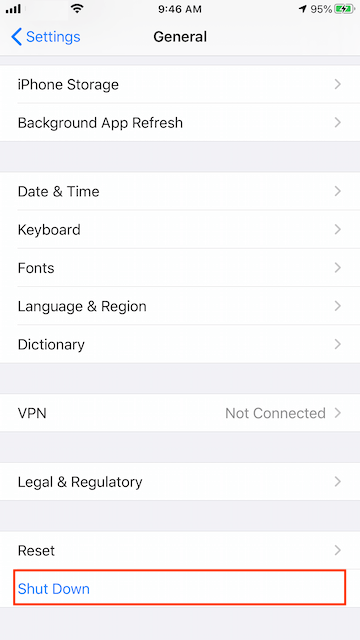
1. Open Settings. Go to General → Shut Down.
2. Drag the power slider to turn off your iPhone. Wait a few seconds.Press and hold the Side button (Sleep/Wake button) until the Apple logo appears.
After the restart, check whether your apps are working normally again.
2. Check Your iPhone Local Storage
If your iPhone storage is nearly full, many apps may crash, freeze, or fail to open properly.
How to check iPhone storage
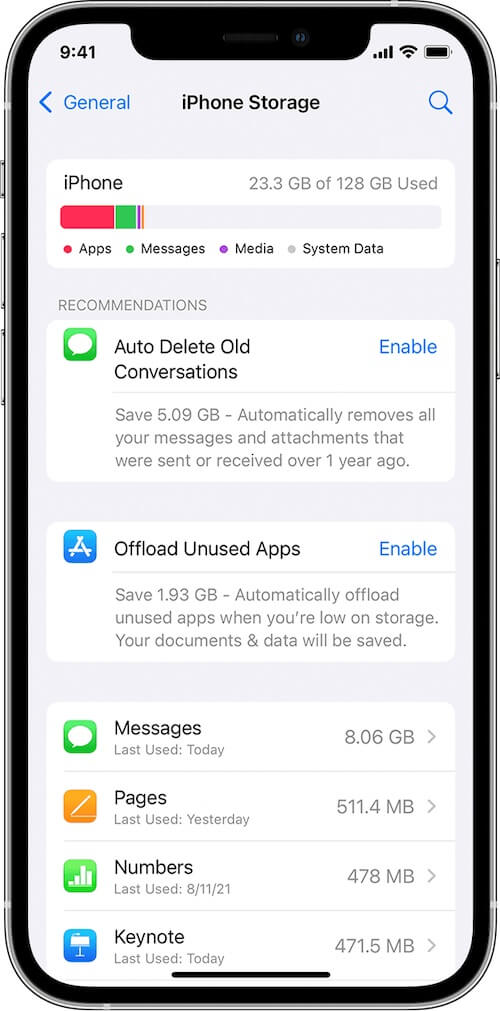
1. Open Settings. Go to General → iPhone Storage. Check how much free space is available.
If storage is low, iOS will show recommendations for optimizing storage. Tap Show All to review these suggestions and remove unnecessary files, apps, or media.
Freeing up storage space can often restore normal app performance.
3. Check iCloud Storage Settings
Many iPhone features rely on iCloud. If your iCloud storage is full or syncing improperly, it may affect some apps.
Optimize iPhone photo storage
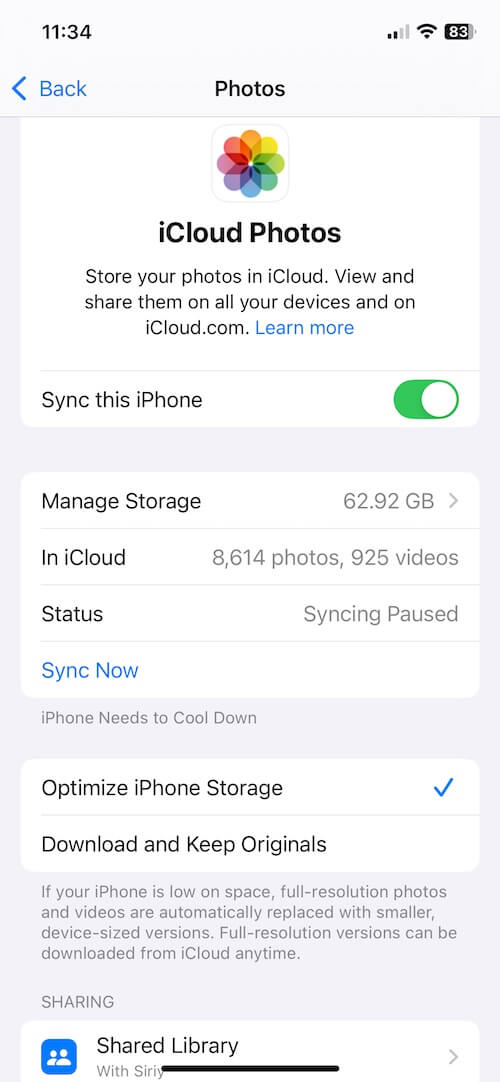
1. Open Settings. Tap [Your Name] → iCloud → Photos.
2. Select Optimize iPhone Storage instead of Download and Keep Originals.
This option stores full-resolution photos in iCloud while keeping smaller versions on your device, which can reduce local storage usage.
Check iCloud storage capacity
1. Open Settings. Tap [Your Name] → iCloud → Manage Storage.
2. Check whether your iCloud storage is full.
If necessary, delete unused backups or files to free up space.
4. Disable or Remove VPN Apps
If you have installed a third-party VPN app, it may interfere with your internet connection. Some apps require stable network access and may fail to load when VPN services are misconfigured.
Disable VPN on iPhone
1. Open Settings. Go to General → VPN & Device Management.
2. Tap VPN and disable the active connection.
You can also temporarily remove the VPN profile and test whether apps start working again.
5. Update to the Latest iOS Version
Apple often releases new updates to fix bugs and stability issues found in previous versions. Check if a newer update is available after iOS 26.2.1.
Steps to update iOS
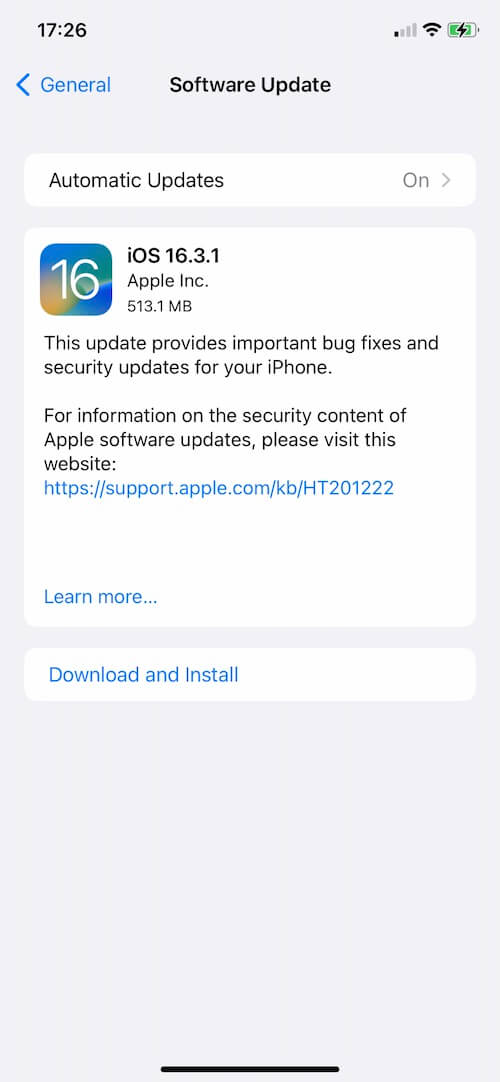
1. Open Settings. Go to General → Software Update.
2. Download and install the latest available iOS update.
Updating your device may include important bug fixes and security improvements.
6. Restore Your iPhone From a Backup
If the issue continues, restoring your iPhone may help resolve deeper system problems.
Steps to restore your iPhone
1. Back up your iPhone using iCloud or Finder on a Mac.
2. Open Settings → General → Transfer or Reset iPhone. Tap Erase All Content and Settings.
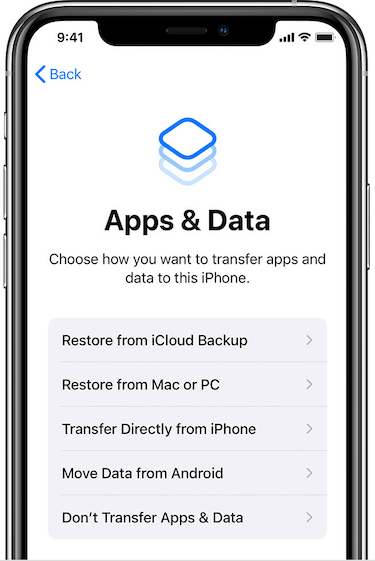
After the reset, set up your iPhone again and restore your iPhone from the backup. This process reinstalls the system and can often fix software issues caused by problematic updates.
Final Thoughts
If your iPhone becomes unusable after updating to iOS 26.2.1, the issue may be related to system bugs, low storage, network settings, or corrupted app data. You can try these solutions, following these steps should help you fix the iOS update bug and restore normal app functionality.
| More Related Articles | ||||
 |
1. How to View and Remove Video Metadata on iPhone? 2. How to Fix Photos Showing the Incorrect Date on iPhone? |
|||
About Fireebok Studio
Our article content is to provide solutions to solve the technical issue when we are using iPhone, macOS, WhatsApp and more. If you are interested in the content, you can subscribe to us. And We also develop some high quality applications to provide fully integrated solutions to handle more complex problems. They are free trials and you can access download center to download them at any time.
| Popular Articles & Tips You May Like | ||||
 |
 |
 |
||
| Five ways to recover lost iPhone data | How to reduce WhatsApp storage on iPhone | How to Clean up Your iOS and Boost Your Device's Performance | ||