Are your MP4 files suddenly not opening on your Mac? This issue can occur after updating to a new macOS version, transferring files to an external hard drive, or downloading videos from the internet or cloud storage.
When QuickTime Player displays an "Operation Could Not Be Completed" error or simply remains blank, it usually points to a metadata conflict or a codec issue. This guide walks you through the most effective ways to fix MP4 files that won’t open on Mac.
Common Reasons Why MP4 Files Won’t Open
Before trying advanced fixes, it helps to understand why macOS might be rejecting your file:
• Unsupported Codecs: "MP4" is just a container; if the video inside is encoded with an older or proprietary codec, QuickTime may fail to read it.
• Corruption: Interrupted downloads or improper ejects from external drives can lead to header damage.
• Security Quarantine: macOS "Gatekeeper" often tags files downloaded from the internet as suspicious, preventing them from launching.
• Metadata Errors: Incorrect file attributes can confuse the macOS Finder.
1. Verify the Video Metadata and Codec
The first step is to confirm the file is valid and not a "0 KB" empty container. You need to look at the internal stream data to see if the encoding is compatible with macOS.
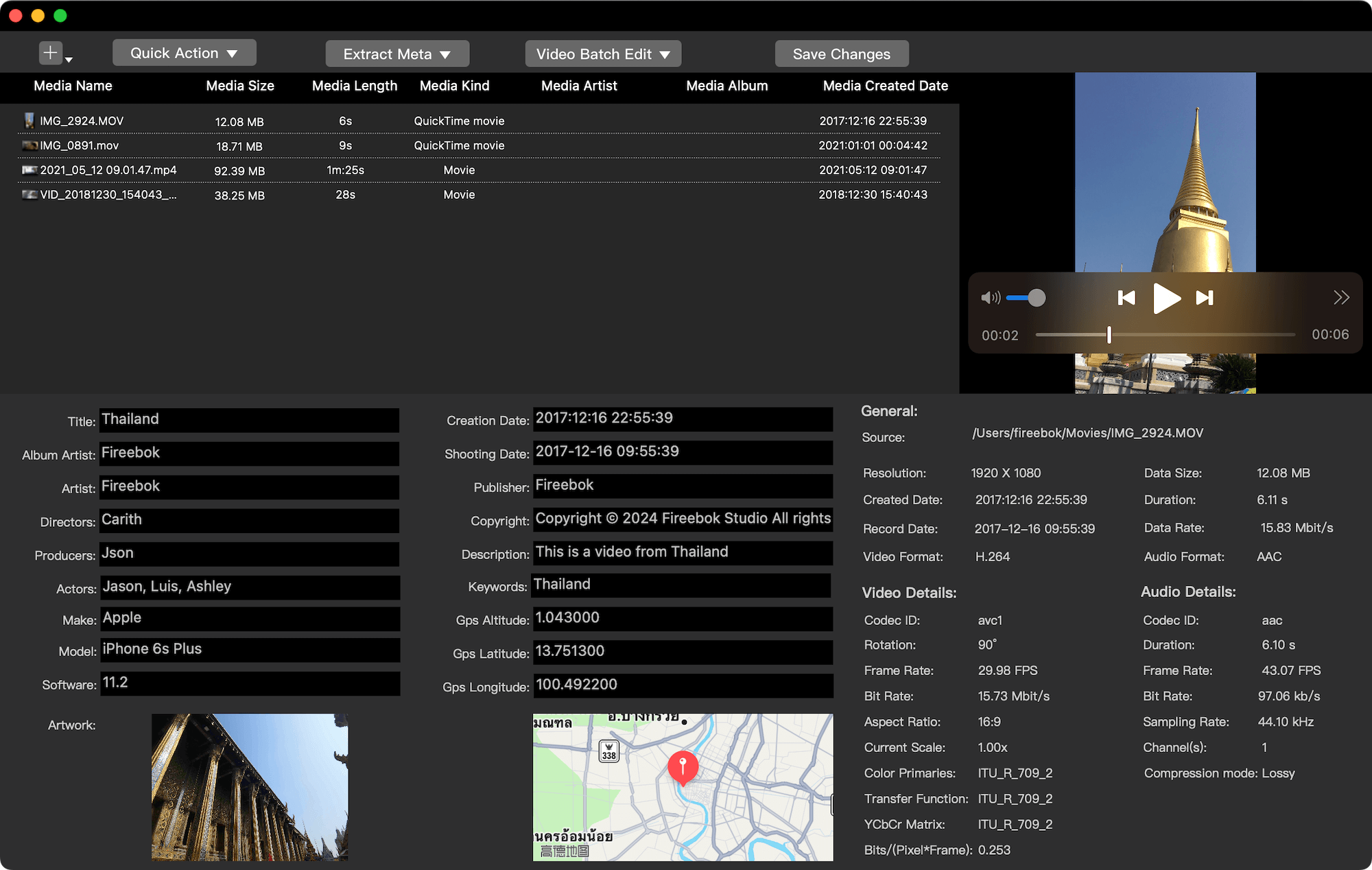
While QuickTime provides basic info, a dedicated tool like Media Meta allows you to see the deep technical details of the file.
• Check the Codec: macOS prefers H.264 or H.265 (HEVC).
• Check the Header: If the metadata is missing or scrambled, the file won't initialize.
2. Remove Security Restrictions (Quarantine Flags)
macOS uses a "Quarantine" attribute for files downloaded from the web. If Apple's security system cannot verify the file, it may block it entirely, showing an error like “Apple could not verify the mp4 is free of malware that may harm your Mac or compromise your privacy.”
You can strip these restrictive security flags and other conflicting metadata using Media Meta:
1. Import the problematic MP4 into the app. Select the file and navigate to Quick Action → remove metadata of all media(s).
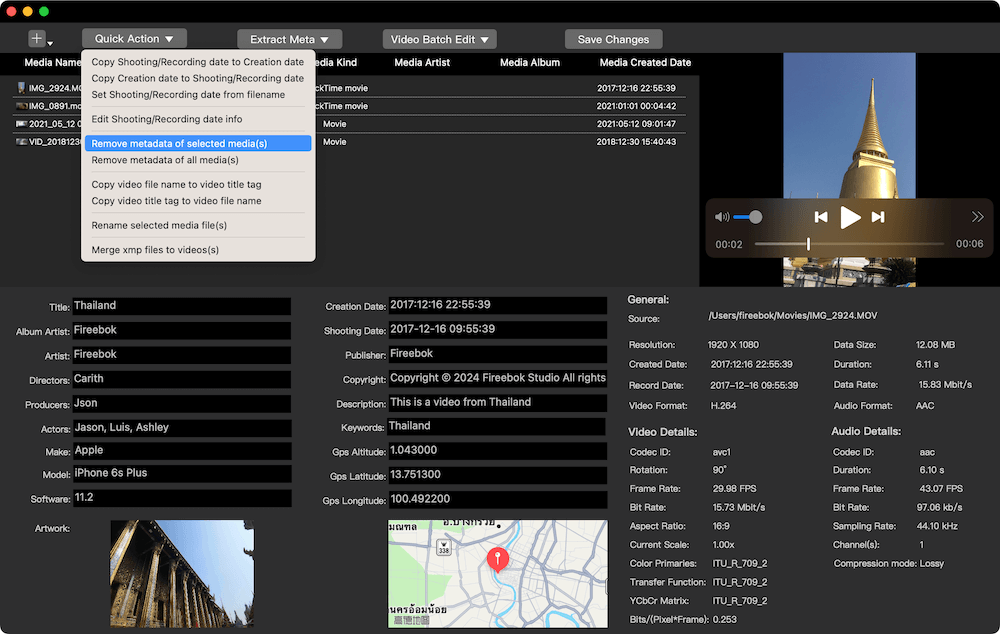
2. This clears the "Quarantine" status and resets the file attributes, often allowing it to open immediately in QuickTime Player.
3. Fix the Default App Settings
Sometimes the issue is as simple as an association error. After a system update, your Mac might "forget" which app should handle MP4s.
• The Fix: Right-click your file → Open With → QuickTime Player.
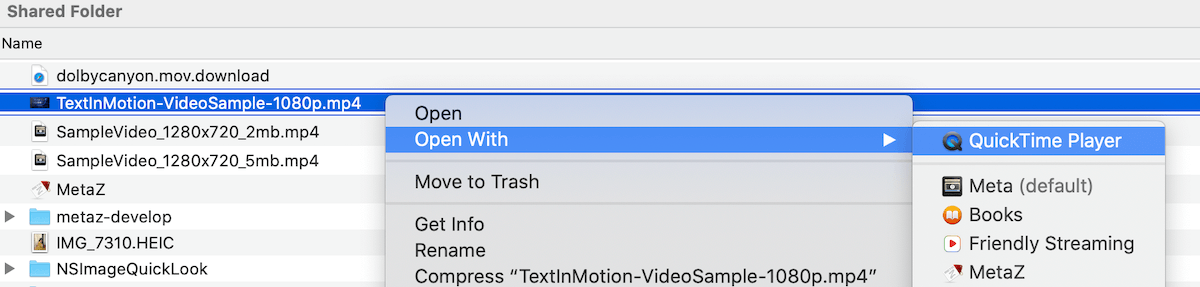
• Make it Permanent: Select the file, press Cmd + I, change "Open with" to your preferred player, and click Change All.
4. Convert Incompatible Codecs
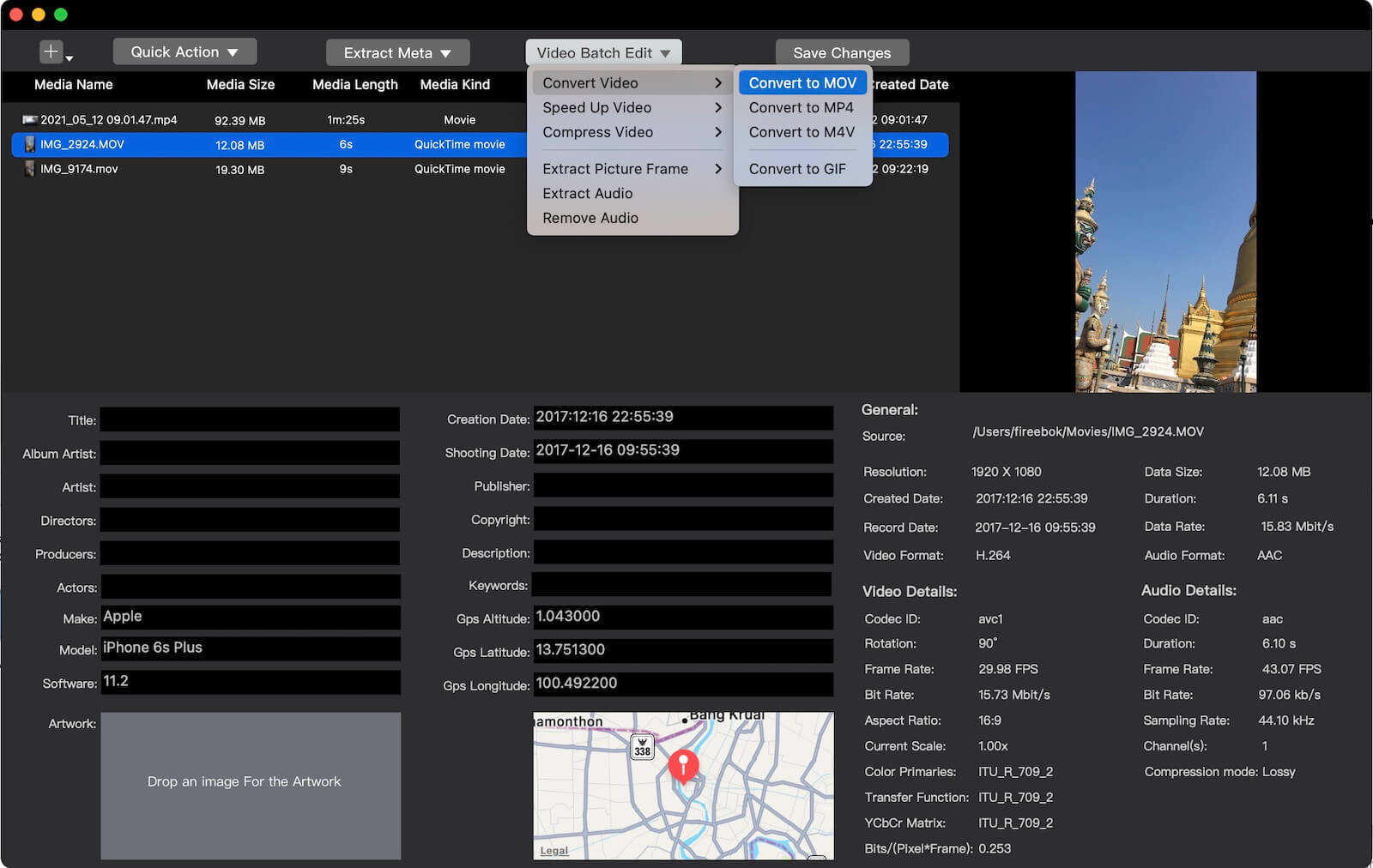
If your file is healthy but uses an unsupported codec (like older DivX or certain AVI-style encodings inside an MP4 wrapper), you must convert it to a native Apple format like MOV or M4V.
Using a conversion utility or the batch processing features in Media Meta can help you re-wrap the video into a format that QuickTime and Final Cut Pro can recognize.
Note: Never just manually change the file extension from .avi to .mp4. This doesn't change the encoding and will likely make the file even harder to open.
5. Use a Secondary Media Player
If QuickTime continues to struggle, try VLC Media Player. VLC contains its own internal codecs, meaning it can play almost any MP4 file, even if the macOS system library doesn't support it. If VLC can't open it, the file is likely significantly corrupted.
Final Thoughts
When an MP4 won't open, the problem is rarely the video itself—it's usually the "wrapper" or the security permissions attached to it. By using Media Meta to inspect the file and strip away broken metadata or quarantine flags, you can save your media without having to re-download or re-record it.
| More Related Articles | ||||
 |
1. How to View and Remove Video Metadata on iPhone? 2. How to Fix Photos Showing the Incorrect Date on iPhone? |
|||
About Fireebok Studio
Our article content is to provide solutions to solve the technical issue when we are using iPhone, macOS, WhatsApp and more. If you are interested in the content, you can subscribe to us. And We also develop some high quality applications to provide fully integrated solutions to handle more complex problems. They are free trials and you can access download center to download them at any time.
| Popular Articles & Tips You May Like | ||||
 |
 |
 |
||
| Five ways to recover lost iPhone data | How to reduce WhatsApp storage on iPhone | How to Clean up Your iOS and Boost Your Device's Performance | ||