Many Mac users set up a screen saver to display animations, photos, or graphics when their Mac is idle. However, after upgrading to macOS Tahoe, some users have reported that their Mac screen saver is not working correctly.
For example, some users say they can no longer use photos from Shared Albums as their screen saver. Others report that videos used as screen savers sometimes stutter or play unevenly.
If you are experiencing similar problems, don’t worry. In this article, we will show you how to fix Mac screen saver issues after the macOS Tahoe update.
Fix Shared Albums Not Working as the Screen Saver
Photos in Shared Albums are stored in the owner’s iCloud Photos library, not locally on your Mac. In many cases, your Mac may only display thumbnail previews instead of downloading the original photos.
Because the full-resolution files are not stored locally, the screen saver cannot access those photos.
Check Your iCloud Photos Settings
1. Open Apple Photos on your Mac. Go to Photos → Settings → iCloud.
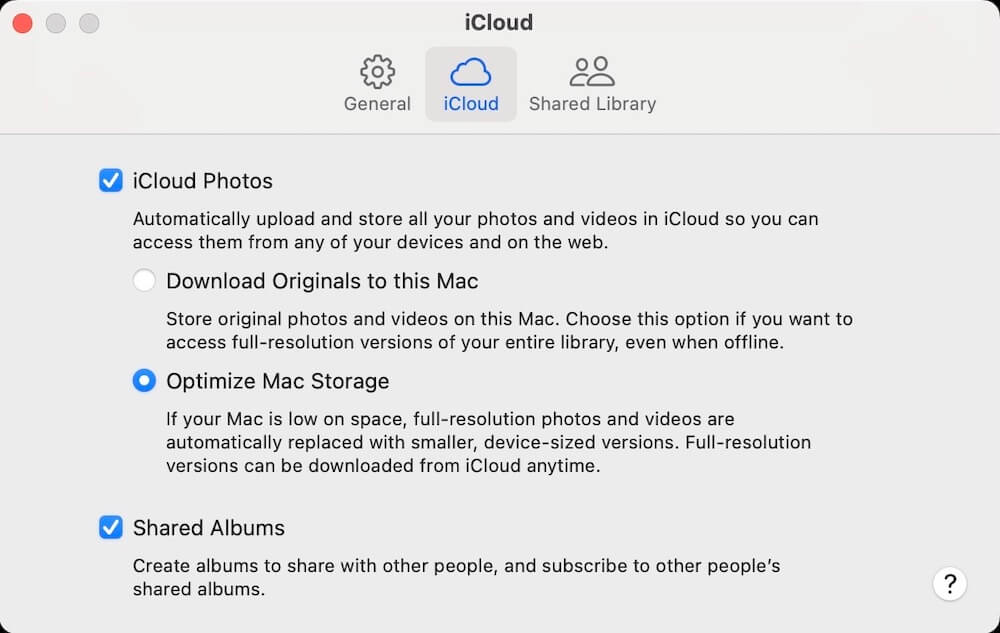
2. Check whether iCloud Photos is enabled. If the option Optimize Mac Storage is selected instead of Download Originals to This Mac, your Mac may only store thumbnails locally.
When thumbnails are used, the screen saver cannot load the actual images from the Shared Album.
Download the Photos to Your Own Library
To fix this issue:
1. Open Apple Photos. Go to the Shared Album containing the photos.
2. Select the photos you want to use. Add or copy them to one of your own albums in your personal library.
During this process, the original photos will download to your Mac. Once the files are stored locally, you can select them as a screen saver and they should work normally.
Fix Video Stuttering in Screen Saver
If you are using video files as a screen saver, you may sometimes notice that the video stutters or plays unevenly.
This usually happens because the video frame rate does not match the display refresh rate of your Mac’s screen.
Each video file contains a frame rate, and if the display refresh rate is incompatible, the screen saver video may appear choppy.
Adjust the Display Refresh Rate
You can try lowering the display refresh rate to improve compatibility.
1. Click the Apple menu () and open System Settings. Select Displays.
2. Find the Refresh Rate setting. Choose 48 Hz or another lower refresh rate and test whether the video plays smoothly.
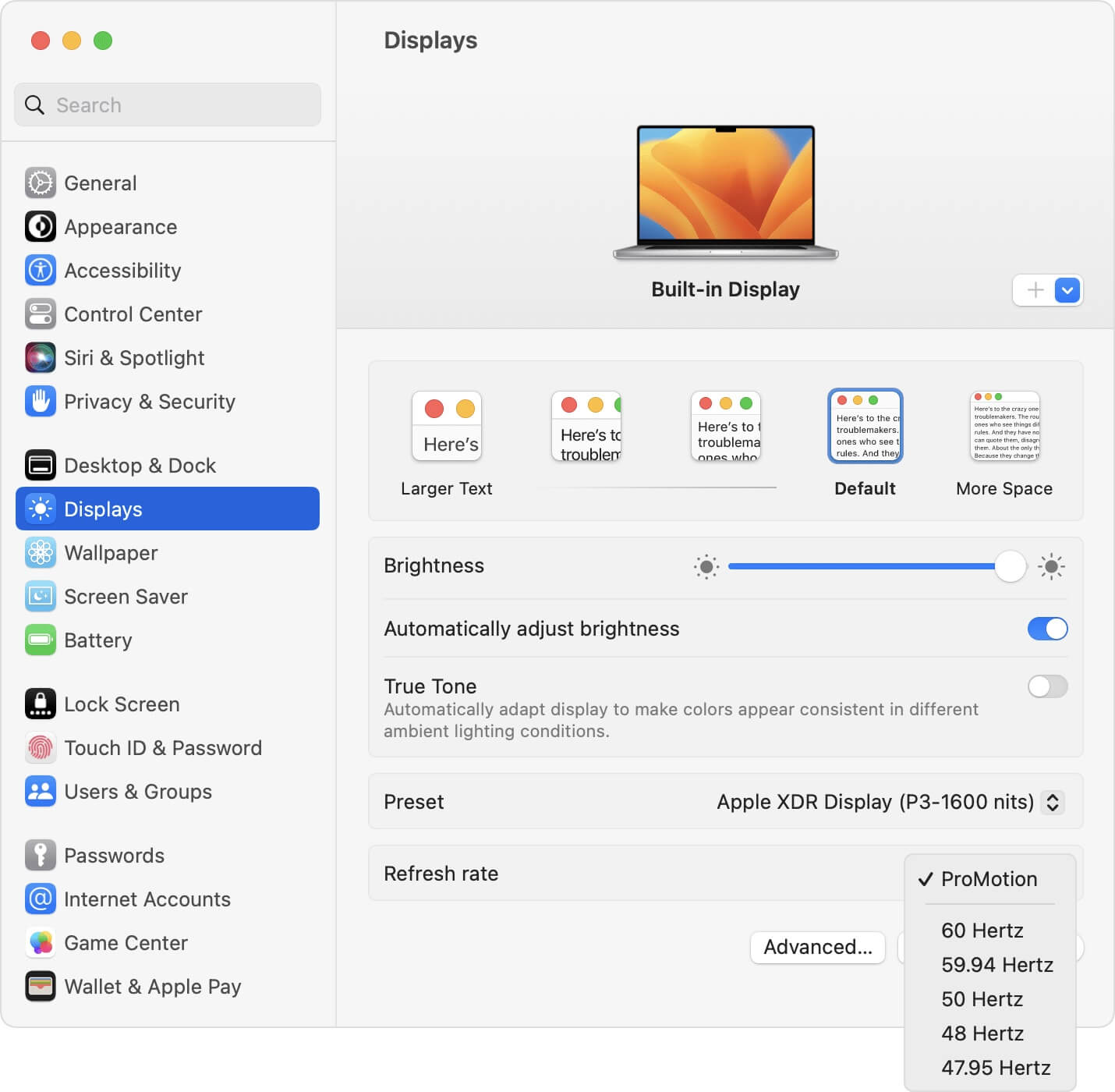
If your Mac supports ProMotion, you can also try disabling ProMotion to see if that resolves the issue.
Final Thoughts
After updating to macOS Tahoe, some Mac users may encounter issues where the screen saver does not work properly, especially when using Shared Album photos or video files.
Most of these problems can be fixed by:
• Downloading original photos from Shared Albums to your local photo library
• Adjusting the display refresh rate to match video frame rates
By following these steps, you should be able to restore your Mac screen saver functionality and enjoy photos or videos when your Mac is idle.
| More Related Articles | ||||
 |
1. How to merge two photo libraries on Mac? 2. How to find and remove duplicate photos from Photos? |
|||
About Fireebok Studio
Our article content is to provide solutions to solve the technical issue when we are using iPhone, macOS, WhatsApp and more. If you are interested in the content, you can subscribe to us. And We also develop some high quality applications to provide fully integrated solutions to handle more complex problems. They are free trials and you can access download center to download them at any time.
| Popular Articles & Tips You May Like | ||||
 |
 |
 |
||
| Five ways to recover lost iPhone data | How to reduce WhatsApp storage on iPhone | How to Clean up Your iOS and Boost Your Device's Performance | ||