After updating to macOS Tahoe, some Mac users have reported screen flickering issues. For many, the problem occurs on an external monitor, while others experience flickering on the built-in MacBook display, even without connecting an external screen.
Have you encountered Mac screen flickering after a macOS update? This issue can be caused by software bugs, graphics settings, display configurations, power management, or hardware connections. The good news is that most flickering problems can be fixed with a few simple troubleshooting steps.
In this guide, we’ll walk you through proven solutions to fix Mac screen flickering on macOS Tahoe.
1. Restart Your Mac
If screen flickering appears after waking from sleep or only occurs in specific apps, restarting your Mac should be the first step.
Restarting helps:
• Clear temporary system files
• Reset graphics and display processes
• Fix minor macOS glitches caused by the update
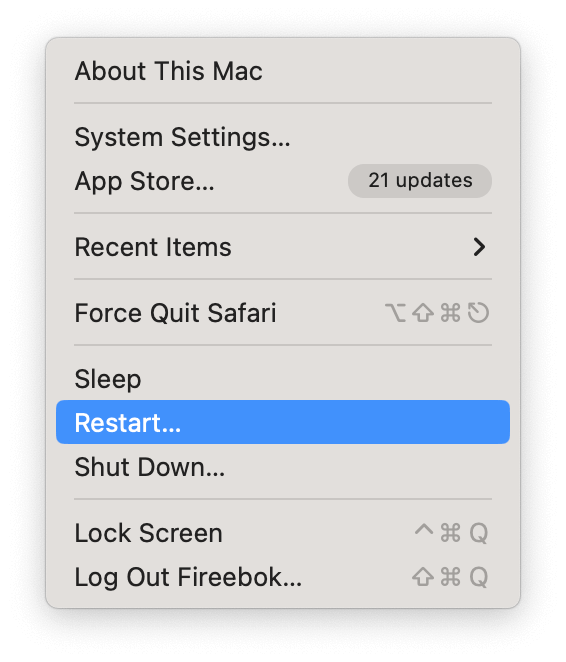
How to restart your Mac:
1. Click the Apple menu () -> Select Restart… ->Wait until your Mac fully shuts down and boots up again.
This simple step often resolves temporary macOS display issues.
2. Disable Automatic Graphics Switching (Intel-based Macs)
If you’re using an Intel-based MacBook with dual GPUs, screen flickering may occur when macOS switches between the integrated and dedicated graphics cards.
Disabling Automatic graphics switching can stabilize the display. Steps:
1. Open System Settings -> Go to Battery -> Turn off Automatic graphics switching.
This prevents GPU switching and can eliminate flickering on MacBook displays.
3. Change Display Refresh Rate and Resolution
Screen flickering is especially common when using external monitors with incompatible refresh rates or resolutions. Try manually adjusting the refresh rate. Steps:
1. Go to System Settings → Displays -> select your display -> Set the Refresh Rate manually (for example, 60Hz).
2. Avoid unsupported or unusual resolutions.
Using a stable refresh rate often fixes external monitor flickering on macOS Tahoe.
4. Reset Display Accessibility Settings
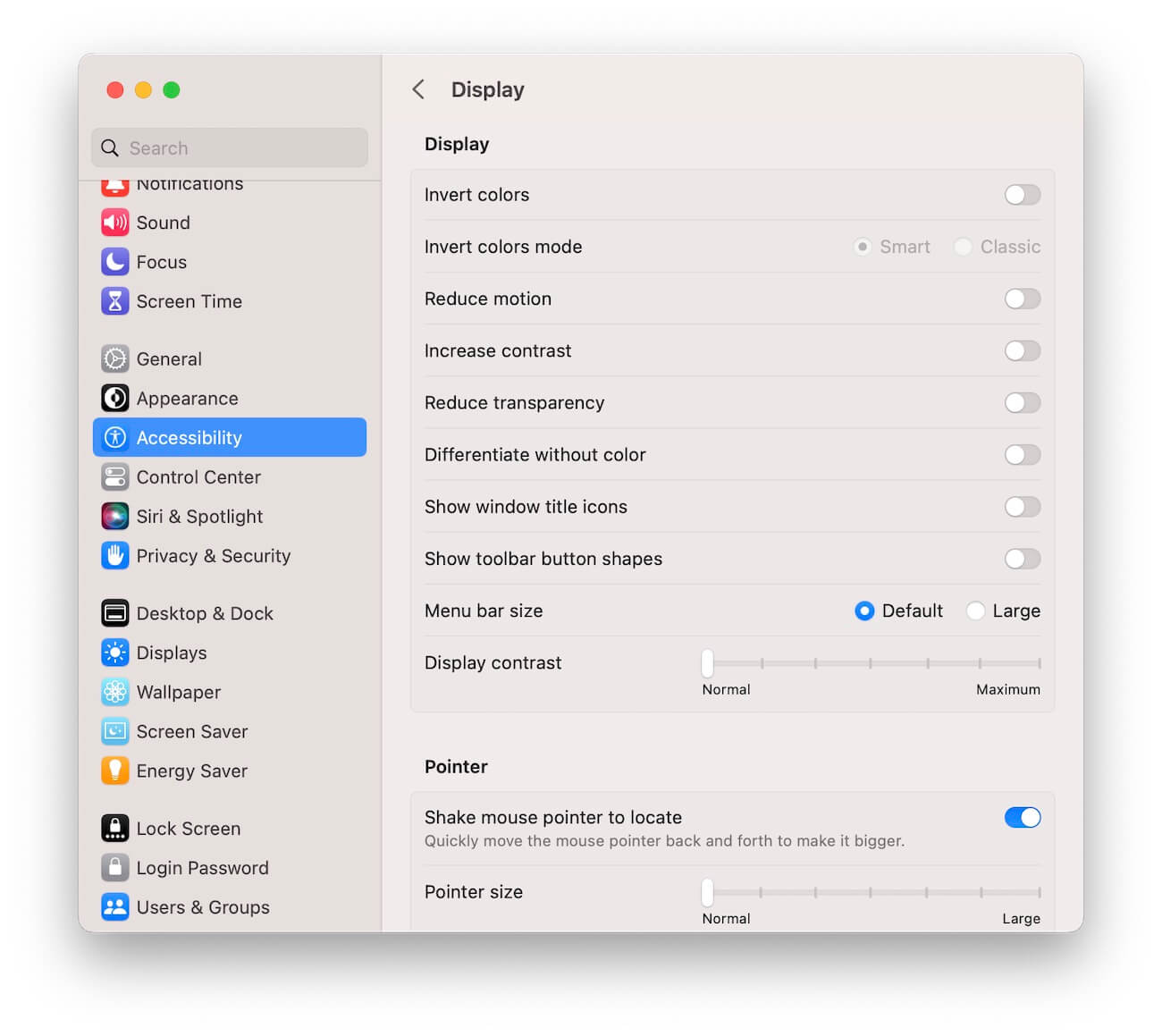
Certain Accessibility display settings, such as increased contrast or reduced transparency, may conflict with macOS graphics rendering. Resetting these options can help. Steps:
1. Open System Settings → Go to Accessibility → Display.
2. Disable: Increase Contrast, Reduce Transparency
3. Restore all display settings to default
This ensures macOS uses standard display effects without causing flicker.
5. Reset NVRAM / PRAM on Your Mac
NVRAM (or PRAM) stores important system settings, including display resolution and graphics preferences. Corrupted values after a macOS update can cause screen flickering. Steps:
How to restart your Mac:
1. Shut down your Mac. Turn it on and immediately press and hold: Command + Option + P + R
2. Release the keys when you see the Apple logo or hear the startup sound
After resetting, your Mac will reboot with refreshed display settings.

6. Replace or Upgrade Your External Monitor Cable
Low-quality or outdated cables are a common cause of Mac screen flickering, especially with high-resolution external displays. Tips:
• Use HDMI 2.0 or newer, or DisplayPort / USB-C cables
• Look for labels such as “Premium,” “Ultra,” or “48Gbps”
• Avoid cheap or bundled cables that may not meet Apple’s display standards
Replacing the external monitor cable often resolves flickering immediately.
Final Thoughts
Screen flickering after upgrading to macOS Tahoe can be frustrating, but in most cases, it’s caused by settings conflicts, graphics switching, or connection issues rather than serious hardware problems.
By following the steps above—restarting your Mac, adjusting display settings, resetting NVRAM, and using high-quality cables—you can quickly fix Mac screen flickering and restore a stable display experience. If the issue persists, Apple Support diagnostics may help determine whether a hardware repair is needed.
| More Related Articles | ||||
 |
1. How to merge two photo libraries on Mac? 2. How to find and remove duplicate photos from Photos? |
|||
About Fireebok Studio
Our article content is to provide solutions to solve the technical issue when we are using iPhone, macOS, WhatsApp and more. If you are interested in the content, you can subscribe to us. And We also develop some high quality applications to provide fully integrated solutions to handle more complex problems. They are free trials and you can access download center to download them at any time.
| Popular Articles & Tips You May Like | ||||
 |
 |
 |
||
| Five ways to recover lost iPhone data | How to reduce WhatsApp storage on iPhone | How to Clean up Your iOS and Boost Your Device's Performance | ||